.svg)
As an administrator, you can have full control over file locking:
-
Decide whether you want to give users the ability to lock a folder or a file
-
See a list of all locked files and folders system-wide
-
Remove a lock on user's file or folder
To learn more about managing locks, click on a subject:
Turn Off All File Locking
You can disable locking so that users are never given this option in the User Portal.
-
This is a system-wide setting
-
To release a lock on a single file or folder, see the topic for Releasing a Single Lock
To disable locking:
-
In the FileCloud admin portal's left navigation bar, scroll down and click Settings. Then, on the Settings navigation page, click Misc

By default, General settings are opened. -
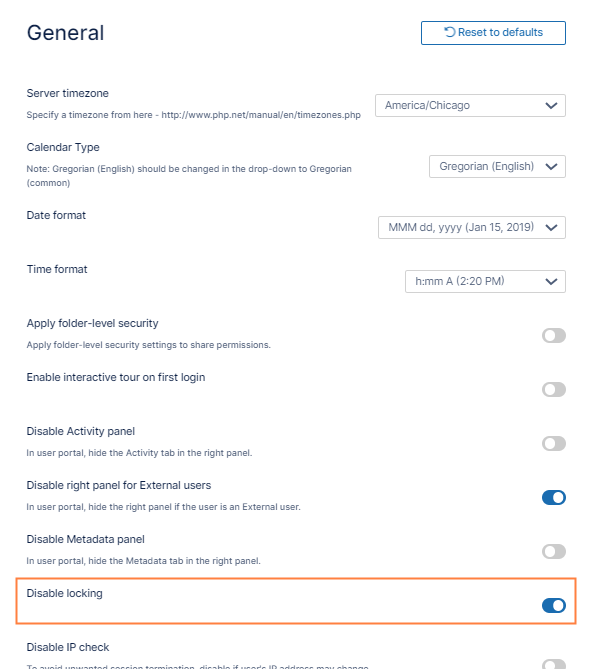
Locate the setting Disable locking, and enable it.
-
Click Save.
How to View Which Files or Folders are Locked
Viewing a list of files and folders that are currently locked by FileCloud users helps you to manage locks.
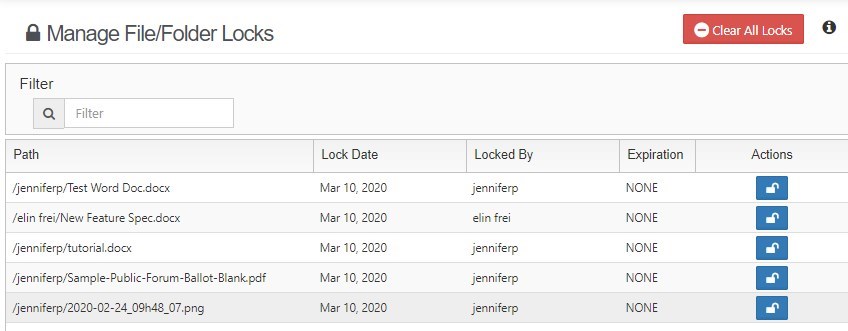
To view a list of locked files and folders:
-
Log on to admin portal.
-
From the left navigation pane, click User Locks.
-
On the Manage File/Folder Locks screen, view the list of all files and folders currently locked.
You can use the Filter entry box to limit the list. To view only the locked files and folders, type in a string of characters. Only the files and folders that match the string will be displayed. To clear the filter, delete the string of characters from this box.
For example:
-
You can filter the results by lock owner. To do this, type in the user account name.
-
You can see all files that are locked in a particular folder. To do this, type in the name of the folder.
Release a Single Lock
There are times when you may need to unlock a file for a user.
-
A user no longer has a FileCloud account but has left a file locked
-
A project folder can be used as a staging area that can be unlocked when the files are ready to be viewed
-
Another user needs access to the file and the lock owner cannot be reached
-
No one remembers why the file is locked
To release the lock on a single file or folder:
-
Log on to admin portal.
-
From the left navigation pane, click User Locks.
-
On the Manage File/Folder Locks screen, find the file or folder whose lock you want to remove.
-
In the row containing that file or folder name, under the Actions column, click the unlock button (

-
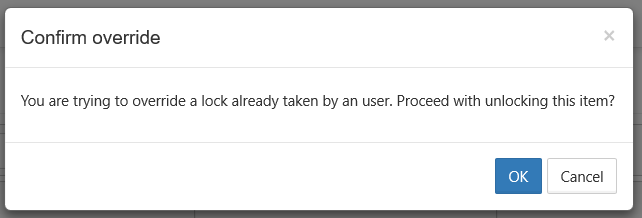
On the Confirm Override screen, click OK.
To release the lock on all locked files and folders:
-
Log on to admin portal.
-
From the left navigation pane, click User Locks.
-
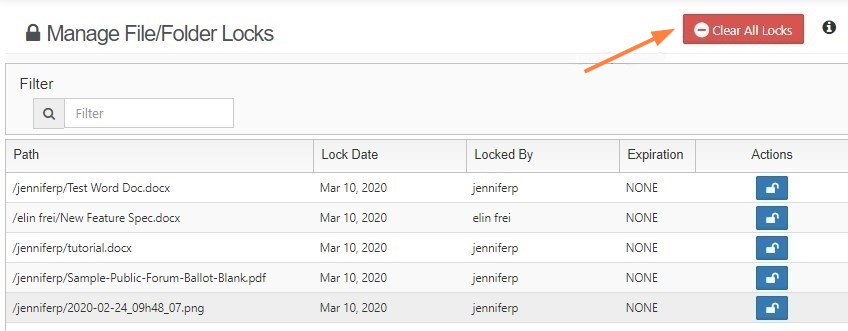
On the Manage File/Folder Locks screen, click Clear All Locks.
A confirmation dialog box opens. -
Click OK.