.svg)
A FileCloud Admin can manage User Groups.
Once a user group is created, the following operations can be performed:
-
Change group details
-
Delete a group
-
View and Change Group members
To add a group, see Group Settings.
Change a User Group Name
You can change any FileCloud group's name except for the Everyone and Externals groups.
To change a group's name:
-
Log on to admin portal.
-
In the navigation panel, click Groups.
-
Click the Edit icon for the desired group from the list of groups.
-
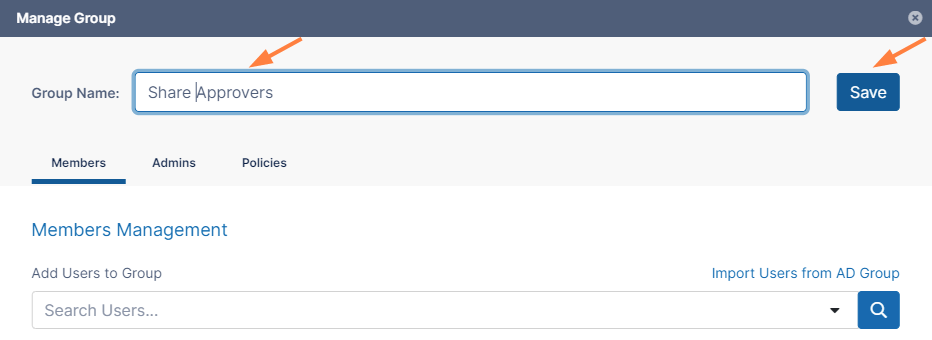
In the Manage Group dialog box, change the group name.
-
Click Save once the change is complete.
Delete a User Group
To delete a group:
-
Log on to the admin portal.
-
In the navigation panel, click Groups.
-
Click the Delete icon for a group to remove it from the list of groups.
-
Click Remove to confirm deletion.

Once a group is removed, network shares shared with that removed group will no longer be available to the former members of the group
View and Change Group Members
You can change the members in any FileCloud group except the EVERYONE and EXTERNALS groups.
To change a group's members:
-
In the navigation panel, click Groups.
-
Click the Edit icon for the group.
-
In the Members tab, view the members of the group.
-
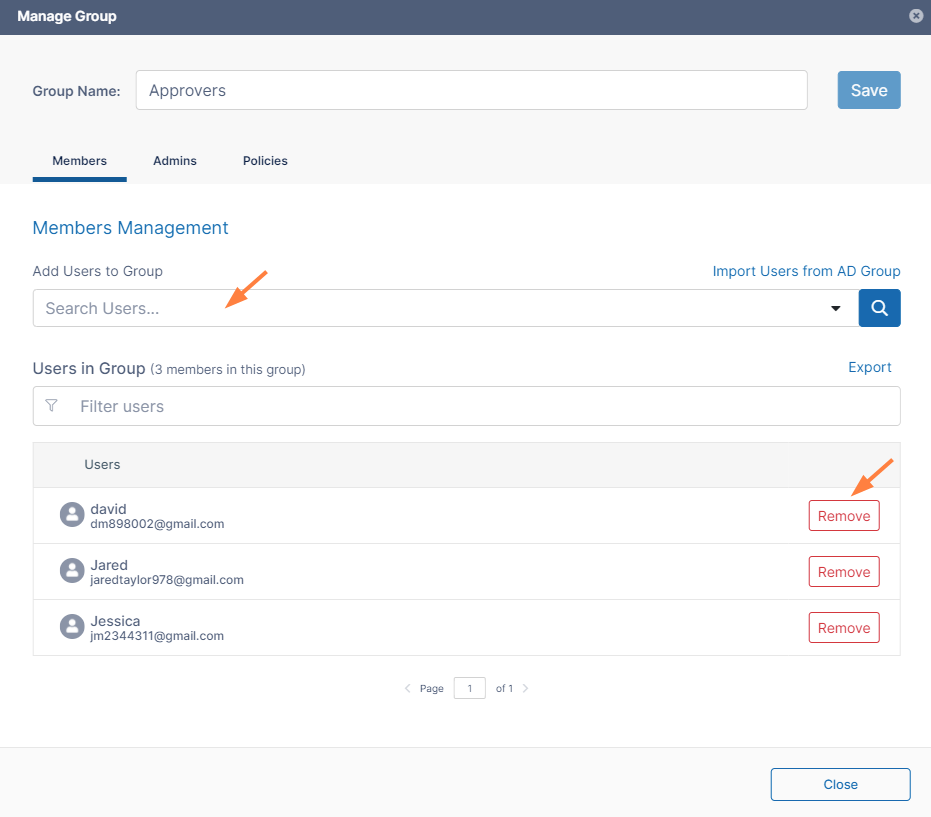
To add a member, enter an existing FileCloud user's name or email address in the search bar, and click Add.
-
To remove a user, click Remove next to the user's name.
Exporting a list of users in a group
To export a list of users in a group:
-
In the navigation pane, click Groups.
-
Click the Edit icon for a group.
-
In the Members tab of the Manage Group dialog box, click Export.
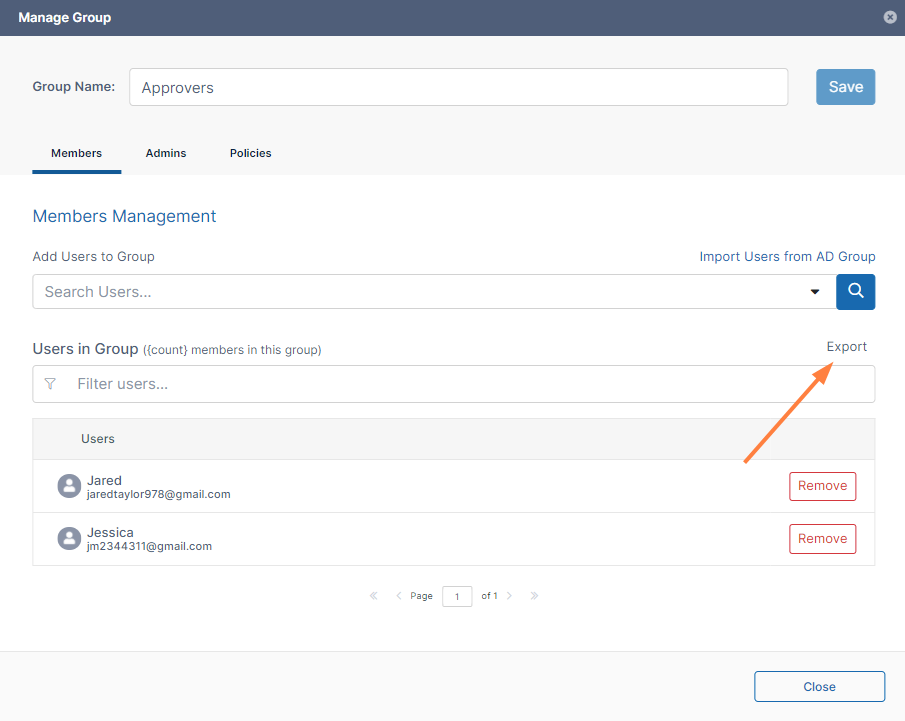
A csv file of users displaying the following fields is exported:

View and Change Group Admins
Group admins have the ability to add and/or remove users from the group. You can add, remove, and change the permissions of group admins in the Admins tab. A user's policy also may enable them to add and/or remove users from groups.
To modify group admin settings:
-
In the navigation panel, click Groups.
-
Click the Edit icon for the group.
-
In the Admins tab, view the admins of the group.
-
To add an admin, enter an existing FileCloud user's name or email address in the search bar, and click Add.
-
To remove an admin, click Remove next to the admin's name.
-
To change an admin's permissions, check or uncheck Can add users or Can remove users.
To import an AD group into a FileCloud group, see Group Settings
View and Change a Group's Policy
To change a group's policy:
-
In the navigation panel, click Groups.
-
Click the Edit icon for the group.
-
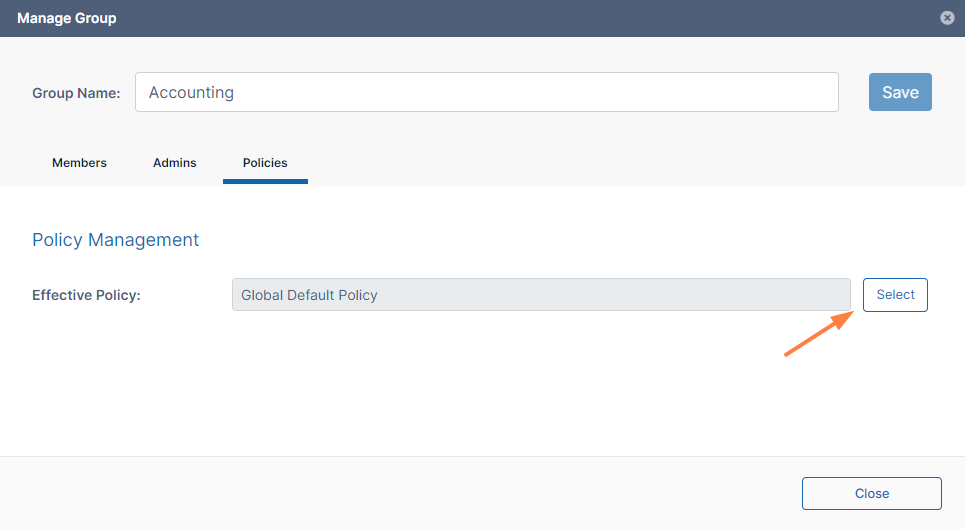
Click the Policies tab to view the group's policy.
-
To change the policy, click Select.
-
In the Group Policies dialog box, click a policy and click Select.
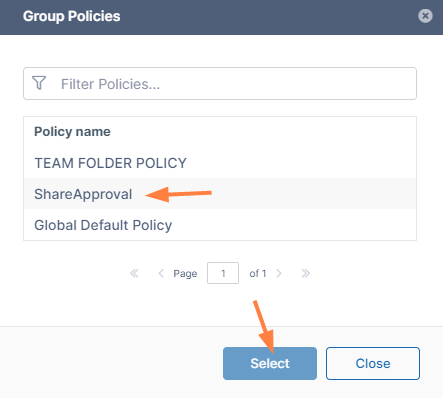
The policy is changed. -
Click Close.
View and Change an SSO-imported Group's Sync Options
Groups that are imported from SSO providers have an additional tab in the Manage Group dialog box with options for syncing FileCloud with the SSO provider.
To change an SSO-imported group's synchronization options:
-
In the navigation panel, click Groups.
-
Click the Edit icon for the group.
-
Click the Sync Options tab to view the group's sync options.
-
Change any of the sync options.
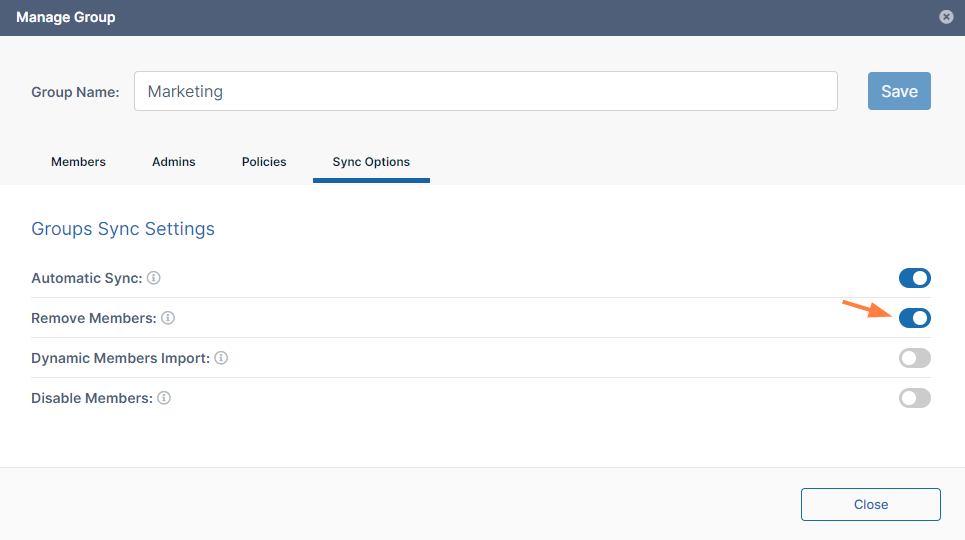
Their functions are as follows:
Automatic Sync
Enabled by default. FileCloud periodically imports new users from the group in the SSO provider to the group in FileCloud.
Remove Members
Disabled by default. The group and its permissions are imported without its users. When a member of the group logs into FileCloud for the first time, the member is automatically placed into the group.
Dynamic Members Import
Disabled by default. Users are automatically placed into the correct groups when they are imported.
Disable Members
Disabled by default. FileCloud users that are disabled in the SSO group are also disabled in the FileCloud group.
-
Click Close.