.svg)
As an administrator, you can configure how policies interact with file objects and each other in the following ways:
-
Using the Enabled Setting to apply a policy to all files or only to keep it on existing files
-
Using the Effective property to manage multiple policies attached to a single file or folder
Enabled Setting
Using the Enabled Setting, policies can interact with new and existing files differently.
This setting determines whether new files and folders that meet ANY of the policy conditions will have the policy assigned.
If enabled, the policy is assigned to files and folders
If not enabled, FileCloud will:
-
Stop applying the policy to new file objects
-
Keep the policy in place for file objects already attached
The Enabled Setting
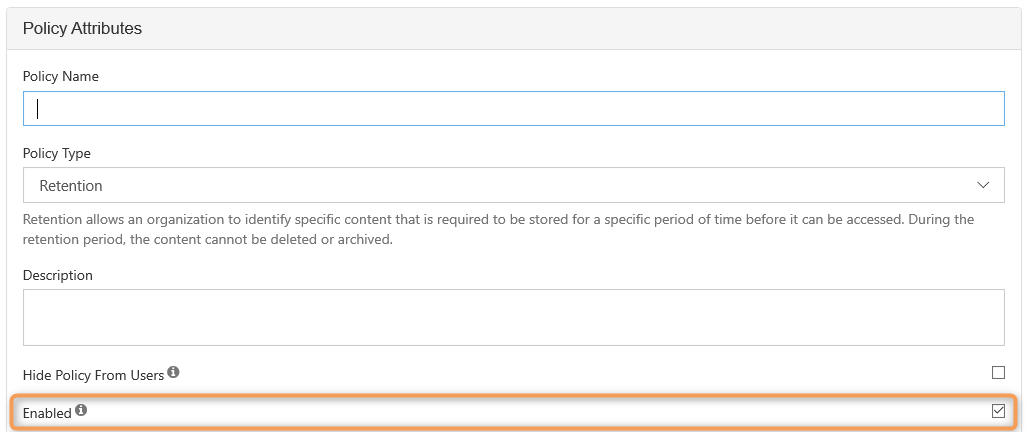
-
This option is available for all policy types
-
By default, it is selected
The Enabled setting does not stop any currently assigned policies from being in effect, it only stops the application of the policy to any new file objects (files and folders).
For example, The Cherry Road Brokerage company creates this folder structure in FileCloud Server:
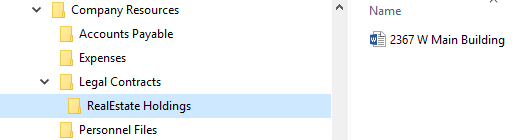
|
|---|
-
The administrator creates a retention policy to stop any file from being deleted in the RealEstate Holdings folder.
-
The file for 2367 W Main Building is added to the RealEstate Holdings folder, and the retention policy is applied to it.
-
Now, the administrator wants to allow any new files added to the RealEstate Holdings folder to be deleted.
-
The administrator edits the retention policy, and clears the checkbox for Enabled, thereby disabling the policy.
How does the original retention policy interact with files when DISABLED?
-
A new file called 98675 E Orchard Drive is added to the RealEstate Holdings folder, and the retention policy is NOT applied.
-
Since the new file, 98675 E Orchard Drive does not have the retention policy applied, it CAN be deleted.
-
However, the 2367 W Main Building file still has the policy applied and CANNOT be deleted.
How does the original retention policy interact with files when RE-ENABLED?
-
The administrator edits the retention policy, and selects the checkbox for Enabled, thereby re-enabling the policy.
-
FileCloud re-applies the policy to all files in the RealEstate Holdings folder.
-
The 2367 W Main Building file still has the policy applied and CANNOT be deleted.
-
The new file, 98675 E Orchard Drive now has the policy applied and CANNOT be deleted.
-
Now, another new file is added to the RealEstate Holdings folder for 3654 S Blossom Road, and the policy is applied and the file CANNOT be deleted.
To determine if a specific file has a policy applied to it:
|
In the USER Portal |
In the ADMIN Portal |
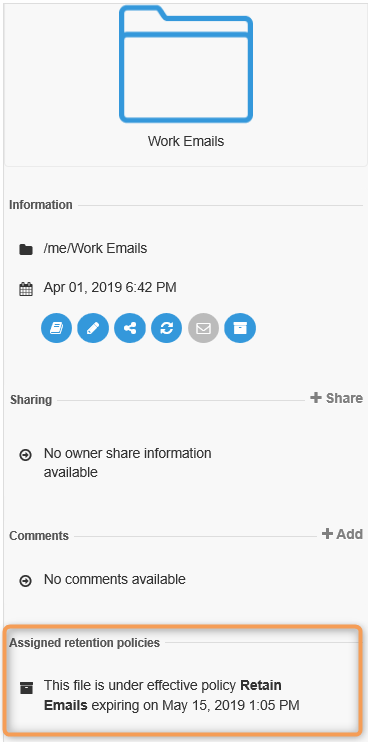
|
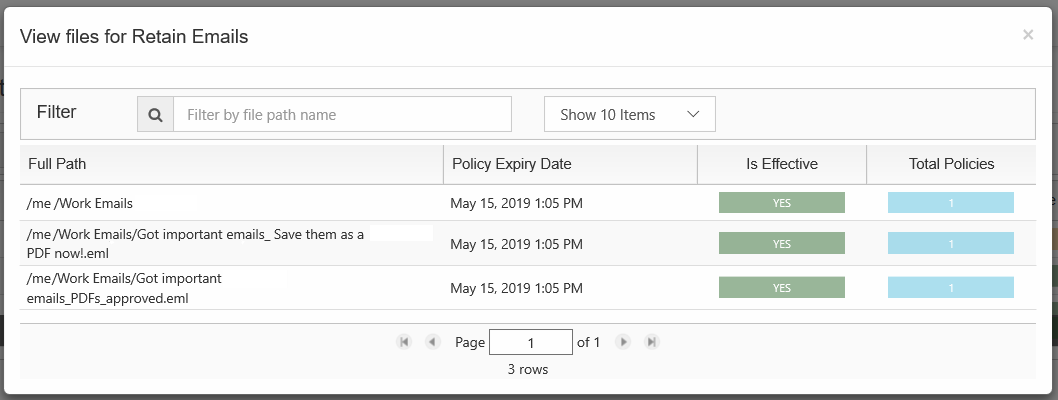
When using the Admin portal, you will need to know the name of the policy that the file belongs to. Then you can view all files for the policy to check if it is attached. |
|
|
|


Effective Property
You can attach multiple policies to a single file or folder, however, only one policy will be in effect at a time. You can tell which policy is active by the Effective label.