.svg)
As an administrator you can roll out a mass deployment of settings for all the client apps across the enterprise.
Notes:
-
Mass deployment requires that default configurations be added to the Windows registry.
-
These defaults are used by the apps when initially starting up and don't have any effect if they are changed after the apps are initialized.
-
Please ensure before adding a value that it is not already present in the "syncclientconfig.xml" before testing. Otherwise, the mass deployment configuration values will not be used.
The following table lists the supported default configuration parameters.
Table 1. Supported Parameters
|
Parameter |
Type |
Notes |
Sync |
Windows Drive |
Mac Drive |
Office Add-On |
Outlook Add-On |
|---|---|---|---|---|---|---|---|
|
url |
String |
The server URL. example: https://files.xyz.com |
YES |
YES |
YES |
YES |
YES |
|
profile |
String |
User name to use to login. example: john or john@company.com You can use the current OS user as the username by specifying ${USER} |
YES |
YES |
YES |
YES |
YES |
|
checkupdates |
String |
'0' to disable, '1' to enable |
YES |
YES |
YES |
NO |
NO |
|
httpproxyenabled |
String |
'0' to disable, '1' to enable |
NO |
YES |
YES |
NO |
NO |
|
httpproxyhost |
String |
Proxy Hostname to use for connection |
YES |
YES |
YES |
YES |
YES |
|
httpproxyport |
String |
Proxy Port to use for connection |
YES |
YES |
YES |
YES |
YES |
|
httpproxyuser |
String |
Proxy User Authentication name to use |
YES |
YES |
YES |
YES |
YES |
|
httpproxypassword |
String |
Proxy User Authentication password to use |
YES |
YES |
YES |
YES |
YES |
|
ssllevel |
String |
Special directive to allow apps to connect to TLS-only servers. Possible usages are CLIENT_USE, TLSV1_1_CLIENT_USE, TLSV1_2_CLIENT_USE, TLSV1_3_CLIENT_USE |
YES |
YES |
YES |
NO |
NO |
|
officehelperdisabled |
String |
FileCloud for Office (FFO/DocIQ) integration |
YES |
NO |
NO |
NO |
NO |
|
officehelperlockonedit |
String |
Automatic locking in FileCloud for Office (FFO/DocIQ) |
YES |
NO |
NO |
NO |
NO |
|
syncfolderlocation |
String |
Path to use for the sync folder location. DEFAULT - use the default location
|
YES |
NO |
NO |
NO |
NO |
|
syncclientlocation |
String |
Path to use for the sync folder data and cache location. DEFAULT - use the default location
|
YES |
PasNO |
NO |
NO |
NO |
|
removeunshared |
String |
Directive to require sync to delete shared folders from local device if they are no longer shared for synching "0" - Default, does not remove unshared folders "1" - Removes shared folders from local when they are no longer shared from the server |
YES |
NO |
NO |
NO |
NO |
|
authmode |
String |
Directive to use password authentication, SSO, or device code authentication for log in to Sync.
"sso" - SSO authentication "devauth" - Device code authentication |
YES |
NO |
NO |
NO |
NO |
|
drivecachelocation |
String |
Path to use for drive cache DEFAULT - use the default location
|
NO |
YES |
NO |
NO |
NO |
|
enableshortcachepath |
String |
Whether to use a short path made up of random digits or to use "DOMAIN@USERNAME" for the folder in the cache. Use this option to avoid exceeding the maximum path length.
|
NO |
YES |
YES |
NO |
NO |
|
drivedefaultstorageingb |
String |
The value in GB of the default user quota setting |
NO |
YES |
YES |
NO |
NO |
|
drivemountpoint |
String |
Mount point to override Can be empty or it must be a drive letter with ":" like "F:" |
NO |
YES |
NO |
NO |
NO |
|
sslverify |
String |
Directive to disable strict checking of SSL cerificates. If this key is not provied, the default is strict verification VERIFY_NONE: disable SSL Verification checking VERIFY_STRICT: enables strict SSL Verification checking |
YES |
YES |
YES |
YES |
YES |
|
driveloginmode |
String |
Directive to use password authentication or device code authentication "0" - Password authentication "1" - Device Code authentication "2" - SSO authentication |
NO |
YES |
YES |
NO |
NO |
|
drivelockonupdate |
String |
Directive to lock file when opened for modification "0" - No lock while editing "1" - Auto Lock while editing |
NO |
YES |
YES |
NO |
NO |
|
drivemutemessages |
String |
Show or hide automatic information messages from drive "0" - Do not mute messages "1" - Mute messages |
NO |
YES |
YES |
NO |
NO |
|
officehelperdisabled |
String |
Whether to disable FileCloud for Office (FFO/DocIQ) "0" - Do not disable FileCloud for Office (FFO/DocIQ) "1" - Disable FileCloud for Office (FFO/DocIQ) |
NO |
YES |
YES |
NO |
NO |
|
showdashboardonstartup |
String |
Whether to show the dashboard on startup "0" - Do not display dashboard on startup "1" (default) Display dashboard on startup |
NO |
YES |
YES |
NO |
NO |
|
driveopenexploreronstartup |
String |
Automatically launch explorer on startup of drive "0" - Do not start explorer on startup "1" - Launch explorer on startup |
NO |
YES |
YES |
NO |
NO |
|
useuniquemountlabel |
String |
When enabled, sets mount label to a unique value (by adding the user name to the label).
"1" - Set mount label to unique value (add user name to the label) |
NO |
YES |
NO |
NO |
NO |
|
allowthumbsdbupload |
String |
Whether to upload of thumbs.db files. "0" - (default) Do not upload of thumbs.db files. "1" = Upload thumbs.db files |
NO |
YES |
NO |
NO |
NO |
|
disableautologin |
String |
Whether to prevent Drive from remembering the password and automatically logging in. "0" - (default) Allow auto-login "1" - disable auto-login |
NO |
YES |
YES |
NO |
NO |
|
multimount |
String |
Allow multiple FileCloud Drive sessions to run on the same computer (and allow mounting of different cloud locations simultaneously.
"1" - Allow multiple instances to run. |
NO |
YES |
NO |
NO |
NO |
|
currentlanguage |
String |
The default language of FileCloud Drive. The value is English by default.
|
NO |
YES |
YES |
NO |
NO |
|
language |
String |
The default language of FileCloud Sync. The value is English by default.
Supported values are English, Dutch, French, Spanish, Portuguese, German, Italian, Arabic, and Russian. |
YES |
NO |
NO |
NO |
NO |
|
cachevalidationseconds |
String |
Interval in seconds between checks for changes in values stored in cache. Default, recommended value is 60. |
NO |
YES |
YES |
NO |
NO |
|
autolocktypes |
String |
Lists file types that are exempt from download limits.
|
NO |
YES |
YES |
NO |
NO |
|
disablerecovering |
String |
By default, files are copied to the recovered folder before they are uploaded to Drive and deleted after upload succeeds. You may change the setting to copy the files to the recovered folder only after upload to Drive is attempted and fails. "0" - (default) Files are copied to recovered folder before upload occurs. "1" - Files are copied to recovered folder after upload is attempted if upload fails. |
NO |
YES |
YES |
NO |
NO |
|
disableprecaching |
String |
By default, when Drive starts up, the file/folder directory is retrieved from the server so that it is immediately available to Drive users. You may change the setting so that the file/folder directory is retrieved when the user begins navigating the folders to reduce the load on the server after startup; in this case, initially navigating the folders may be slower.
"1" - File/folder directory is retrieved when a user starts navigating the folders. |
NO |
YES |
YES |
NO |
NO |
|
lockexpirationinmin |
String |
Value, in minutes, that a lock on a file is maintained before it expires. Default and minimum is 10; if value is set below 10, expiration time still occurs in 10 minutes. |
NO |
YES |
YES |
NO |
NO |
|
disablelockexpiration |
String |
Whether or not to enable expiring of locks. By default, locks on files expire after 10 minutes or the time set in lockexpirationinmin.
"1" - Do not use expiration times on locks. Locks expire on files when users close them. |
NO |
YES |
YES |
NO |
NO |
|
enablethumbnailpreview |
String |
Whether or not to display thumbnails and previews of listed files. "0" - (default) Do not display thumbnails and previews (this reduces network traffic since files are downloaded when thumbnails and previews are generated) "1" - Display thumbnails and previews. |
NO |
NO |
YES |
NO |
NO |
|
maxdownloadsizeinmb |
String |
Default single file download limit in MB. 0 - No limit Other options can be 10,30,50, 100 |
NO |
YES |
YES |
NO |
NO |
|
allowcentralmgmt |
String |
Allow central management 0 - No Central Management 1- Allow Central Management |
YES |
NO |
NO |
NO |
NO |
|
globalbwforupload |
String |
Specifies the bandwidth limit when uploading files from the client to the server in terms of KB only. |
YES |
NO |
NO |
NO |
NO |
|
globalbwfordownload |
String |
Specifies the bandwidth limit when downloading files from the server to the client in terms of KB only. |
YES |
NO |
NO |
NO |
NO |
|
altbwforupload |
String |
Specifies that alternative settings should be used instead of the global bandwidth limit when uploading files from the client to the server in terms of KB only. |
YES |
NO |
NO |
NO |
NO |
|
altbwfordownload |
String |
Specifies that alternative settings should be used instead of the global bandwidth limit when downloading files from the server to the client in terms of KB only. |
YES |
NO |
NO |
NO |
NO |
|
altbwfromtime |
String |
Specifies the starting time when the alternative settings should be used instead of the global bandwidth limit. |
YES |
NO |
NO |
NO |
NO |
|
altbwtotime |
String |
Specifies the ending time when the alternative settings should be used instead of the global bandwidth limit. Time must be expressed in the format HH:MM:SS |
YES |
NO |
NO |
NO |
NO |
|
altbwschedule_dayofweek |
String |
Specifies the days of the week when the alternative settings should be used instead of the global bandwidth limit. This value can be any number such as: {-1, 0, 1, 2, 3, 4, 5, 6} where:
|
YES |
NO |
NO |
NO |
NO |
|
timeactivecontrolsset |
Enables/Disables the Active Sync Hours settings 1 = enabled 0 = disabled |
<timeactivecontrolsset>1</timeactivecontrolsset> |
YES |
NO |
NO |
NO |
NO |
|
activesync_daysofweek |
Specifies the days of the week when a client can run the Sync app Any number {-1, 0, 1, 2, 3, 4, 5, 6} where:
|
<activesync_daysofweek>5</activesync_daysofweek> |
YES |
NO |
NO |
NO |
NO |
|
activesync_timeofday |
Specifies the times during the days of the week when a client can run the Sync app Use the format HH:MM:SS-HH:MM:SS |
<activesync_timeofday>8:00:00-20:00:00</activesync_timeofday> |
YES |
NO |
NO |
NO |
NO |
FAQs
In Windows, where is the default configuration located?
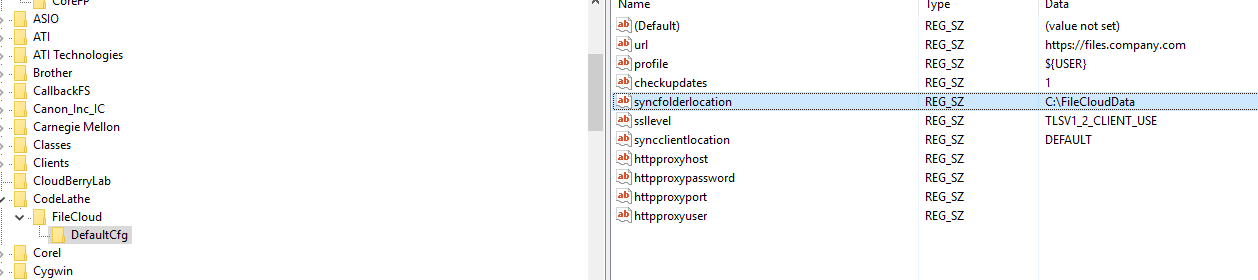
The location of the default configuration is in the Windows Registry.
An example configuration is shown below.
Note: The registry key (HKEY_LOCAL_MACHINE\SOFTWARE\CodeLathe\FileCloud\DefaultCfg) must be created manually, including the default values.
HKEY_LOCAL_MACHINE\SOFTWARE\CodeLathe\FileCloud\DefaultCfg
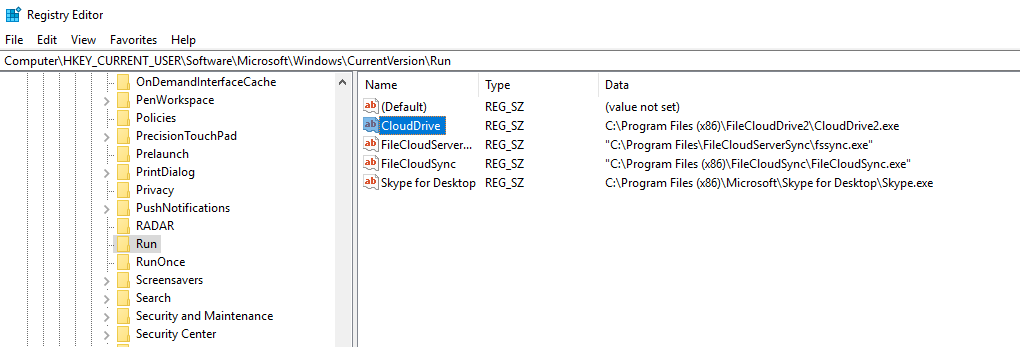
How to setup Run on Windows Startup for MSI installation for Drive?
HKEY_CURRENT_USER\Software\Microsoft\Windows\CurrentVersion\Run
In Mac OSX, where is the default configuration located?
The location of the default configuration is a plist file in
~/Library/Preferences/com.codelathe.filecloud.defaultcfg.plist
Example plist
<?xml version="1.0" encoding="UTF-8"?>
<!DOCTYPE plist PUBLIC "-//Apple//DTD PLIST 1.0//EN" "http://www.apple.com/DTDs/PropertyList-1.0.dtd">
<plist version="1.0">
<dict>
<key>url</key>
<string>https://mysite.company.com</string>
<key>profile</key>
<string>jsmith</string>
<key>maxdownloadsizeinmb</key>
<string>0</string>
<key>drivelockonupdate</key>
<string>1</string>
<key>drivemutemessages</key>
<string>1</string>
<key>driveopenexploreronstartup</key>
<string>1</string>
<key>driveloginmode</key>
<string>1</string>
<key>checkupdates</key>
<string>0</string>
</dict>
</plist>