Breadcrumbs

Linux: Upgrading Versions <23.242 to the Latest Version

If you are upgrading from version 23.241 or earlier use the following upgrade notes.

The current version of FileCloud runs FIPS mode using FIPS 140-3, which does not support encrypted managed storage on RHEL9. If you are planning to use FileCloud on RHEL9 in FIPS mode, please Contact FileCloud Support .

If you are running FileCloud in a high availability environment, to upgrade to the latest version, please Contact FileCloud Support.

FileCloud Support can help you upgrade or can provide a PDF with instructions if you would like to perform the upgrade without assistance.


Pre-upgrade

Instructions for systems with managed storage encryption enabled

Instructions for systems with managed storage encryption enabled

If you have enabled managed store encryption, and you have not yet changed your encryption from RC4 to AES256:

You must change your storage encryption from RC4, which has been deprecated, to AES-256 prior to FileCloud upgrade. Your file key, a 183-character string used as a password for storage encryption, is stored in encrypted form in the FileCloud database. To change your file key encryption from RC4 to AES-256, use the following pre-upgrade instructions. 

If you are not using managed storage encryption, you do not have to perform this process. 


To change your storage encryption from RC4 to AES-256:

To view the correct version of the admin portal in the following procedure, either empty your browser cache or view in incognito mode. 
To empty your browser cache, go to development mode, click refresh, and then choose Empty cache and hard reload.

If your system is running in Linux and you are migrating to a new FileCloud server from FileCloud 22.1, go to the section Migrating FileCloud 22.1 with local encryption storage to Ubuntu 22.04 and RHEL 9, below.

  1. If you are running FileCloud versions 22.1 through 23.232.x, skip this step, and go to step 2.
    If you are running a version of FileCloud less than 22.1:

    1. Upgrade FileCloud to 23.232.1.

    2. Activate encrypted storage for your site (or each of your sites) by providing a password or recovery key.
      For help activating encrypted storage, see: Activating Password Protected Storage Encryption - FileCloud Docs - Server.
      To learn more about setting up encryption in FileCloud see Setting up Managed Storage Encryption - FileCloud Docs - Server.

  2. (Begin here for FileCloud Versions 22.1 through 23.232.x)
    Ensure that encrypted storage is activated for your site (or each site you are running in a multitenant environment) by confirming that Memcache is running on your FileCloud server and that each of your sites has the raw file key stored in the Memcache service.

  3. Ensure that any other FileCloud services you use are running.

  4. Take a snapshot of your production server before running the pre-upgrade tool.
    If possible, further safeguard your data by initially performing this pre-upgrade in a staging environment.

  5. Run the pre-upgrade tool:

    • For Linux systems:
      Download the latest version of filecloudcp by running this command:

      curl --location 'repo.filecloudlabs.com/static/fcp/filecloudcp' -o /usr/bin/filecloudcp	
      

      Set the correct permissions for the file by running:

      chmod 755 /usr/bin/filecloudcp
      

      Start the pre-upgrade tool by running:

      filecloudcp –fpm
      
  6.  When the pre-upgrade is successfully completed, manually activate storage encryption for your site (or each of your sites in a multi-tenant environment).

    1. During this step, you may optionally enter a new encryption password to encrypt the RAW key stored in AES-256 instead of RC4 (however, the same password may be used).


Troubleshooting encryption pre-upgrades 

PROBLEM:
The pre-upgrade tool returns a STOP result.
This may happen when the Memcache service is turned off or if a site with encrypted storage is inactive, and potentially leads to loss of the raw file key from Memcache and deactivation of encrypted storage.
SOLUTION:
Run the Memcache service to ensure that storage encryption is activated, then run the pre-upgrade tool again.

PROBLEM:
Wrong File Key for Multi-Tenant Environments. For multi-tenant environments, the pre-upgrade tool might retrieve the wrong File Key for sites, leading to data loss.
SOLUTION:
Ensure storage encryption is activated by running the Memcache service. If the wrong File Key is retrieved for multi-tenant environments, decrypt the data, disable encryption, perform the upgrade, and then re-enable encryption.  

PROBLEM:
One inactive website with encrypted storage blocks upgrades on all other websites.
SOLUTION:
Decrypt and disable encryption, then perform a site database backup, and remove the unused site.

PROBLEM: 
Service Provider Licensing Agreement (SPLA) admin lacks options to enable inactive encrypted storage.
SOLUTION:
Ensure you have access to the storage system in SPLA admin settings.


Migrating FileCloud 22.1 with managed storage and encryption enabled to Ubuntu 22.04 or RHEL 9 

Follow one of the options to migrate FileCloud 22.1 to an updated operating system and to upgrade it to the current version.

Option 1: For customers running with or without FIPS mode: (recommended option): 
Note: Customers who are using encrypted Managed Storage and running FileCloud on RHEL9 in FIPS-enabled mode should not upgrade to FileCloud versions 23.242 and 23.251. 

  1. Decrypt the files in FileCloud 22.1

  2. Install one of the supported operating systems (Ubuntu 22.04 or RHEL 9).

  3. Install FileCloud on Linux on the newly installed operating system.

  4. Migrate FileCloud to the newly installed operating system.

  5. Encrypt the data in FileCloud.

Option 2: For customers running without FIPS mode:
This method does not require decryption.

  1. Perform a FileCloud upgrade to FileCloud 23.232.1, which requires OS upgrades to Ubuntu 22.04 or RHEL 9.x. For this procedure, please Contact FileCloud Support

  2. Follow the upgrade instructions on page Upgrade FileCloud on Linux
    Please note that FileCloud Support cannot resolve OS upgrade problems. 

  3. Use the pre-upgrade instructions to upgrade from 23.232.1 to 23.241 or later starting with Step 2. (Begin here for FileCloud Versions 22.1 through 23.232.x).

If you are upgrading to the latest version and you are using custom API services

If you are upgrading to the latest version and you are using custom API services

If you are using custom API services, the services may be logged out after the session timeout time (15 minutes by default). To prevent this from happening, in your custom API code, in requests to the FileCloud API, change your user-agent header to contain the string "FileCloud API". This is a one-time change only required when you upgrade from a version prior to 23.242 to the latest version.
Examples:
In PHP script, change:

// Set the custom User-Agent header
curl_setopt($ch, CURLOPT_HTTPHEADER, [
    "User-Agent: CustomUserAgent/1.0"
]);

to:

// Set the custom User-Agent header
curl_setopt($ch, CURLOPT_HTTPHEADER, [
    "User-Agent: FileCloud API"
]);


In CLI, change:

curl -X GET https://filecloud-domain.com/core/getfilelist -H "User-Agent: CustomUserAgent/1.0"

to:

curl -X GET https://filecloud-domain.com/core/getfilelist -H "User-Agent: FileCloud API"


Upgrading systems that use ServerLink

To upgrade systems running ServerLink, the following steps should be taken:

  1. Before upgrade, ensure all ServerLink nodes are fully synced and are at the same state.

  2. Make backups of all nodes as needed.

  3. Stop the FileCloud ServerLink client service in secondary nodes.

  4. Upgrade the primary node first.

  5. Upgrade each secondary node after upgrading the primary node.

  6. Start the FileCloud ServerLink client service in secondary nodes. (In HA setups, client service must run only in one of the servers from each secondary node.)

Note: All connected ServerLink nodes, both primary and secondary, must be upgraded to the same ServerLink version before enabling access to the site again.

Correcting the AD mail attribute

Correcting the AD mail attribute

Prior to version 23.241, FileCloud always used the AD attribute mail to authenticate AD users, even if the AD mail attribute field in FileCloud specified a different attribute.

This has been fixed. However, if you used an AD attribute other than mail prior to the current version, AD users imported into FileCloud prior to the current version will now receive an error when they try to log in to FileCloud (unless the non-mail attribute always has the same value as the mail attribute). If you have users who may have trouble logging in for this reason, prior to updating, change the AD mail attribute field back to mail.

Upgrade instructions

Upgrading FileCloud from 23.232.x to the latest version

To upgrade FileCloud from 23.232.x to the latest version in Linux see Upgrade FileCloud on Linux .

Upgrading FileCloud from 22.1 to Ubuntu 22.04 and RHEL 9

You can either re-install FileCloud or upgrade both FileCloud and your operating system.

Option 1:  Install one of the supported operating systems, then Install the latest version of FileCloud on the newly installed operating system, and then migrate FileCloud to the newly installed operating system. This is the recommended option. 

Option 2:   Perform a FileCloud upgrade which requires OS upgrades to Ubuntu 22.04 or RHEL 9.x, For this procedure, please Contact FileCloud Support
Please note that FileCloud Support cannot resolve OS upgrade problems. 

Upgrading FileCloud from versions lower than 22.1

If you are upgrading from a version of FileCloud lower than 22.1 or from an operating system below Ubuntu 22.04 LTS or RHEL 9, please install one of the supported operating systems, then Install the latest version of FileCloud on the newly installed operating system, and then migrate FileCloud to the newly installed operating system.


Post Upgrade

  1. If you are running in a high availability or multi-server environment manually set the MongoDB feature compatibility version to version 7. Use the instructions at https://www.mongodb.com/docs/manual/reference/command/setFeatureCompatibilityVersion/ or contact FileCloud support.

  2. Beginning with version 23.252, a new group, Externals, automatically includes all External users, and the Everyone group does not include External users. External users who were include in the Everyone group in earlier versions of FileCloud are no longer included in it.

    The Externals group functions to prevent External users from having the same share, folder, and policy access as users in the Everyone group. 

    Previously created DLP rules that denied access to the Everyone group will now deny access to both the Everyone and Externals groups. Previously created DLP rules that allowed access to the Everyone group will continue to allow access to the Everyone group and not to the Externals group.

    If your use cases require that external users have the same access to files and folders as other users, you can give the Externals group the same permissions as the Everyone group by running the tool assignexternalsgroup.php.  See Assign the Externals Group the Same File Access as the Everyone Group for help.

  3. Beginning in FileCloud 23.253, by default, a more granular dynamic content security policy replaces the existing content security policy in the .htaccess file. If you are upgrading, to make this change effective, you must make a small change to the Content-Security-Policy header in the .htaccess file:

    • Open the .htaccess file.

      in Windows:
      C:\xampp\htdocs\.htaccess

      in Linux:
      /var/www/html/.htaccess

    • Find the line that begins:
      Header set Content-Security-Policy:

    • Change set to setifempty:
      Header setifempty Content-Security-Policy:
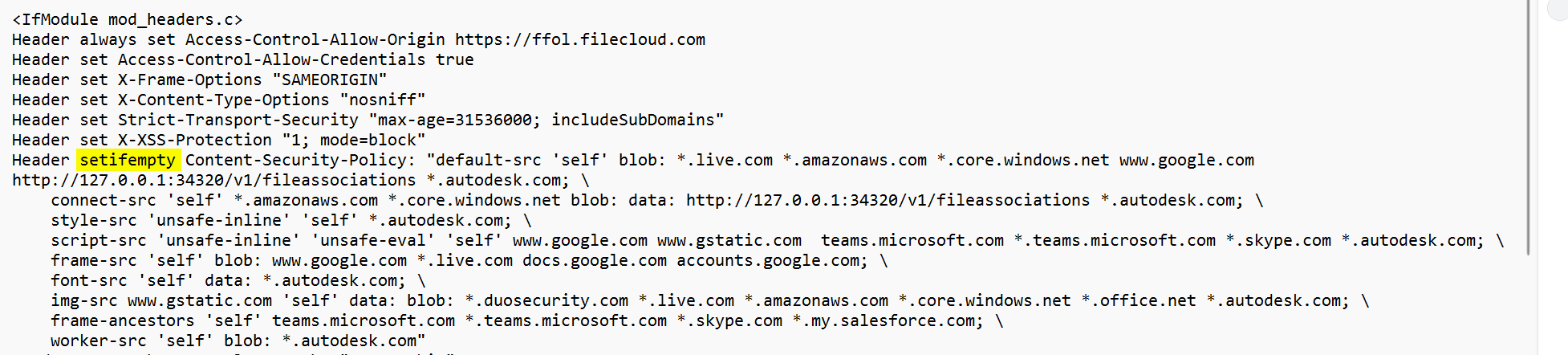
      setIfEmpty.png
  4. If you are upgrading FileCloud from a version below 23.241 and your system uses SSO, follow the instructions below in Linux: Upgrading Versions <23.242 to the Latest Version | Configuring SSO after updating from a version older than 23.241
    This is necessary because Version 23.241.x of FileCloud dropped support for Shibboleth 1.3 and SAML 1.1, and updated SimpleSAML to version 2.x.

  5. If you plan to update to the new FileCloud Outlook Add-in, follow the instructions below inLinux: Upgrading Versions <23.242 to the Latest Version | Upgrade instructions for the FileCloud 23.242 Outlook Add in

  6. If you are upgrading from a version prior to 23.1 or upgrading on a system running with MongoDB replica set or standalone MongoDB follow the instructions below in Linux: Upgrading Versions <23.242 to the Latest Version | FC Push Service Configuration .

Configuring SSO after updating from a version older than 23.241

Configuring SSO after updating from a version older than 23.241

SimpleSAML update

Version 23.241.x of FileCloud has updated SimpleSAML to version 2.x. If your FileCloud build uses SSO, please take the following steps to replace your old configuration files with new ones; otherwise, SSO will not work correctly in your system.

  1. Go to your SimpleSAML config directory.
    Linux: /var/www/html/thirdparty/simplesaml/config

  2. Rename:
    config.php to config.php.bak
    authsources.php to authsources.php.bak

  3. Then rename:
    config.php-[date] to config.php
    authsources.php-[date] to authsources.php

  4. Copy any modifications you made to the original config.php (now config.php.bak) to the current config.php

  5. Copy any modifications you made to the original authsources.php (now authsoruces.php.bak) to the current authsources.php

Alias directive modification

The Alias directive has been modified in 23.241. If you have it written as:

Alias /simplesaml "/xampp/htdocs/thirdparty/simplesaml/thirdparty/www"

change it to:

Alias /simplesaml "/xampp/htdocs/thirdparty/simplesaml/public"

for more information, see SSO Configuration Steps, Step 1. Configure Apache Webserver.


Upgrade instructions for the FileCloud 23.242 Outlook Add-in 

Upgrade instructions for the FileCloud 23.242 Outlook Add-in 

If you are upgrading FileCloud, and you plan to use the updated FileCloud Outlook Add-in, if you have previously modified the default values for Access-Control-Allow-origin or Access-Control-Allow-Credentials, they may not be set to the values required to run the FileCloud Outlook Add-in. After updating the Outlook Add-in, open .htaccess and make sure these settings have the values indicated below.

To check/replace the htaccess settings:

  1. Open the .htacess file:
     /var/www/html/.htaccess

  2. If the following commands are missing or are present, but set to different values, set them as follows:

    Header always set Access-Control-Allow-Origin https://ffol.filecloud.com 
    Header set Access-Control-Allow-Credentials true


FC Push Service Configuration

FC Push Service Configuration

In FileCloud version 23.1, a Push service was added to allow clients (in particular, FileCloud Desktop) to receive server-initiated notifications (for example, file upload, share). If you are upgrading from a version prior to 23.1, upgrading to the latest version on systems running with MongoDB replica set or standalone MongoDB require the push service env file to be updated based on the MongoDB configuration.

To configure the Push service in Linux:

  1. Open and edit the .env file from path: /opt/fcpushservice/

    vi /opt/fcpushservice/.envsystemctl restart fcpushservice
    
  2. Update the MongoDB connection string:

    FCPS_DB_DSN=mongodb://dbuser:passw0rd1@dbserver01,dbserver02,dbserver03:27017
    
  3. Restart the fcpushservice.

    systemctl restart fcpushservice