.svg)
Administrators can customize how new user accounts are created.
This scenario:
-
allows users to create and approve their own accounts.
-
allows an administrator set a default level of access.
-
may be useful in systems where share invitations are sent to new users.
This scenario does not work for AD and LDAP users. Refer to the specific scenarios and settings for AD and LDAP users.
The settings that you use to configure these scenarios are described in Table 1.
Table 1. The Settings
|
Setting |
Location |
Options |
Description |
|---|---|---|---|
|
Show New Account Button |
Customization > General > Login |
ENABLED = Displays New Account button on user log-in page. opens a window for the user to type in new account information DISABLED = Hides New Account button on user log-in page. |
This setting determines whether the New Account button appears on the user portal log-in page. If enabled, this setting works with two other settings to determine authentication and approval permissions:
|
|
|
|||
|
Allow account signups |
Admin settings page |
Specifies if a user can or cannot create a new FileCloud user account from the login page. by choosing:
Can Create an Account Prerequisite: Show New Account Button = Enabled
Default = AD and LDAP users can create their own accounts by logging in to the user portal (they do not have to click the New Account button).
True = Local users can create their own accounts
Cannot Create an Account
False = No users can create their own accounts
|
This setting controls if the user can create a new account. By default, the account is disabled until an administrator approves it. If you want the account to be automatically approved, use the Automatic Account Approval setting. Do I choose Default or True? Default
True
|
|
|
|||
|
Automatic Account Approval |
Admin settings page |
(Default) No automatic approval. Admin has to approve account. Automatically approve new accounts to Full User Automatically approve new accounts to Guest User Automatically approve new accounts to External User |
Prerequisites:
This setting determines:
|
The scenarios where a user can create a new FileCloud account are described in the following table.
|
Users can create their own accounts Users can approve their own accounts
|
|---|
|
|
|
Settings, Misc > User settings Settings, Authentication settings Customization > Login
Settings, Admin settings Settings, Policies |
To configure these settings:
-
Open the User settings page.
-
In the FileCloud admin portal's left navigation bar, scroll down and click Settings. Then, on the Settings navigation page, click Misc
.png?cb=43d38452da5131ac2b3731f8a243a15f)
-
In the inner navigation bar on the left of the Settings page, expand the Misc menu, and click User, as shown below.
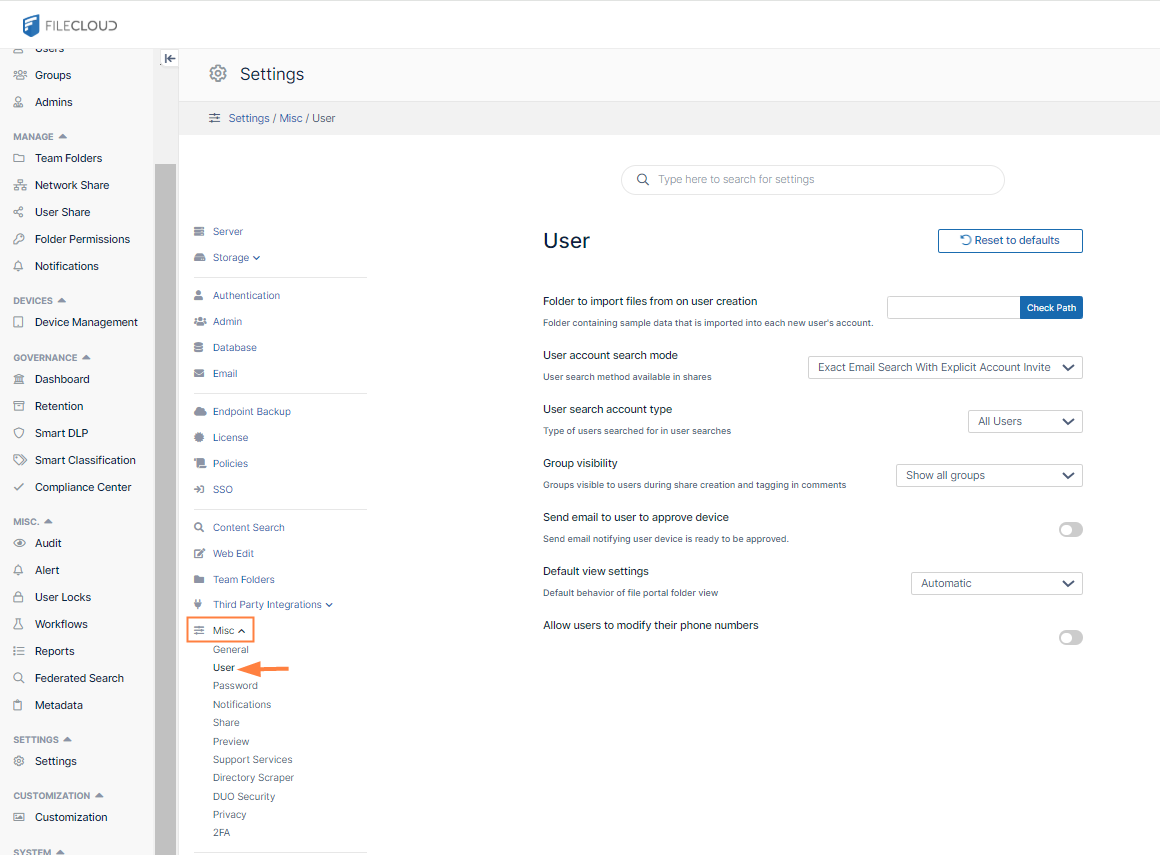
The User settings page opens.
-
-
In User Account Search Mode, select Exact Email Search with Explicit Account Invite or Exact Email Search with Implicit Account Invite.
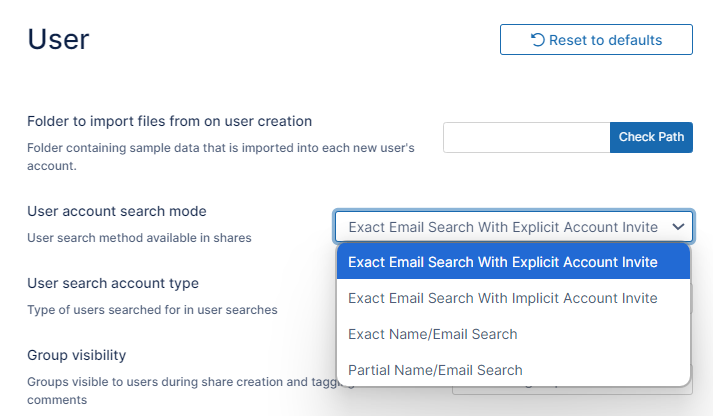
Click Save. -
In the FileCloud admin portal's left navigation bar, go to Customization > General > Login.
-
Check Show New Account Button.
.png?cb=7d657bd9ac19cab1f9467d397a7b2ed5)
-
Click Save.
-
In the FileCloud admin portal's left navigation bar, scroll down and click Settings. Then, on the Settings navigation page, click Admin Unknown Attachment .
The Admin settings page opens. -
In the Allow Account Signups field, select True.

-
Click Save.
Blocking the createprofile API endpoint
The setting Allow account creation through login form has been added to enable you to block the createprofile API endpoint from the admin portal. The endpoint is used for account signups in the New Account form.
To disable the createprofile API endpoint:
1. Go to Settings > Admin.
2. Disable the Allow account creation through login form setting.
