.svg)
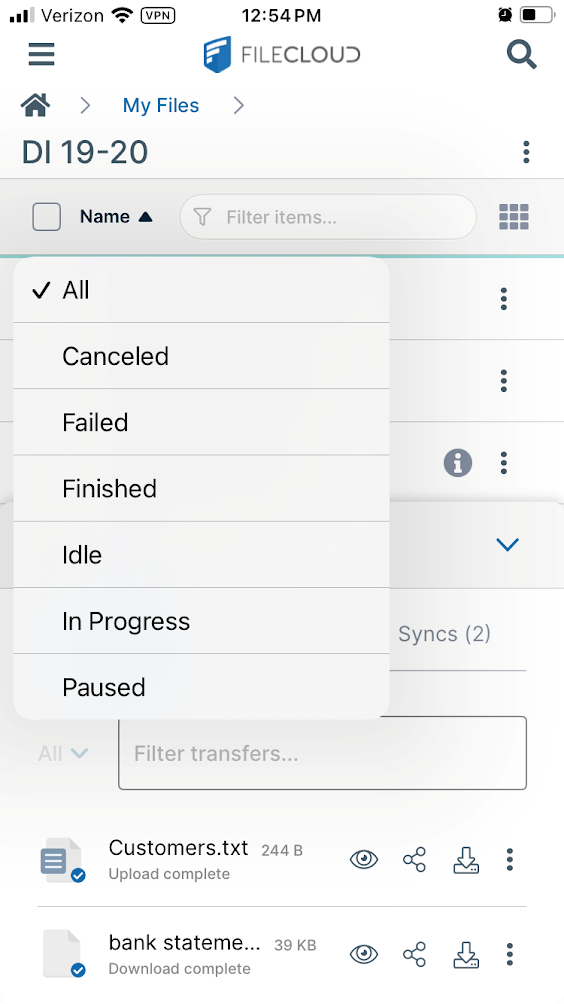
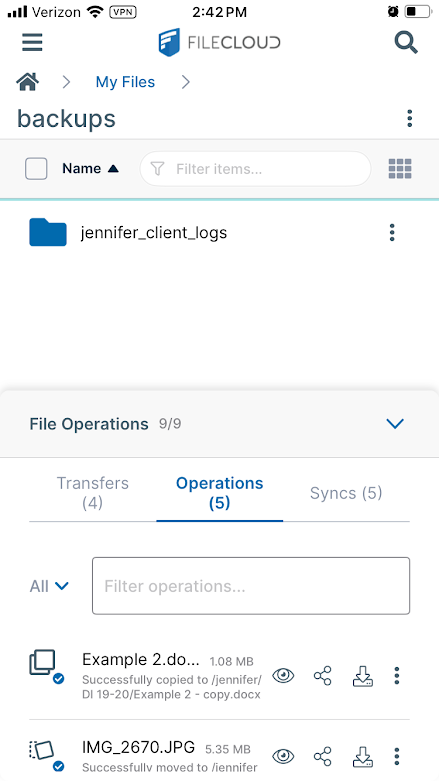
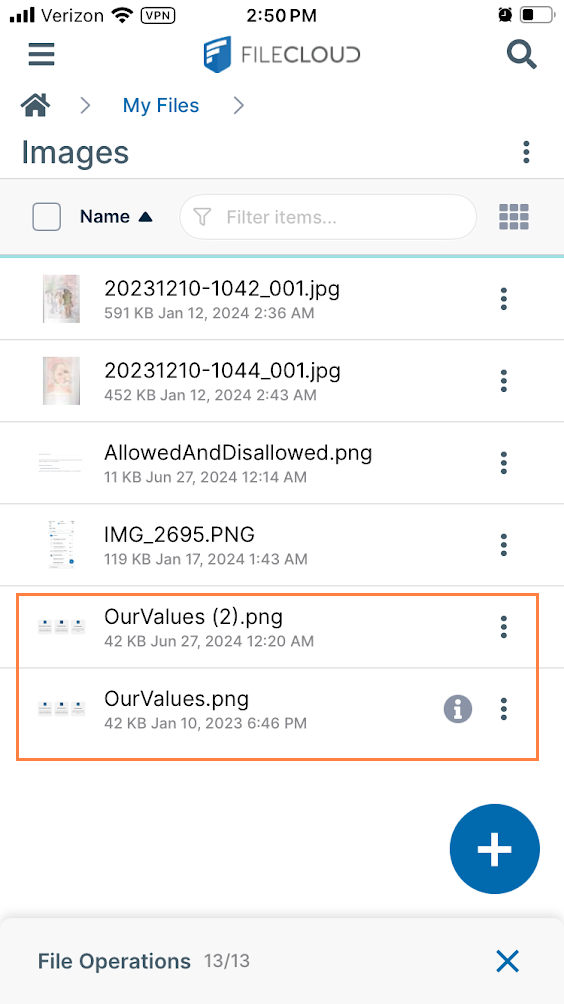
You can view records of recent uploads and downloads, copies and moves, and media backups and sync operations in the File Operations window.
The File Operations window opens automatically after you perform one of these operations. If the operation is still being performed, the window shows you its progress; if the operation completed successfully the window displays a Complete message. When the progress bar or message disappears, you can see records of the operation and previous operations.
|
|
|
|
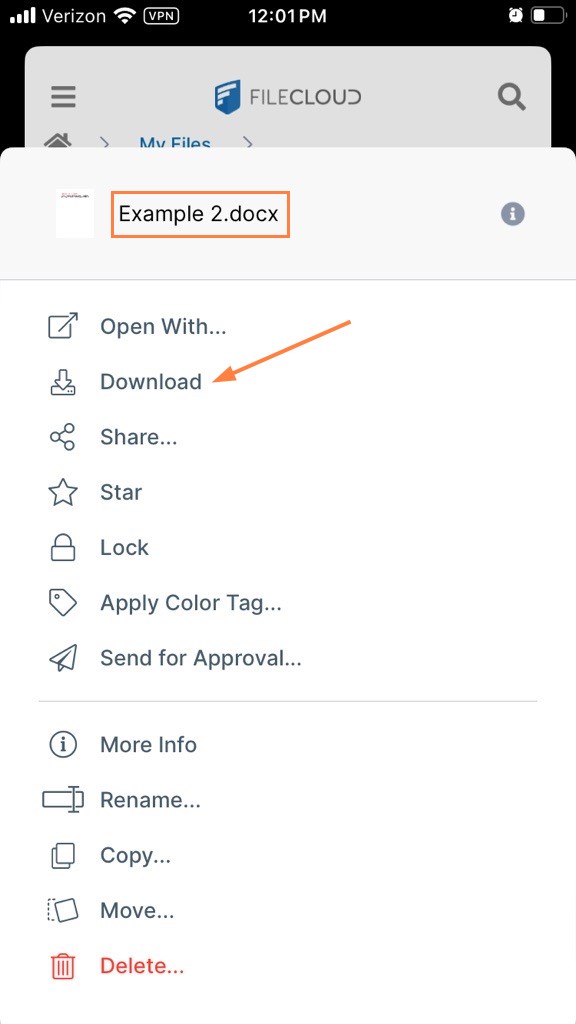
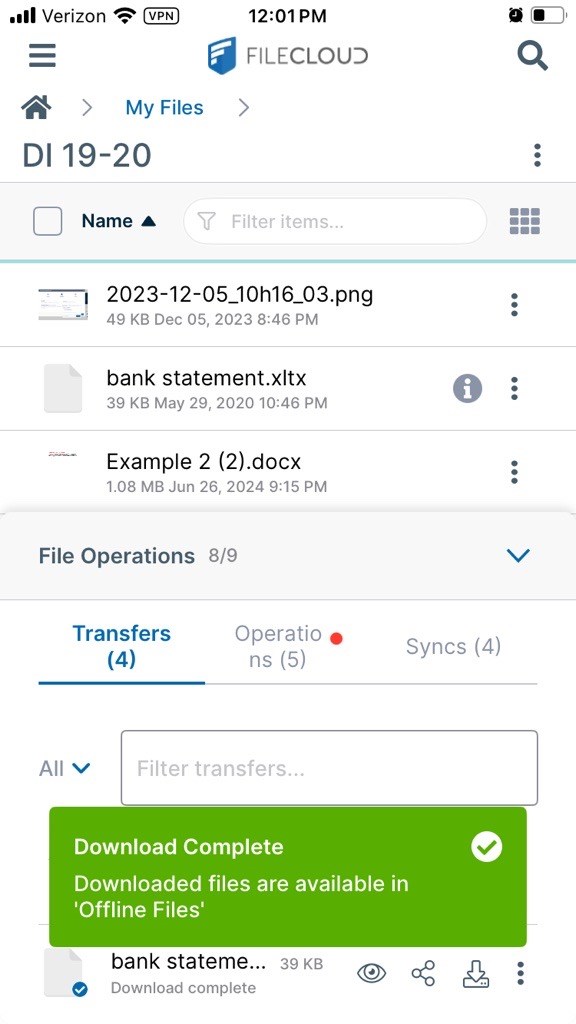
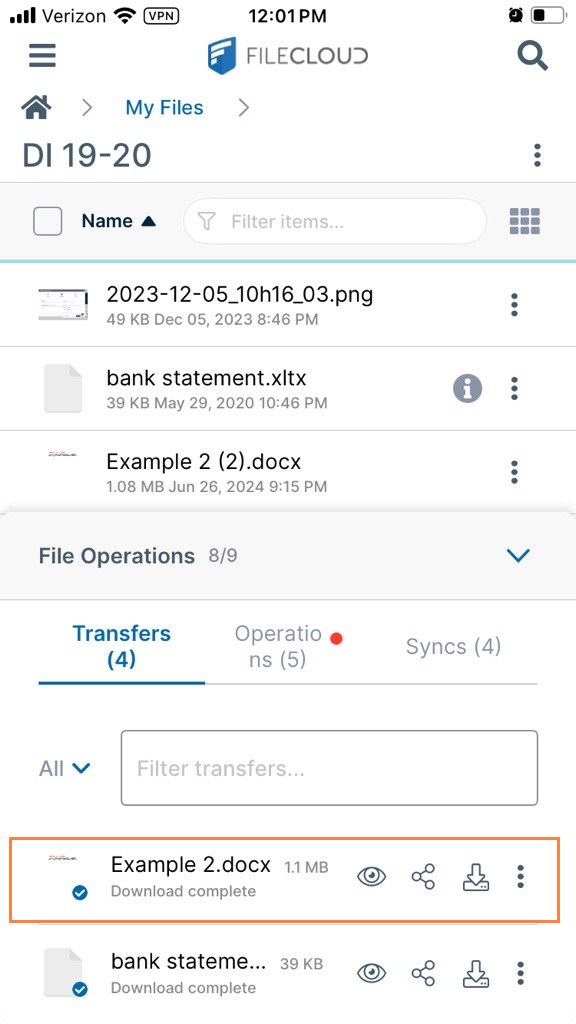
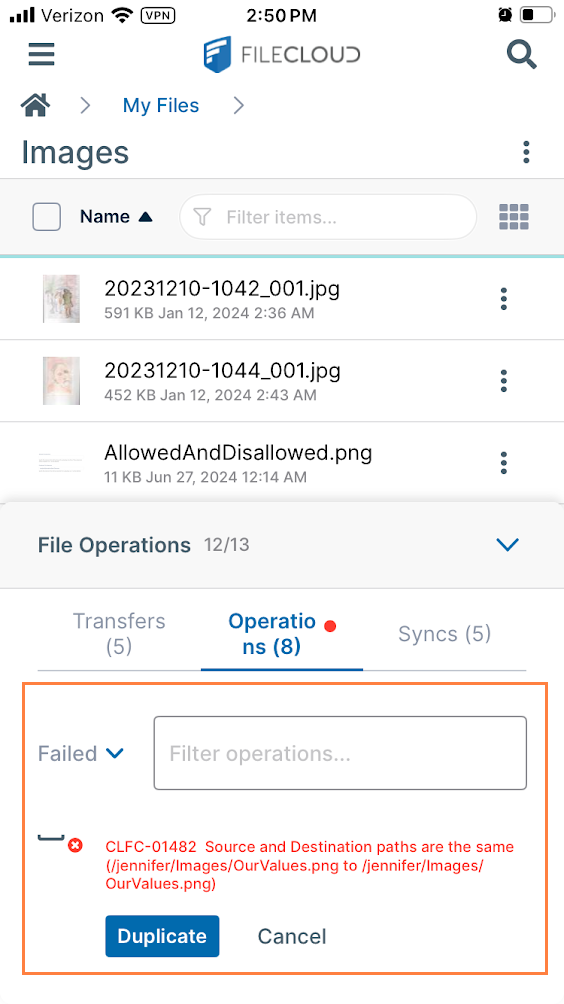
If the file completes with an error, a red dot appears next to its tab, and when you click the tab, the file is shown with an error message.
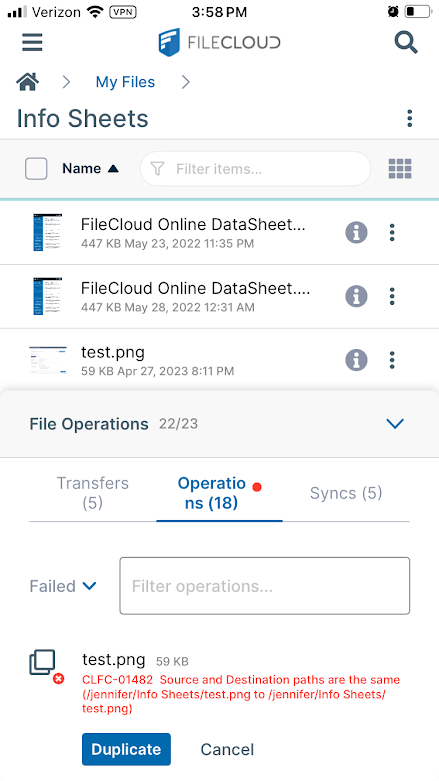
You can also open the File Operations window manually to view records of recent operations.
Opening the File Operations window manually
To open the File Operations window manually:
-
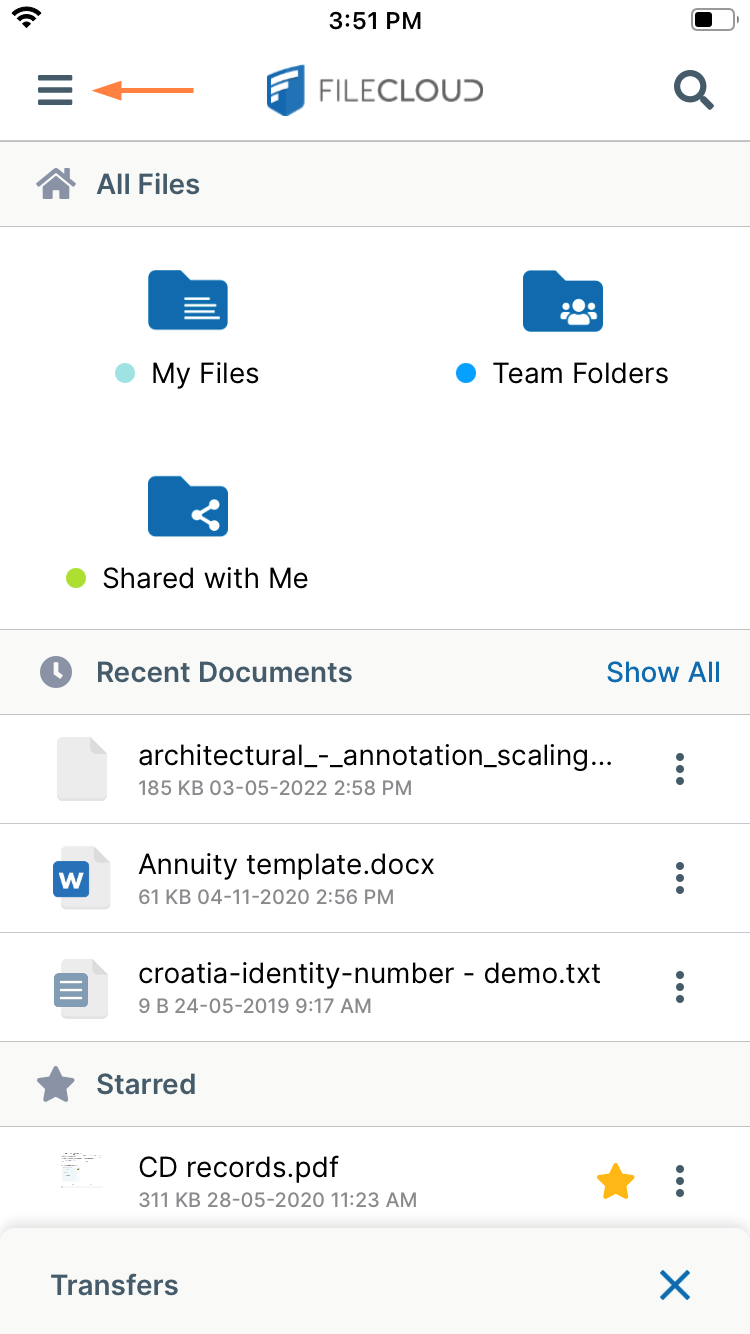
Tap the menu icon in the upper left of the screen.
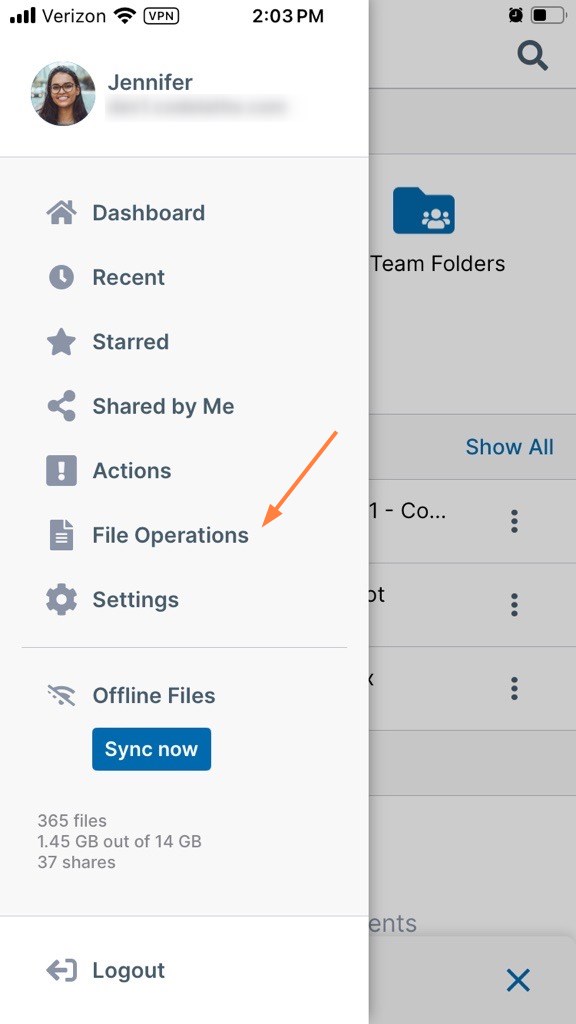
A navigation pane opens. -
Tap File Operations.
-
The File Operations window opens to the Transfers tab or the last tab you opened.
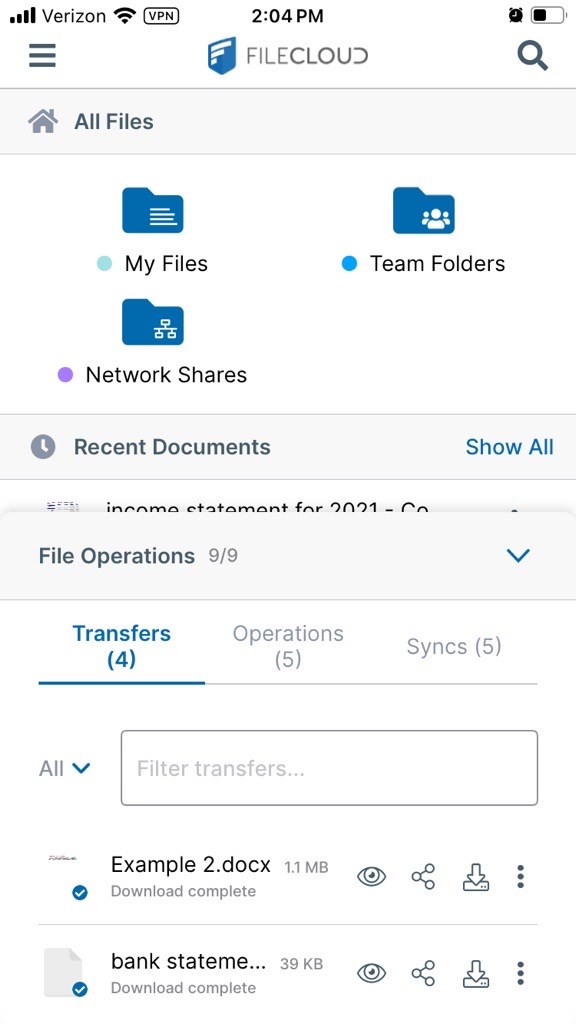
The Transfers tab (uploads and downloads)
|
|
|
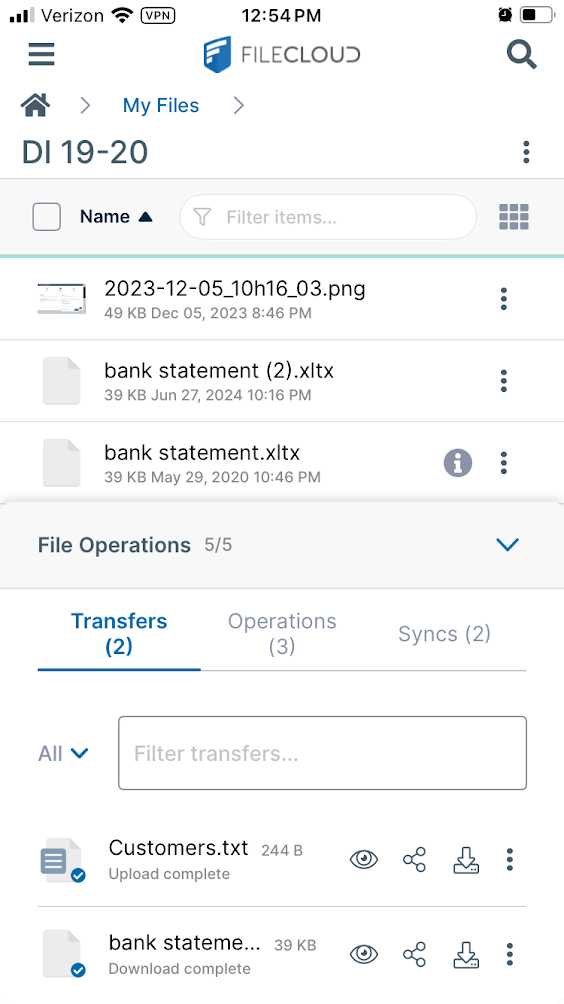
The Operations tab (copies and moves)
|
|
|
Resolving issues on the Operations tab
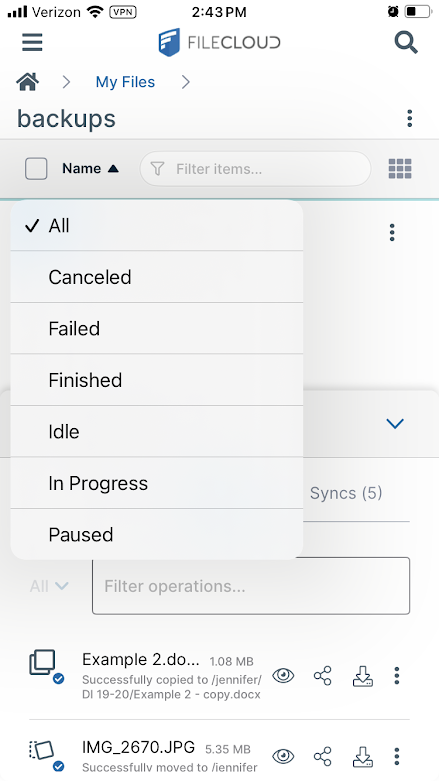
If a copy or move is fails, the Operations tab displays a red dot. To view failed operations, choose Failed in the Filter operations drop-down list.
If there is a way to resolve the failure, buttons under the issue give you the option of resolving it or cancelling it.
|
|
|
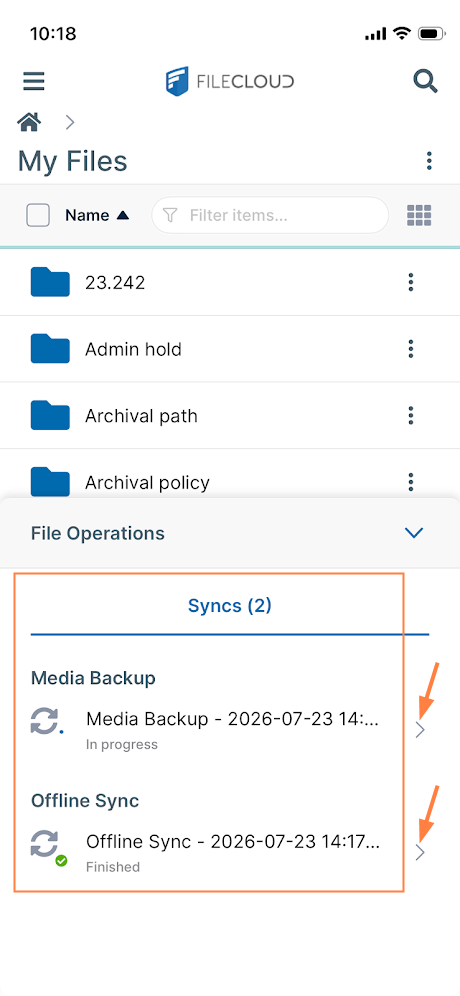
The Syncs tab (offline sync and media backup operations)
To view the results of offline sync and media backup operations:
-
Select the Syncs tab if it is not already selected.
The Syncs tab lists the most recent offline sync or media backup operation, either in progress or recently completed. -
To view detailed information or logs of a sync, click the arrow next to the listing.
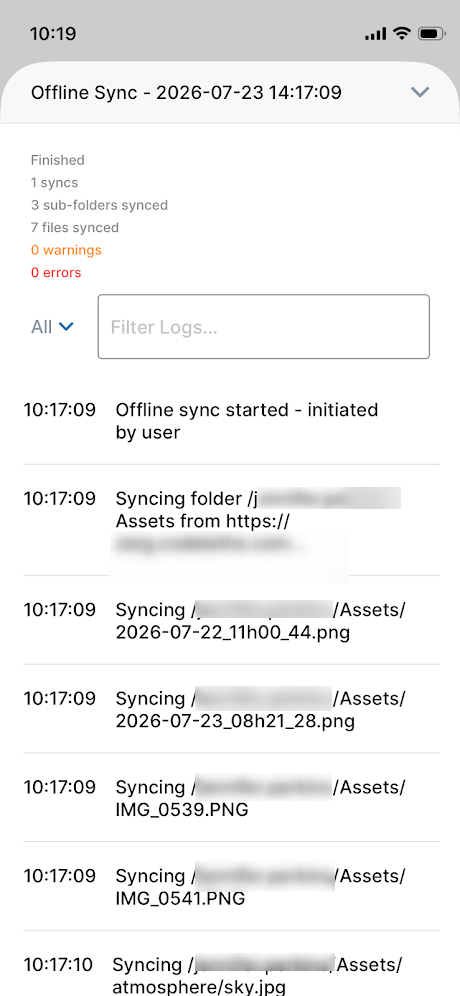
File/folder sync log |
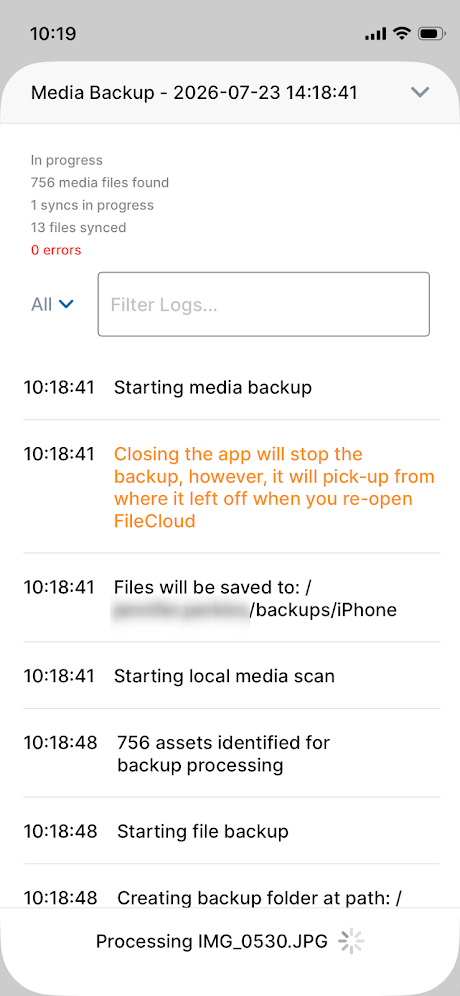
Media backup in progress |
To filter sync logs
You can filter sync/backup logs by tapping the drop-down arrow next to the Filter Logs field and choosing an option.
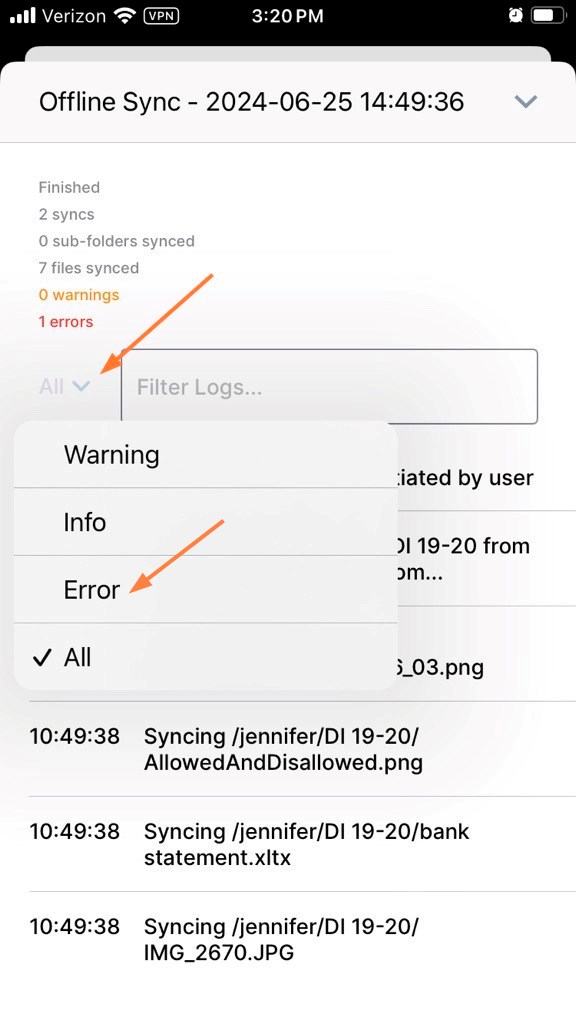
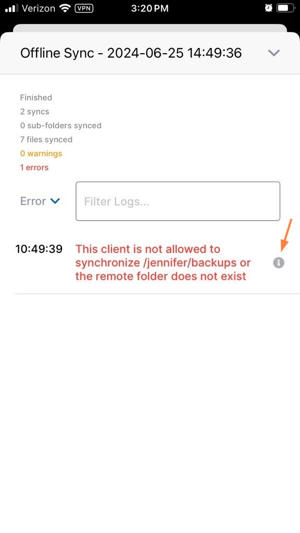
For example, if you want to see a list of sync errors, you can choose Error to view them all together.
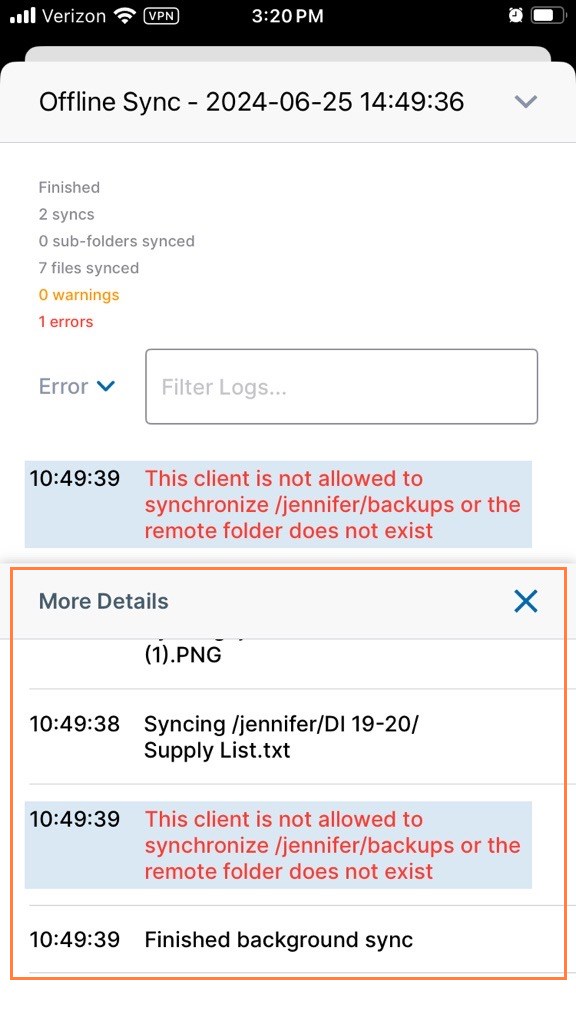
To view a particular error in context of the log, tap the info icon next to it.
A More Details box shows you the error as it appears within the log, so you can see its context.
For more information about offline sync operations, see iOS File Sync.