.svg)
You can choose to synchronize FileCloud folders and their contents with your iOS device:
-
Download files on your device to access them while offline
-
Update your local version of a file when the remote version has changed
-
Add new local files that will be uploaded remotely when connectivity is available
When you activate this option you can choose between:
|
Mode |
Description |
|---|---|
|
Two Way Sync |
This option will download changes from server as well as upload changes from the device back to the server |
|
Download Only |
This option will ignore any changes made to local downloaded files and will download changes from the server only |
In order to synchronize a file, the following requirements must be met:
-
Syncing My Files - Your admin must enable Sync.
-
Syncing Team Folders - Your admin must enable Sync and give you sync permission on the specific team folder.
-
Syncing Network Shares - Your admin must enable Sync and enable syncing of network folders (in FileCloud storage settings), and give you Sync permission for the specific Network Share.
Locally renaming the root sync folder is detected as a deletion of that folder during two-way syncing, so the renamed root folder will be remotely deleted on the server and no further sync will happen from there on.
This limitation only happens when renaming the root folder, and not when renaming its child items.
View Offline Sync settings
Settings that configure FileCloud sync can be viewed and managed from the Settings screen. The Files and folders setting is enabled by default; if you disable it, files and folders that you individually configure for automatic syncing will not sync automatically.
To access sync settings:
-
Open the FileCloud iOS app.
-
Tap the menu icon in the upper left of the screen.
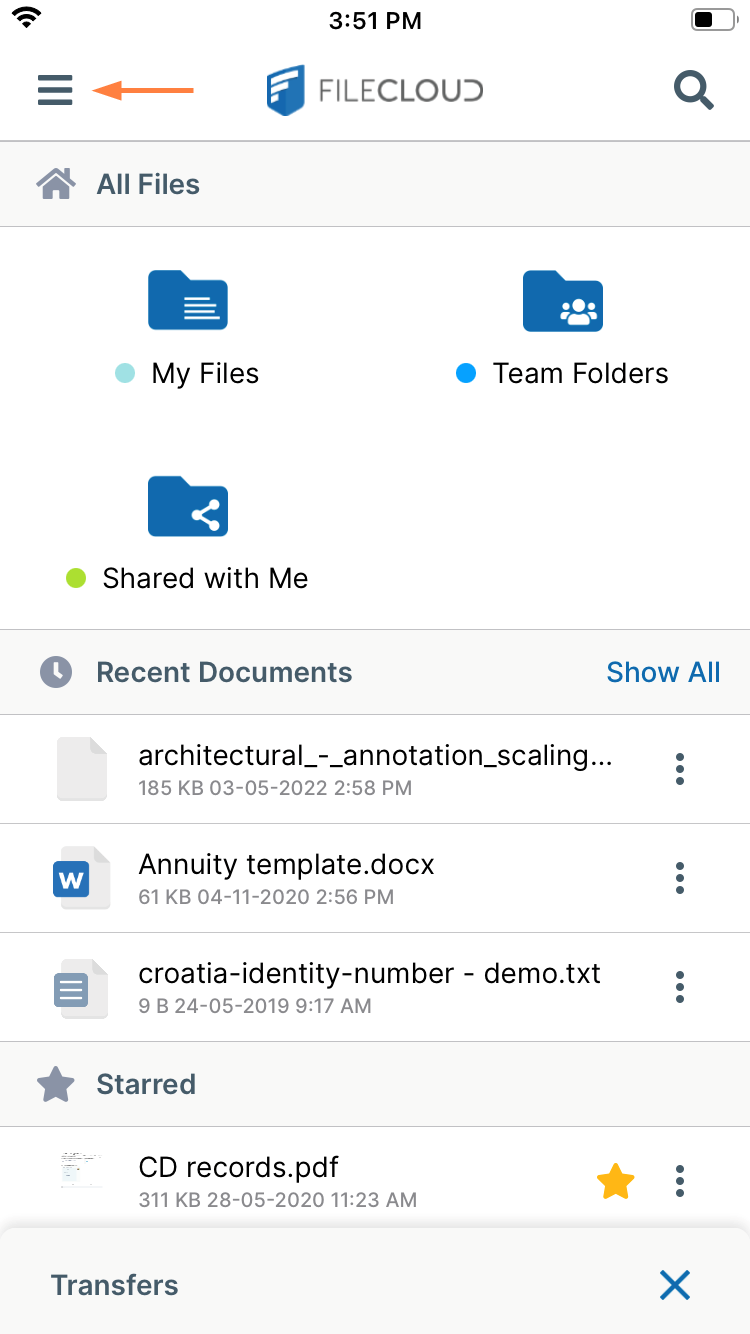
A navigation pane opens. -
Tap Settings.
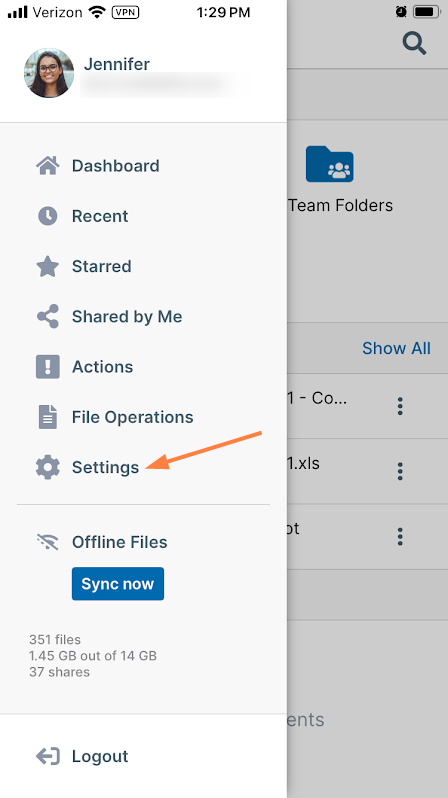
-
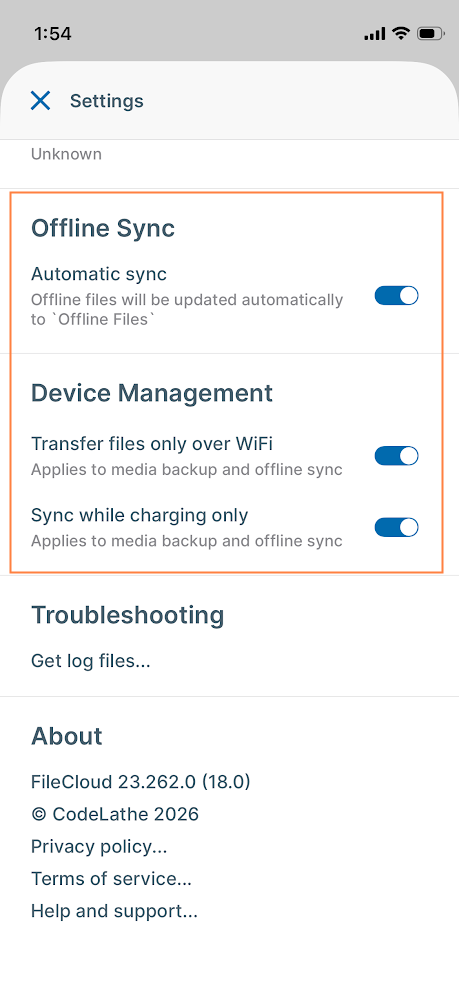
Make any changes to the Synchronization settings.
Setting
Description
Automatic Sync
Enabled by default. Turns on automatic syncing for files and folders that are enabled for syncing. If this is disabled, even files and folders enabled for syncing are not synced automatically.
Transfer files only over Wi-Fi
This option is applied to both offline sync and media backup. It may prevent the Back up now button and the Sync now button from triggering syncs.
Disabled by default. When disabled, backup can run when your device is connected to Wi-Fi and when you are using Mobile Data. When enabled, backup can only run when your device is connected to Wi-Fi.Sync while charging only
This option is applied to both offline sync and media backup. It may prevent the Back up now button and the Sync now button from triggering syncs.
Disabled by default. Enable to prevents your battery from draining when a large number of files are being uploaded in the background.
Enable automatic sync for a folder
All files in the folder and its sub folders are marked for sync. Empty folders are not synced.
To enable automatic sync:
-
Open the FileCloud iOS app.
-
Navigate to the folder you want to automatically sync when changes are made to its contents.
-
Tap the more (three dot) icon next to the file or folder.
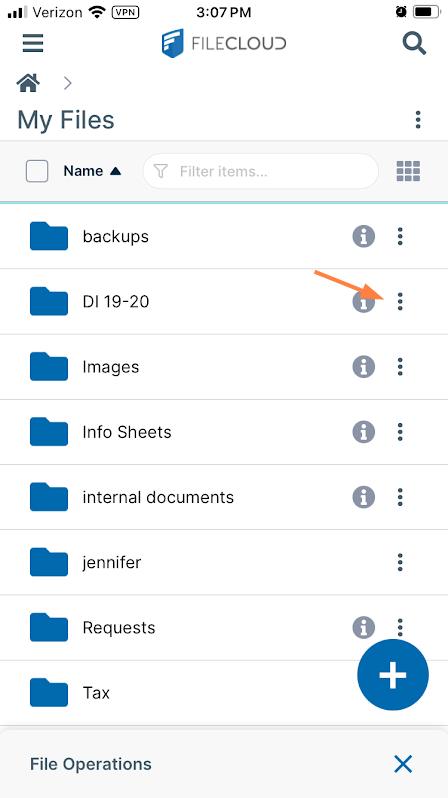
File options appear. -
Tap Available Offline.
A Select sync mode dialog box opens. -
Choose Download Only or Two Way Sync.
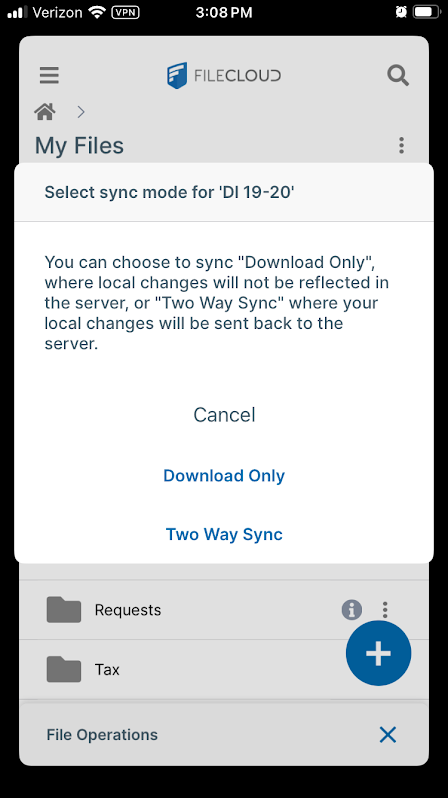
Now this folder and its contents are automatically synced either as a one-way download or in both directions based on your selection, and an Available Offline icon appears next to the folder:
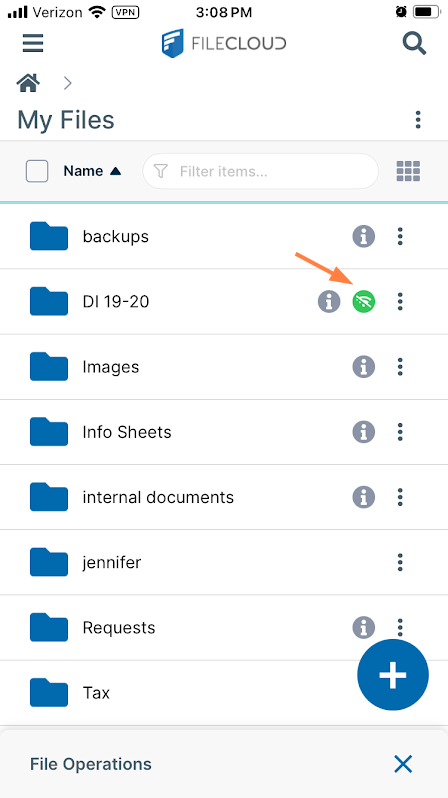
Manual syncing
When the synchronization setting Files and Folders is enabled in the FileCloud app settings and specific files and folders are configured for automatic syncing, sync will occur automatically at intervals. However, you can initiate syncing of configured files and folders at any time by tapping Sync now.
To initiate a sync manually:
-
Open the FileCloud iOS app.
-
Tap the menu icon in the upper left of the screen.
A navigation pane opens. -
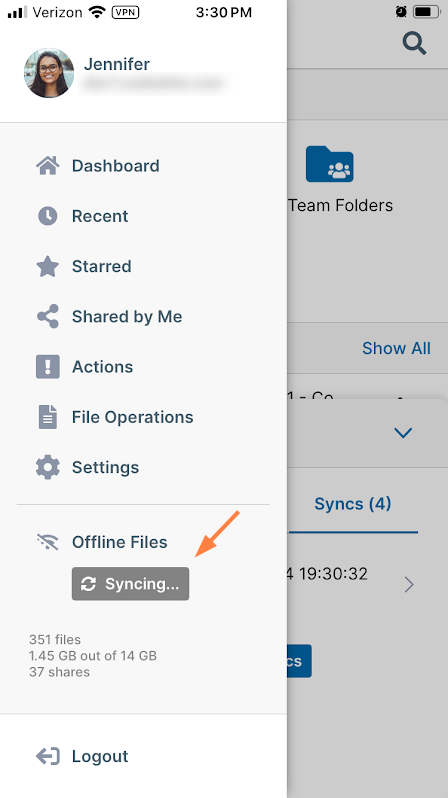
Tap Sync now.
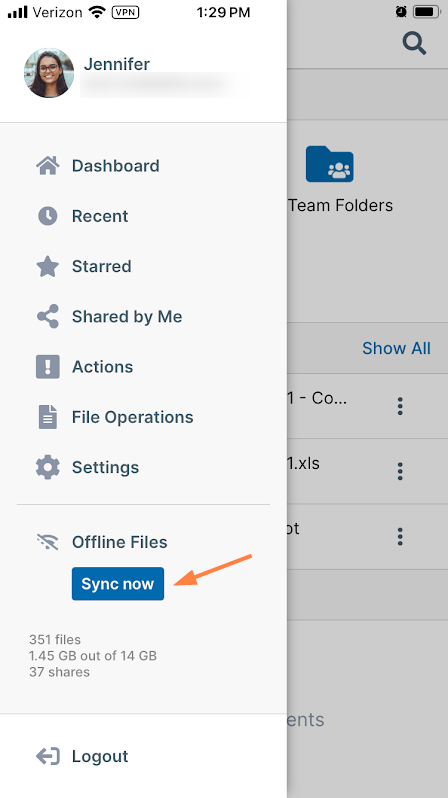
The Sync button now displays Syncing and rotating arrows to indicate that synchronization is taking place for all sync-enabled files and folders.
Disable offline sync for a folder
To disable automatic sync:
-
Open the FileCloud iOS app.
-
Navigate to the folder you no longer want to sync automatically.
-
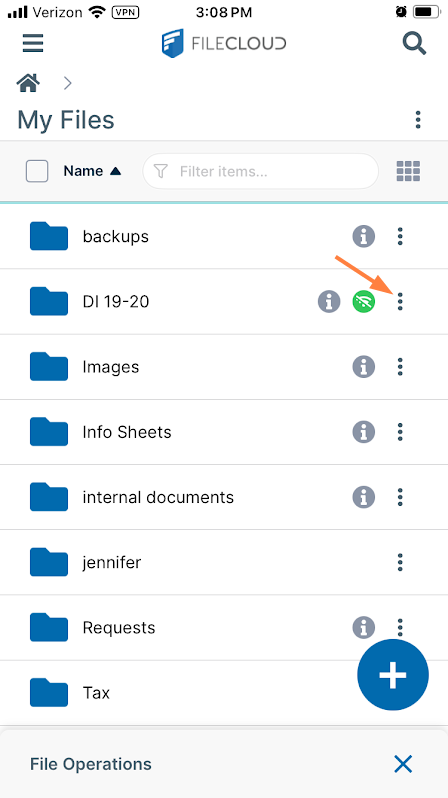
Tap the more (three dot) icon next to the file or folder.
-
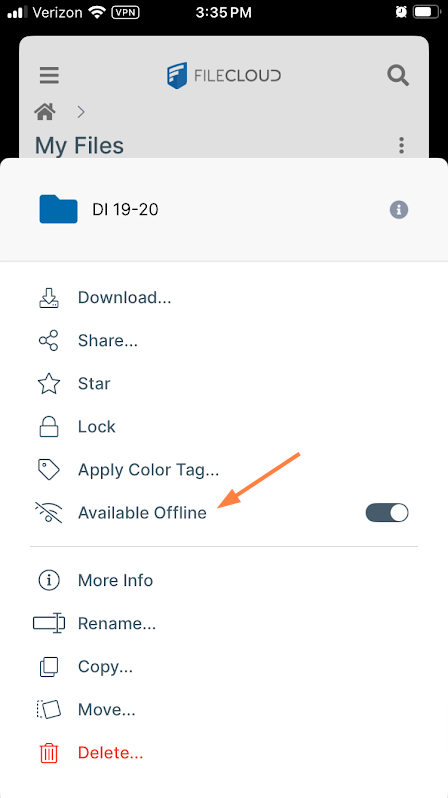
Tap Available offline.
You are prompted with the message "Stop syncing <foldername>?" -
Tap Stop Syncing.
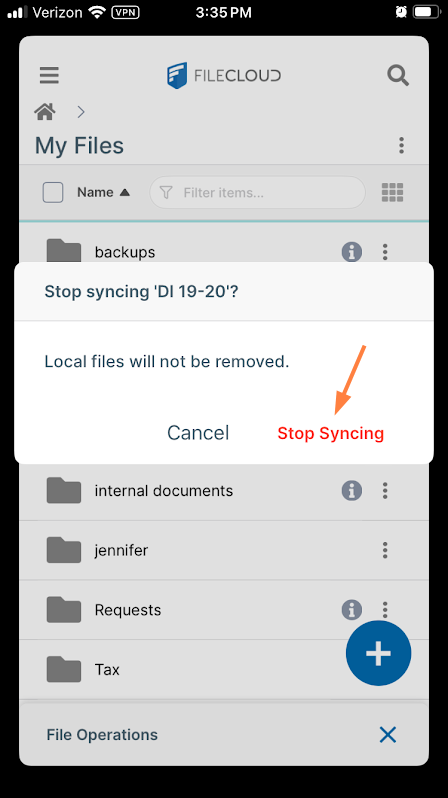
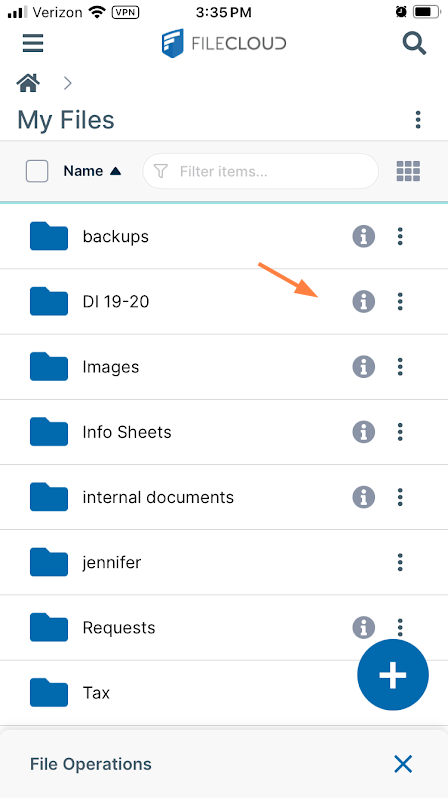
Automatic syncing no longer occurs, but your previously synced local files remain on your device. The Available Offline icon no longer appears next to the folder:
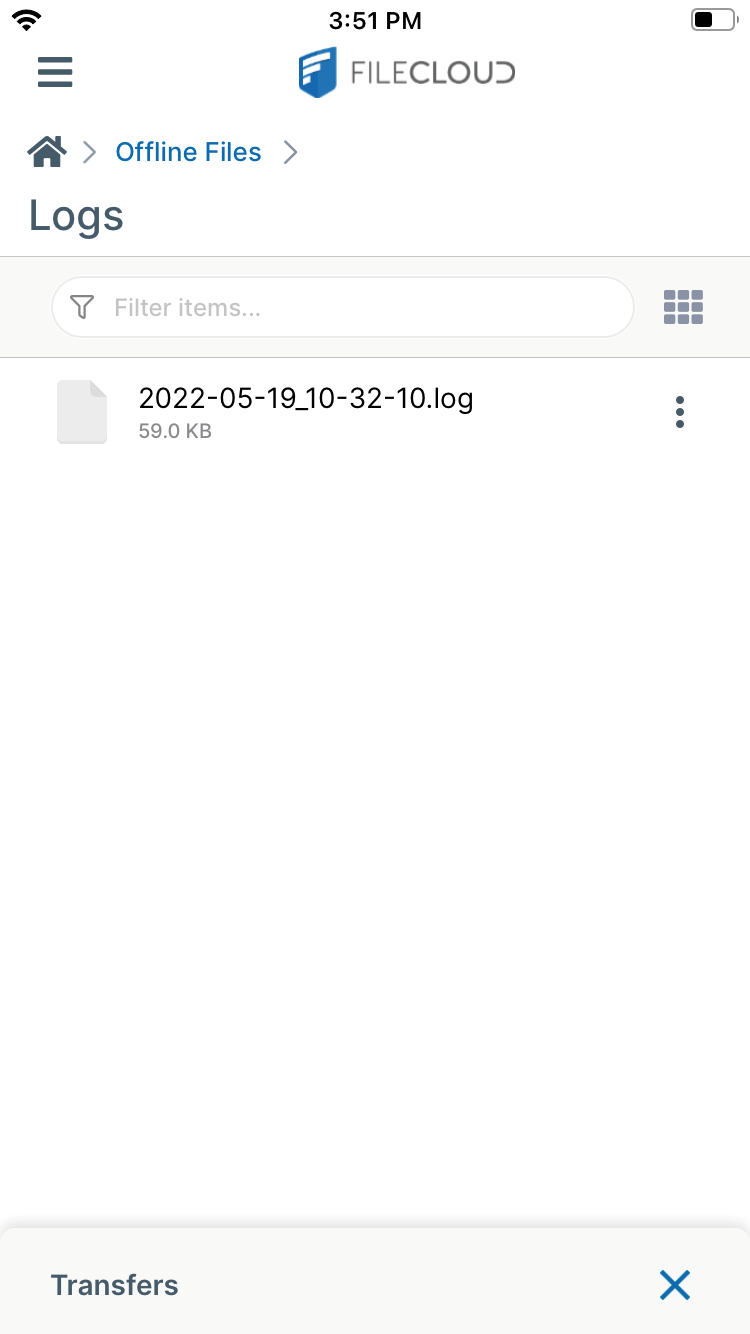
Get Offline Sync Logs
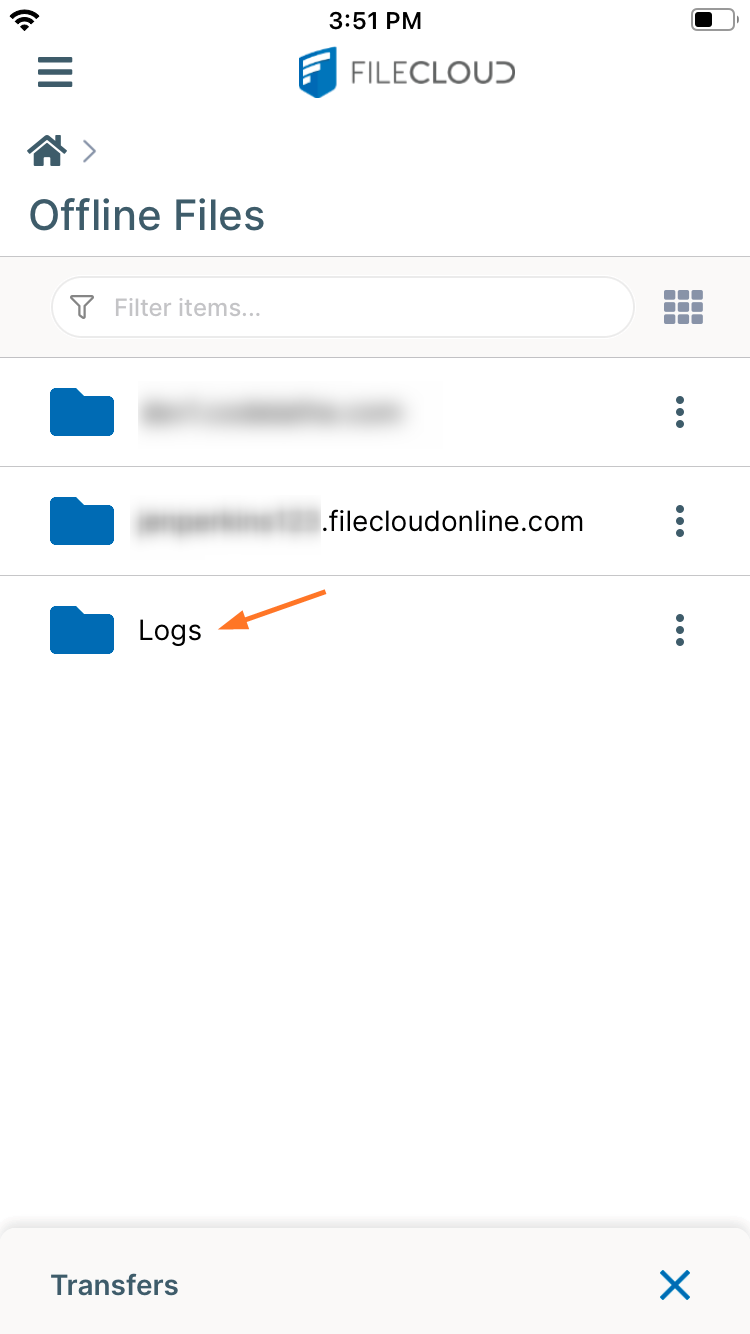
Log files are saved in your Offline Files folder.
To get Offline Sync logs:
-
Open the FileCloud iOS app.
-
Tap the menu icon in the upper left of the screen.
A navigation pane opens. -
Tap Offline files.
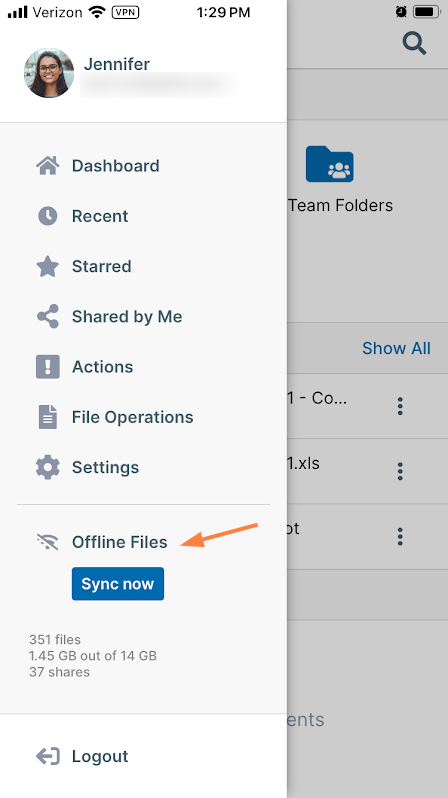
Your Offline Files folder opens. -
Tap the Logs sub-folder to access your offline log files.
-
View or download any of the log files.