.svg)
You can interact with your FileCloud site using 3rd party applications in several ways.
Integration with other apps will only work if:
-
You enable App Integrations from the Global Settings
-
App Integrations is enabled by default
Accessing FileCloud Files through the Files app
To access FileCloud files and folders through the Files app:
On iOS 11 and newer you can natively browse your FileCloud contents, preview files, and even launch in-place editing, all without directly opening the FileCloud app through the Files app.
You must enable the FileCloud service from the Files app the first time you use it.
-
Tap the Files app.
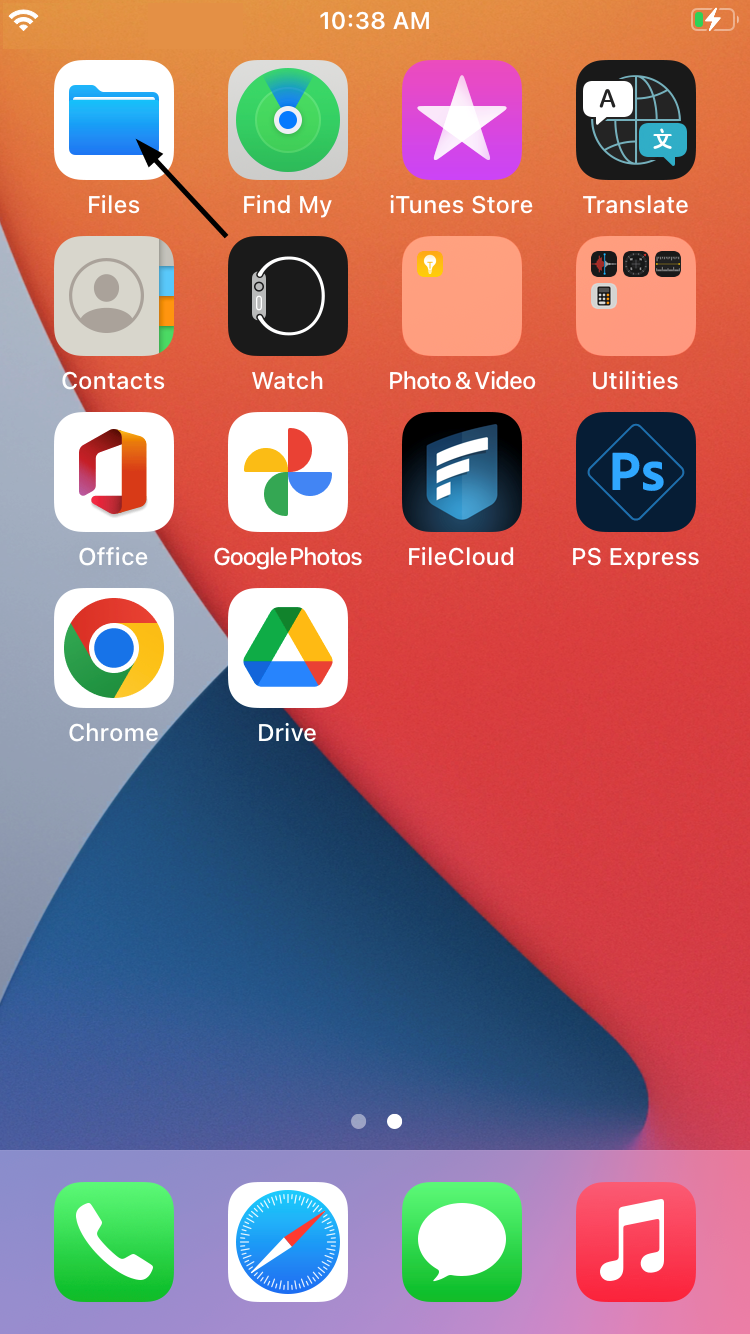
The Browse screen opens. -
Tap FileCloud.
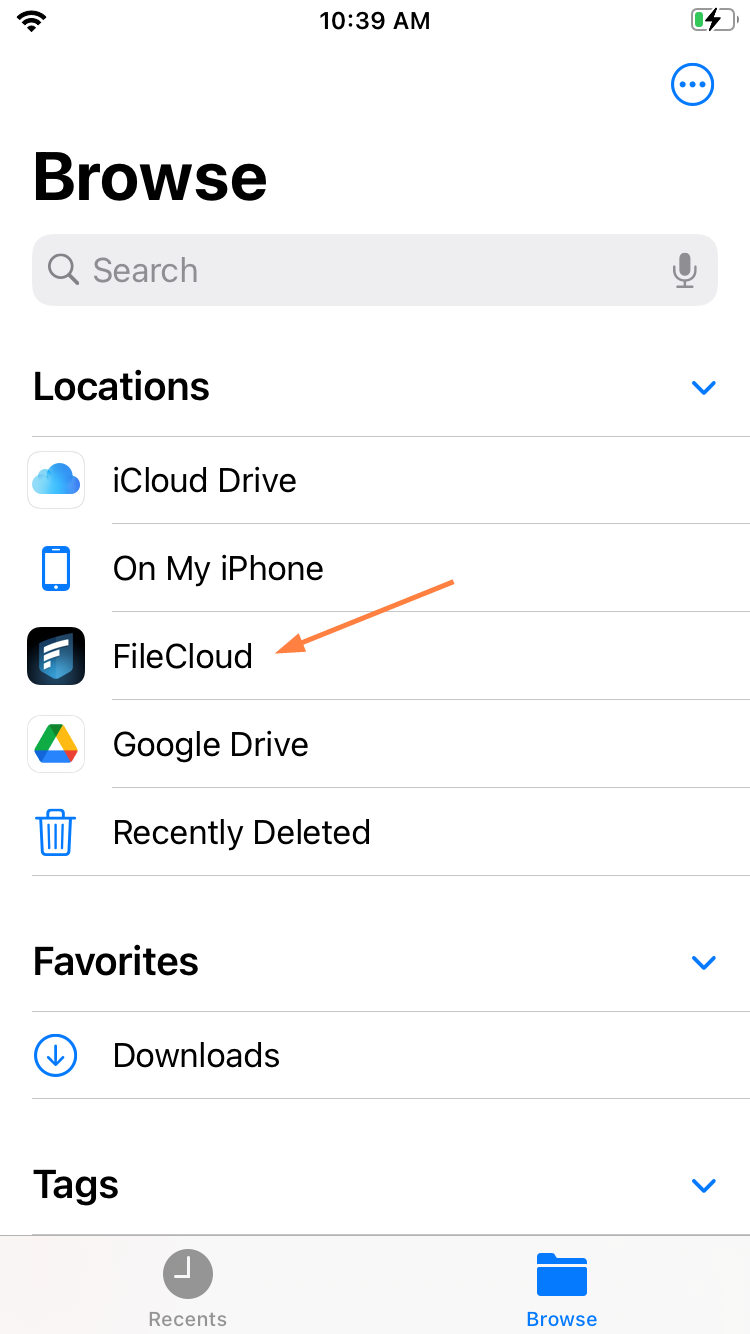
A folder named for your FileCloud server opens. -
Tap the folder.
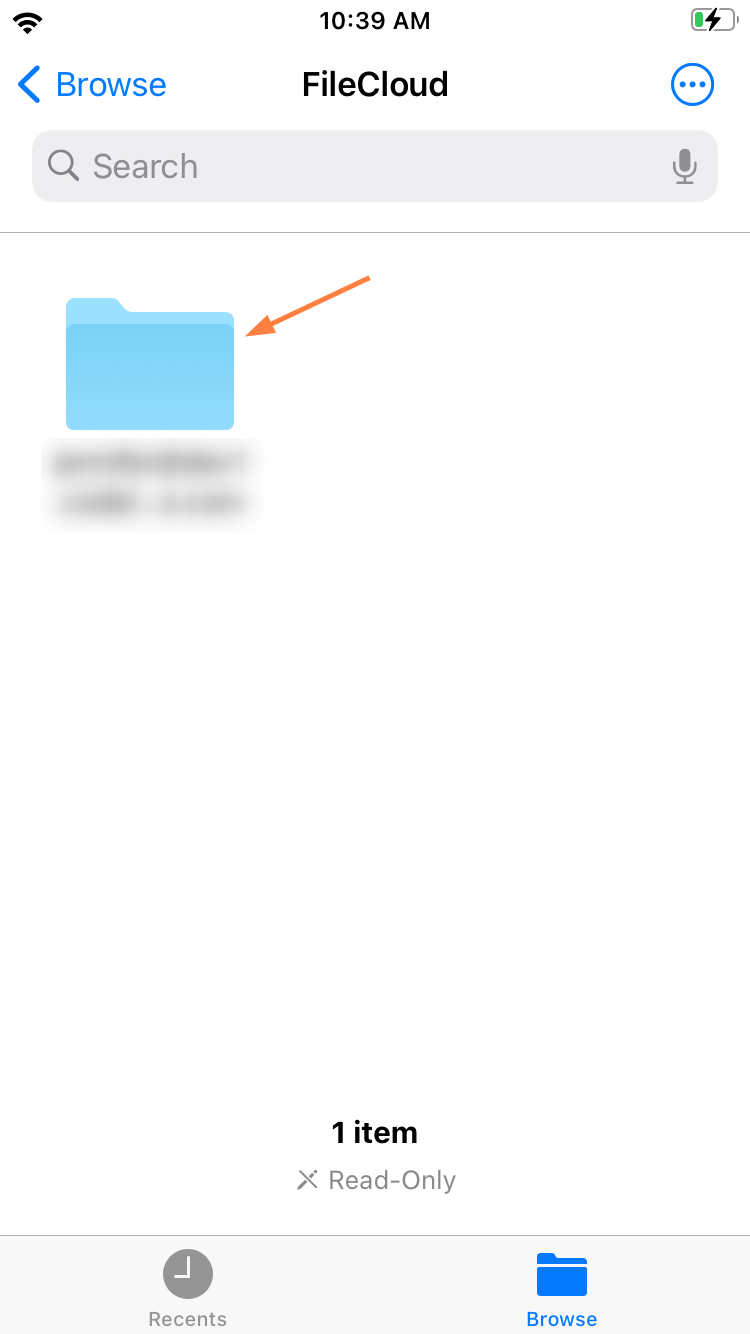
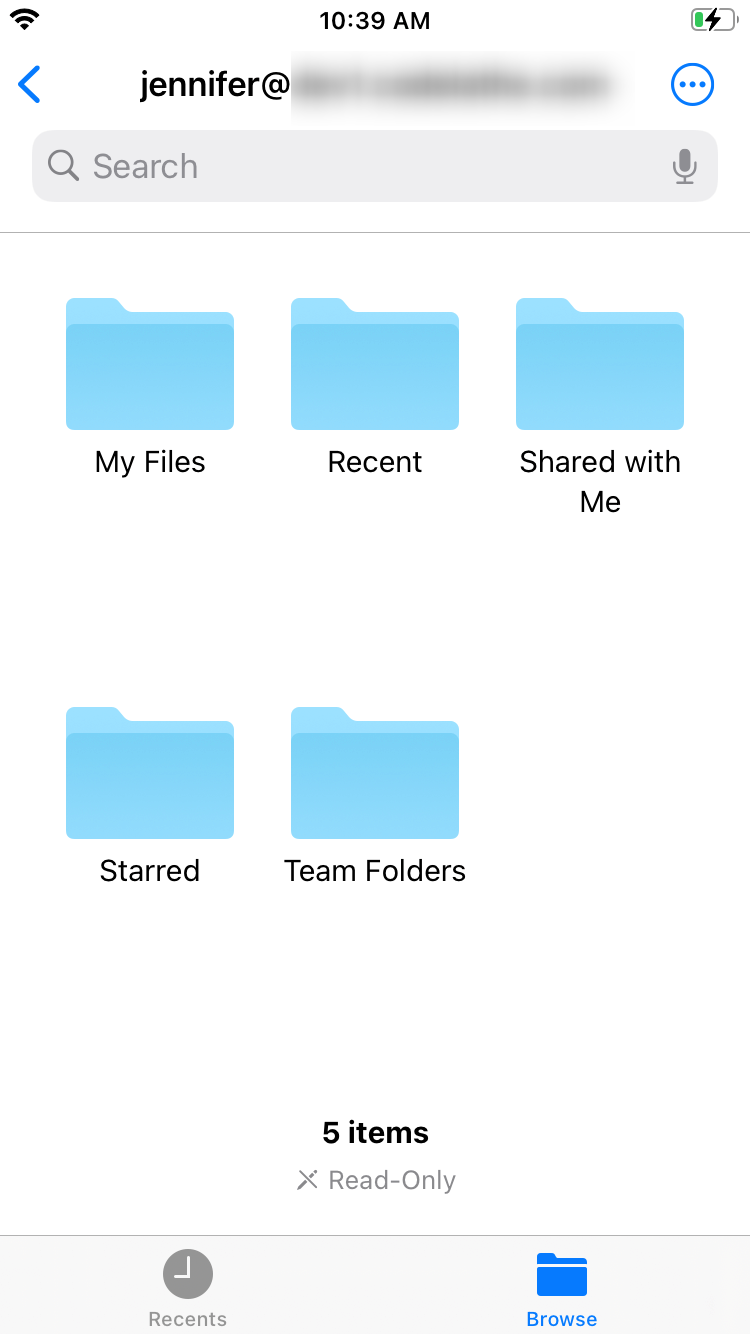
Your FileCloud folders open.
-
Navigate to a file or folder.
-
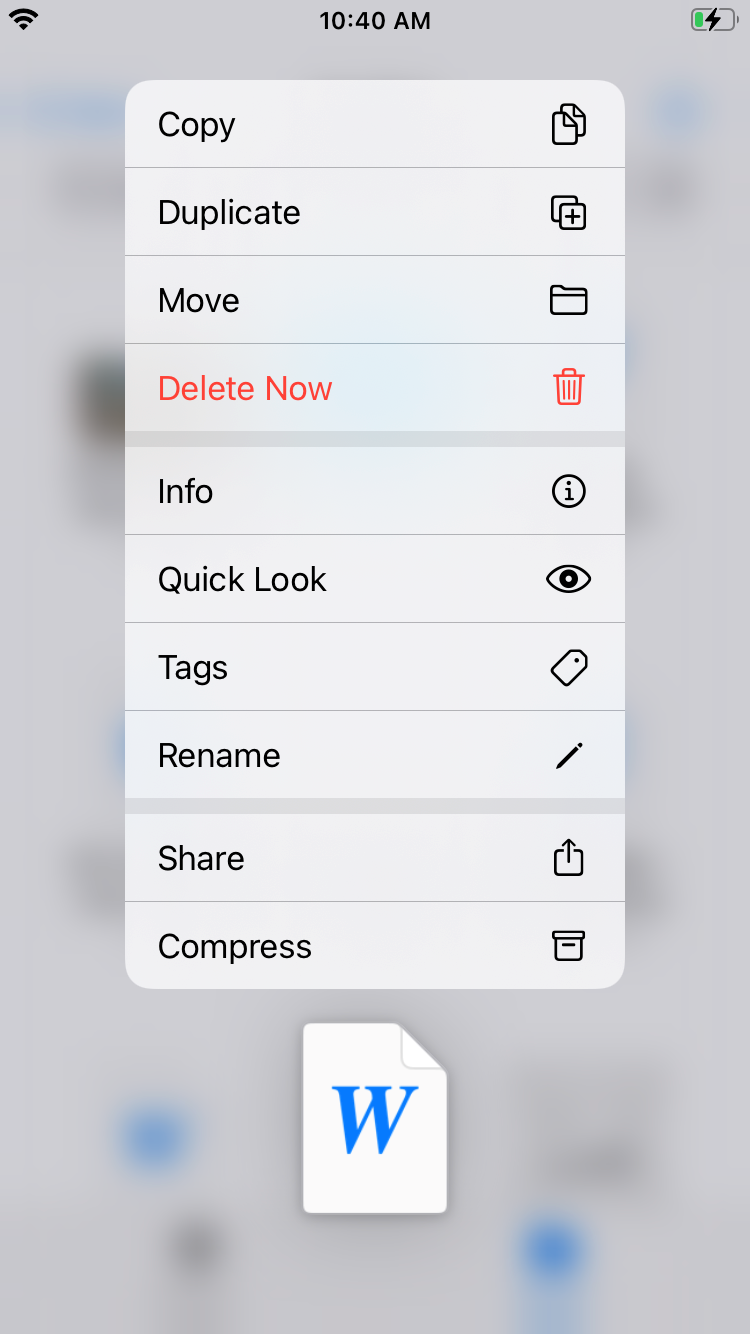
Tap the file or folder quickly to open it, or tap and hold to access a list of options:
Attaching or uploading a FileCloud file into another application
To attach or upload a FileCloud file while working in another app:
On iOS, when you are working in another app, you can remain in that app to upload or attach a file stored in FileCloud.
The following example uses Mail to demonstrate how to access FileCloud files from another app, however, you could use the same process in any app that allows you to upload or browse files external to it.
-
Open the Mail app.
-
Compose your message and tap the file icon.
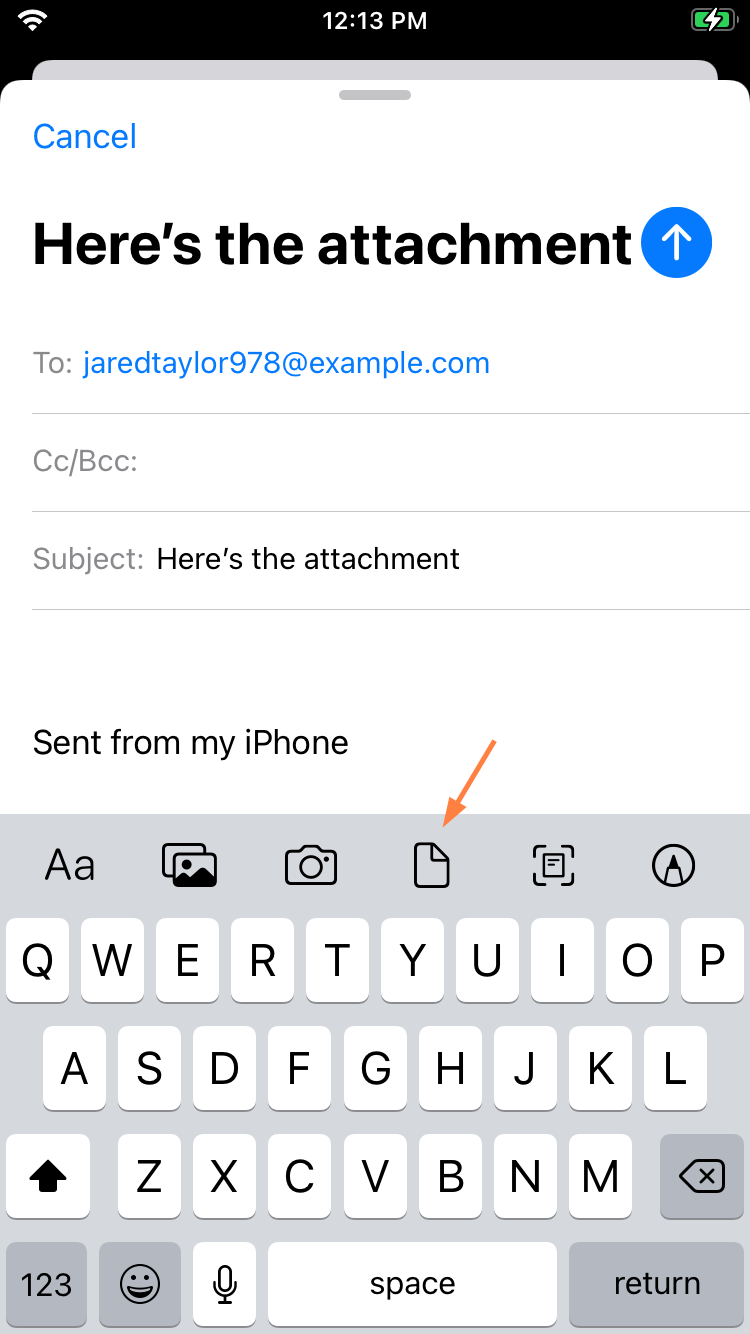
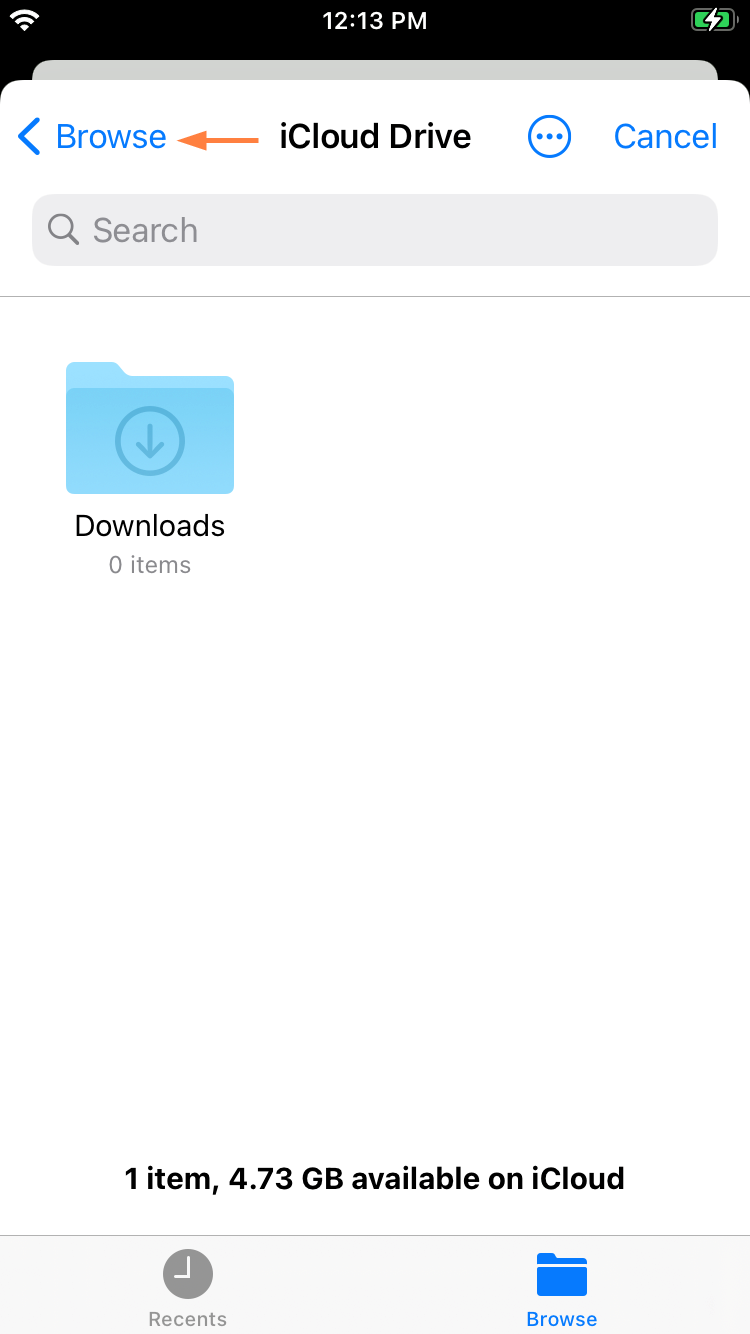
iOS opens the last location accessed, which may not be the FileCloud server. -
Tap the back arrow until you reach the locations screen.
-
In the Locations screen, tap FileCloud.
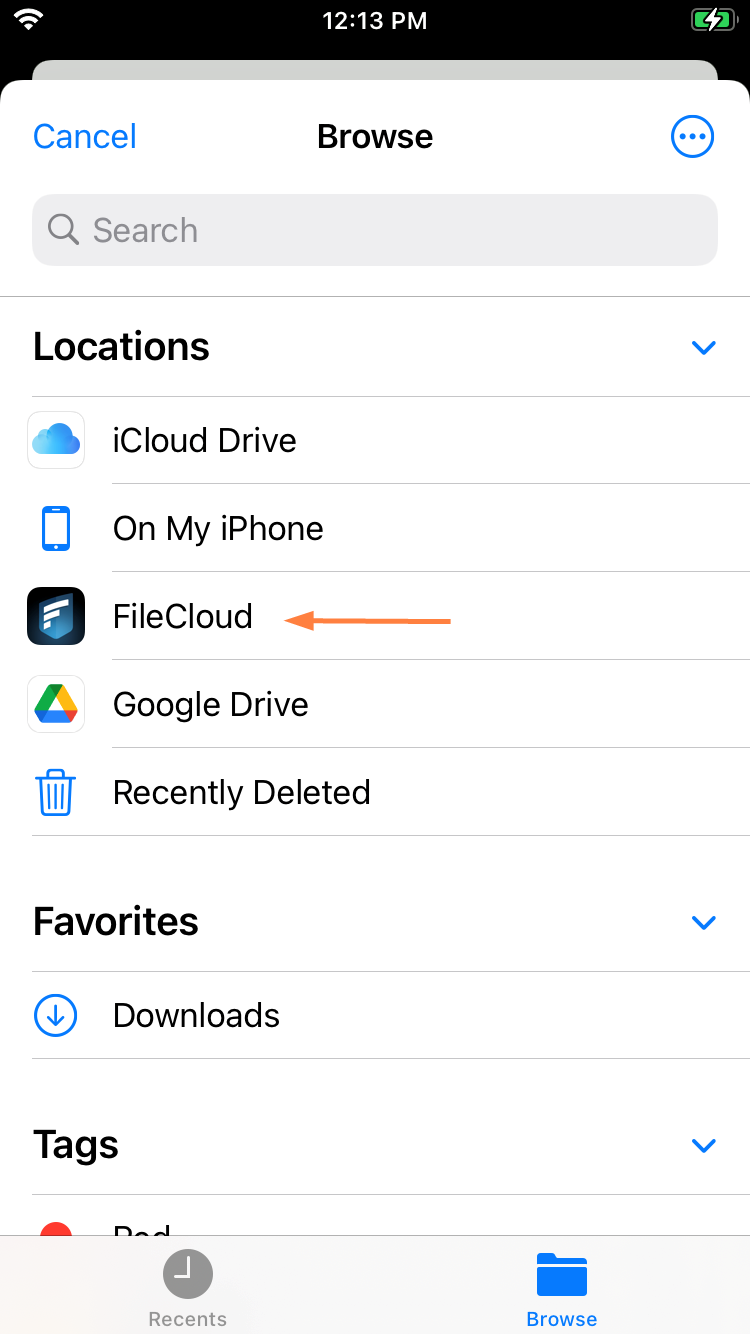
Your FileCloud folders appear.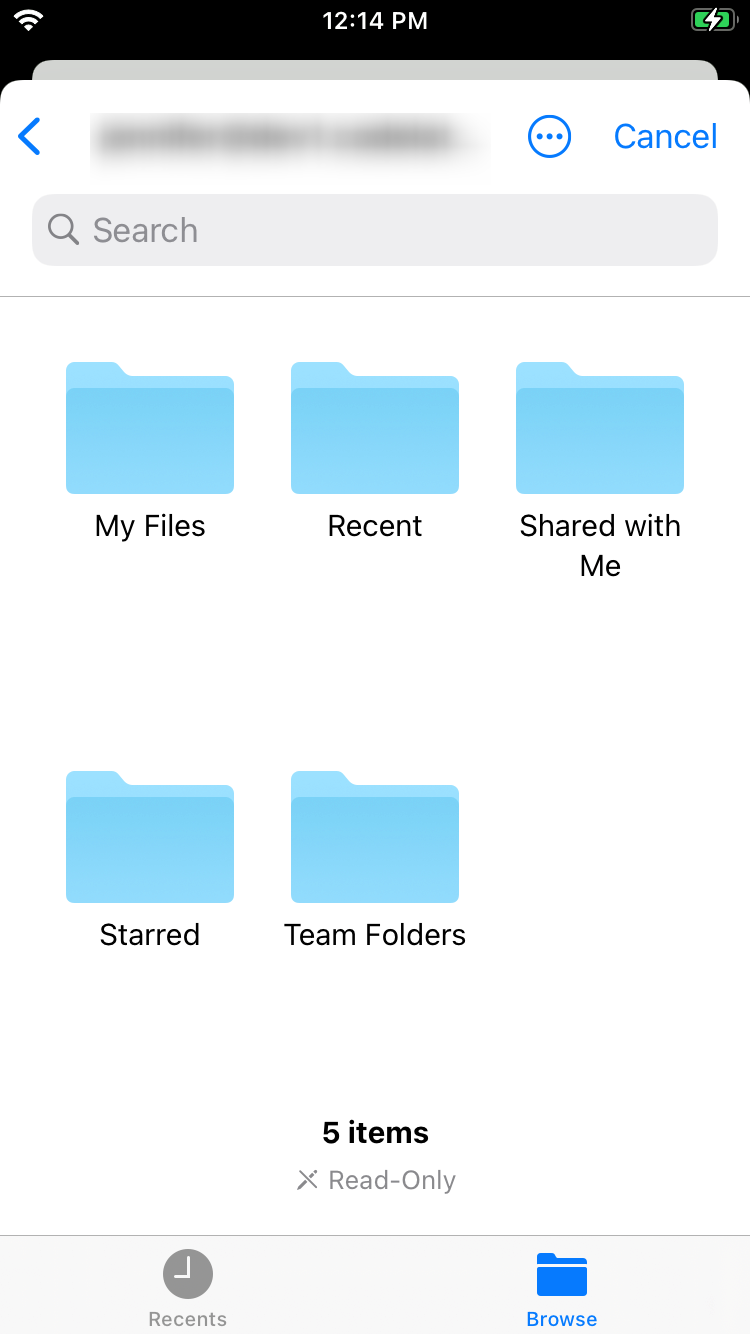
-
Navigate through the folders to the file you want to attach to the email, and tap it quickly.
The file is attached to the email.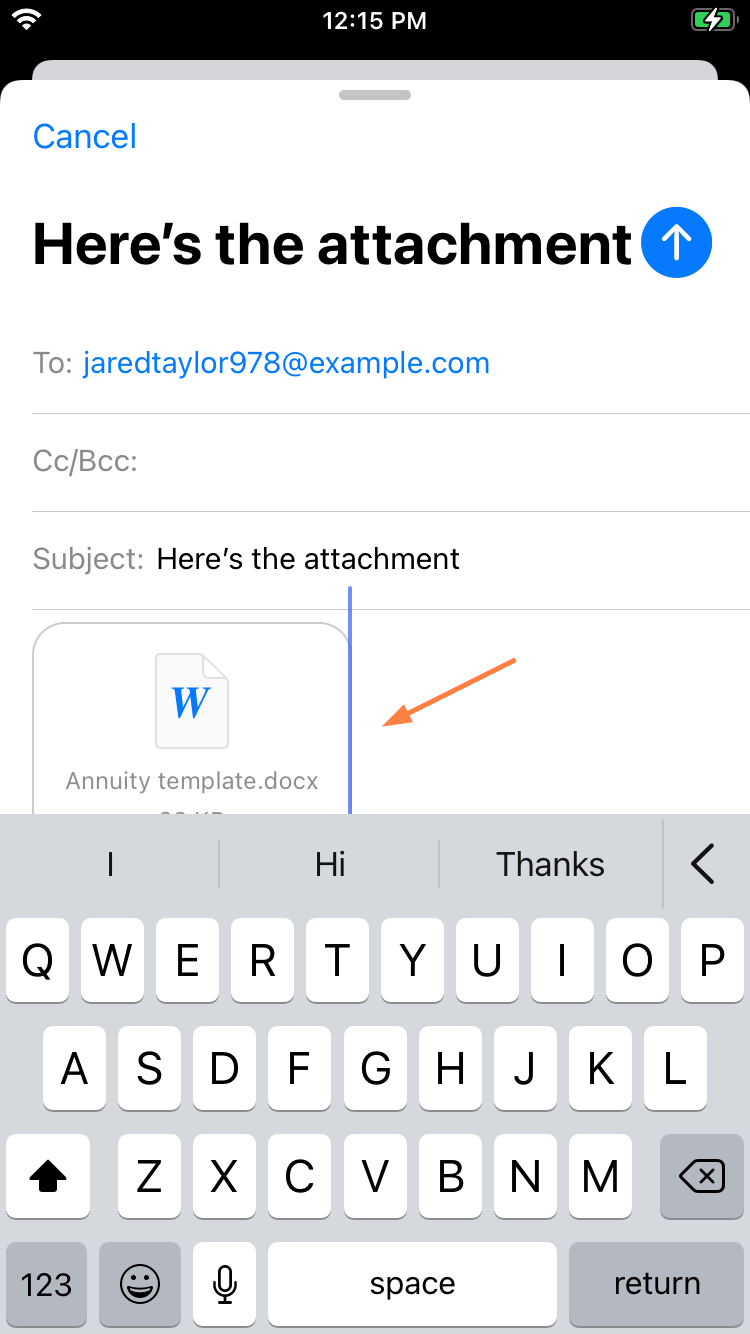
Saving directly from a 3rd party application
You can save a file to your FileCloud server directly from a 3rd party application in a few different ways:
To use Save to FileCloud
-
When using a share or open with option in a third party application, find and tap the Save to FileCloud option.
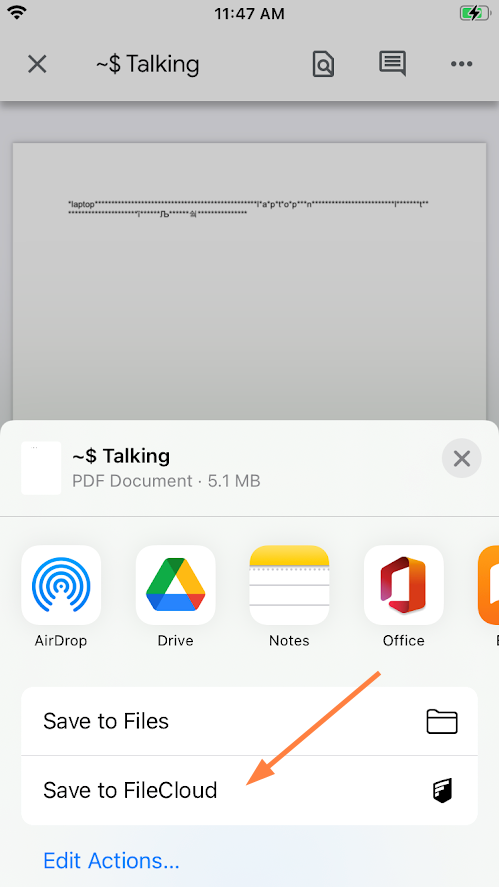
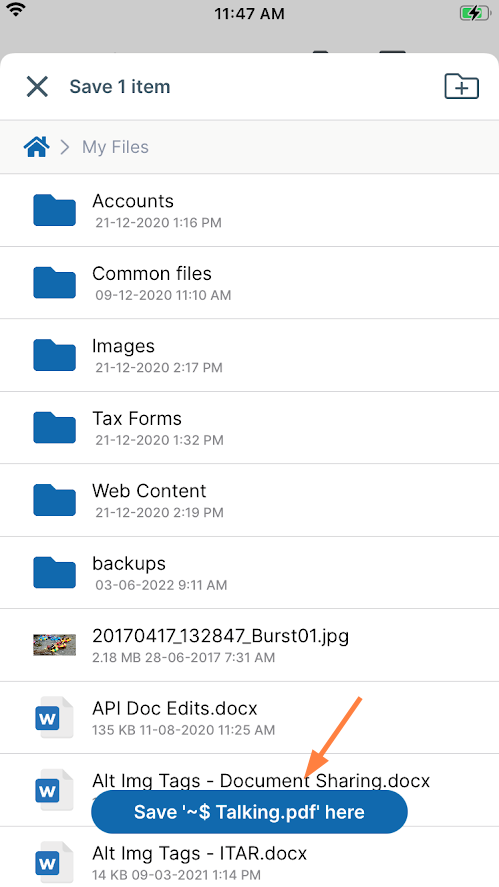
The FileCloud Dashboard opens with the message Cannot save <file> here because you have not opened a specific folder to save in.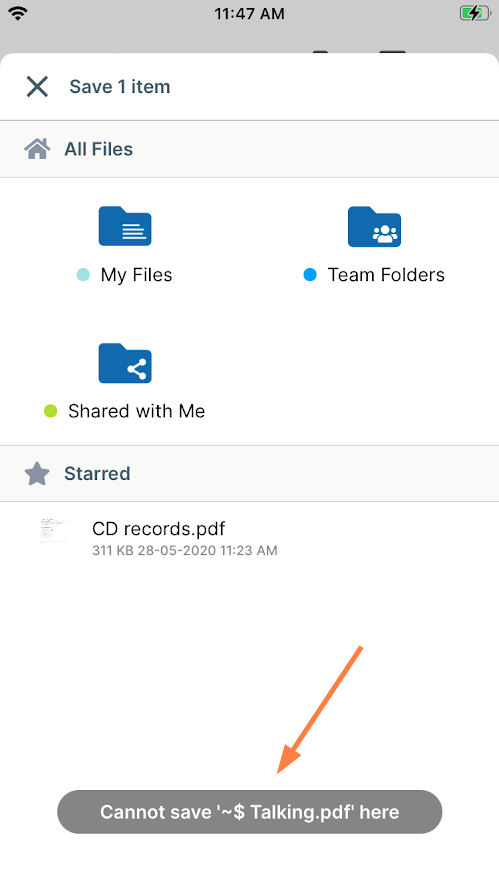
-
Navigate to the location where you would like to save the file, and tap the Save <filename> here button.
To Save to the FileCloud location in the Files app
As FileCloud is natively integrated in the Files app, you can choose this option to send a file to your FileCloud server.
-
When you save the file in the third-party application, choose the Files app option.
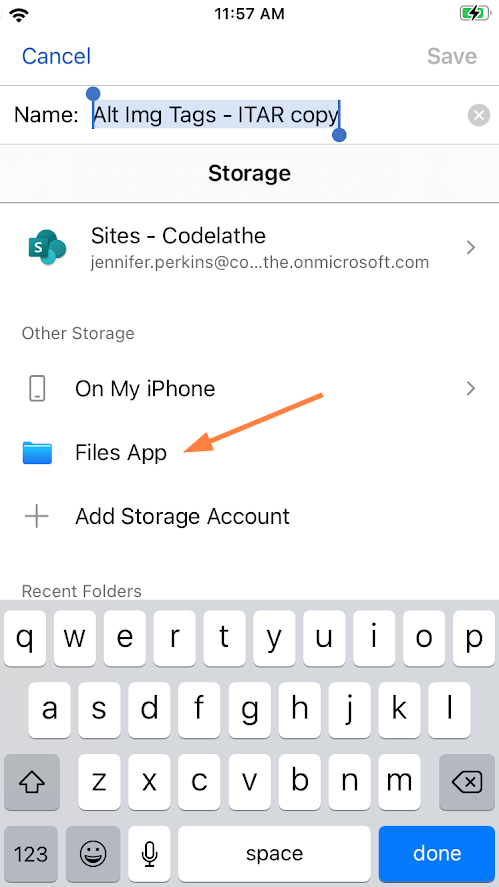
Your iPhone locations appear. -
Tap the FileCloud location.
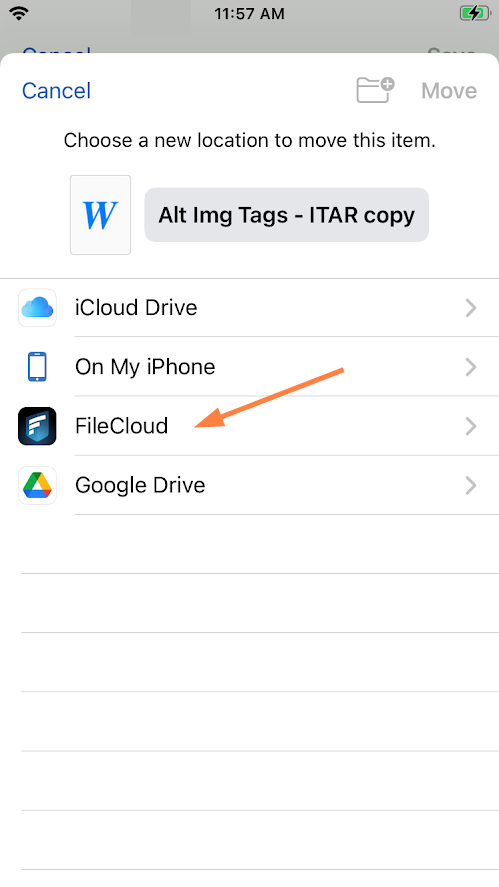
-
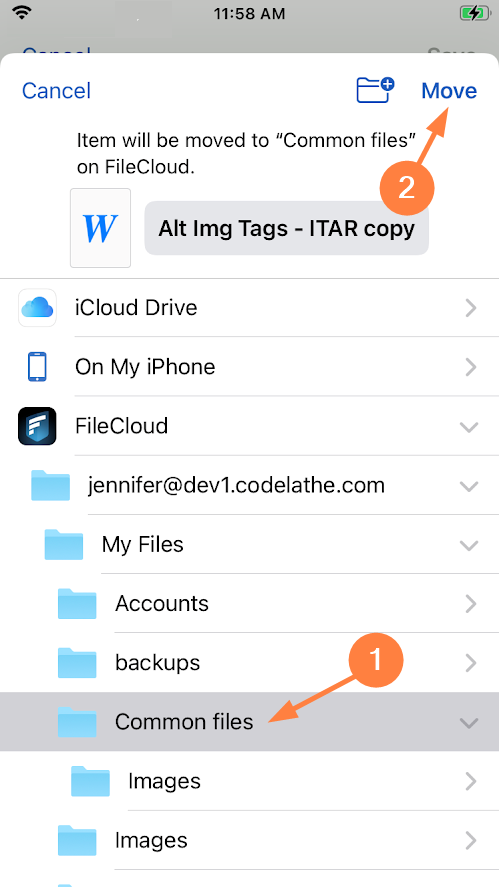
Navigate to the FileCloud folder where you would like to store the file, and tap Move.
Opening a file from FileCloud with another application
To open a FileCloud file in another application:
-
Open the FileCloud App.
-
Navigate to the file you want to open.
-
Tap the more (three dot) icon next to the file.
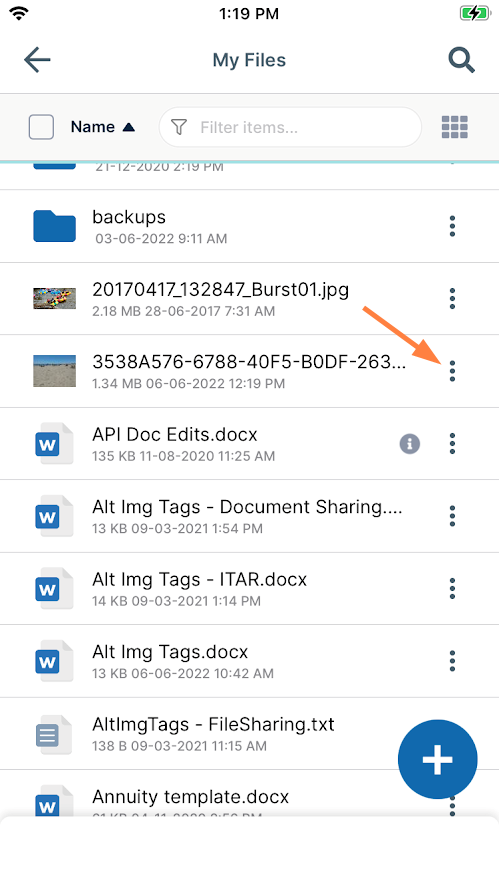
A list of options opens: -
Tap Open with.
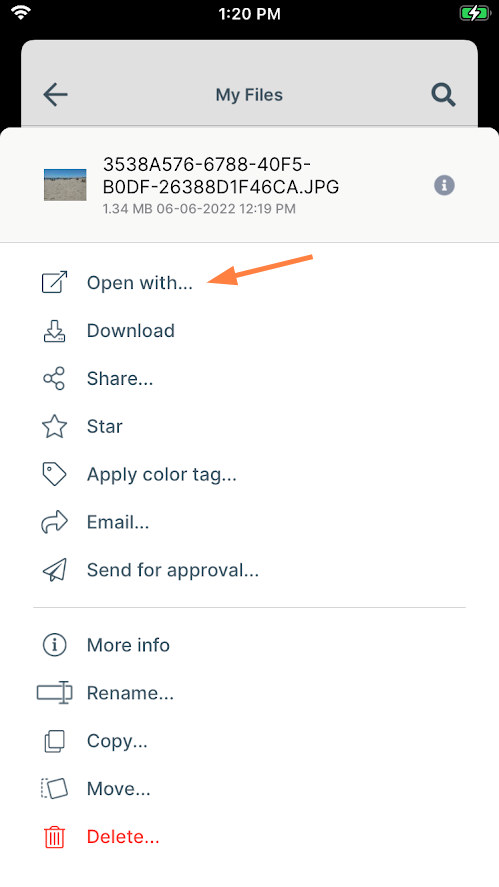
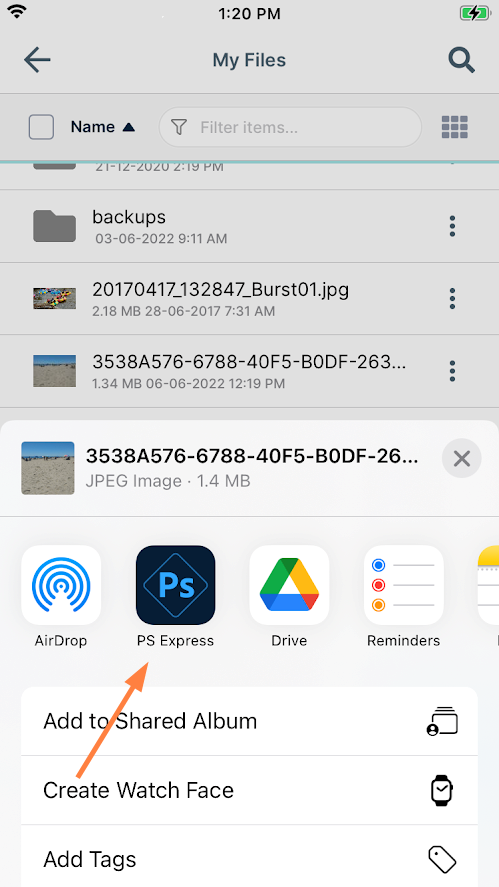
Various apps are shown as suggestions for opening the file. -
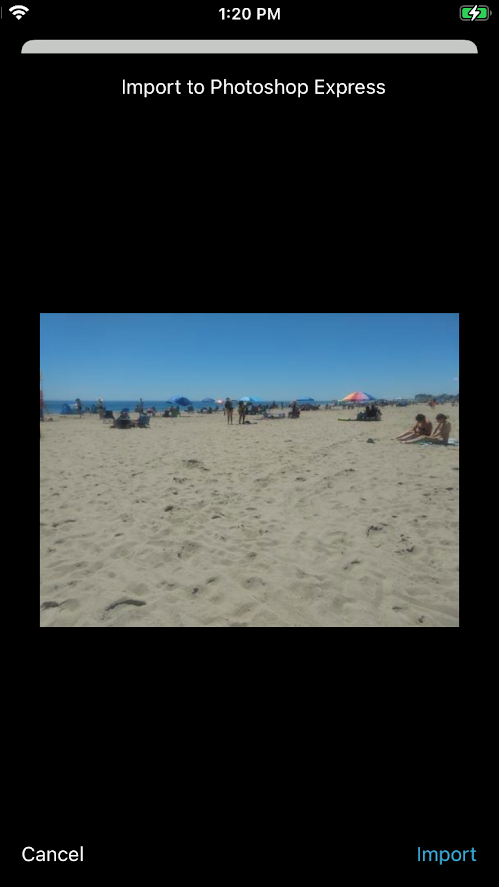
Tap the app you would like to open the file with.
The file opens in the app.
Mailing a file from FileCloud
To mail a file from the FileCloud app:
-
Open the FileCloud App.
-
Navigate to the file you want to send.
-
Tap the more (three dot) icon next to the file.
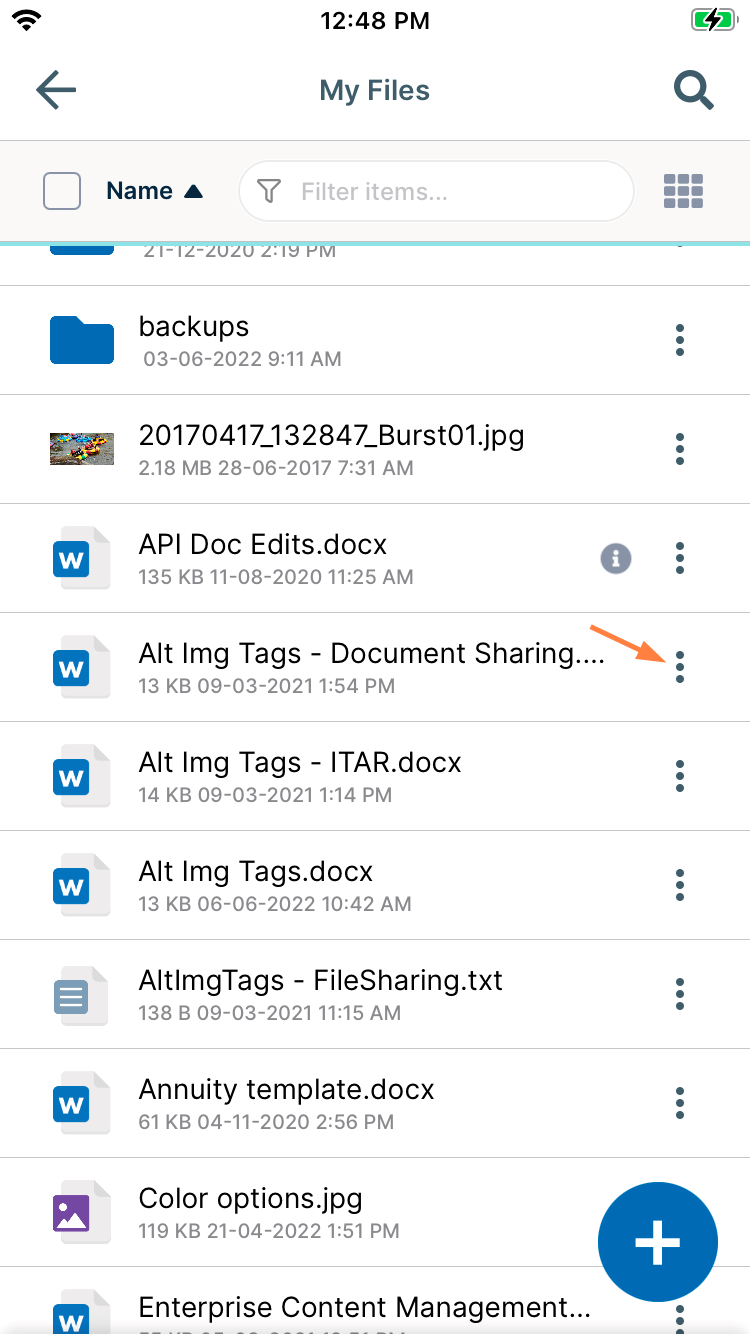
A list of options opens. -
Tap Email.
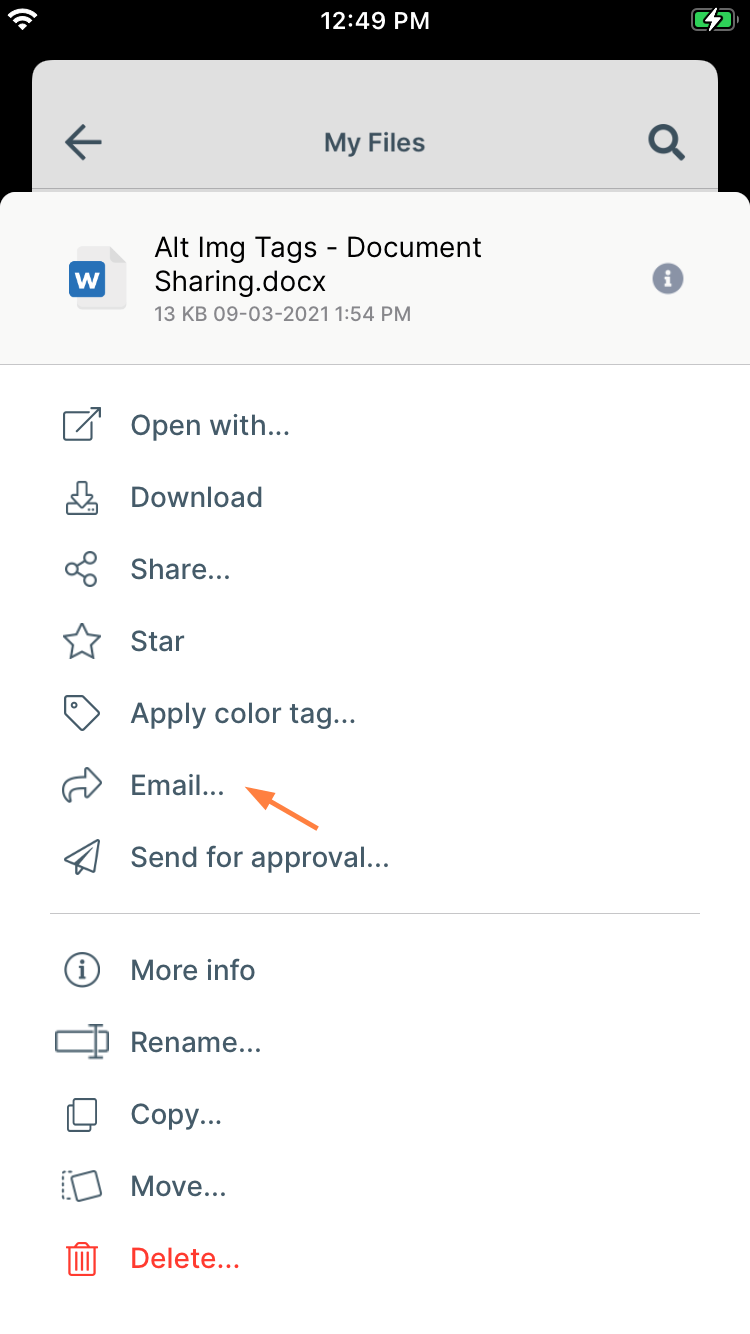
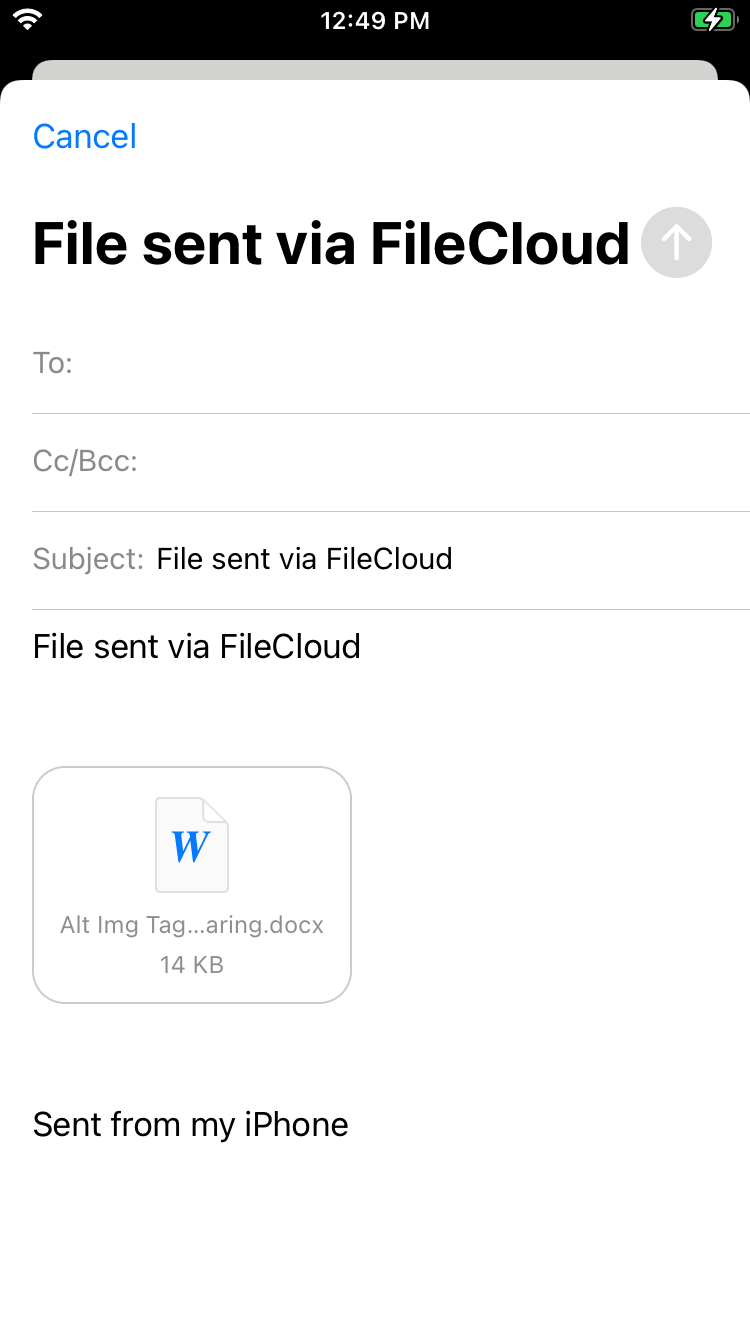
The file is attached to an email that contains the subject and message File sent via FileCloud.
-
Enter To: addresses and send the email.