.svg)
In the FileCloud iOS app, you can delete, move, copy, and rename your files and folders.
You can perform the delete, move, and copy operations on a single file or folder or on multiple files and folders at the same time, but you can only rename one file or folder at a time.
To access actions for multiple files and folders
Click to expand...
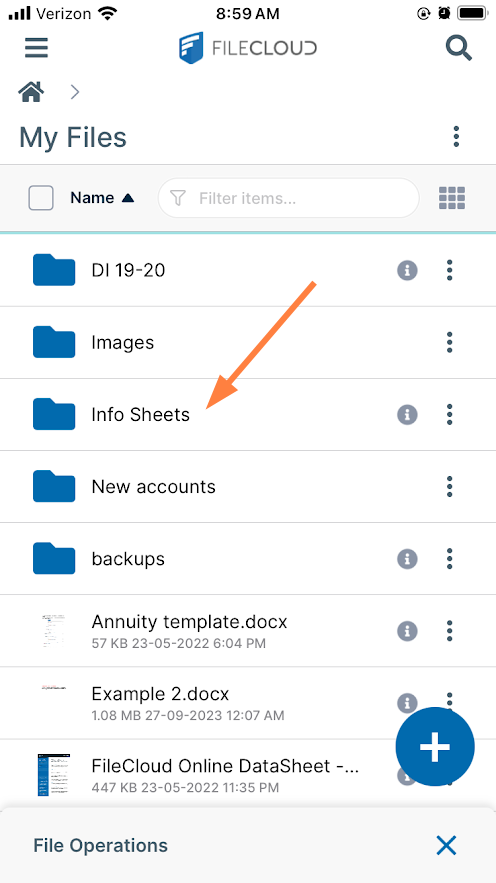
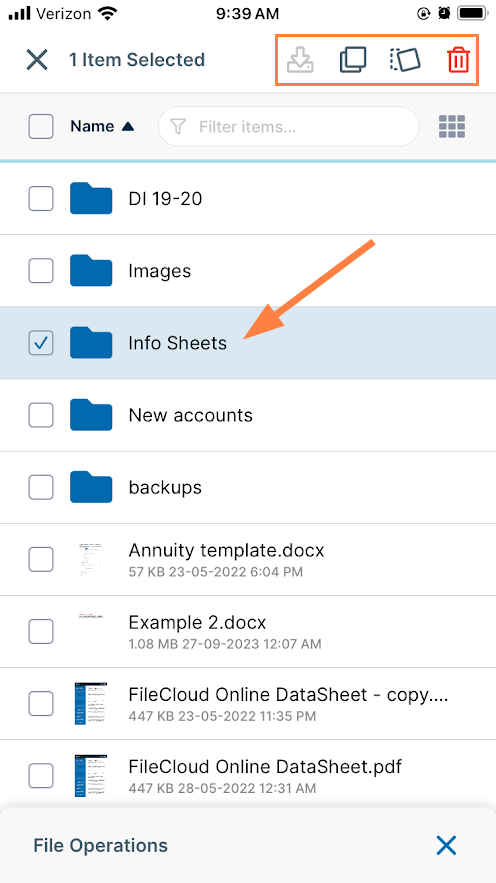
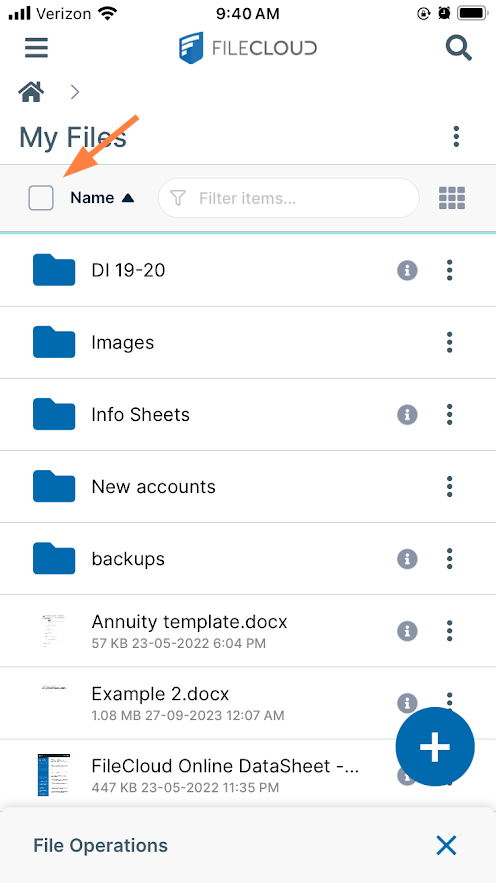
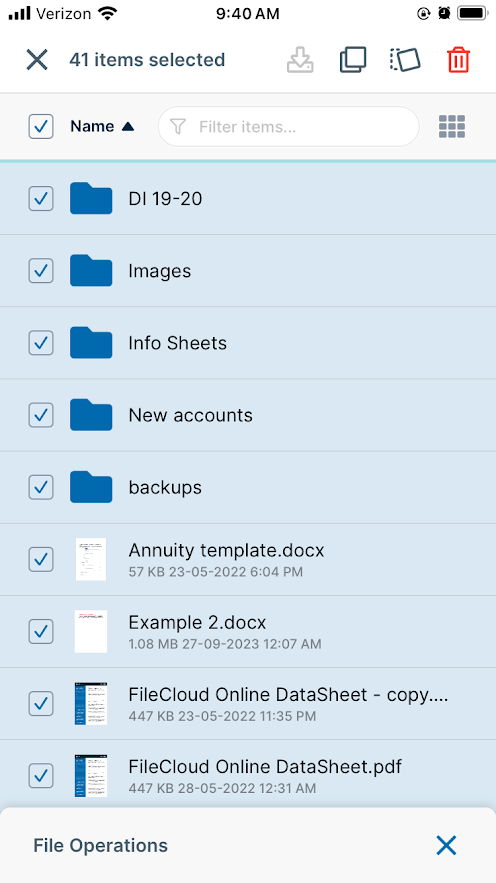
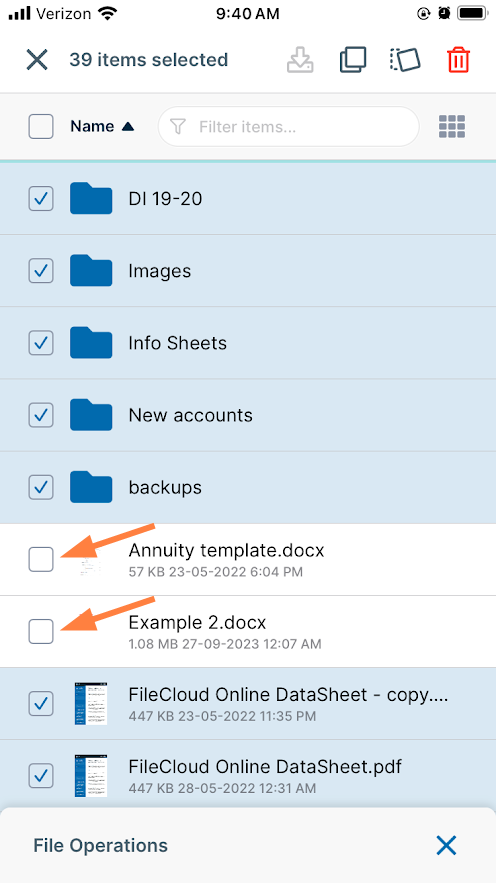
To perform actions on multiple files and folders, check the checkboxes for the files and folders.
-
To select the files or folders, either:
|
|
|
|
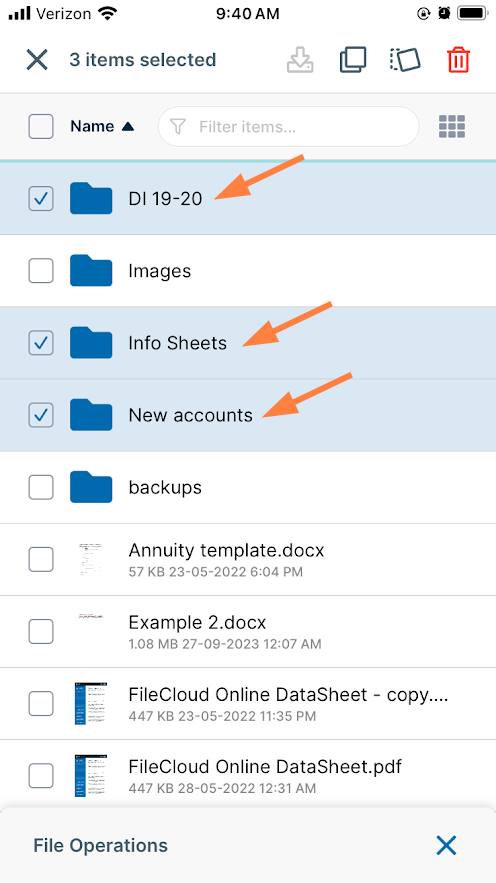
Or, if you want to act on many of the items in a folder:
|
|
|
|
To copy multiple files and folders:
Click to expand...
-
Select the files and folders and tap the Copy icon.
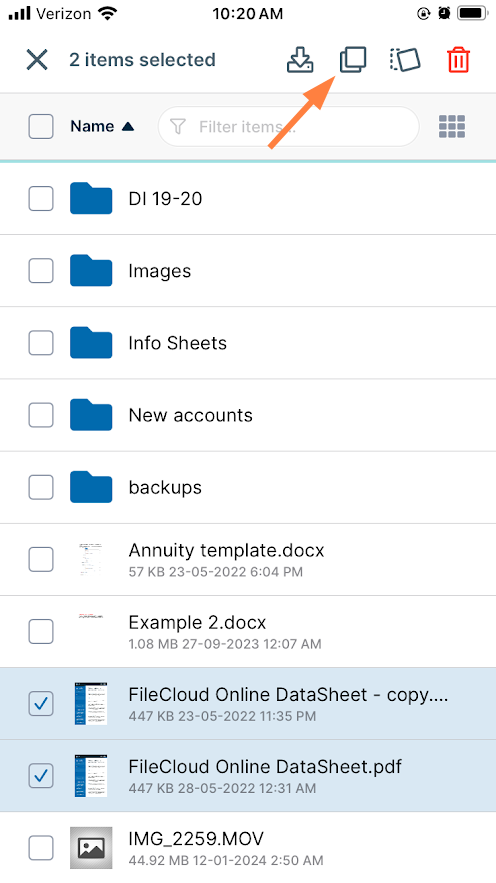
The Copy message at the top of the screen indicates how many items you are copying.
A Duplicate here message appears at the bottom of the screen.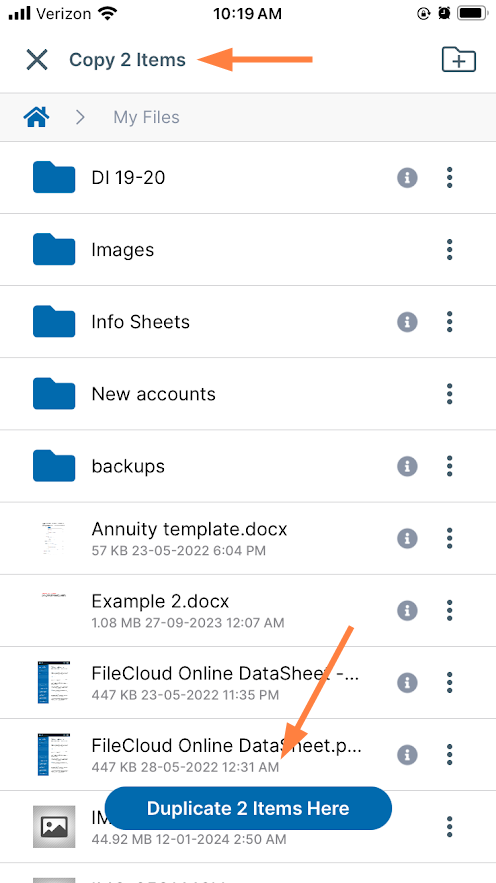
-
If you want to copy the items into the same location, tap the Duplicate here message.
OR
If you want to copy the items into another location, navigate to the location, and then tap the Duplicate here message.
Copies of the files and folders are added to the location.
To move multiple files and folders:
Click to expand...
-
Select the files and folders, and tap the Move icon.
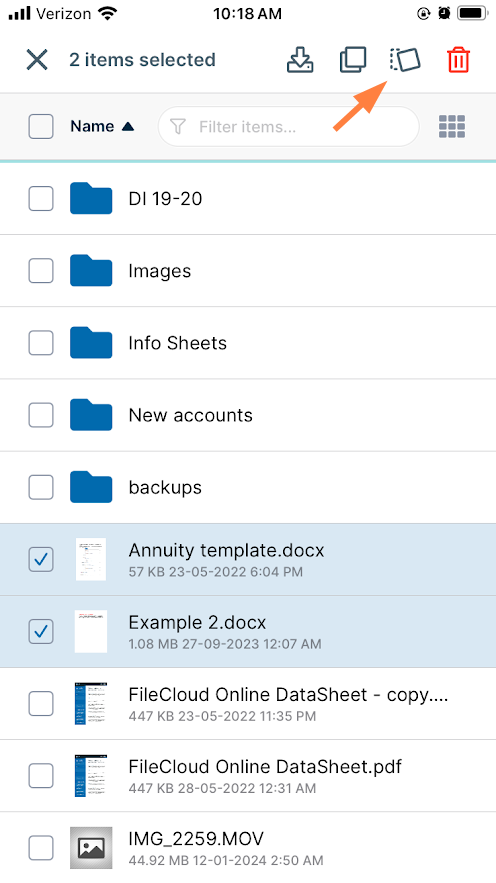
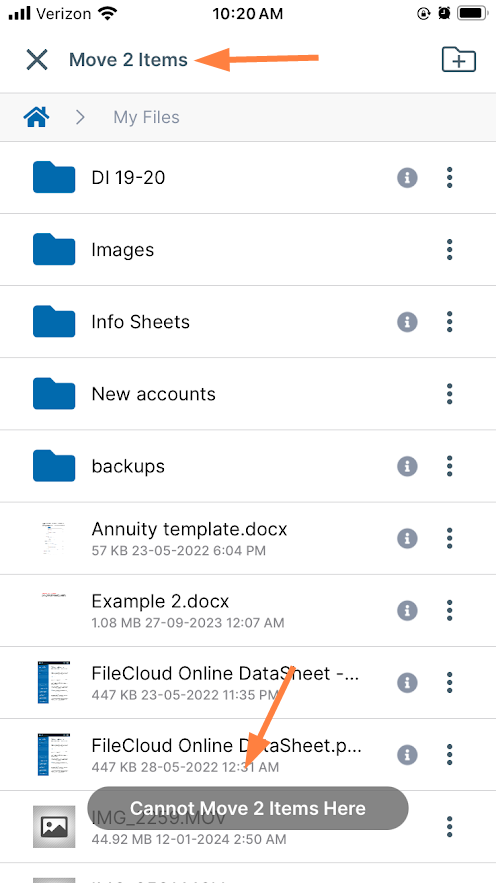
The Move message at the top of the screen indicates how many items you are moving.
A Cannot move here message appears at the bottom of the screen because you are still in the same folder as the original items.
-
Navigate to the location where you want to move the items, and then tap the Move items here message.
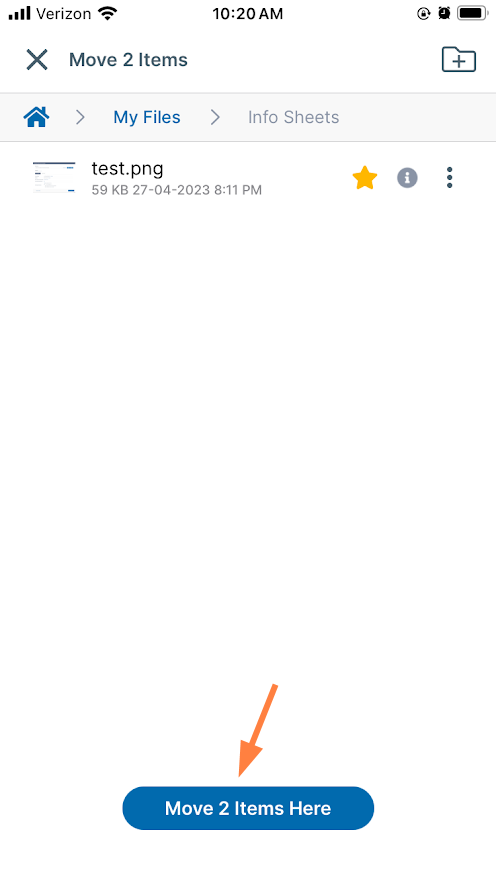
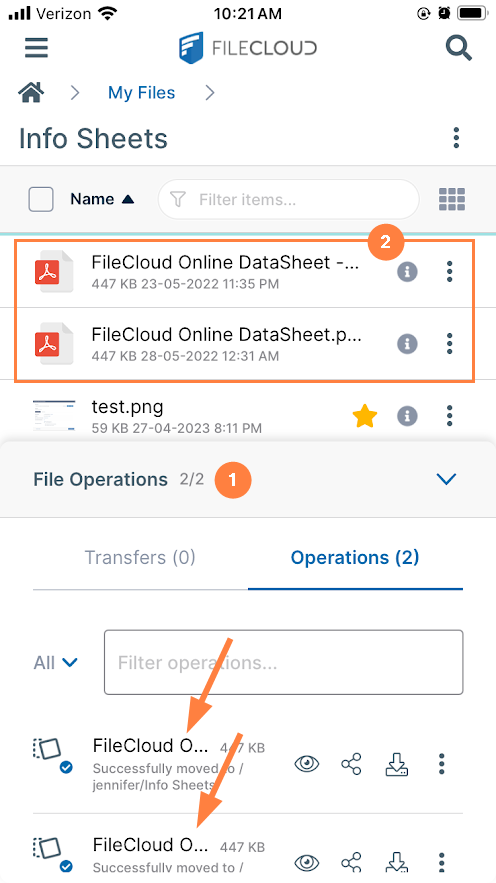
A File Operations popup shows you the progress of the move operation. Then the items appear in the new location.
Note: The popup and moved files may appear simultaneously if the files are moved quickly.
To delete multiple files or folders
Click to expand...
-
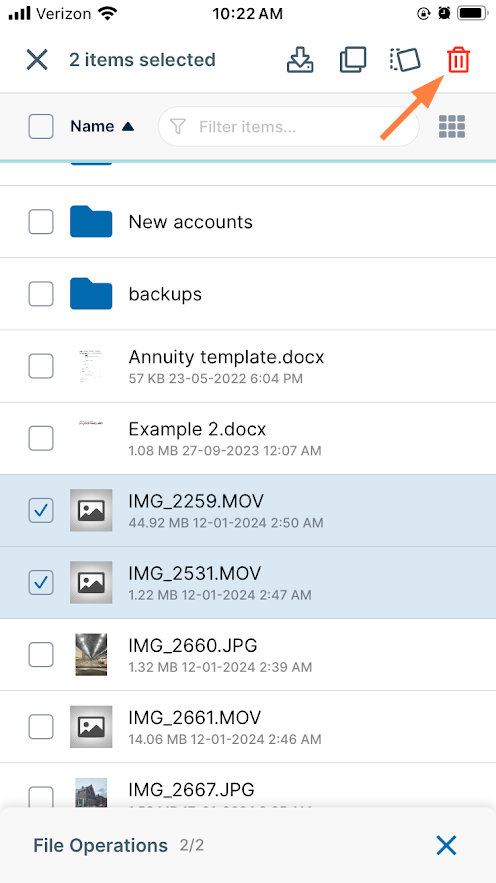
Select the files and folders and tap the Delete icon.
-
Tap Delete to confirm deletion.
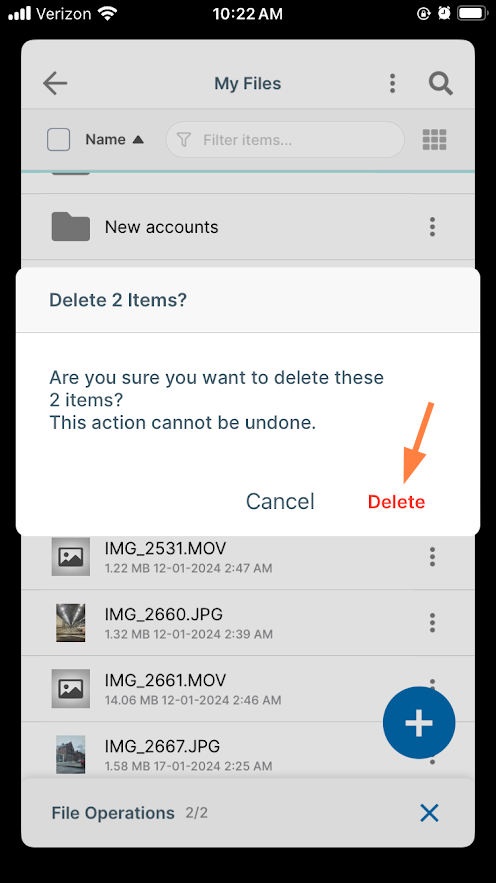
The files are deleted.
To access actions for a single file or folder by tapping the more icon
Click to expand...
-
Tap the more (triple dot) icon to the right of the file or folder.
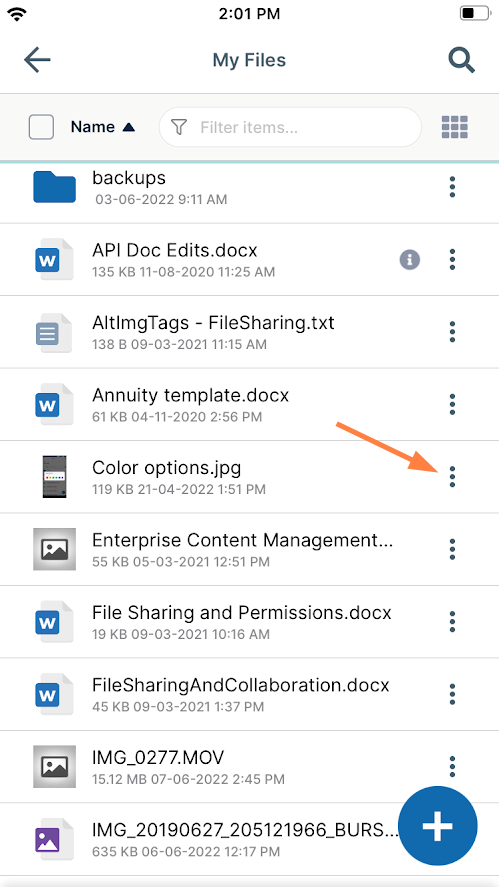
A list of file actions opens. Rename, Copy, Move, and Delete are listed at the bottom of the list.
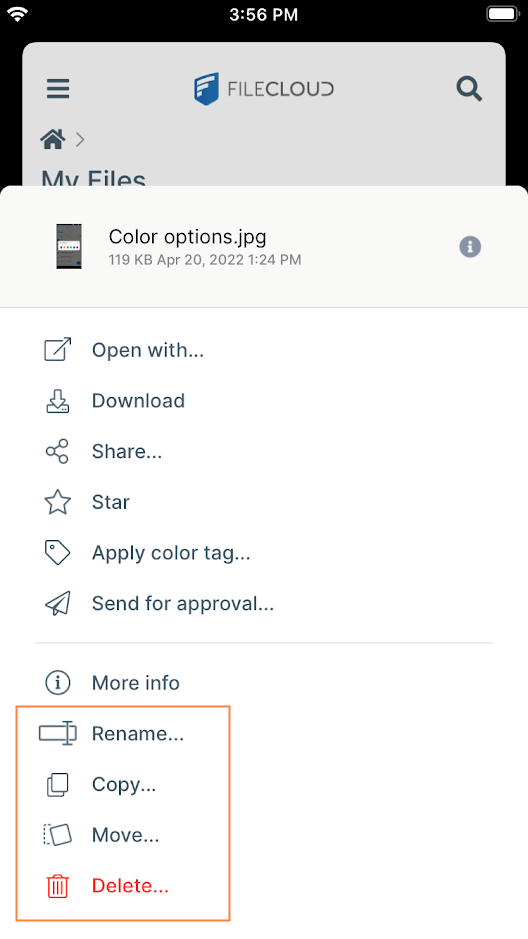
To copy a single file or folder:
Click to expand...
-
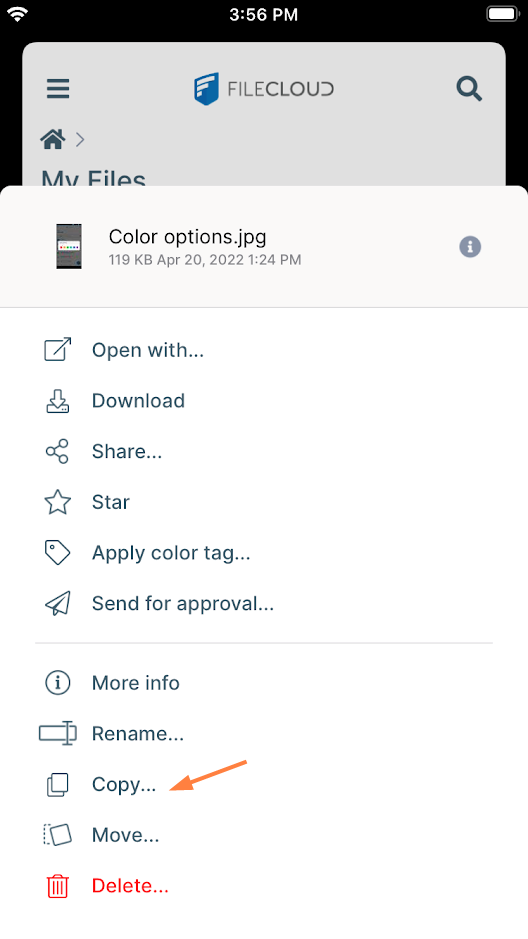
Access the file actions for the file or folder and tap Copy.
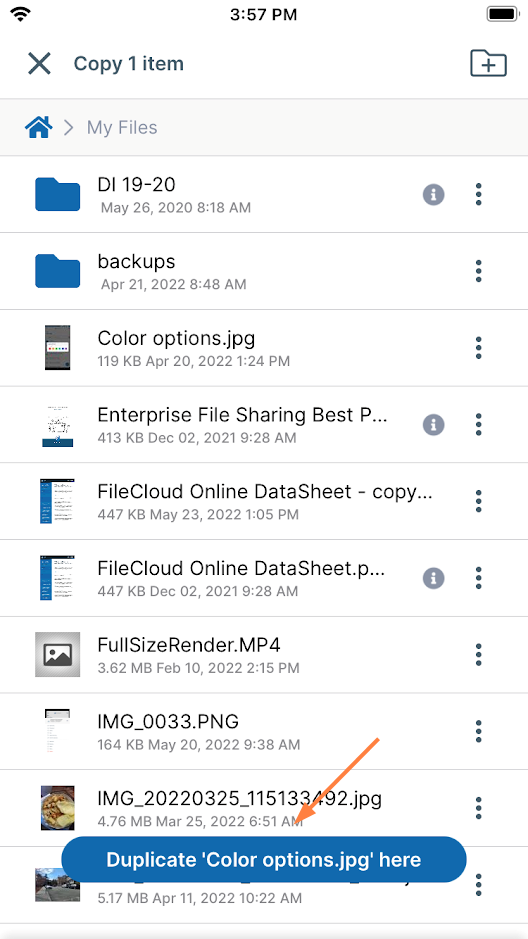
A Duplicate here message appears at the bottom of the screen.
-
If you want to copy the item into the same location, tap the Duplicate here message.
If you want to copy the item into another location, navigate to the location, and then tap the Duplicate here message.
A copy of the file or folder is created in the location.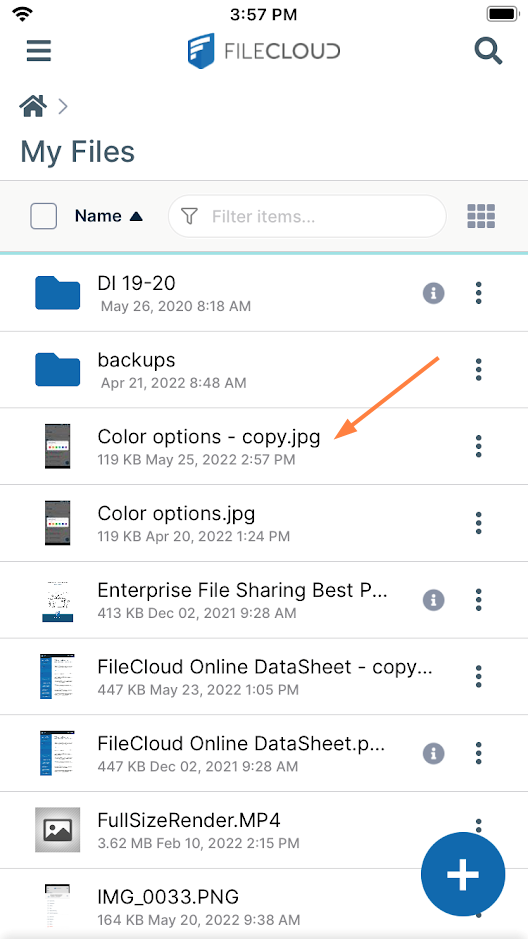
To move a single file or folder:
Click to expand...
-
Access the file or folder's actions and tap Move.
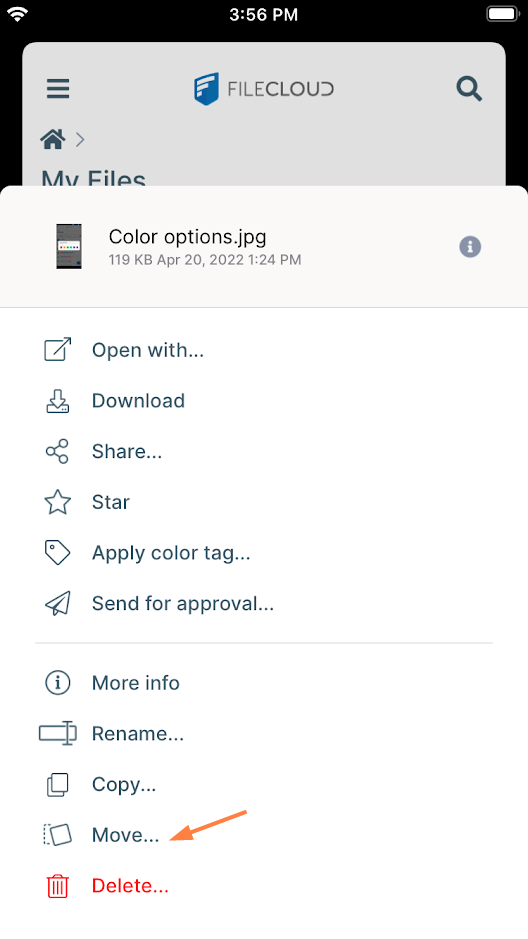
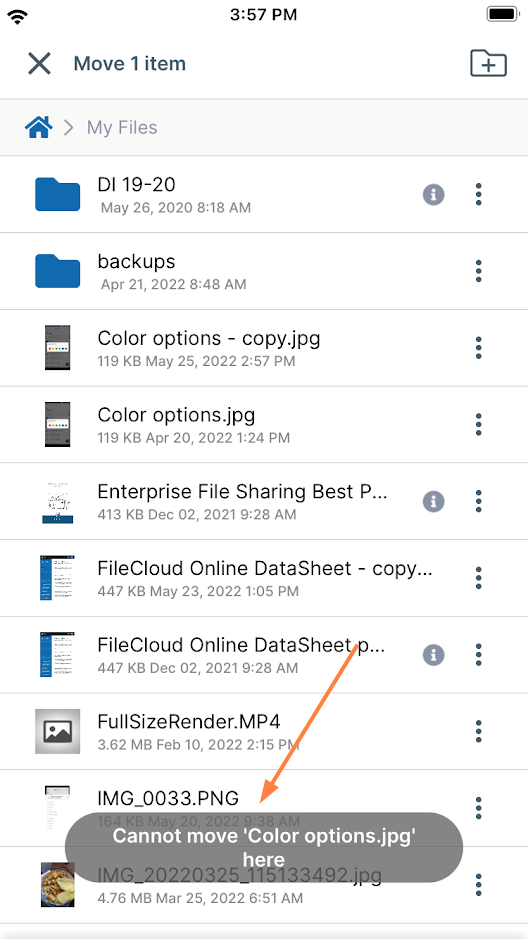
Since you are in the same folder as the original item, a message on the screen indicates that you cannot move the item here.
-
Navigate to the location where you want to move the item.
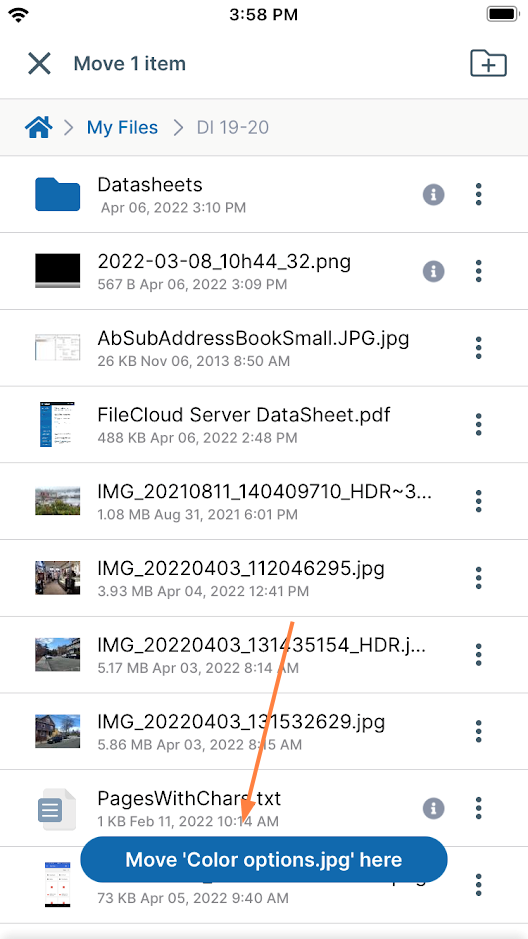
Once you navigate out of the item's current location, a Move here message appears at the bottom of the screen. -
Tap the Move here message.
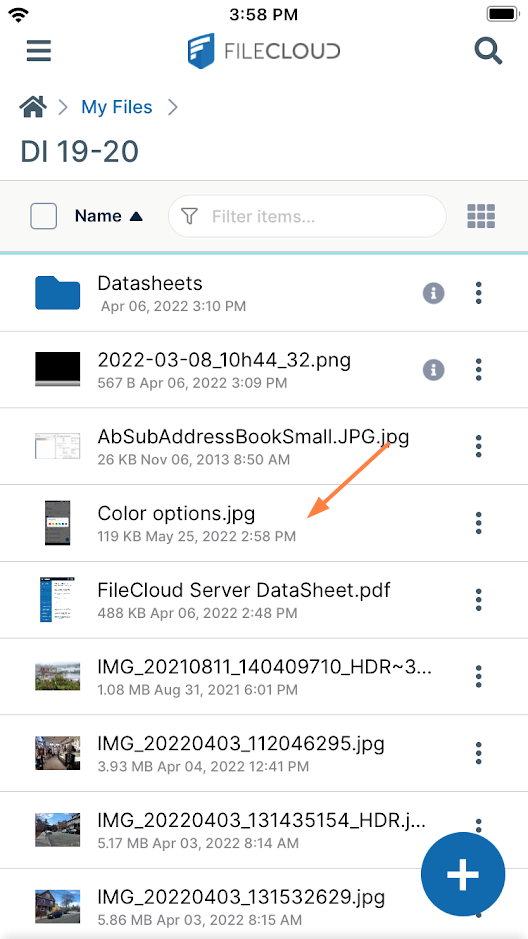
The file is moved to the new location.
.
To delete a single file or folder:
Click to expand...
-
Access the file or folder actions and tap Delete.
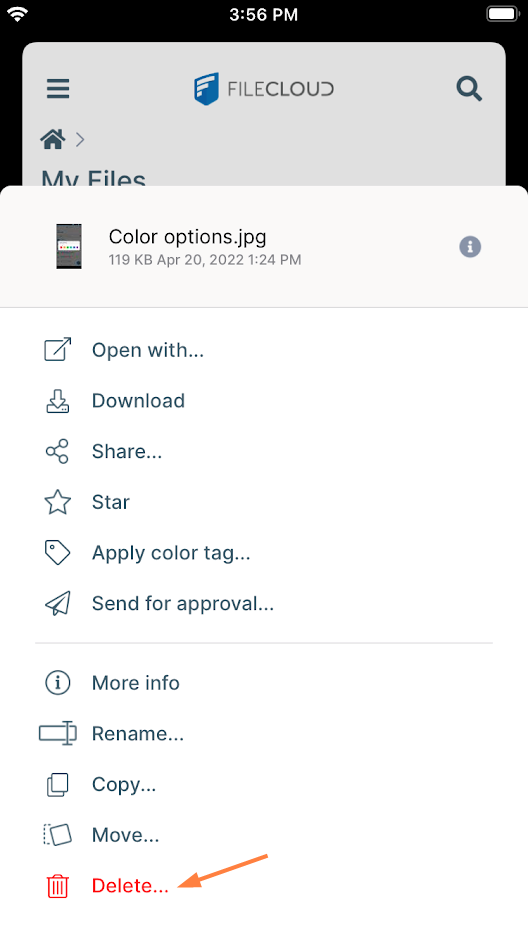
You are prompted to confirm deletion. -
Tap Delete.
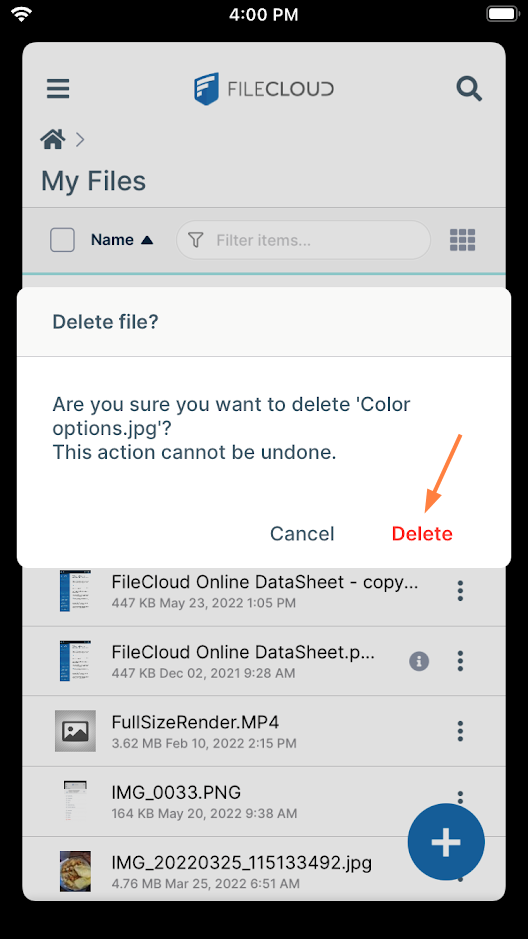
The file or folder is deleted.
To rename a file or folder:
Click to expand...
-
Access the file actions for the file or folder, and tap Rename.
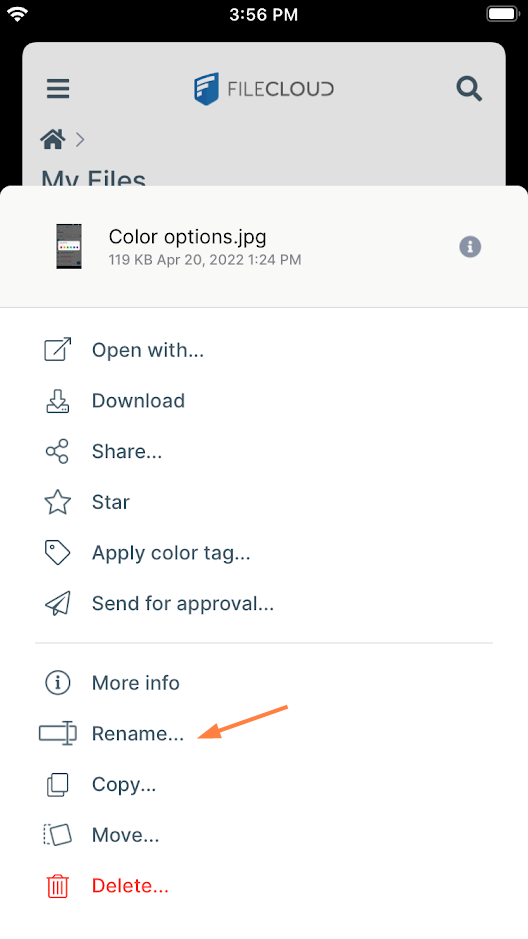
-
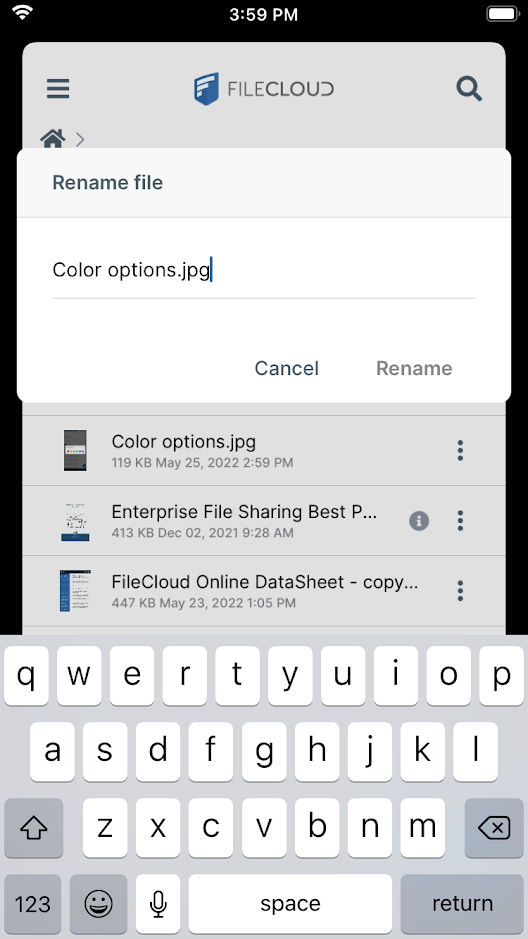
Change the file name and tap Rename.