You can automatically back up photos and videos on your mobile device to FileCloud.
This feature must first be enabled on the server by your administrator.
Frequently Asked Media Backup Questions
How often is the backup done?
When enabled, media backup occurs automatically every 3 days after the completion of the last media backup. If a media backup is in progress when the app is closed, it stops, but the backed up content is saved, and when the app is re-opened, it attempts to complete the media backup.
Manual backups can be triggered by clicking the Back Up Now button at any time.
What if the FileCloud app goes to the background?
The app attempts to finish the current file upload in the background. Once the app is put into the foreground again, it continues the backup.
What happens if a file is removed on the FileCloud server?
If a photo or video is present in the iOS device but is deleted, renamed, or moved in the remote FileCloud server, then:
The FileCloud iOS app treats the file as a new local image and uploads it to the server.
The only way to prevent the file from being uploaded is to manually delete the file in the iOS device itself.
What happens if the FileCloud server folder is unavailable, full, locked, or deleted?
In the following cases an error is shown to the user and uploads are not attempted:
The folder on the remote FileCloud Server is not available.
The folder on the remote FileCloud Server is full.
The folder is locked and the user doesn't have permissions to upload to it.
If the folder on the remote FileCloud Server has been deleted, the folder is recreated before continuing the backup. If the creation fails, the app displays an error, and additional uploads are not attempted.
Is there a size limit when uploading?
There is no limit on the number or size of photos or videos that can be uploaded to FileCloud.
The only requirement is that you need to have enough free space to allow the app to import the photo or video first and then upload it.
For example, if you have a 100MB video file, then you must have at least 110MB of free space.
Once upload is completed, the temporary file is deleted.
For Administrators: Enabling Automatic Backup
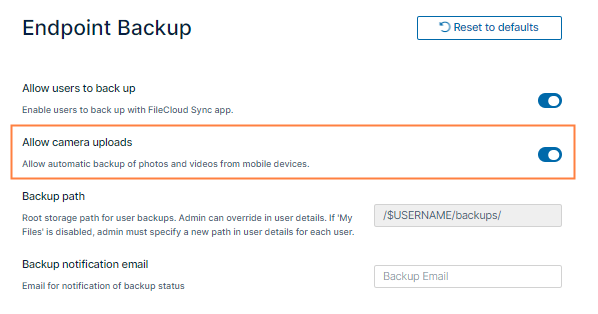
To enable automatic camera uploads:
Note: The Allow Sync Apps setting in Server Settings must be enabled for Allow camera uploads to work. By default Allow Sync Apps is enabled.
In the FileCloud admin portal's left navigation bar, scroll down and click Settings.Then, on the Settings navigation page, click Endpoint Backup . The Endpoint Backup settings page opens.
Enable Allow camera uploads.
Configure Media Backup
To configure media backup settings:
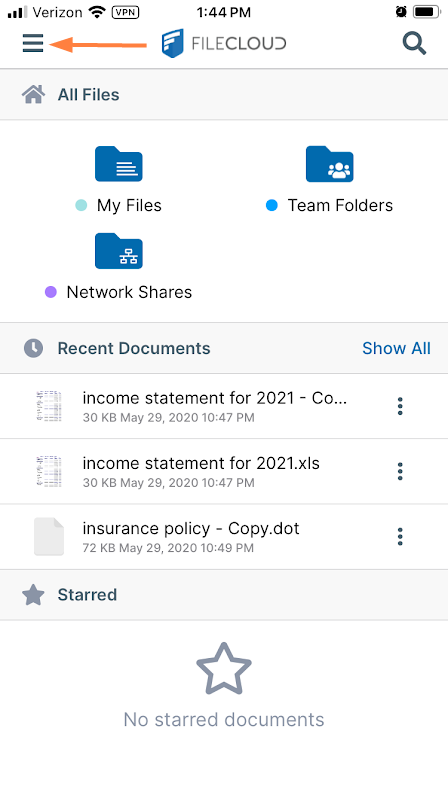
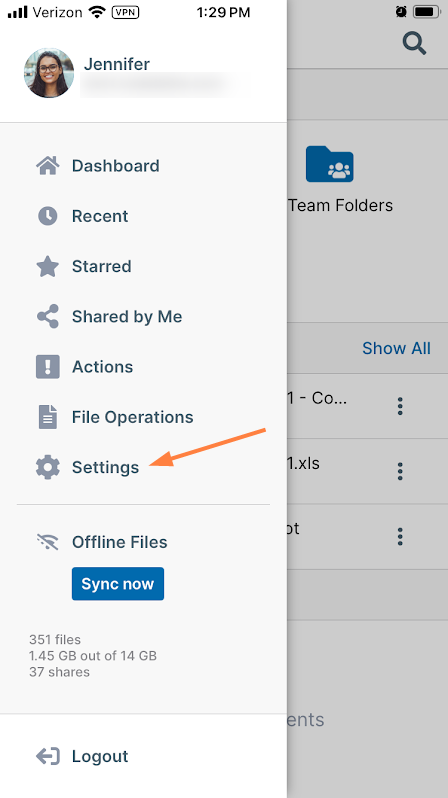
Log in to the app, and tap the triple-dash icon in the upper left corner, then choose Settings.
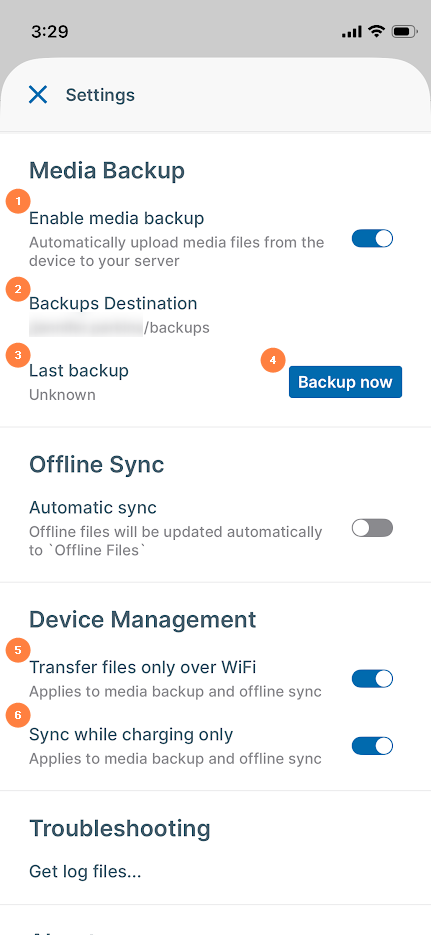
The Settings options appear.
In the list of settings, toggle on Enable media backup.
If this is the first time you have enabled media backup, when prompted, allow FileCloud to access the Backups destination folder.
Backup now occurs automatically every three days, but you may trigger it manually by clicking the Back up now button.
If you close the FileCloud app while a media backup is in progress, when you open the app, the backup continues from where it left off.
Set any of the other options shown in the table below.
Enable media backup - Activates media backup. Backup occurs automatically every three days.
Backups destination - (read-only) Displays the server folder path where media is uploaded and stored for backup. This is entered the admin portal in Backup path.
Last backup - Displays the date of the last media backup
Back up now - Manually triggers a backup of the media on the device.
Note: If you have the setting Transfer files only over Wi-Fi or the setting Sync while charging only enabled it may prevent you from running Back up now.
Transfer files only over Wi-Fi - Disabled by default. To also upload via mobile data, disable the option.
Sync while charging only - Disabled by default. When enabled, media backup can only occur while the phone is charging to avoid battery drain.
To back up manually
To manually back up your device, in Settings, click the Back up now button. If you have the setting Transfer files only over Wi-Fi or the setting Sync while charging only enabled it may prevent you from running Back up now.
.svg)