.svg)
Files and Folders can be downloaded directly to the iOS device to allow access when there is no connectivity.
The FileCloud iOS App must be in foreground when the download is started; you may switch to another app while the download is in progress.
To download a file from the FileCloud Server:
-
Open the FileCloud iOS app.
-
Navigate to the file you want to download.
-
Tap the more (triple-dot) icon to the right of the file.
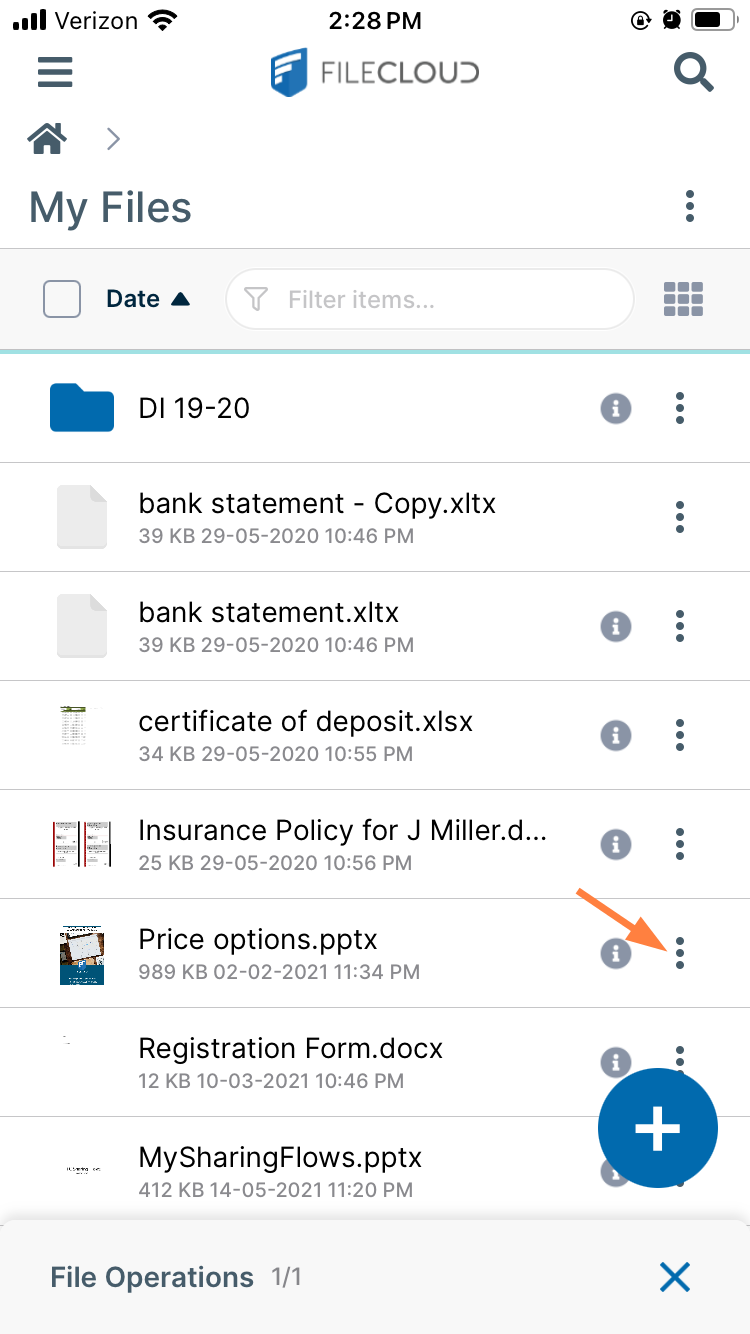
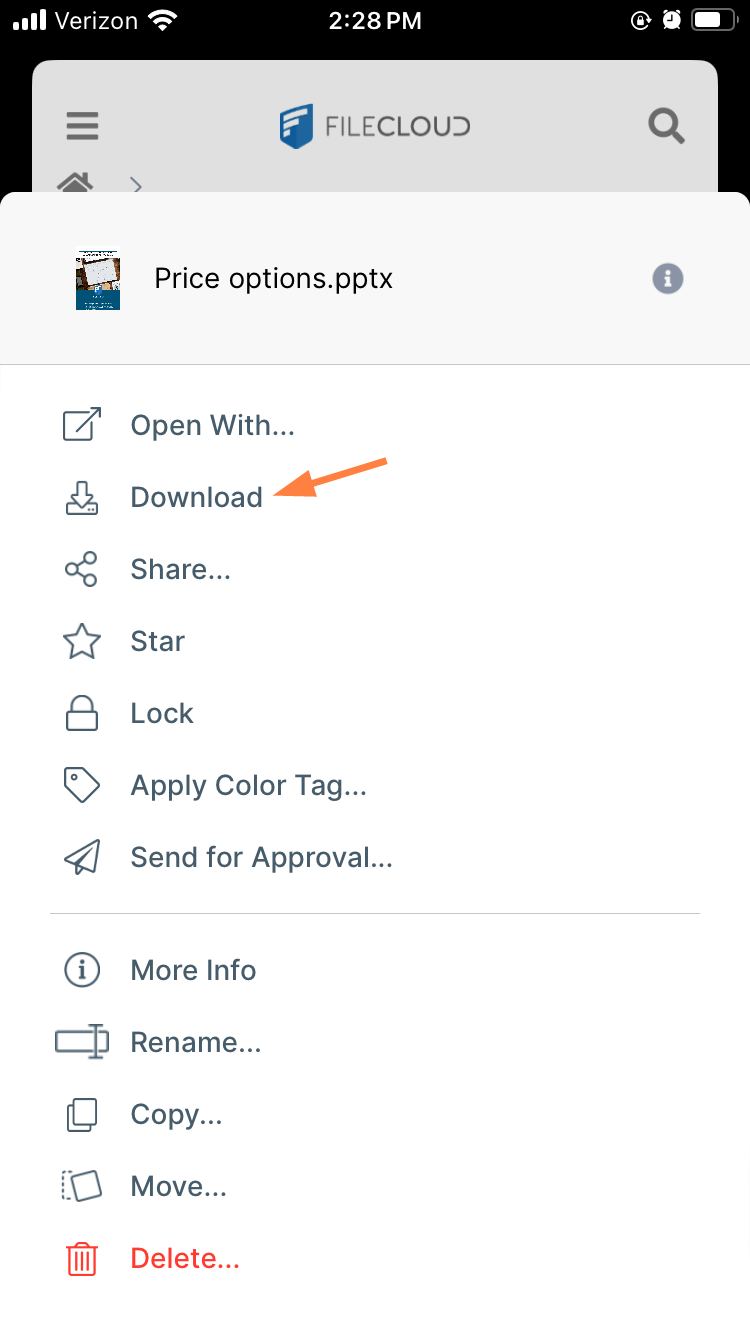
A list of file actions opens. -
Tap Download.
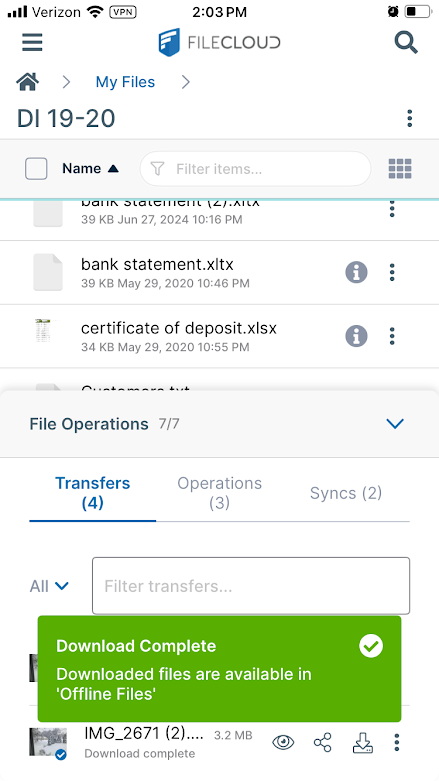
The File Operations window opens at the bottom of the screen and the download appears on the Transfers tab. Here, you can pause, restart, and view the progress of the download.
Note: You can continue working while the download is in progress.
You are alerted when the download is complete.
-
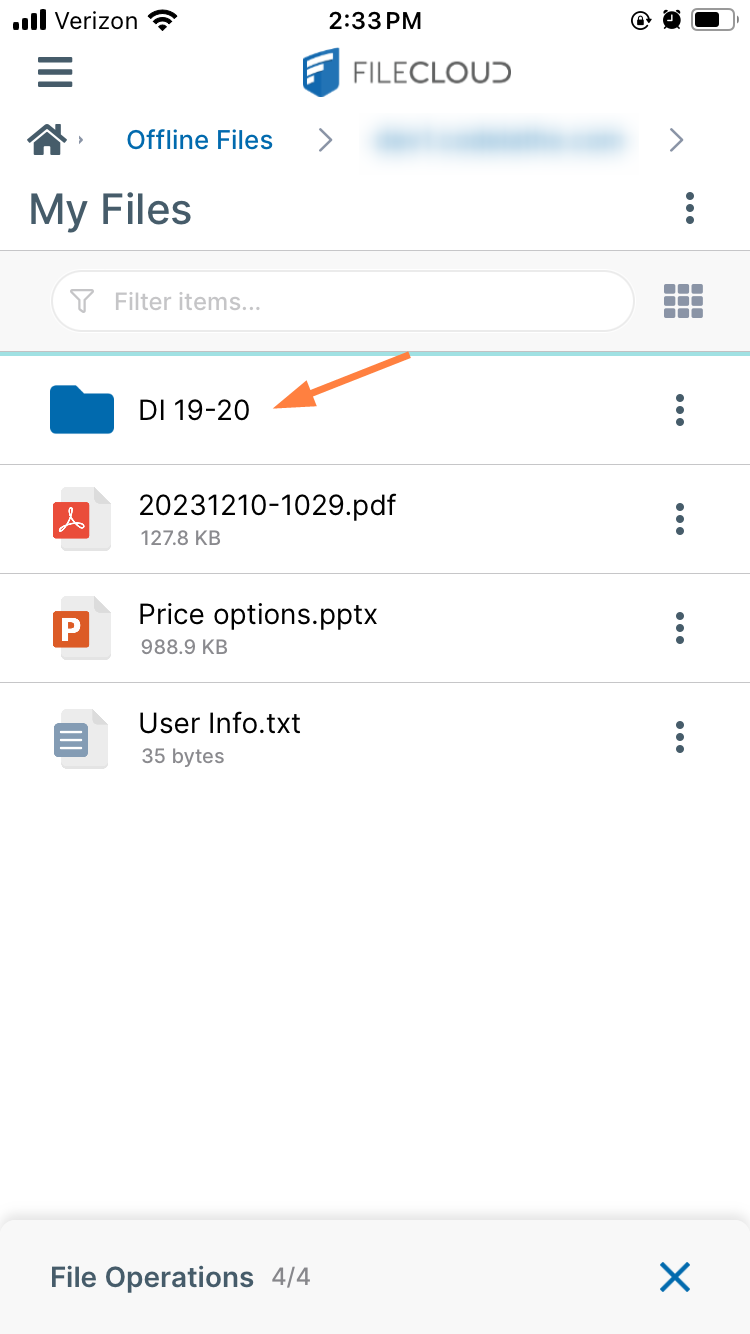
To access the downloaded files, tap the menu icon at the top of the screen and choose Offline Files.
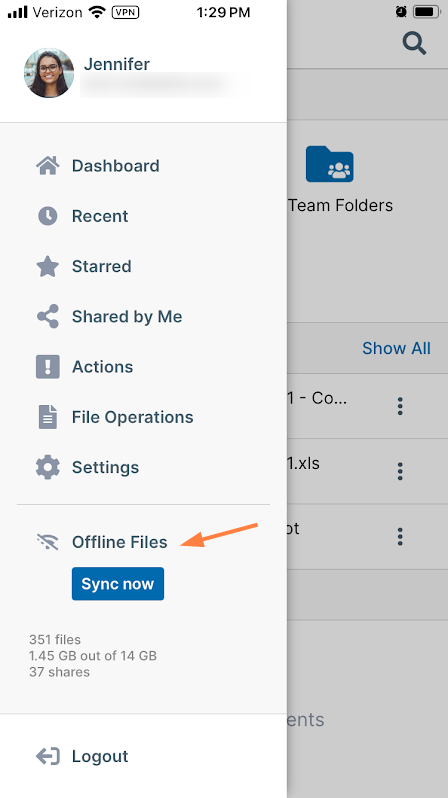
Your Offline Files locations appear. -
Tap the folder with the name of your FileCloud site:
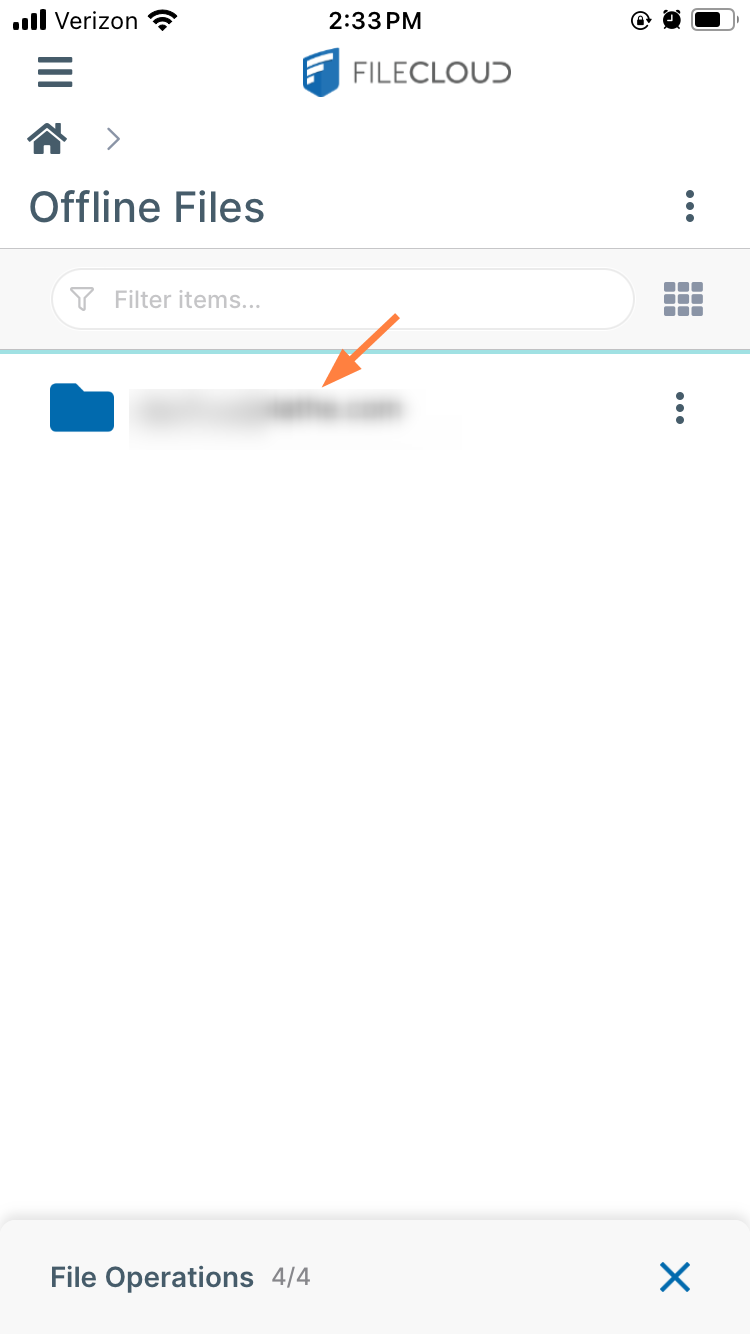
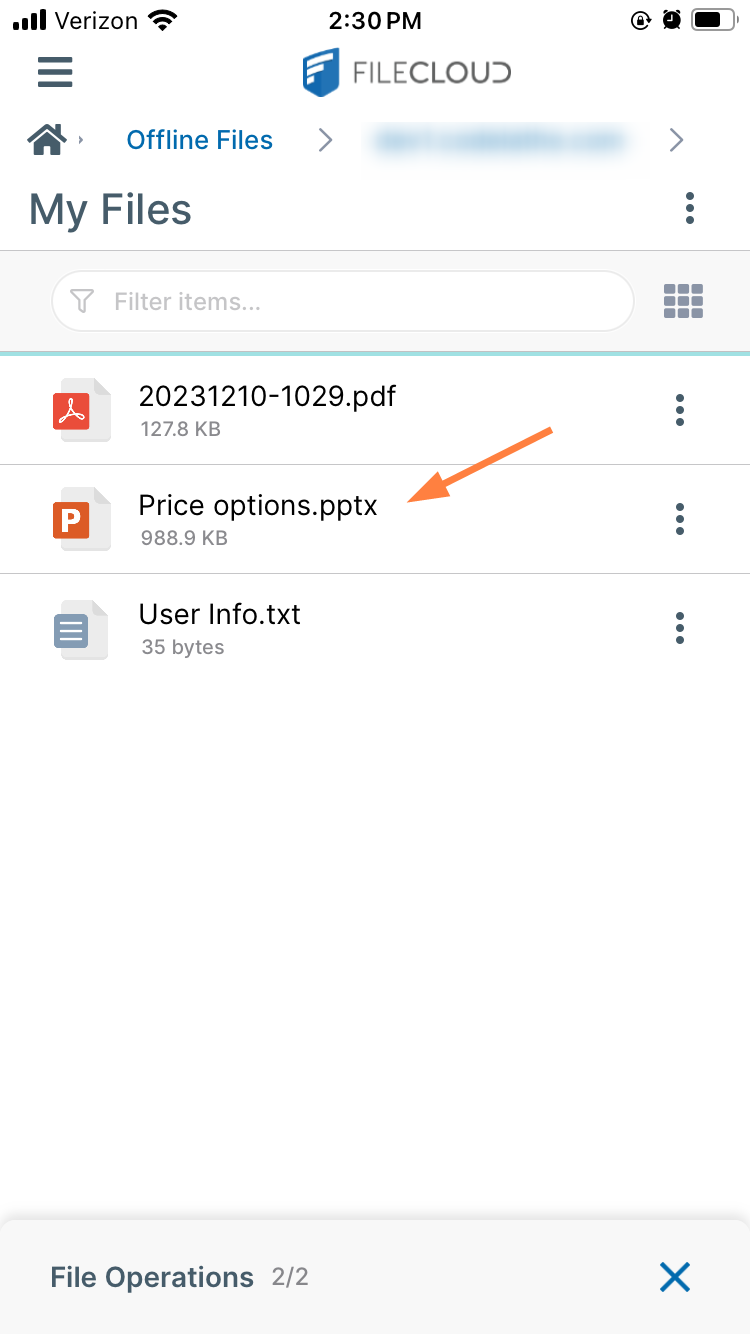
You can access your downloaded file or files from here.
To download a folder from the FileCloud Server:
-
Open the FileCloud iOS app.
-
Navigate to the folder you want to download.
-
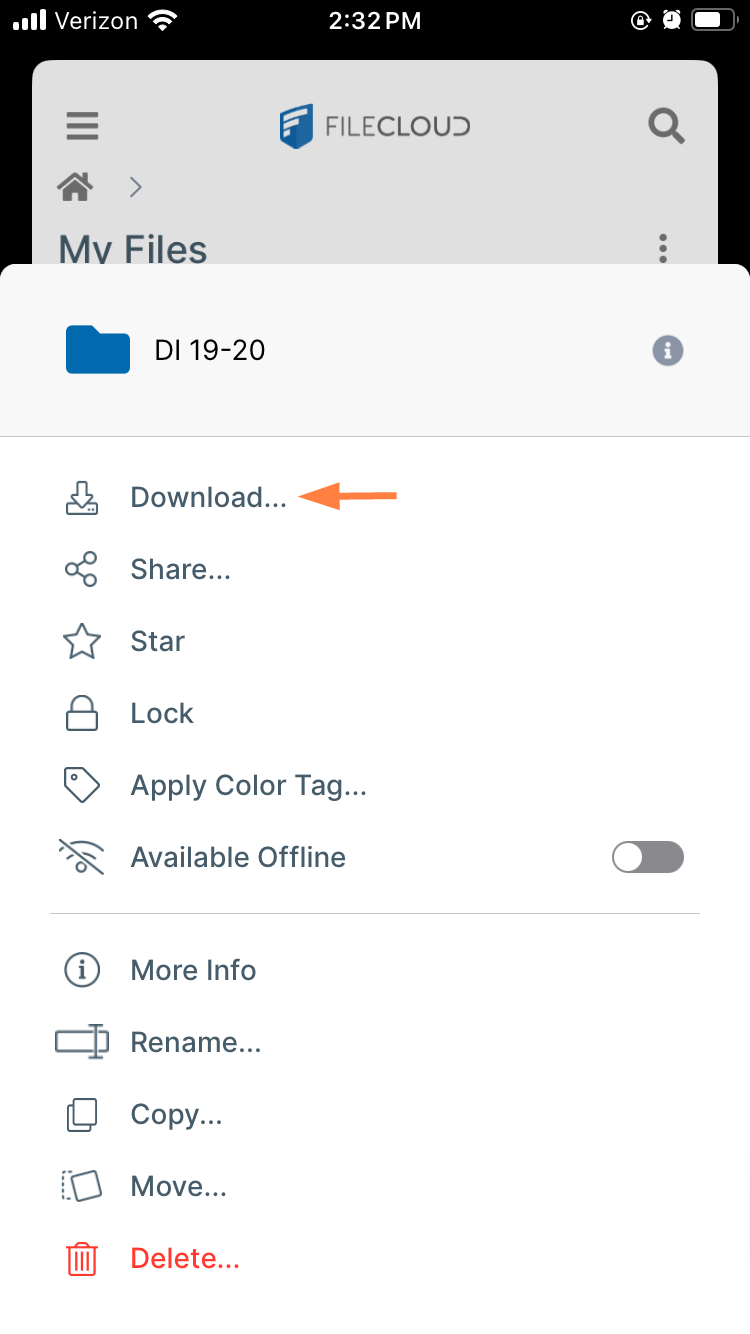
Tap the more (triple-dot) icon to the right of the folder.
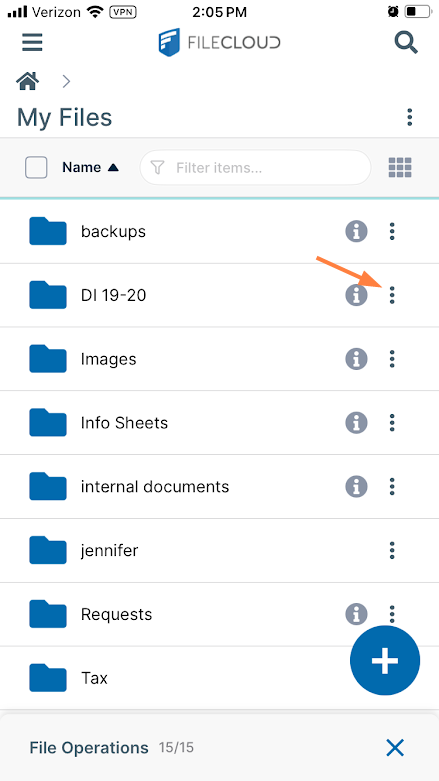
A list of folder actions opens. -
Tap Download.
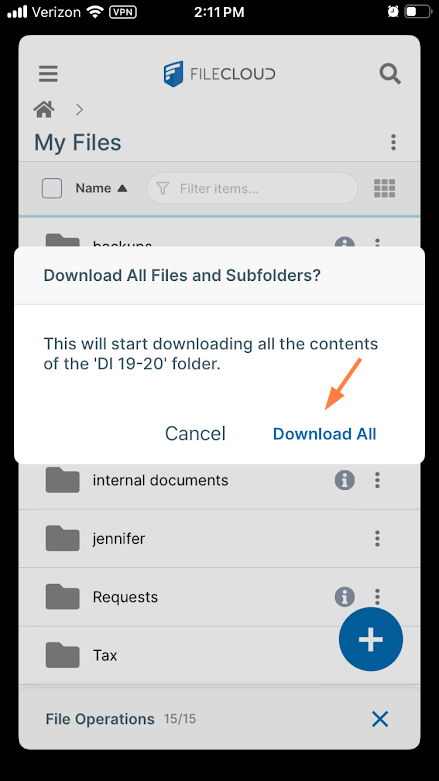
You are prompted to confirm that you want to download all of the folder contents. -
Tap Download All.
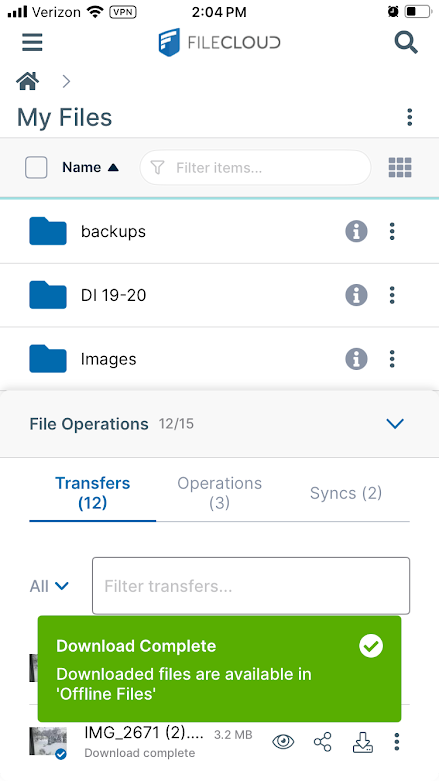
You can continue working while the download is in progress.
You are alerted when the download is complete.
-
To access the downloaded folder and its contents, tap the menu icon at the top of the screen and choose Offline Files.
Your Offline Files locations appear. -
Tap the folder with the name of your FileCloud site:
You can access your downloaded folder and its contents from here.