Breadcrumbs

iOS Automatic Photo and Video Backup

You can automatically upload photos and videos from your mobile device to FileCloud.

https://fileclouddocs.atlassian.net/wiki/s/1623602073/6452/05f502871a457750e4d6a5e1f585bce5603b62b2/_/images/icons/emoticons/warning.png This feature must first be enabled on the server by your administrator.

Frequently Asked Questions

How often is the backup done?

The iOS app cannot operate (or start automatically) in the background, so when the user starts the app, it checks and initiates the backup.

What if the FileCloud App goes to the background?

Once the FileCloud app is started, in most cases, it tries to complete the upload even when the app is in background.

What happens if a file is removed on the FileCloud server?

If a photo or video is present in the iOS device but is deleted, renamed, or moved in the remote FileCloud server, then:

  • The FileCloud iOS app treats the file as a new local image and uploads it to the server.

  • The only way to prevent the file from being uploaded is to manually delete the file in the iOS device itself.

What happens if the FileCloud Server folder is full?

In the following cases:

  • The folder on the remote FileCloud Server is not available

  • The folder on the remote FileCloud Server has been deleted

  • The folder on the remote FileCloud Server is full

The iOS app will not upload any more photos or videos until that issue is resolved.

https://fileclouddocs.atlassian.net/wiki/s/1623602073/6452/05f502871a457750e4d6a5e1f585bce5603b62b2/_/images/icons/emoticons/lightbulb_on.png The status will be set to “Exception” in the app.

Is there a size limit when uploading?

There is no limit on the number or size of photos or videos that can be uploaded to FileCloud.

The only requirement is that you need to have enough free space to allow the app to import the photo or video first and then upload it.

  • For example, if you have a 100MB video file, then you must have at least 110MB of free space.

  • Once upload is completed, the temporary file is deleted

For Administrators: Enabling Automatic Backup

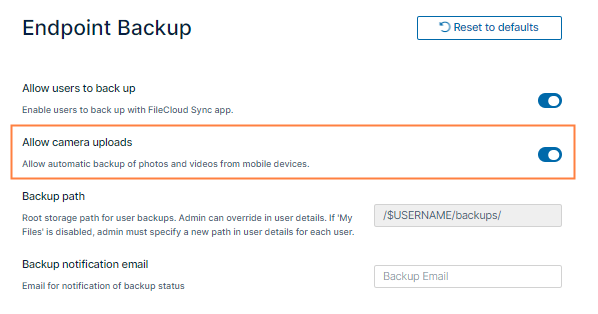
To enable automatic camera uploads:

Note: The Allow Sync Apps setting in Server Settings must be enabled for Allow camera uploads to work. By default Allow Sync Apps is enabled.

  1. In the FileCloud admin portal's left navigation bar, scroll down and click Settings. Then, on the Settings navigation page, click Endpoint Backup EndpointBackupIcon.png .

    The Endpoint Backup settings page opens.

  2. Enable Allow camera uploads.

    EndpointBackupCamera2.png

Configure Automatic Camera Backup

To configure camera backup settings:

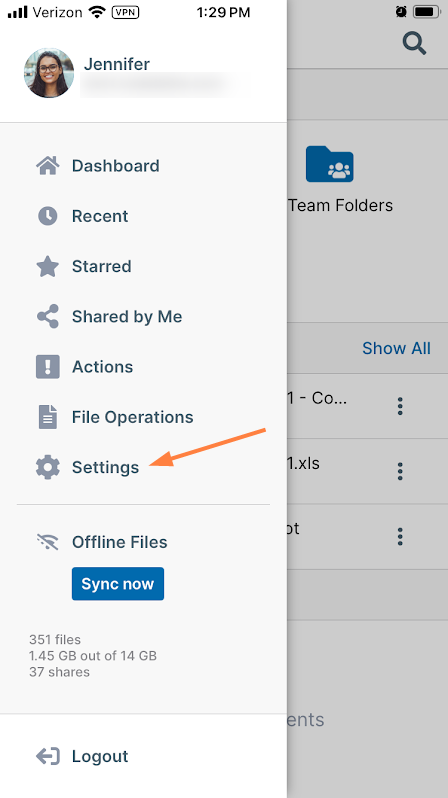
  1. Log in to the app, and tap the triple-dash icon in the upper left corner, then choose Settings.
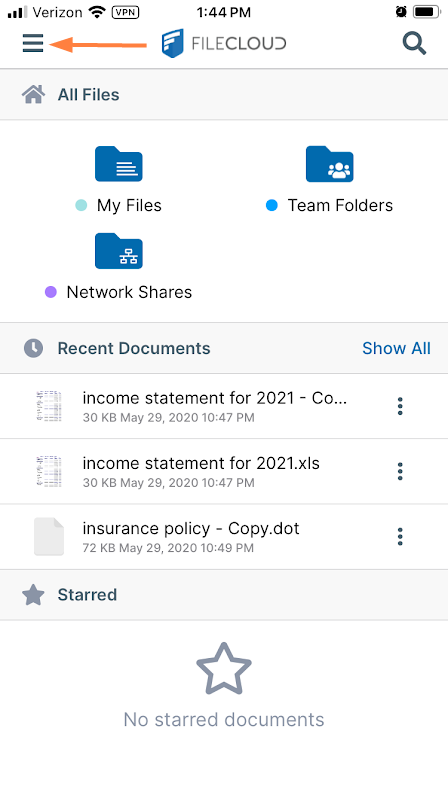
iOSDash.PNG
image-20251112-145545.png

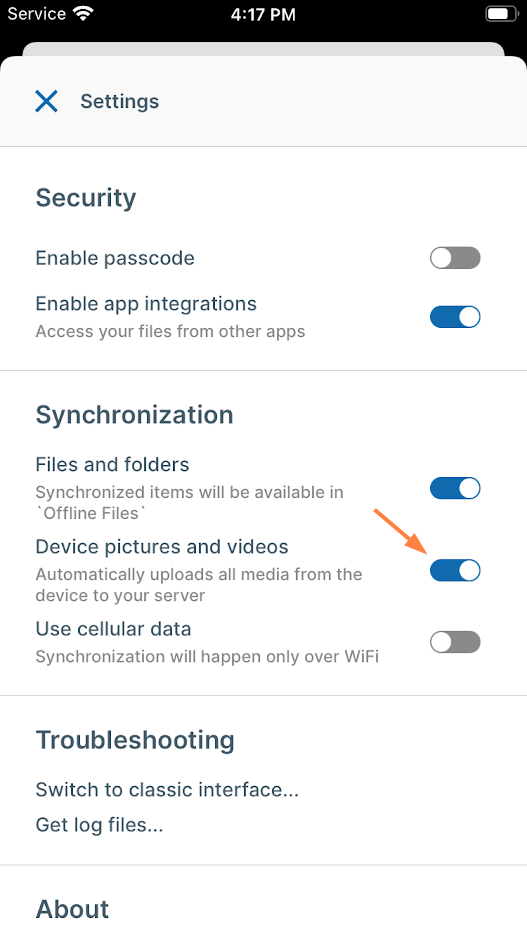
The Settings options appear.
By default, Device pictures and videos is disabled.

  1. Enable it.
    iOS photo backup.PNG
    Now the pictures and videos you take on your device are automatically backed up to your FileCloud Server.