.svg)
After you install the FileCloud Android App you can preview the files in your FileCloud Server Account. You can edit some types of files in your FileCloud account; other file types have to be downloaded, edited in a third-party application, and re-uploaded to FileCloud.
In the FileCloud Android App you can:
-
Preview .pdf and .txt files and edit them in the FileCloud Android application. No third-party app is required.
-
Open Office files such as .docx, .xlsx, .pptx etc. by sending the file to the appropriate Android app or open them directly from the MS Office app.
-
Open other file types by opening the file in the appropriate Android app.
-
Stream music and video files.
Previewing and editing PDFs and text files
How do I preview and edit PDFs and text files??
Tap the name or icon for a .pdf or .txt file, and it opens for preview in the FileCloud Android app.
The preview screen for pdfs lets you open your document for edit using the Edit icon :
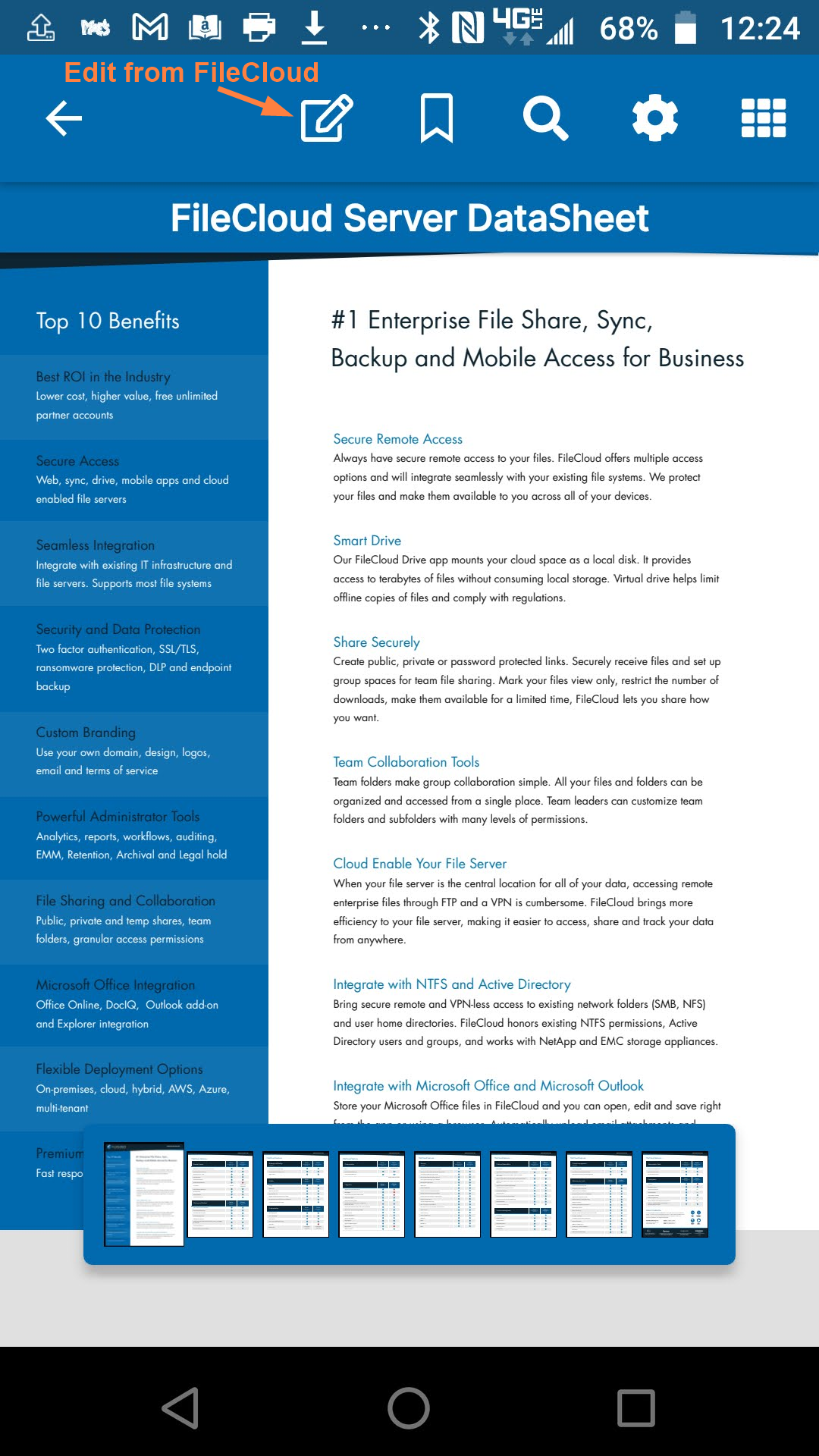
The preview screen for text files lets you directly edit the files. Tap the Save icon when you're done.
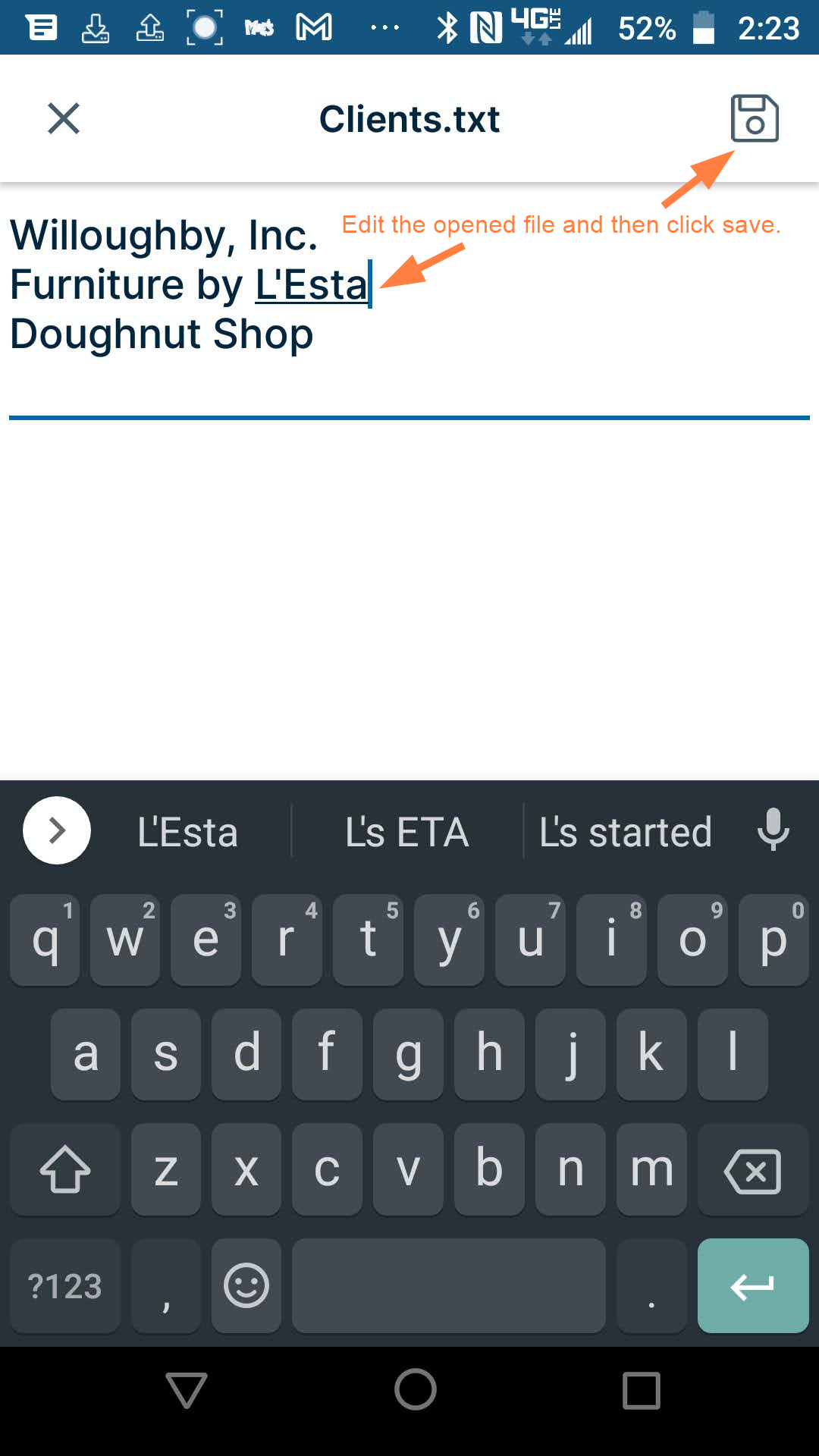
All changes to PDFs and text files are saved in FileCloud.
Previewing and editing Office files
What are my options for previewing and editing Office files?
The recommended method of editing Office files in FileCloud is to open them from the Office app and make changes there. The changes are automatically saved to FileCloud.
You can also open the file in the FileCloud app and choose a third-party app to edit it with. However, in this case, the changes are not saved to FileCloud and you must upload the modified file to FileCloud.
To open an Office file for edit from the Office app:
-
If you do not have the Microsoft Office app installed, go to the Google Play store and install it.
-
Open the Office app on your Android device, and log in with the Office account you use with FileCloud.
-
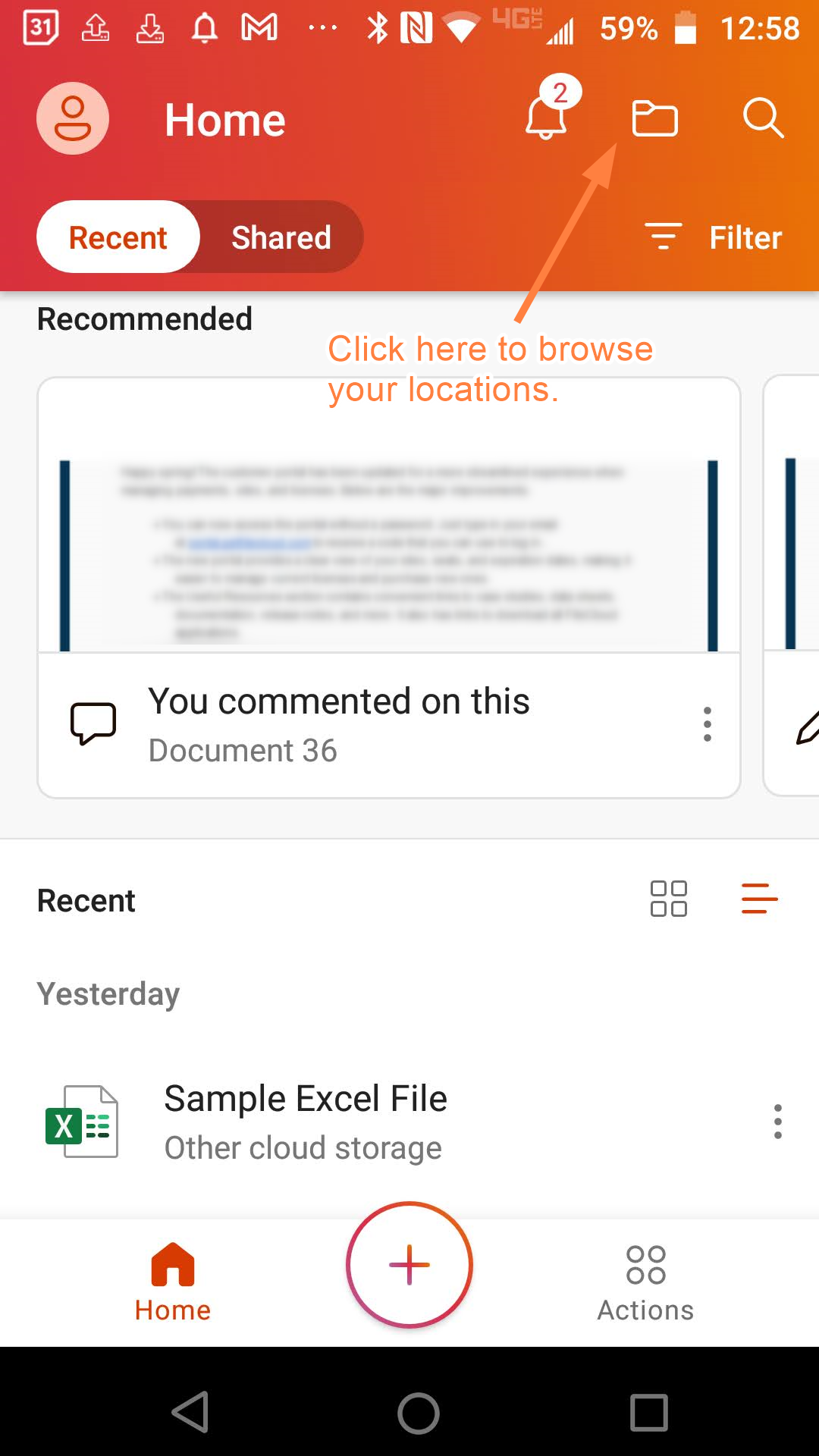
Tap the folder icon to browse your locations.
-
Then tap the Browse cloud icon.
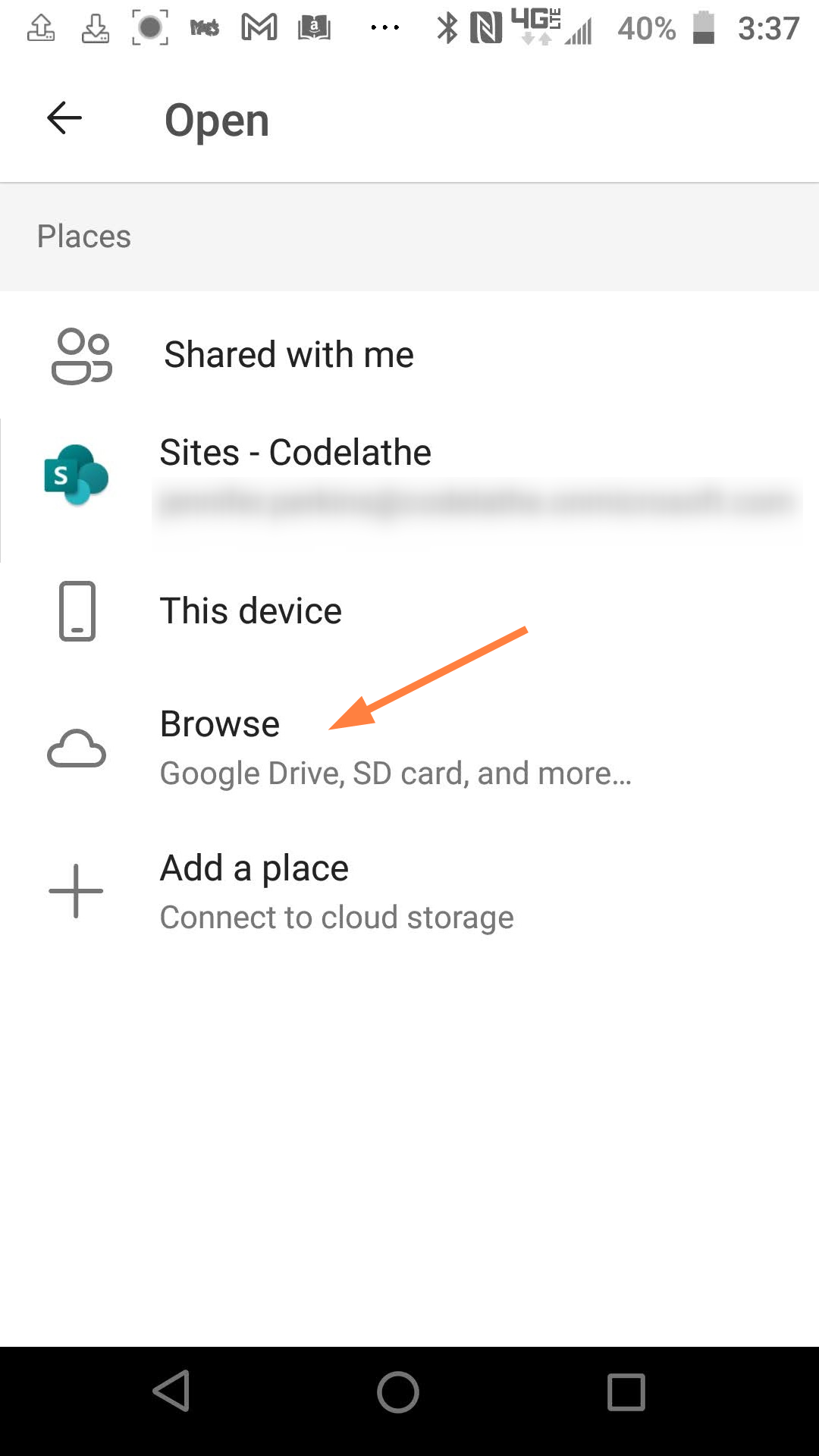
Files and folders stored in different locations appear.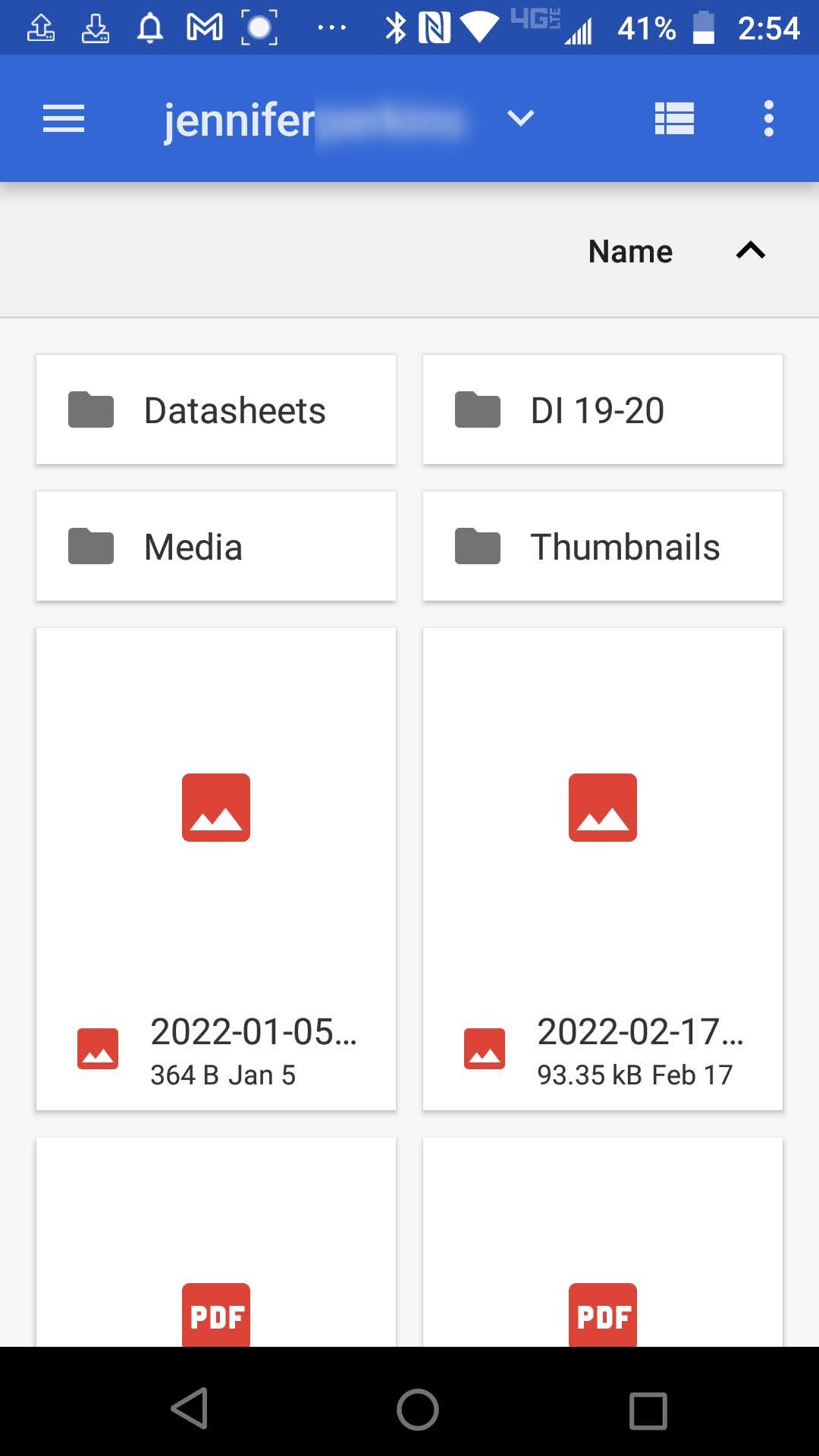
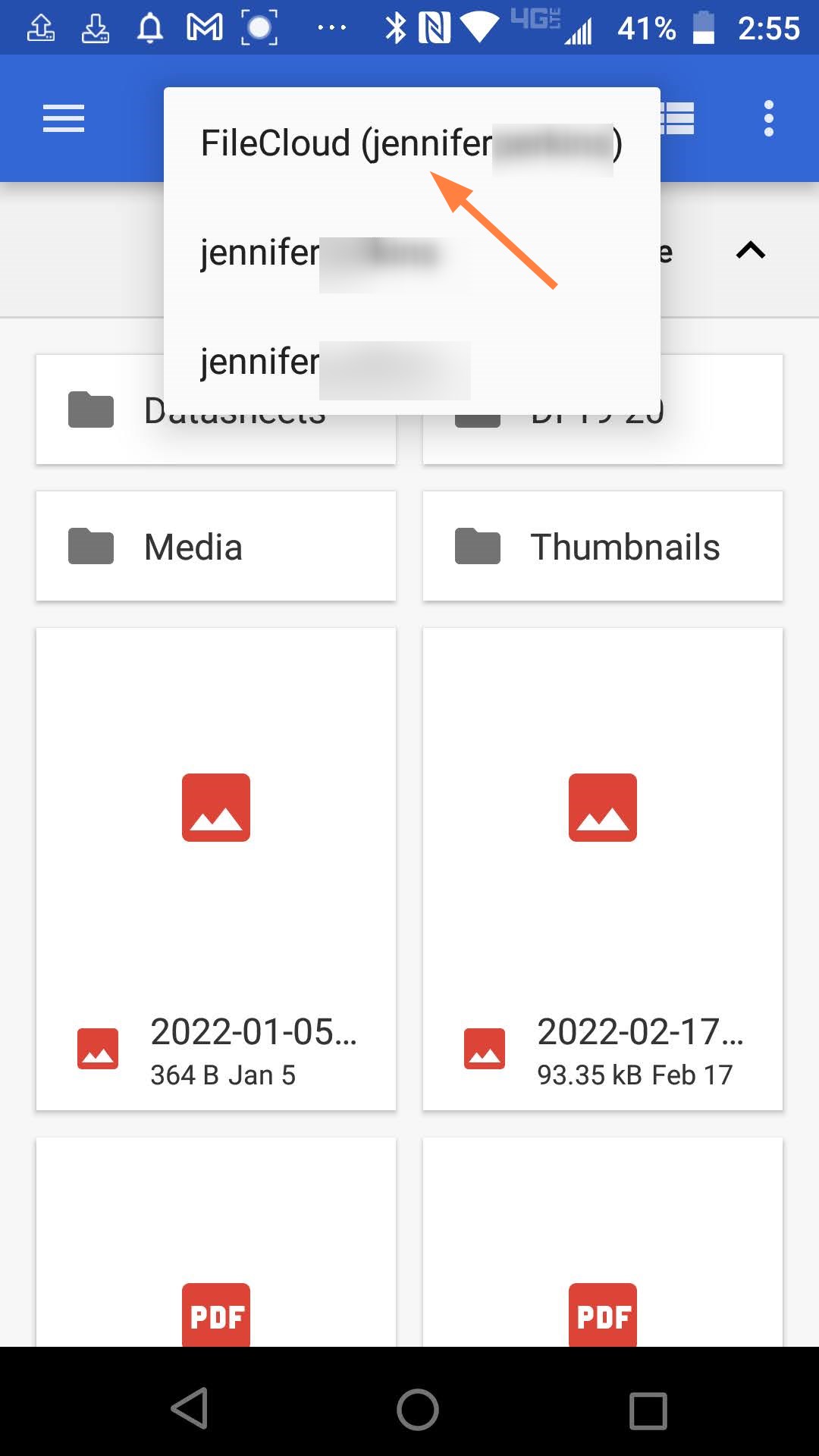
A different location than FileCloud may initially appear (for example, your Google Drive account) The name of the location at the top of the screen should be FileCloud (username). If it is not, tap the drop-down arrow and choose FileCloud (username).
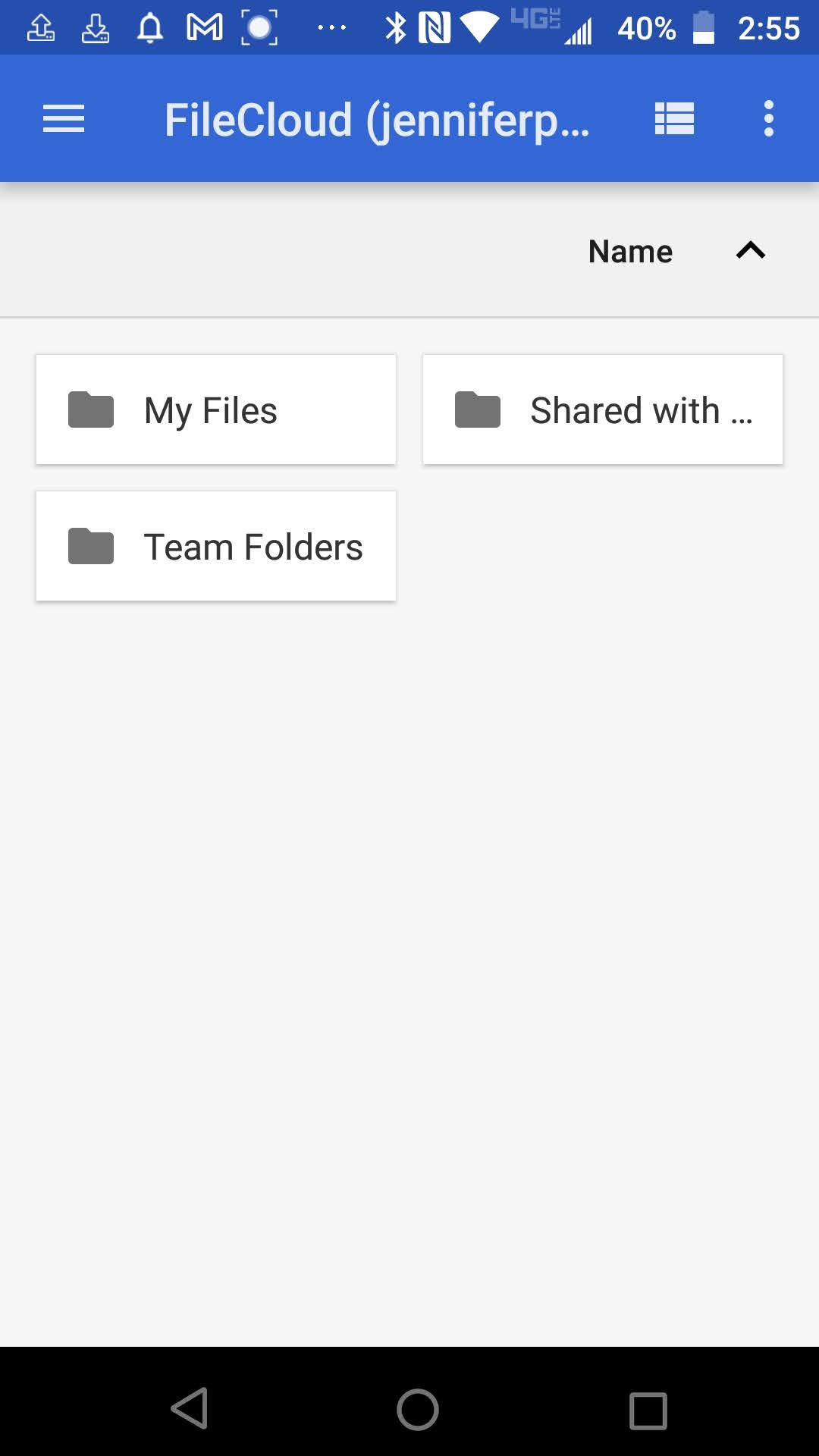
Now you should see your FileCloud folders:
-
Navigate to the file that you want to open in an Office application and tap it.
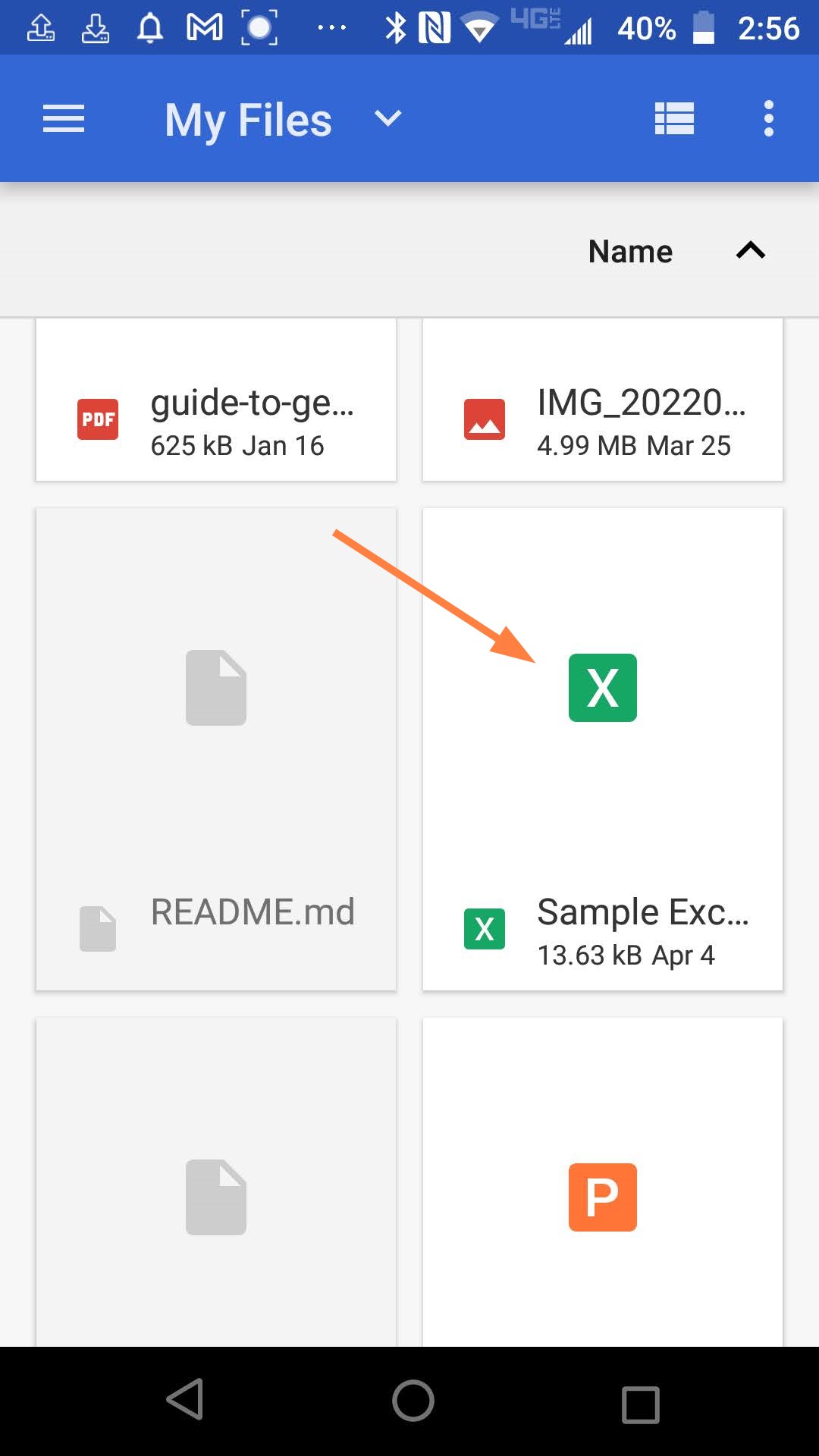
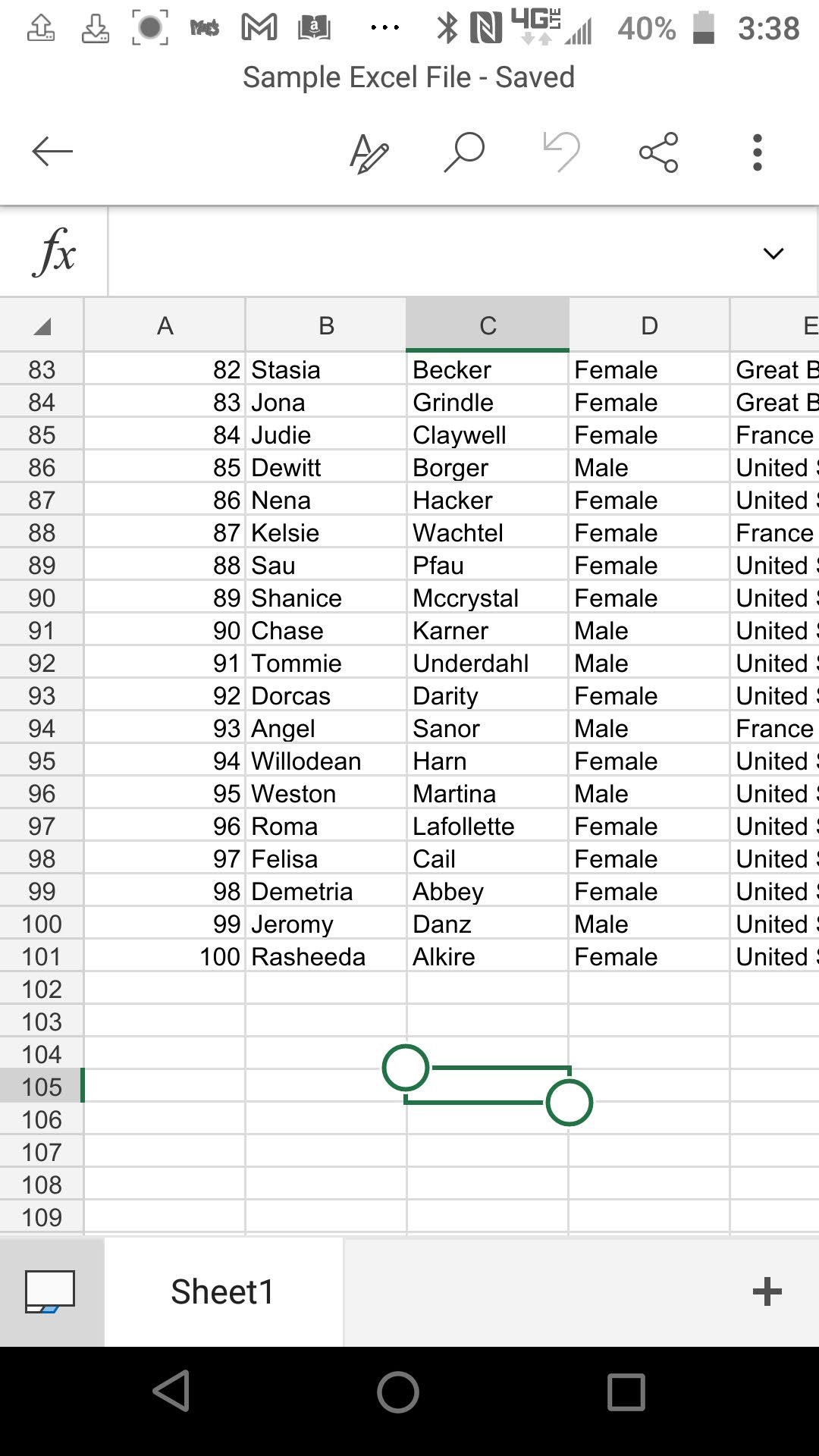
The file opens in the Office application:
-
Changes you make to the file are automatically saved in FileCloud.
To open an Office file for edit from the FileCloud app:
-
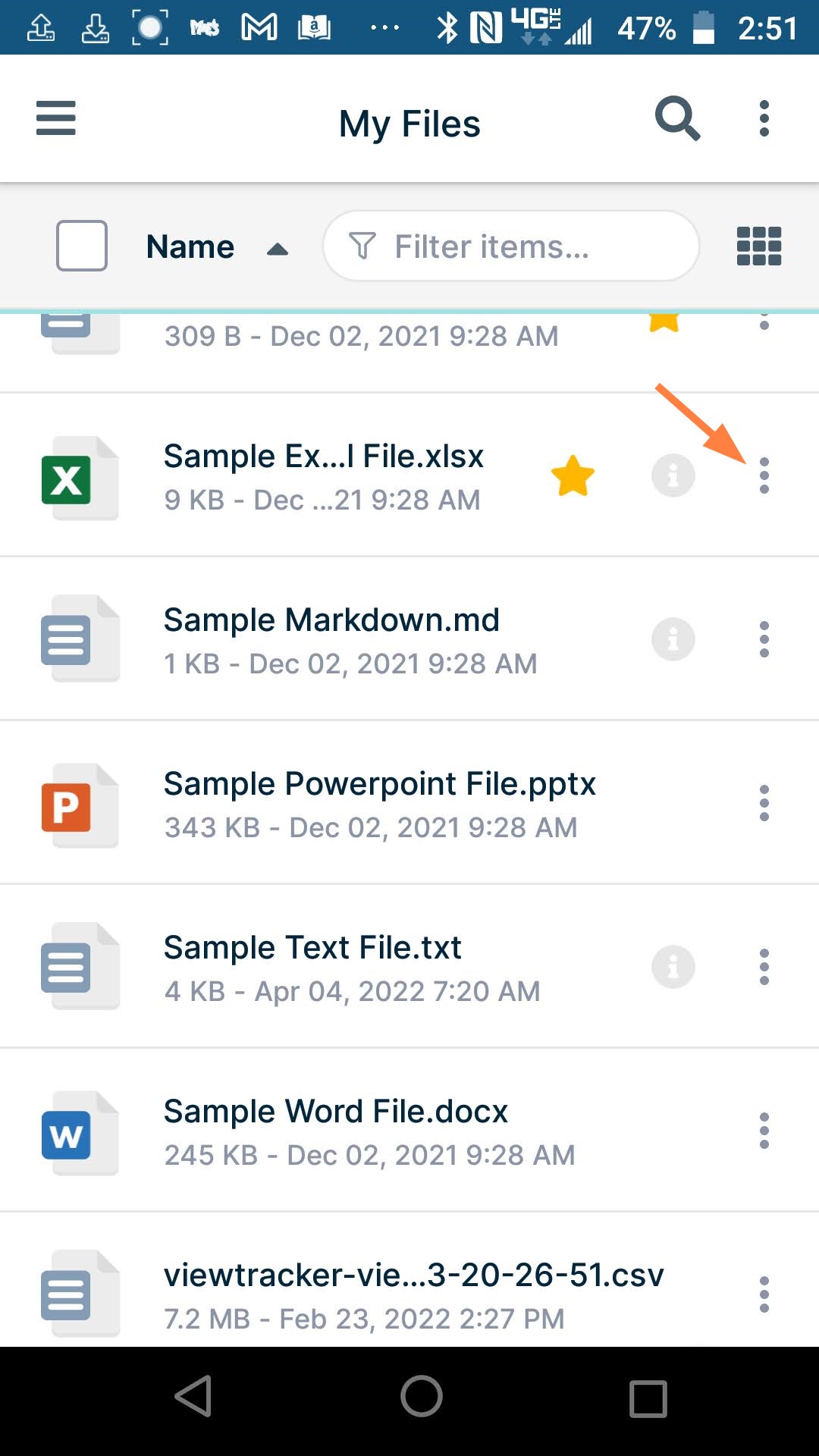
Open the FileCloud app and navigate to the file.
-
Tap the more (three dot) icon to the right of the file.
-
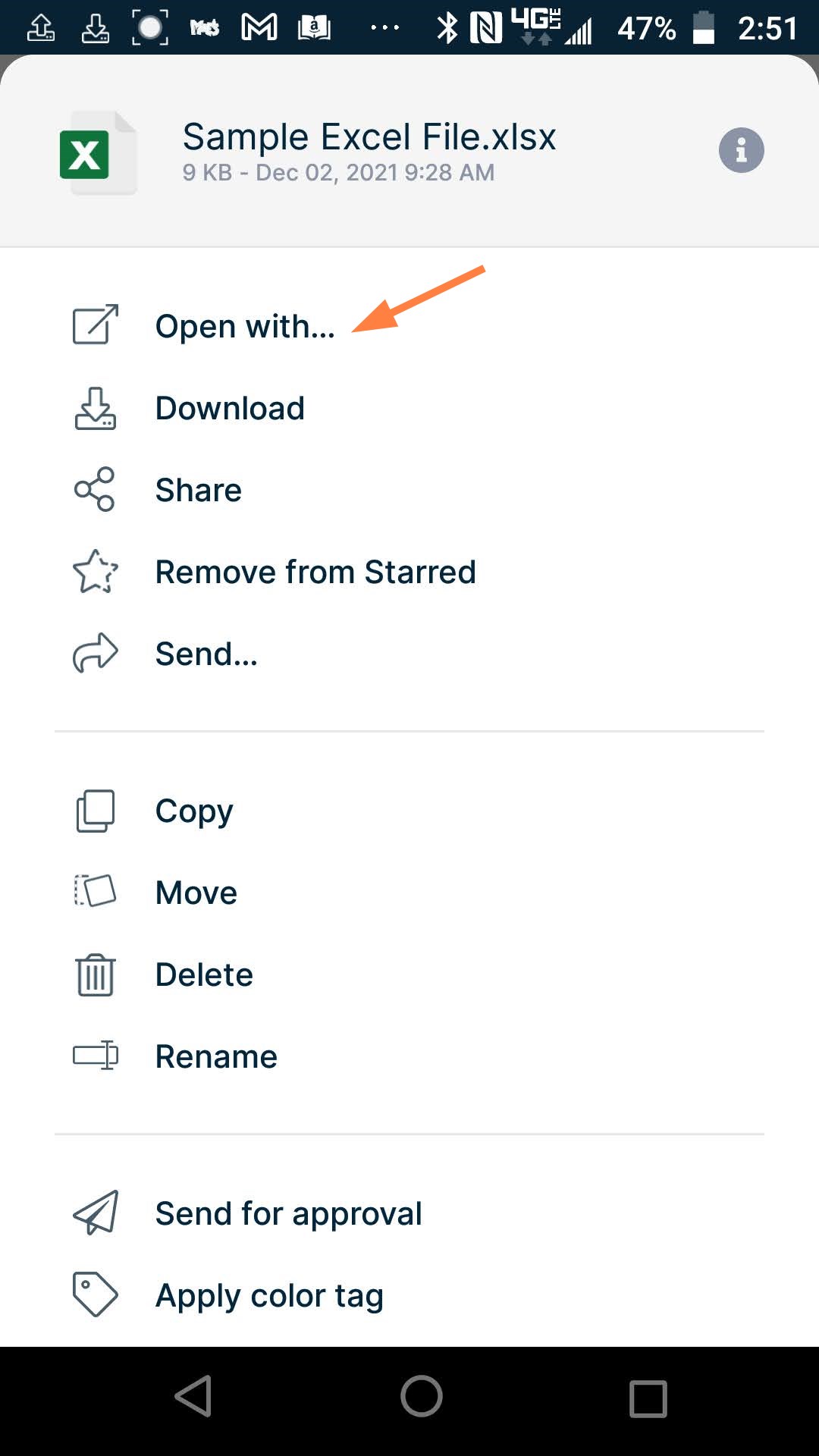
Tap Open with.
-
Choose the app you want to open the file with.
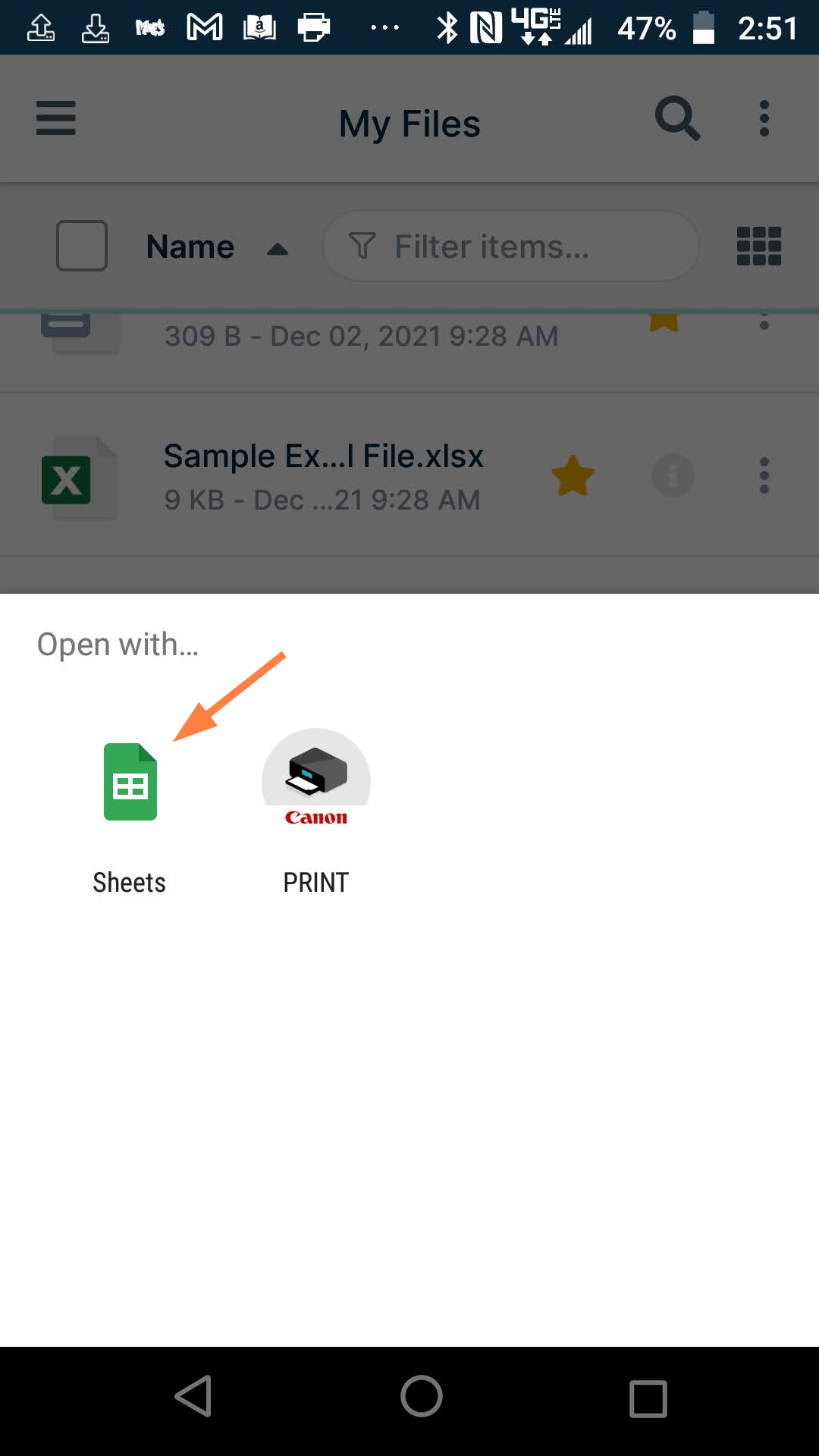
The file opens for edit in the app:

The updates to the file are not saved to FileCloud. -
Upload the modified file to FileCloud.
Previewing and editing other file types
How do I open other file types for preview or edit?
File types other than .pdf, .txt, and Office file types may be opened from FileCloud into a third-party application to edit, but they are actually being downloaded, and the edits are not automatically saved in FileCloud. To add the edits to your FileCloud copy of the file, you must manually upload the edited copy of the file into FileCloud.
-
Open the FileCloud app, and navigate to the file that you want to edit.
-
Tap the more (three dot) icon to the right of the file.
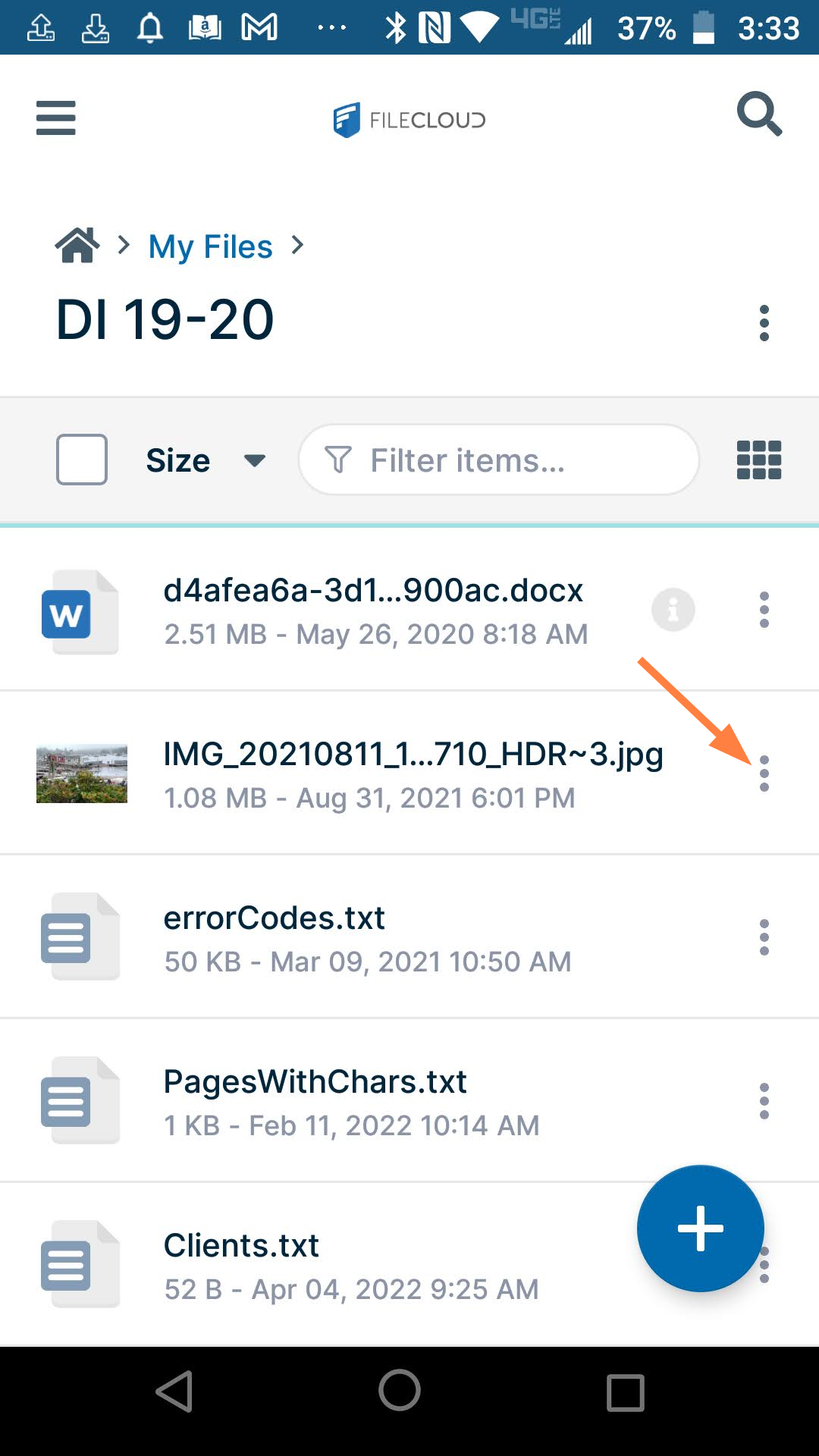
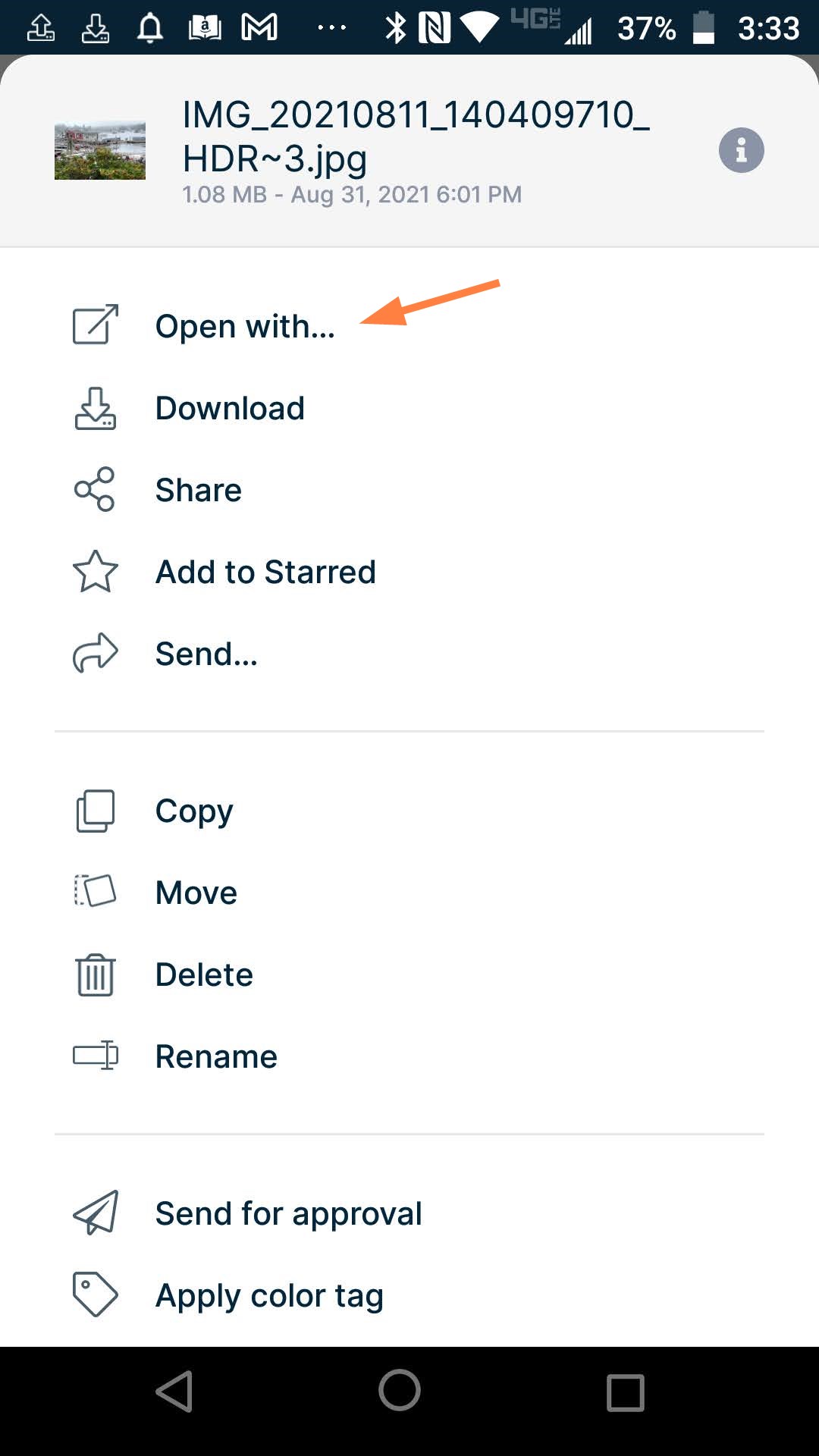
A list of options opens. -
Tap Open with.
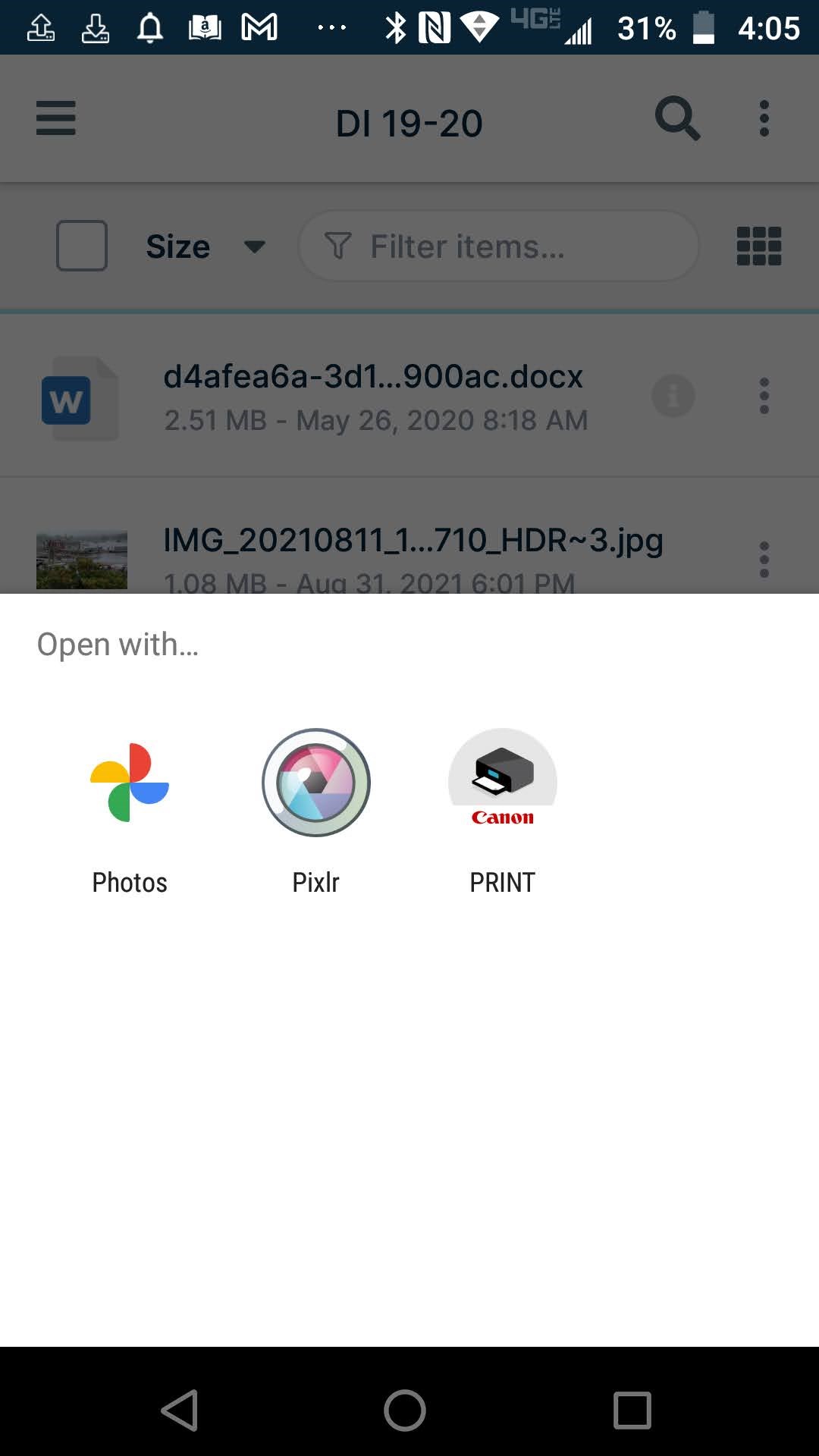
The screen displays apps available for opening the file either for viewing or editing:
-
Select one of the apps.
The file is downloaded from FileCloud and opened in the app.
After you edit and save the file, the changes are not saved to FileCloud. -
Open FileCloud again and upload the edited file.