.svg)
The ability to request file approval is available beginning in FileCloud 21.2.
Admins: Disabling file approval through user policies is available beginning in 23.241.6. See Disabling Send for Approval.
When you request that another user approve a file, you are notified of the approver's response, but the response does not alter the file's status.
To request approval of a file:
-
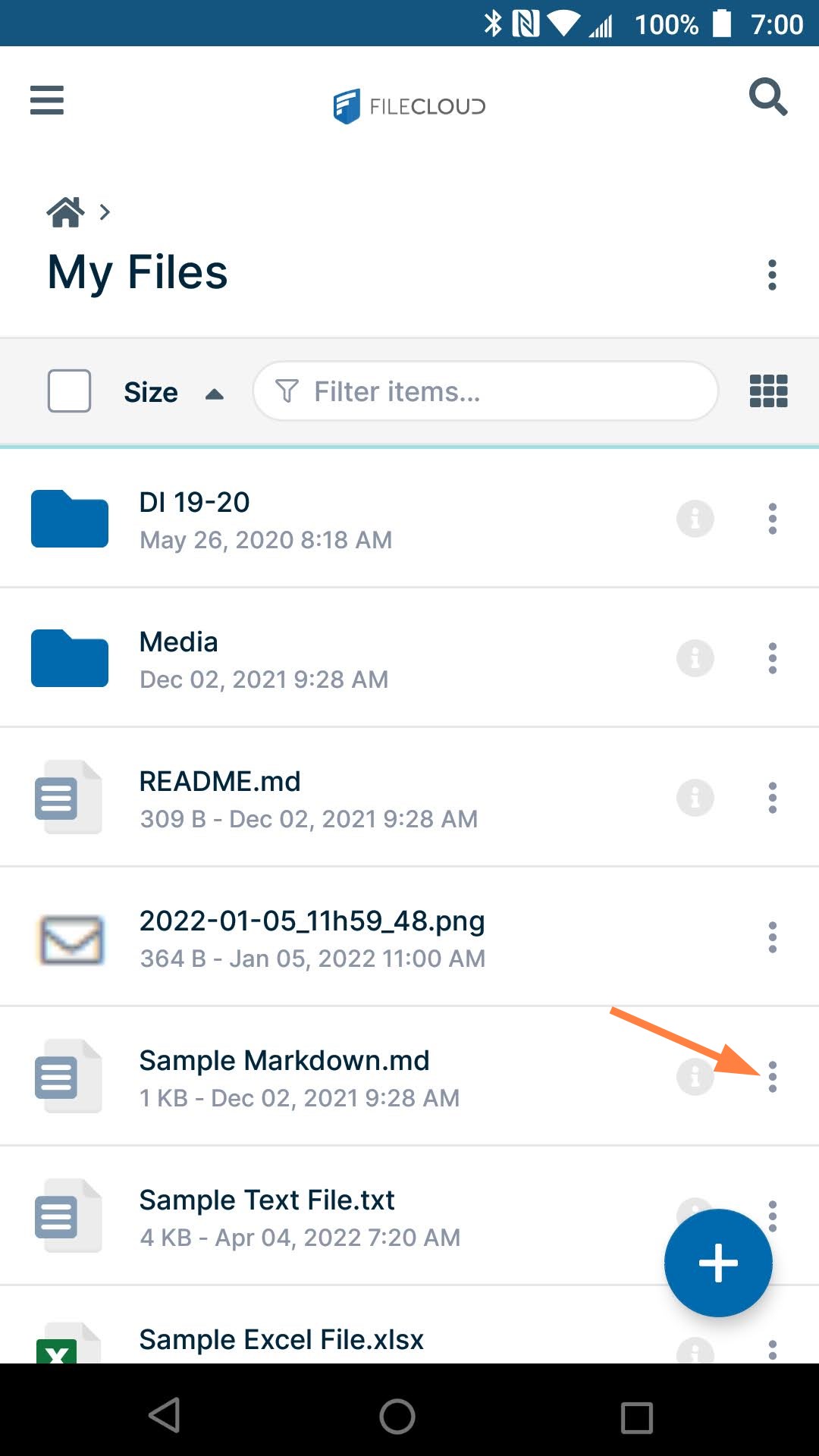
Log into the FileCloud app and navigate to the file that you want to send for approval.
-
Tap the More (3 dot) icon for the file, and then choose Send for Approval.
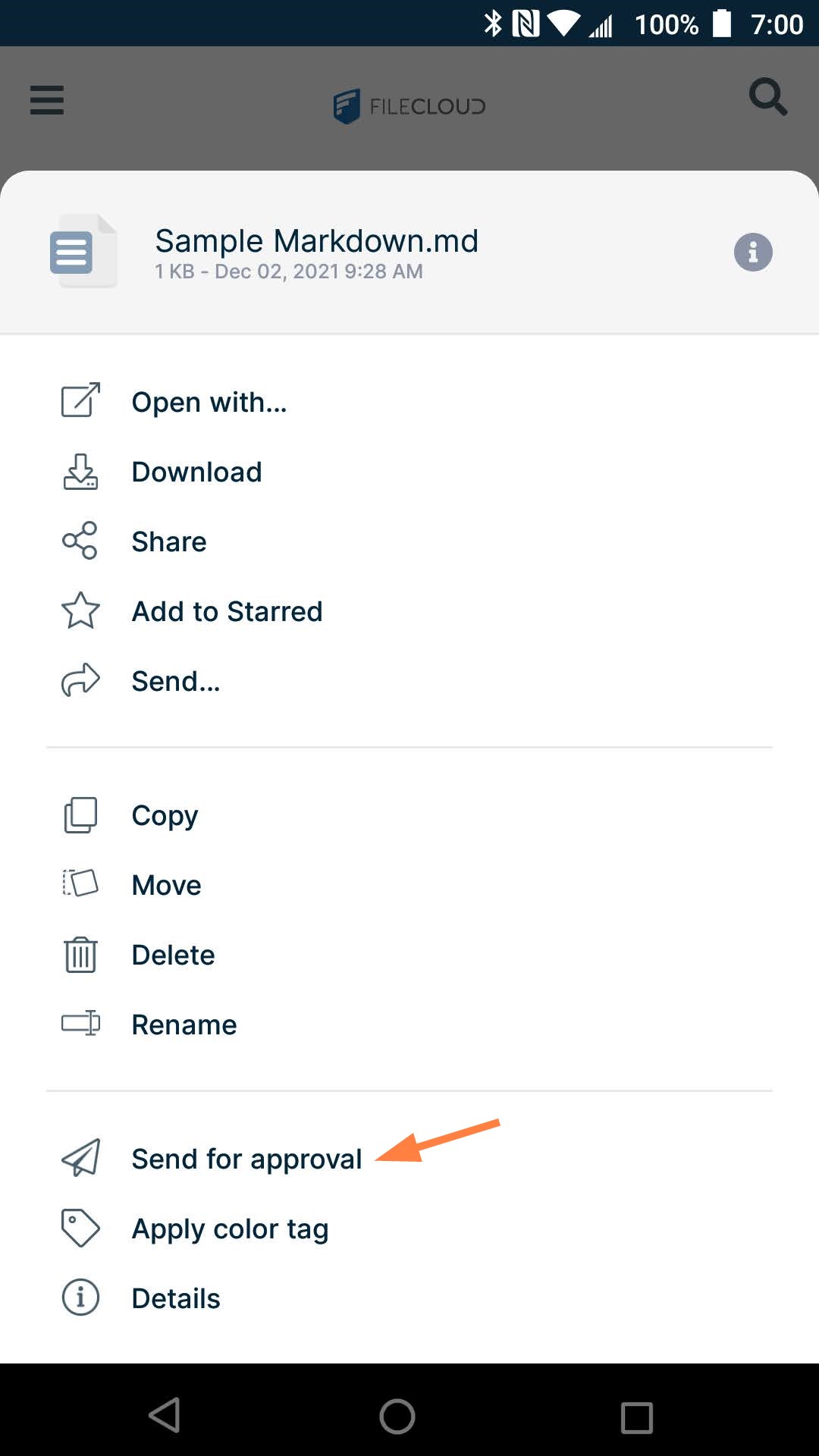
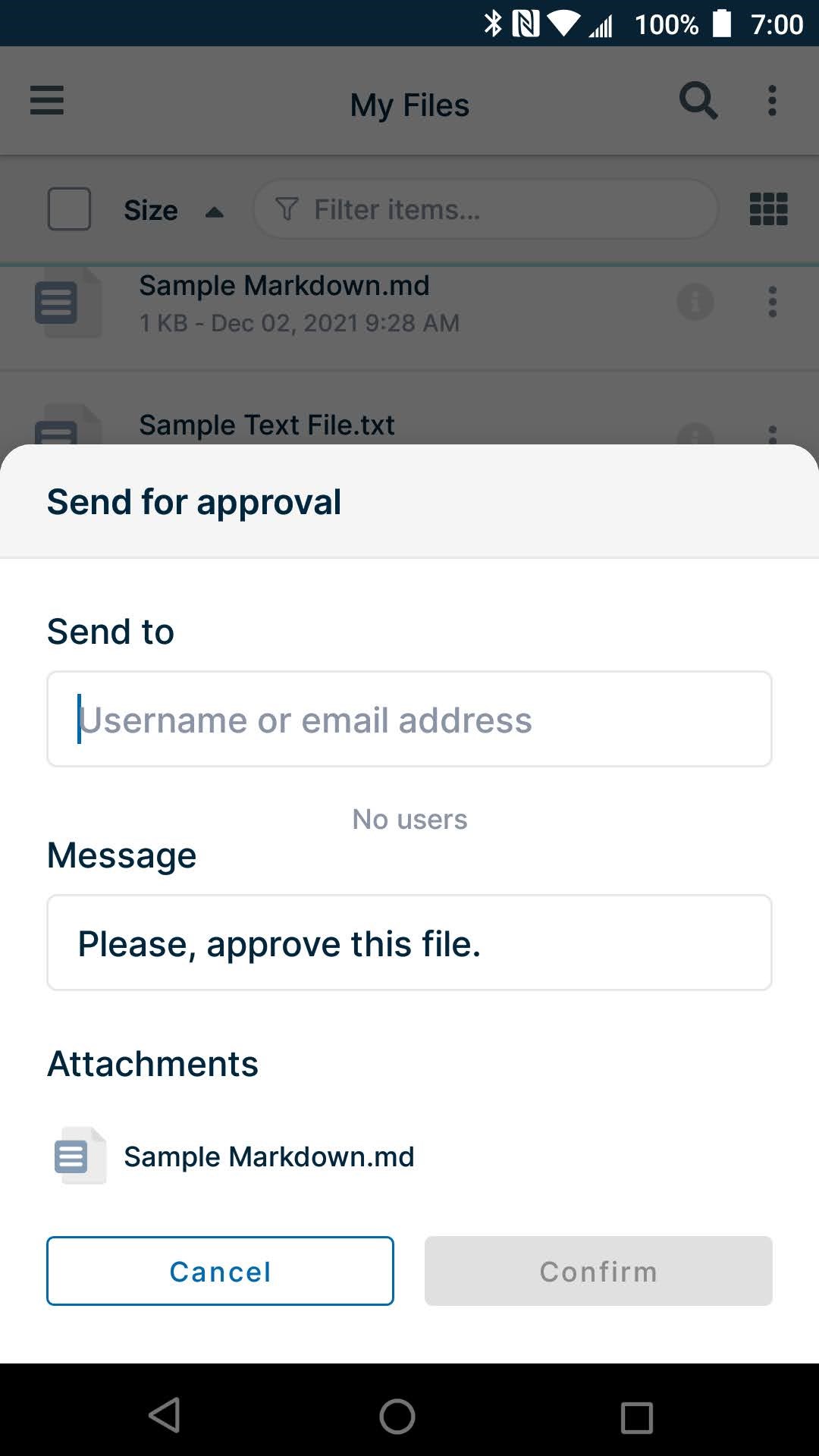
A Send File for Approval dialog box opens.
-
In Send to, enter the usernames or email addresses of existing FileCloud users.
-
You may change the note in Message or leave the default of Please, approve this file.
-
Click Confirm.
The approval is sent to the approvers' inboxes in FileCloud.
The approver will receive a notification alert, and can proceed to approve or reject the file.
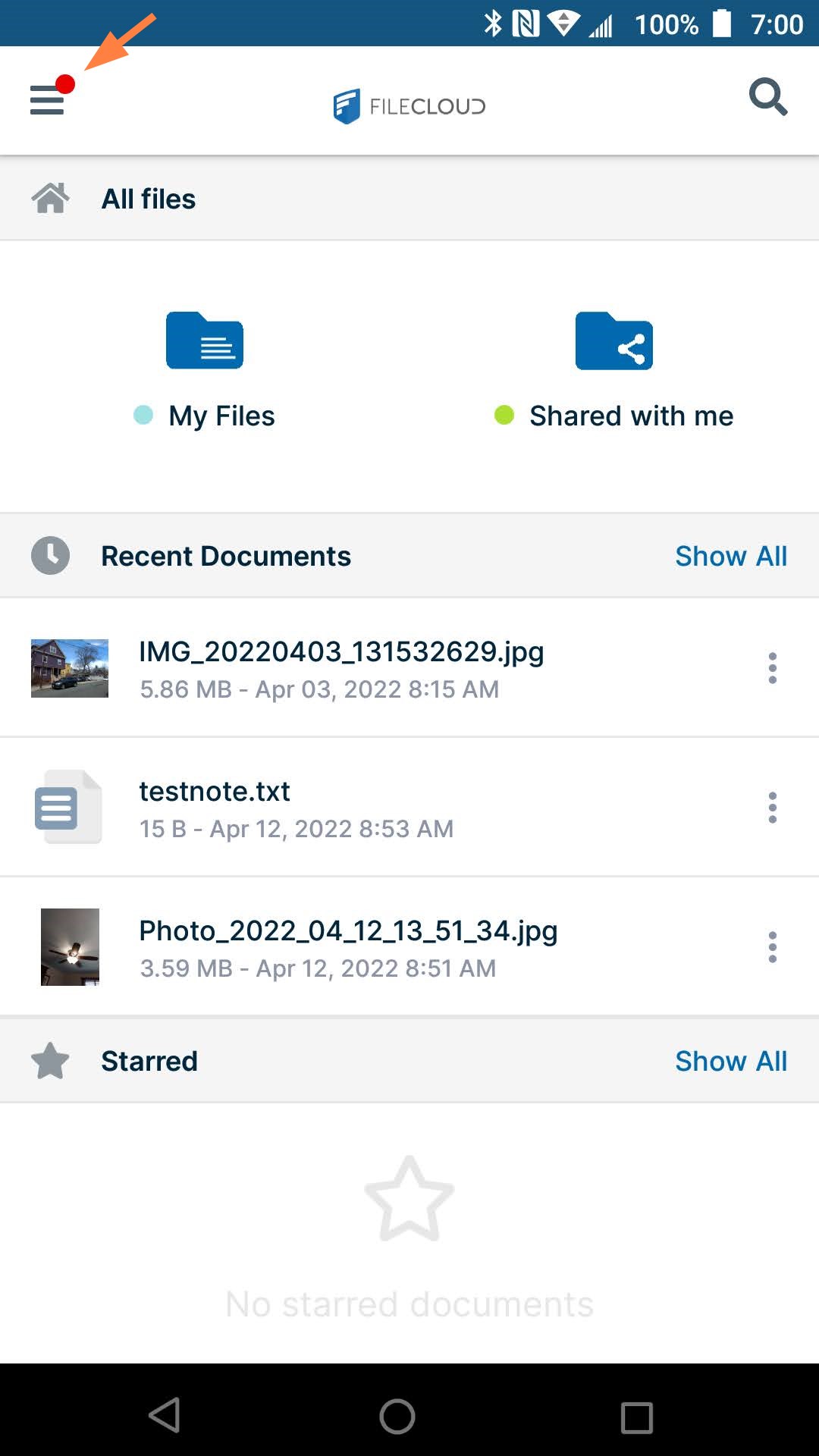
For instructions on approving or rejecting files, see Approving files in Android.