.svg)
To access settings for your FileCloud Android app, either:
-
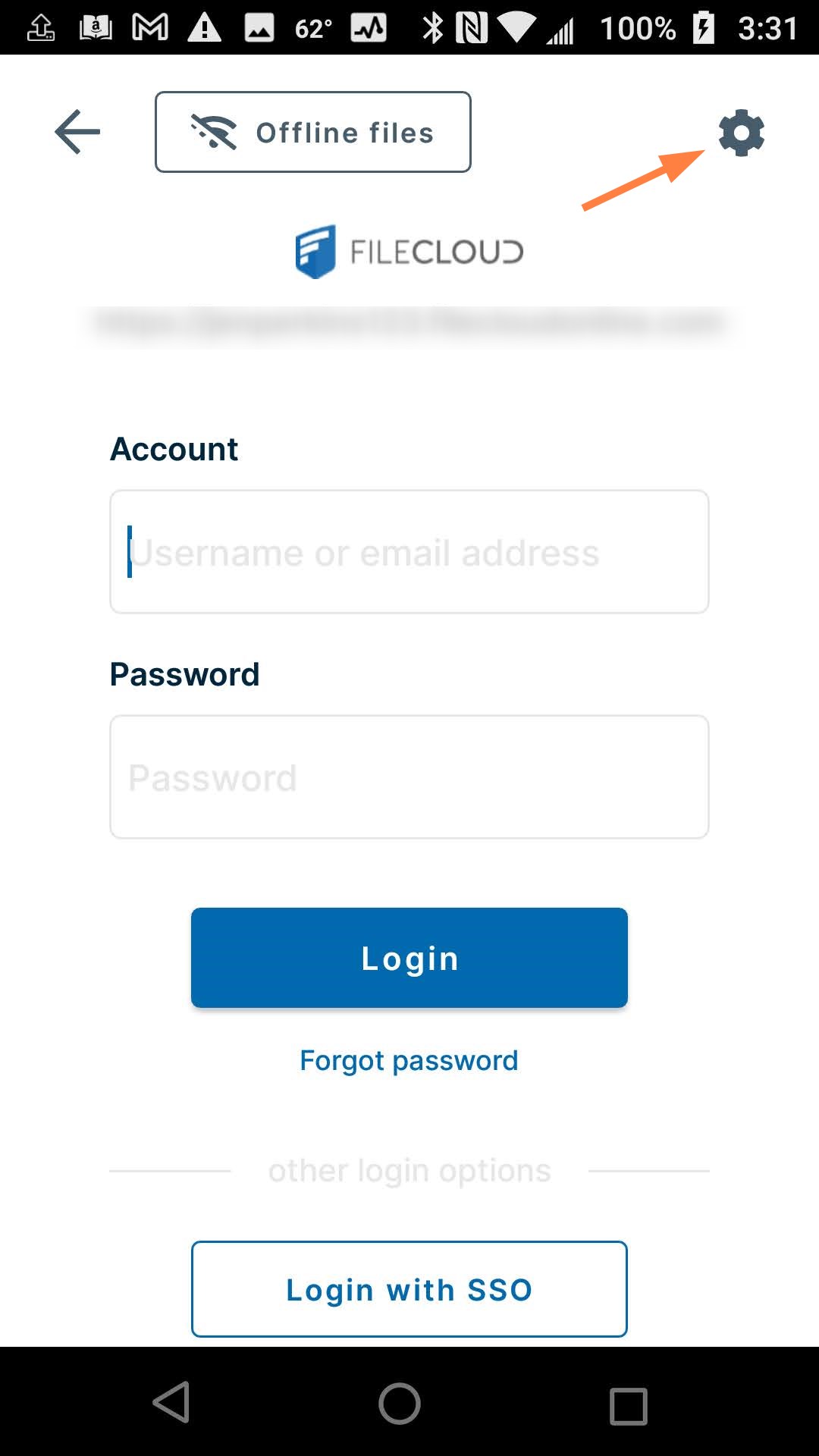
Tap the gear icon in the login screen
or -
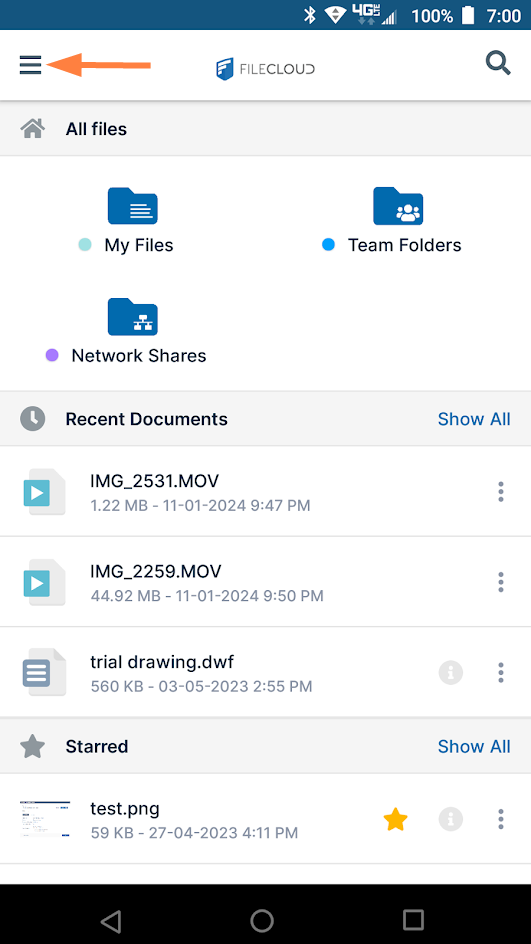
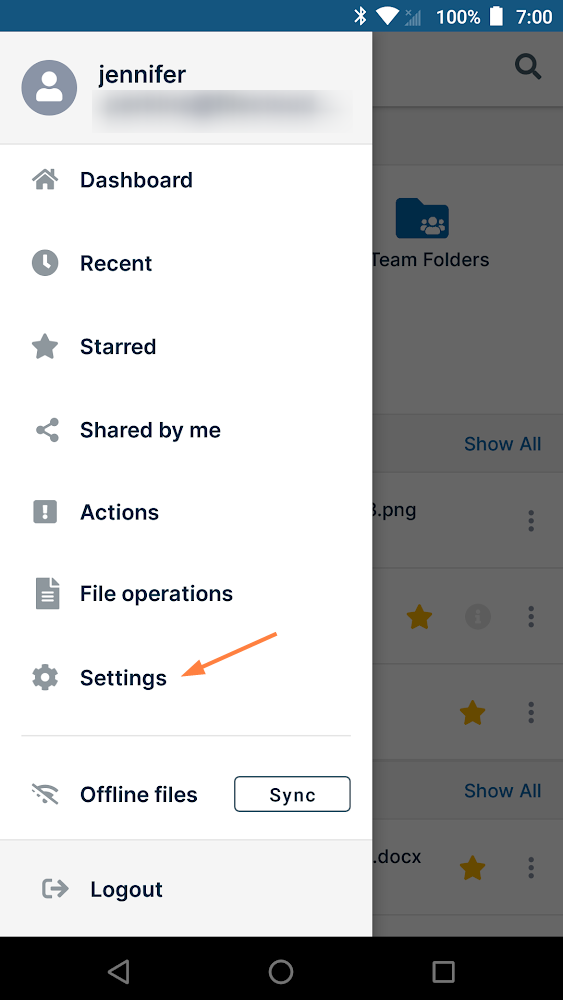
Log in to the app, and tap the menu icon in the upper left corner, then choose Settings.
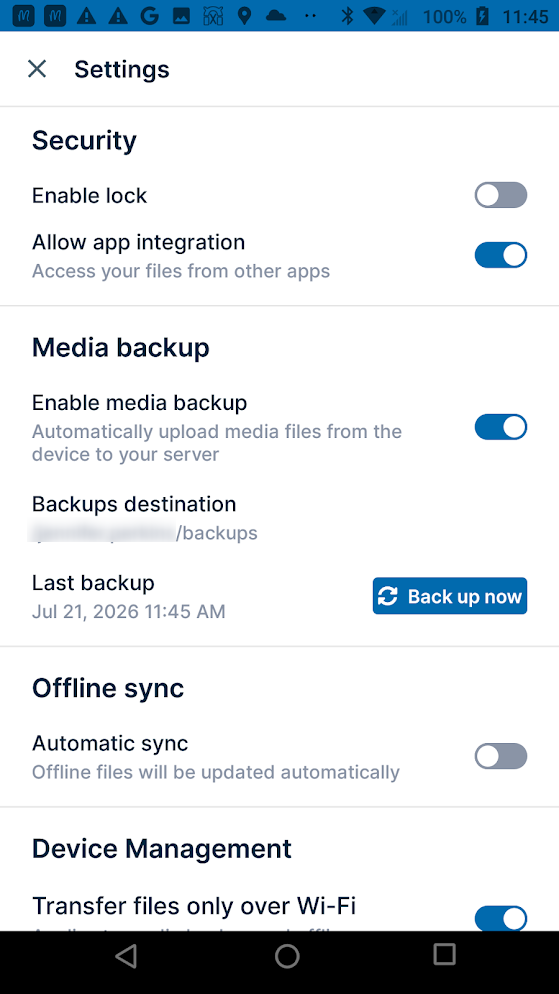
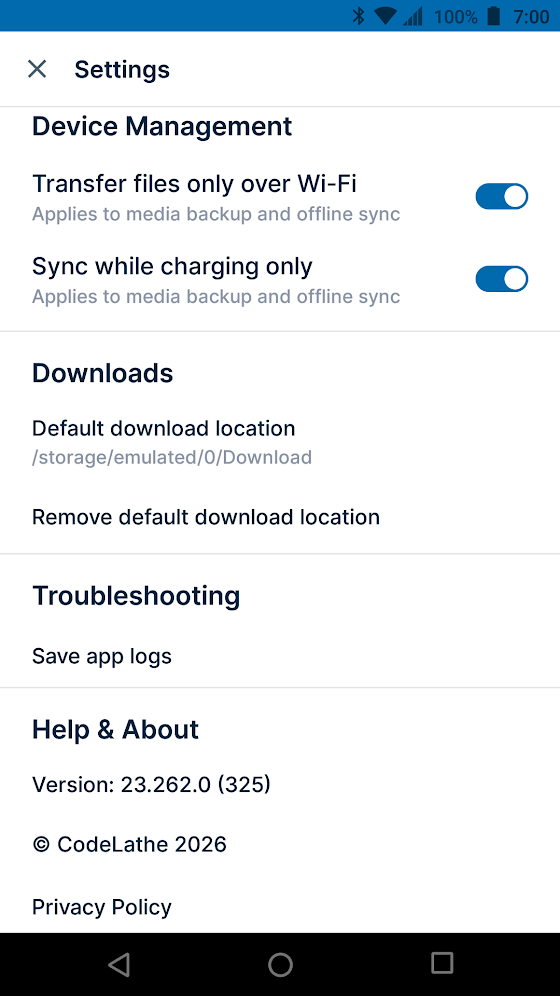
The Settings options appear.
|
|
Security: To add a password or fingerprint for unlocking the app, see Installing the App on Android.
Media backup: Toggle on Enable media backup to automatically backup media files on your device to FileCloud. When Enable media backup is enabled, the fields Backups destination and Last backup and the button Back up now appear. See Media Backup on Android.
Offline sync: To configure FileCloud files for offline editing and syncing, see the section Syncing FileCloud on Android.
Device management:
These options are applied to both offline sync and media backup. They may prevent the Back up now button and the Sync button from triggering syncs.
By default, Transfer files only over Wi-Fi is enabled. To transfer files to your app by another method, disable the option.
By default, Sync while charging only is enabled. This prevents your battery from draining when a large number of files are being uploaded in the background.
Downloads: To set a default download location in Android, see Set a Default Download Location on Android.
Troubleshooting: To set a location for storing your Android logs, see Troubleshooting Android Issues.