.svg)
The FileCloud Android app enables you to automatically back up photos and videos from your device to the FileCloud server.
-
When the feature is enabled, the FileCloud app automatically detects new photos and videos and backs them up to a selected location.
You can enable automatic backup if you have an administrator account. Otherwise, your administrator must configure this setting for you.
Frequently Asked Media Backup Questions
To configure automatic backup of photos and videos:
1. Configure the Admin Settings
To configure the administrator settings:
-
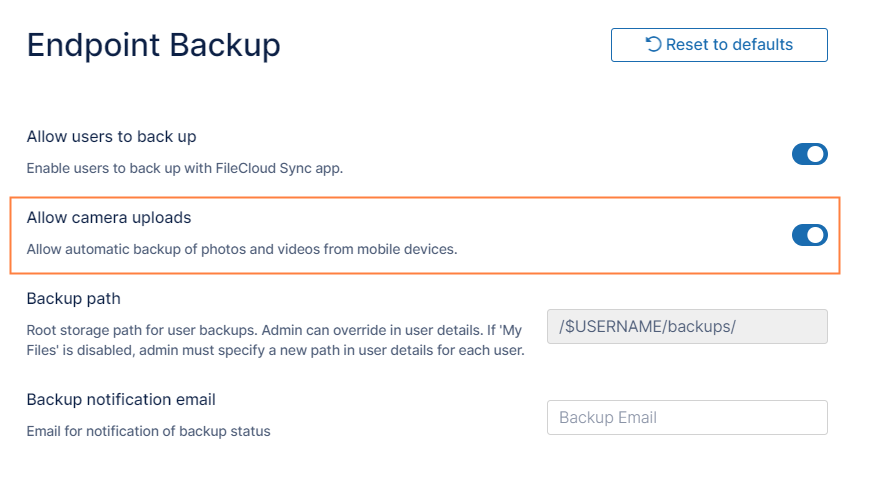
In the FileCloud admin portal's left navigation bar, scroll down and click Settings. Then, on the Settings navigation page, click Endpoint Backup

The Endpoint Backup settings page opens. -
Enable Allow camera uploads.
-
Click Save.
2. Configure Your Android Device
To configure your Android device:
-
Open the FileCloud app.
-
In the upper-left corner, tap the menu icon.
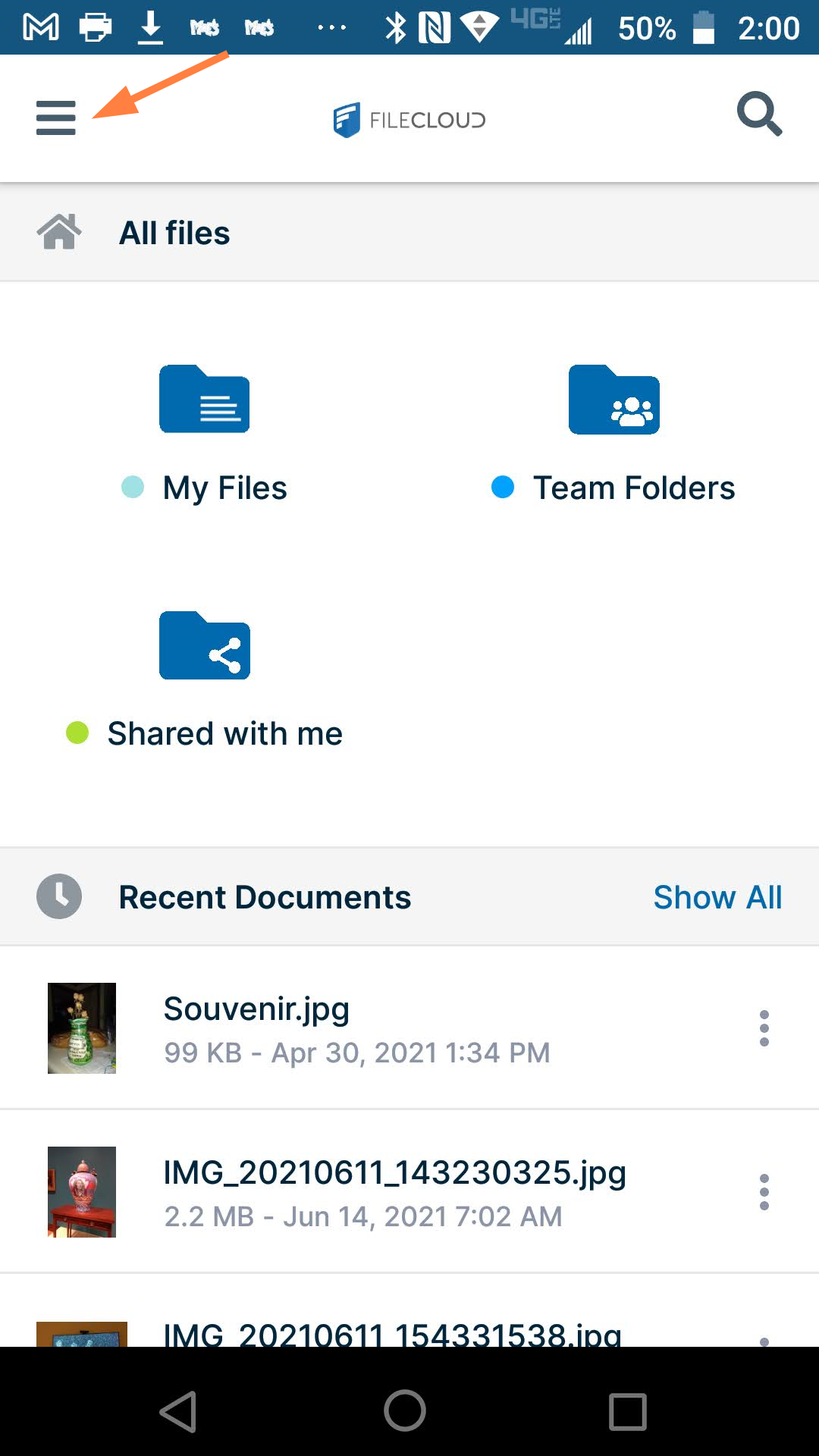
A list of options opens. -
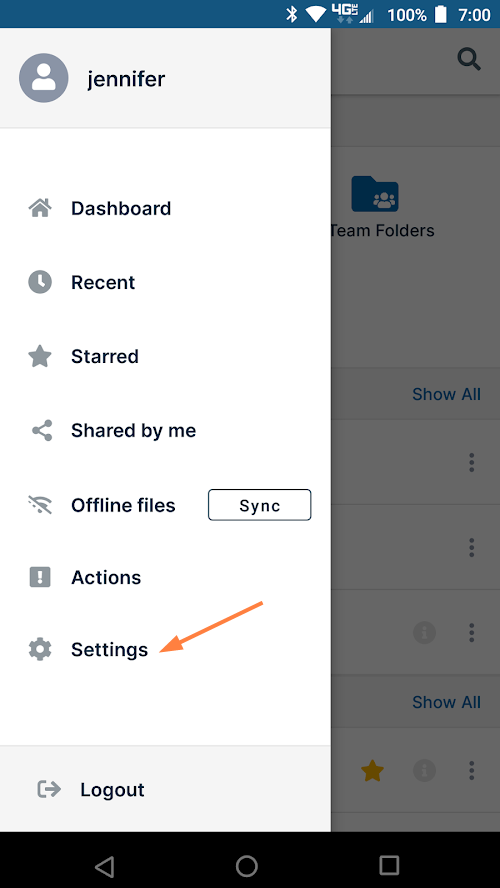
Click Settings.
-
In the list of settings, toggle on Enable media backup.
-
If this is the first time you have enabled media backup, when prompted, allow FileCloud to access the Backups destination folder.
Backup now occurs automatically every three days, but you may trigger it manually by clicking the Backup now button.
If you close the FileCloud app while a media backup is in progress, when you open the app, the backup continues from where it left off. -
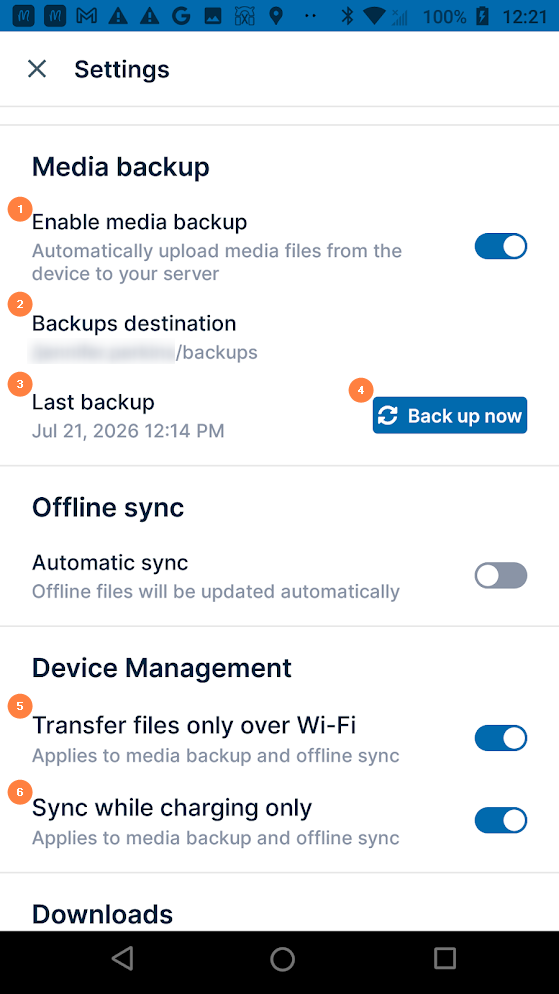
Set any of the other options shown in the table below.
|
1 Enable media backup - Turns media backup on. Backup occurs automatically every three days. 2 Backups destination - (read-only) Displays the path to the server folder your media is uploaded to and stored for backup. 3 Last backup - Displays the date of the last media backup 4 Back up now - Manually triggers a backup of the media on the device.
5 Transfer files only over Wi-Fi - Enabled by default. To transfer files to your app by another method, disable the option. 6 Sync while charging only - Enabled by default. Prevents your battery from draining when a large number of files are being uploaded in the background. |
To back up manually
To manually back up your device, in Settings, click the Back up now button. If you have the setting Transfer files only over Wi-Fi or the setting Sync while charging only enabled it may prevent you from running Back up now.
To view media backup logs
See View File Operations in Android .