.svg)
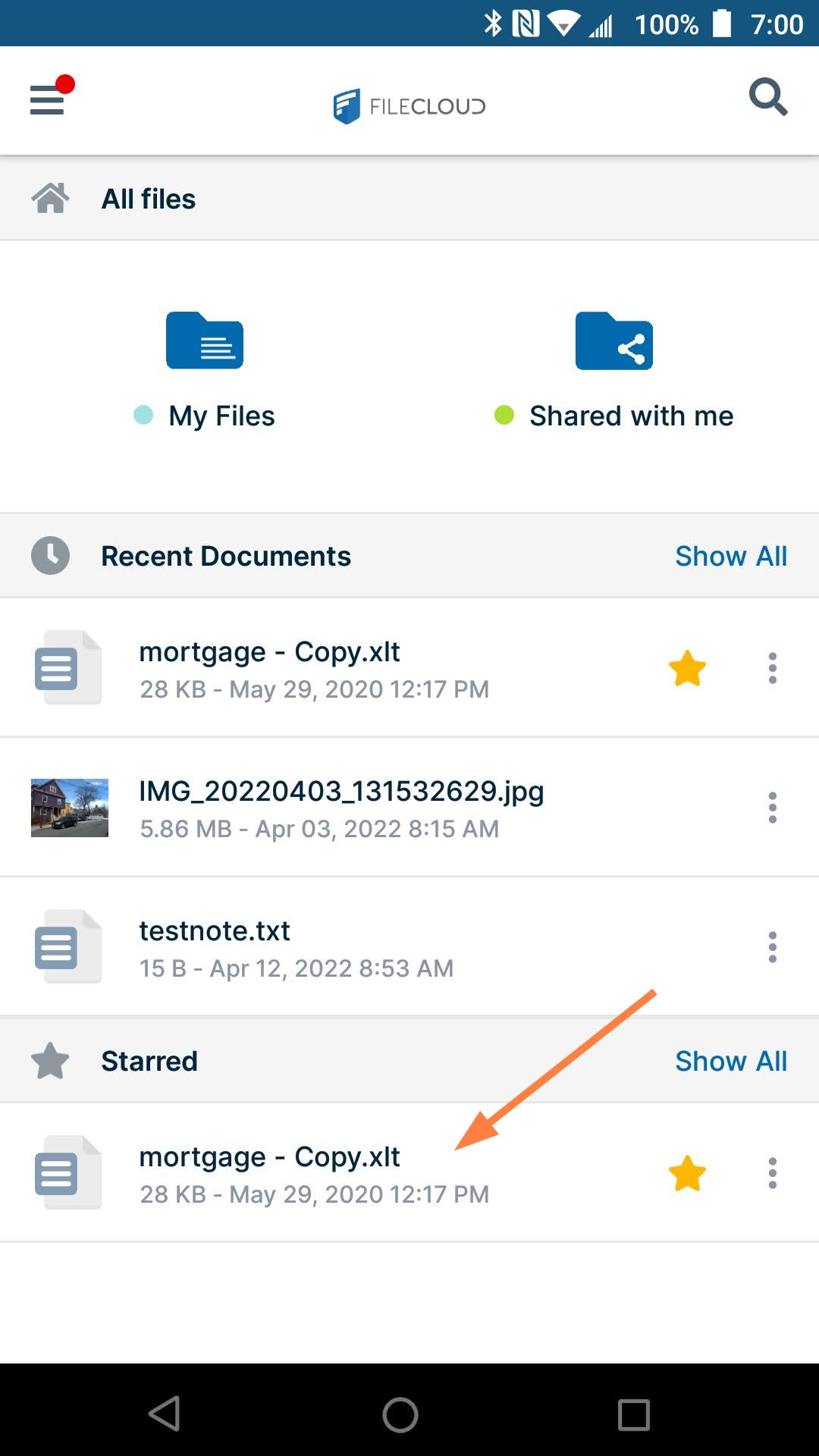
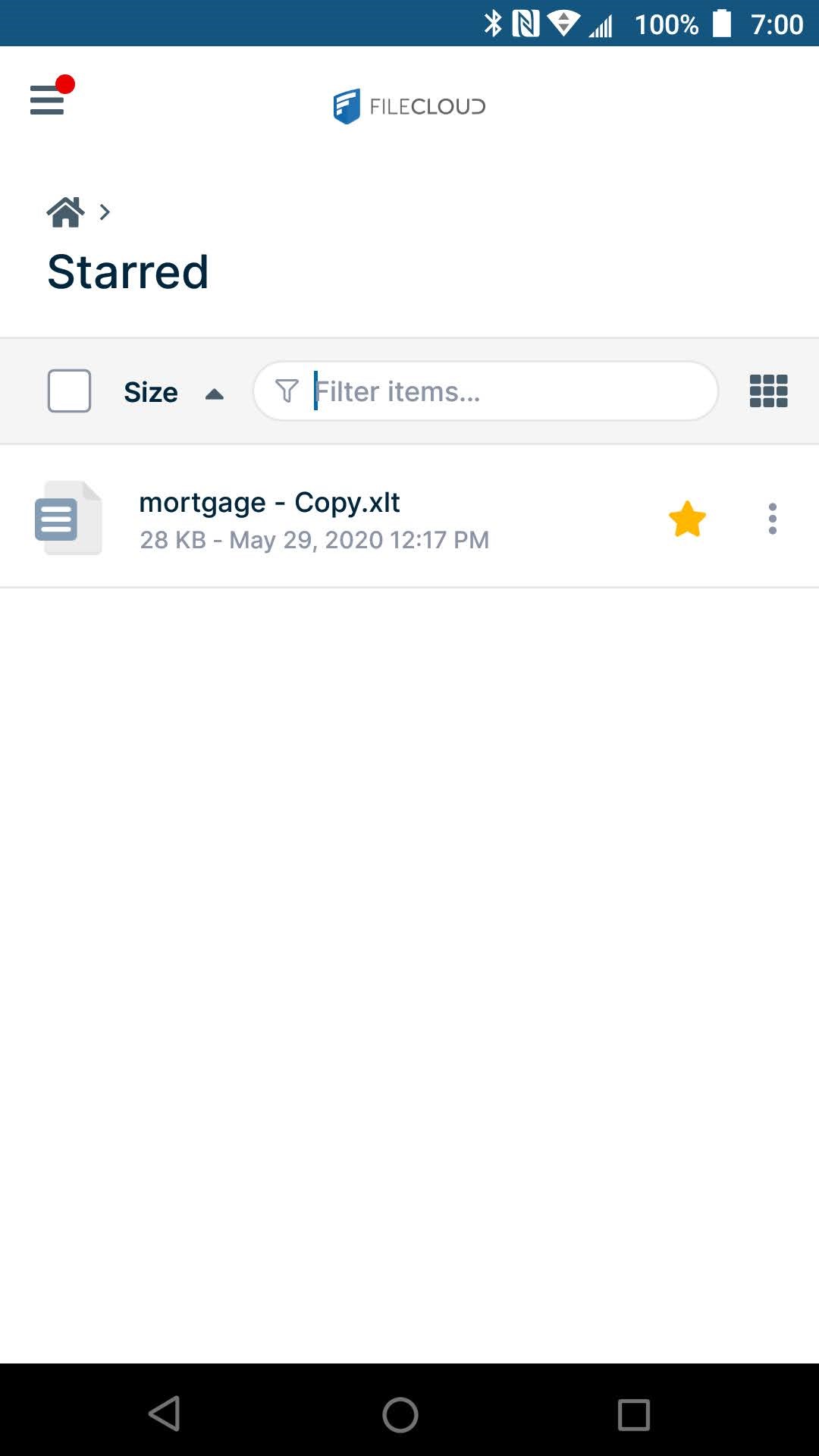
You can star your favorite files and folders in FileCloud. The Starred folder appears when you initially log in on Android, and when you tap Starred in the navigation pane.
To add a file to starred:
-
Open the FileCloud App.
-
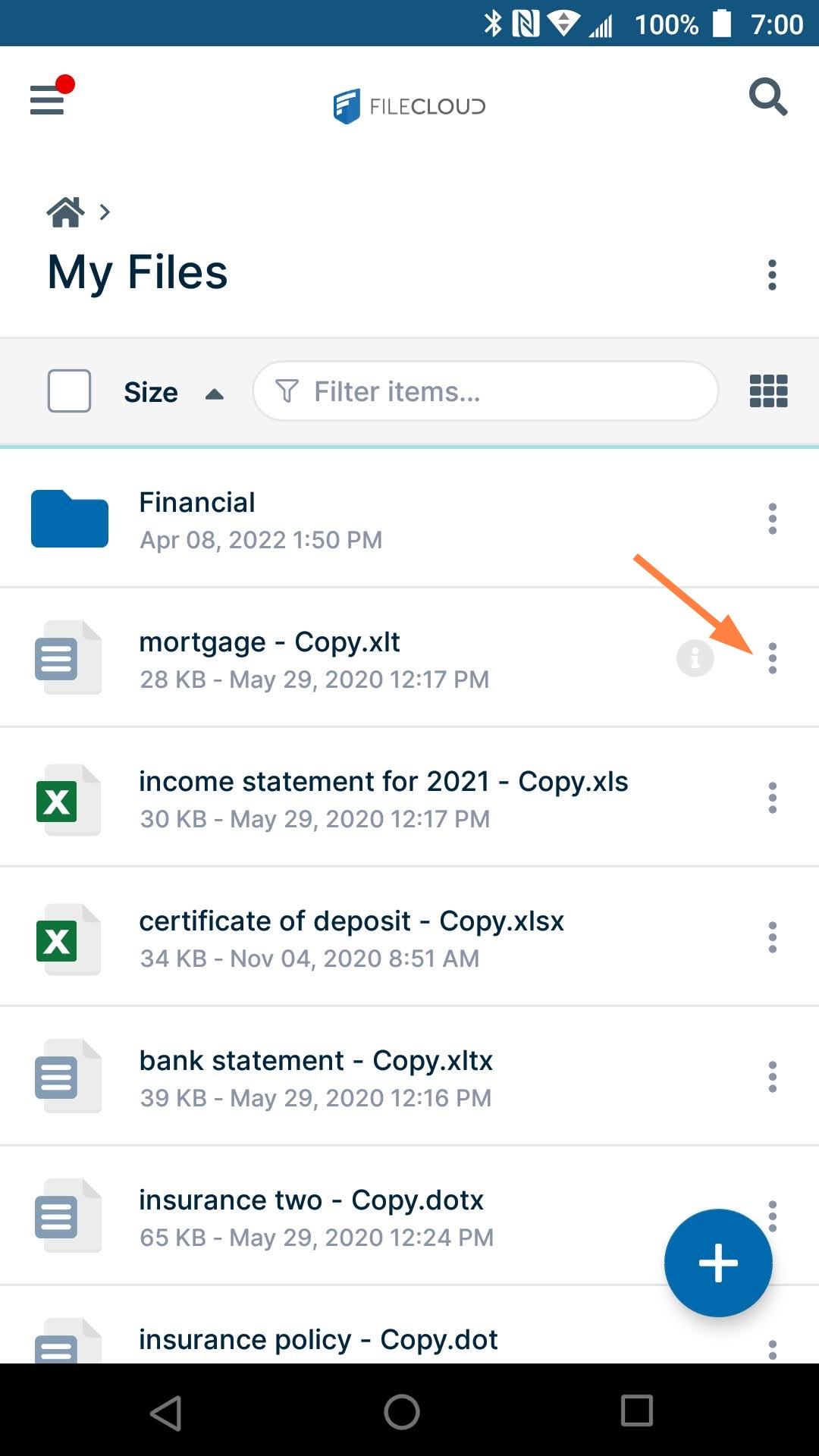
Navigate to the file or folder you want to star.
-
Tap the more (three dot) icon next to the file or folder.
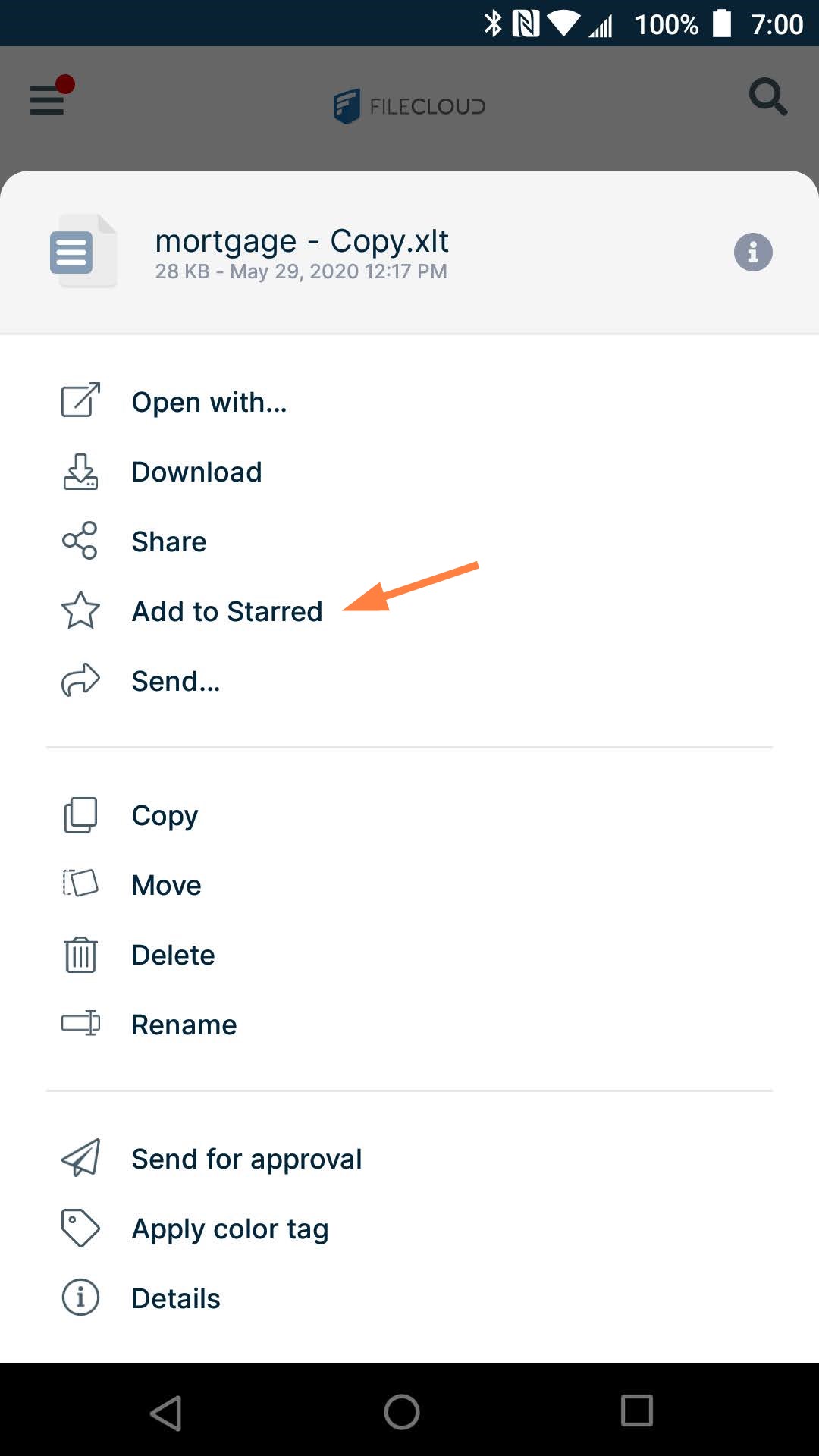
The navigation panel opens. -
In the navigation panel, click Add to Starred.
Now a star appears next to the file or folder:
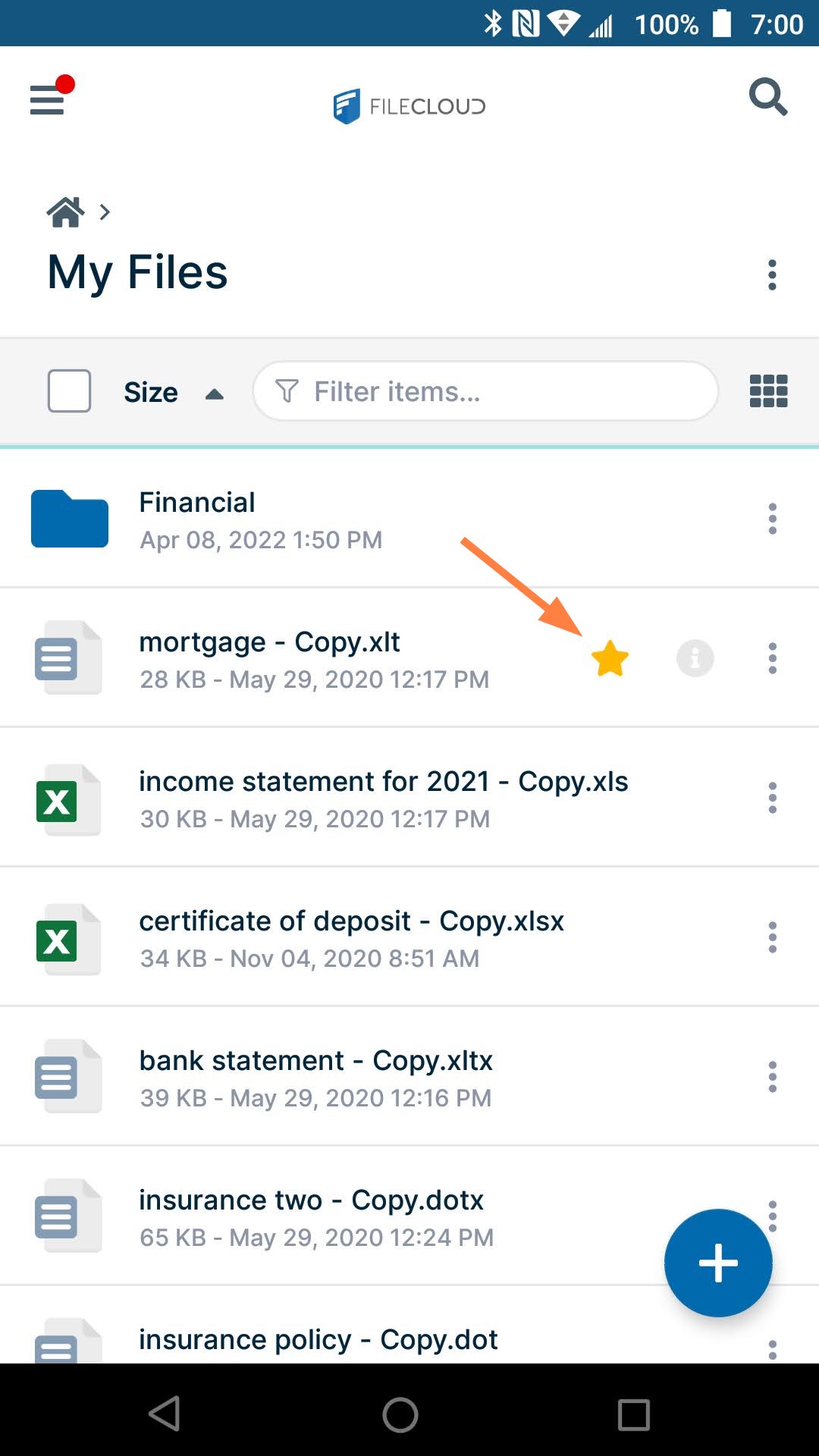
and when you first log in to FileCloud on Android or when you click Starred in the navigation pane it appears in the list of Starred files and folders.