.svg)
A folder can be shared with:
-
Allow anyone with link (Public Share). No FileCloud account required.
-
Anyone anyone with link and a password (Protected Public Share). No FileCloud account required.
-
Allow selected users or groups (Private share). Default. FileCloud account required. The shared folder appears in the Shared with Me folder.
In addition, it is possible to control the access to the shared resource with read, write, or share permissions.
You can use the FileCloud app to share folders on your mobile device with others. You can:
-
Create a direct link to the folder. This link can be sent via email to anyone who needs access to that resource.
-
Add users and groups as share recipients to a private share.
To share a folder:
-
Open the FileCloud App.
-
Navigate to the folder you want to share.
-
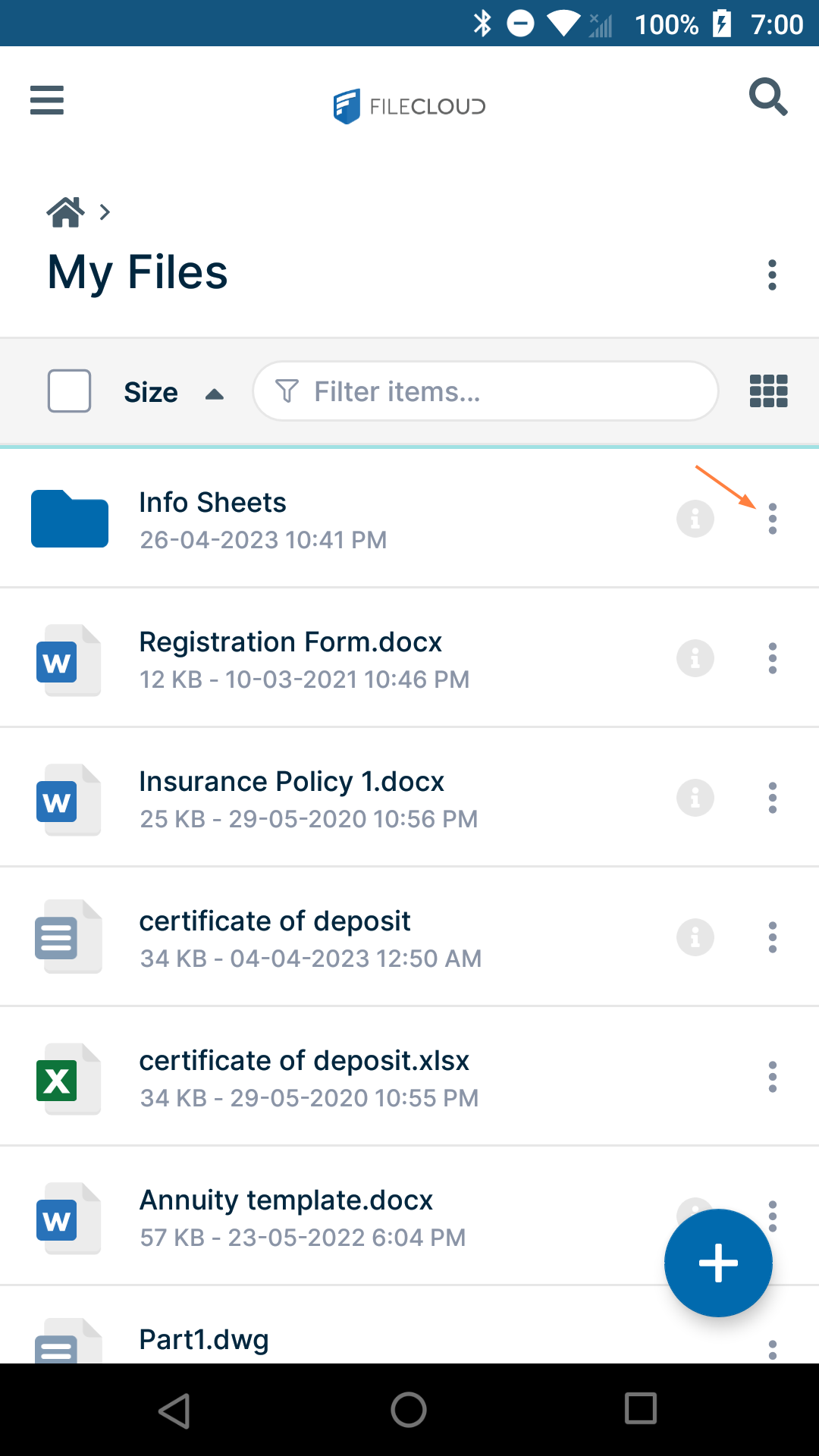
Tap the more (three dot) icon next to the folder.
-
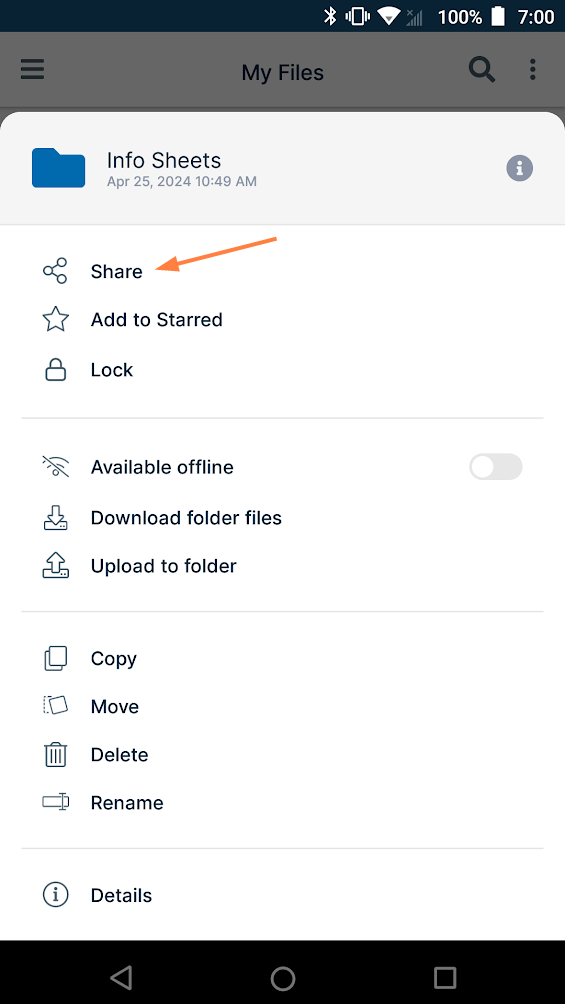
Tap Share.
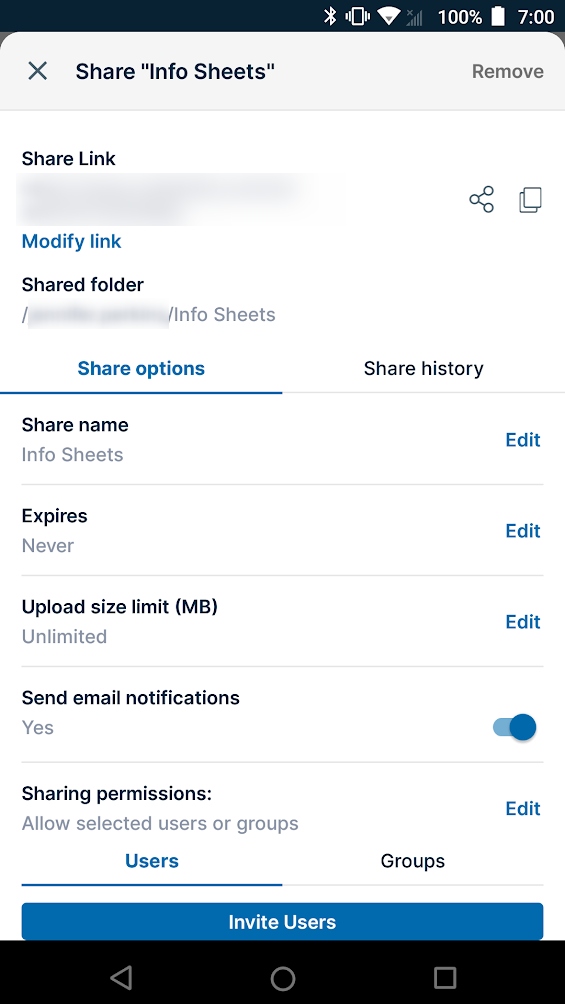
The folder is automatically shared privately, and a screen for accessing share options and adding users and groups to the share opens.
To copy the share link:
Click to expand...
To copy the file share link:
-
Tap the Copy icon.
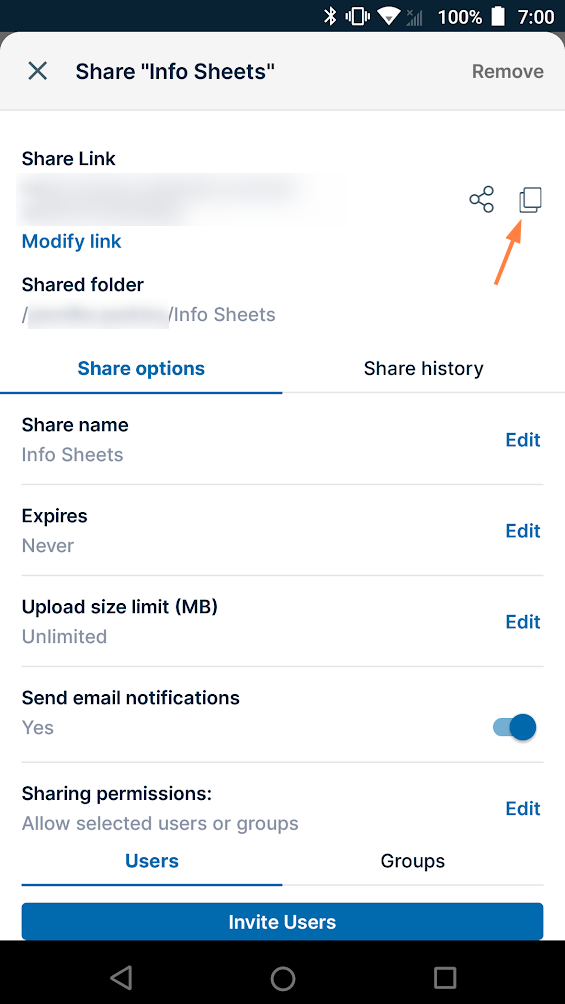
The screen displays the message Link copied to clipboard. -
Paste the link into an email or text message and send it.
To share the share link:
Click to expand...
To share the file share link:
-
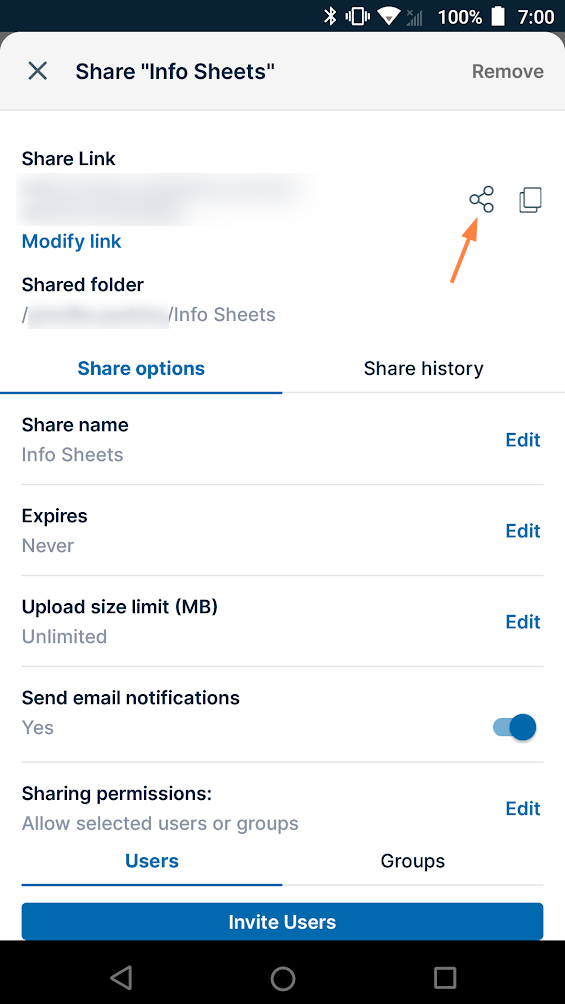
Tap the Share icon.
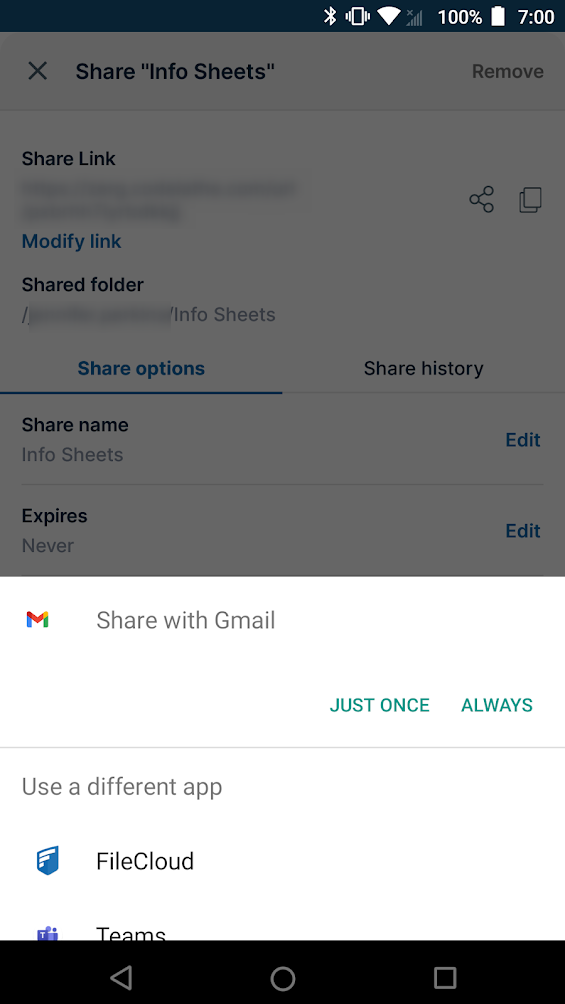
A Share with screen pops up. -
Choose an app and share the link.
To add users to a private share:
Click to expand...
To add a user to a private share:
-
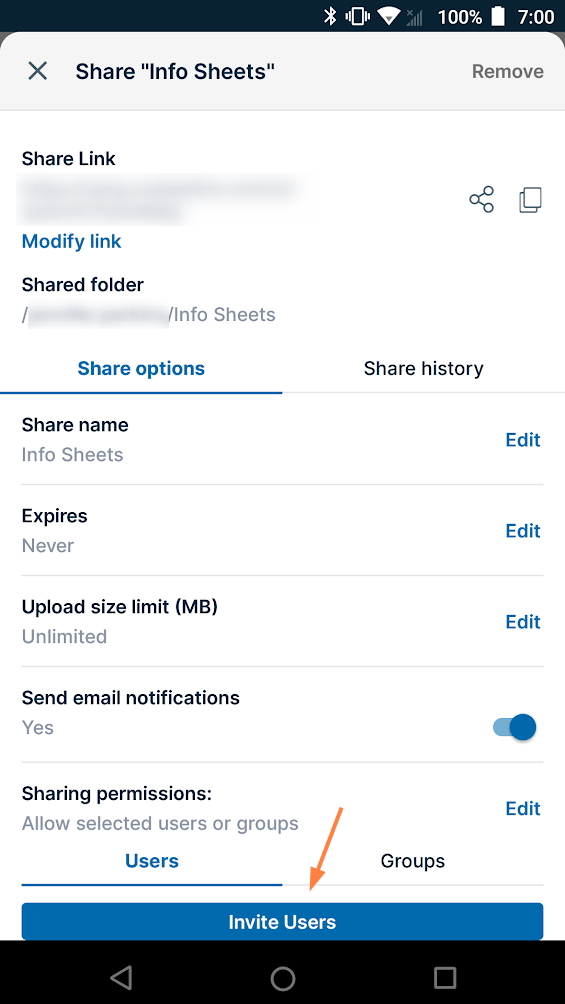
Tap Invite users.
-
Enter a username or email that exists in your system, or enter a new user's email, and and tap Add Users to this Share.
If you enter a new user, FileCloud sends them an email with the share link and asks them to create a FileCloud account to access the link.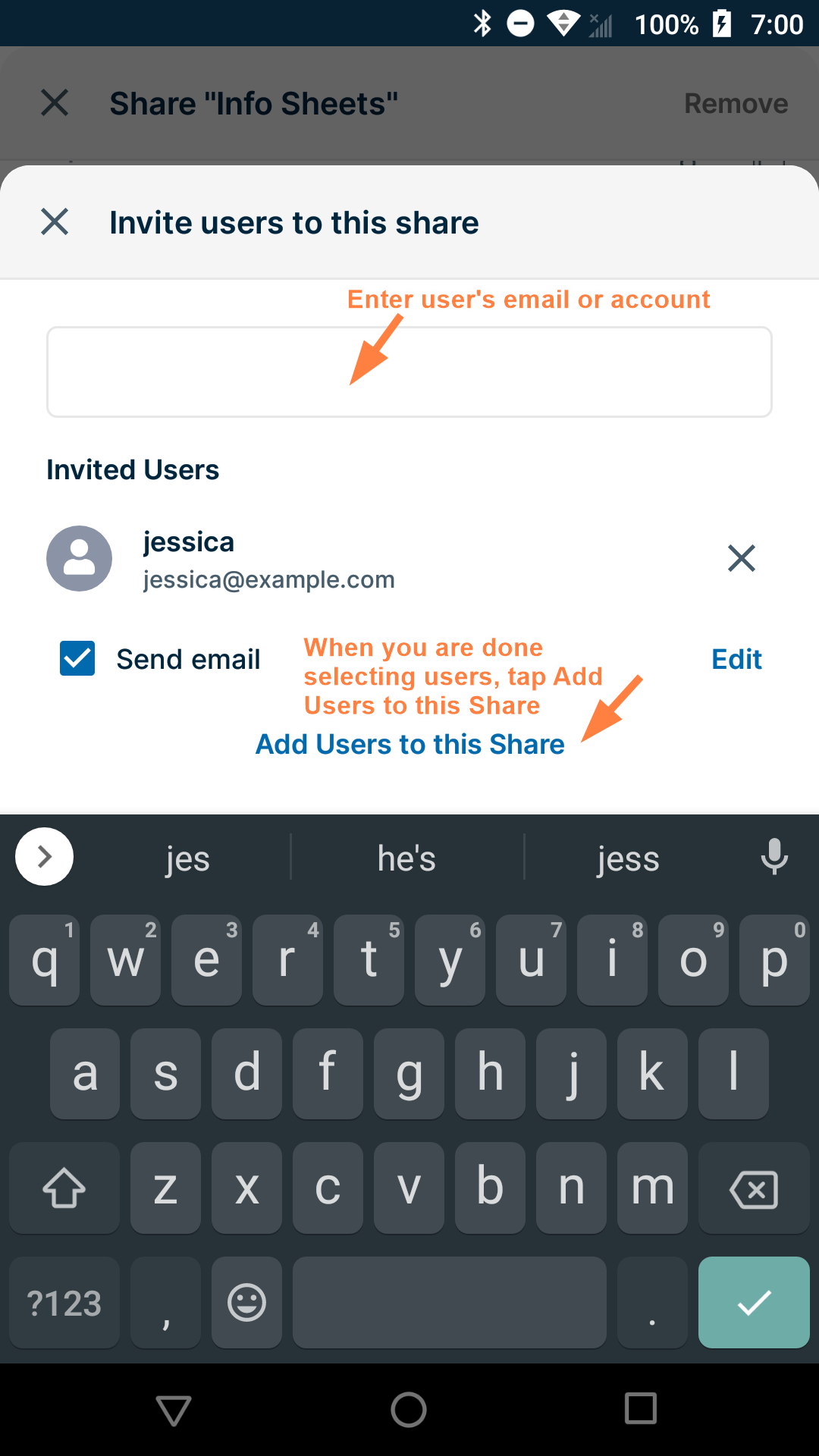
The user is added to the share.
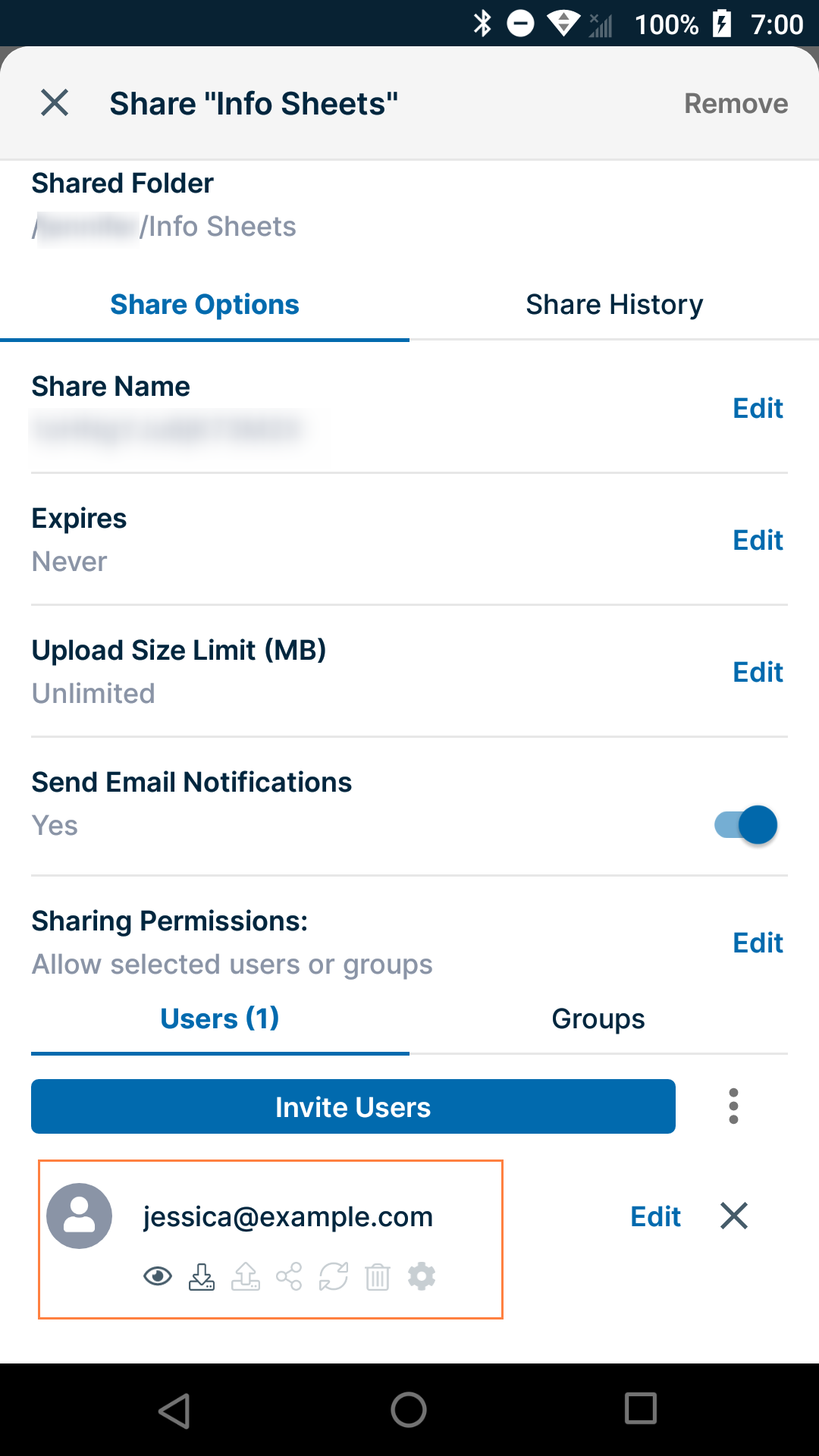
To change a user's private share permissions:
Click to expand...
When you privately share a folder with a user, the user's permissions for the folder are shown in icons below the username or email. By default, the user has view and download permissions for the folder.
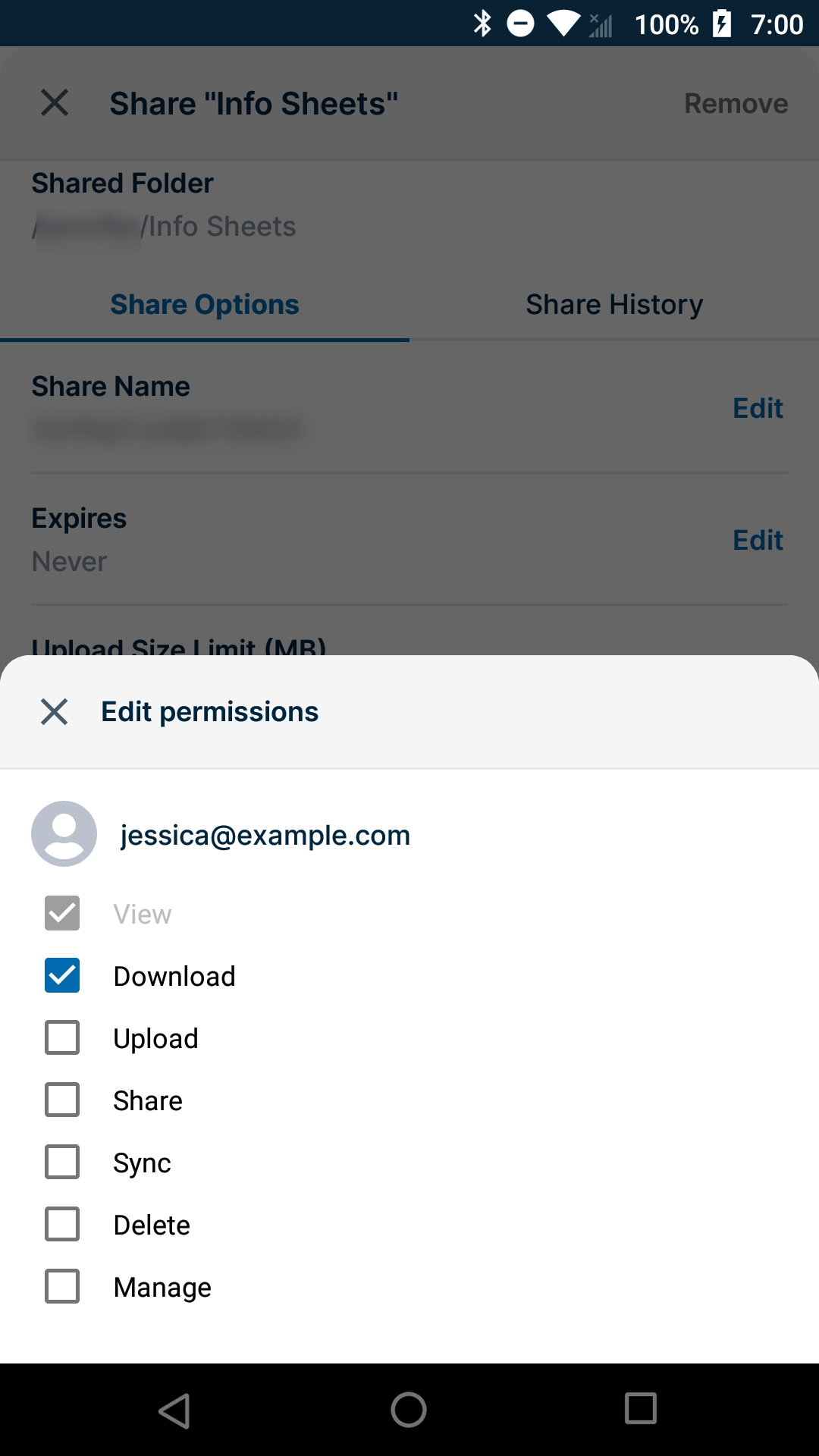
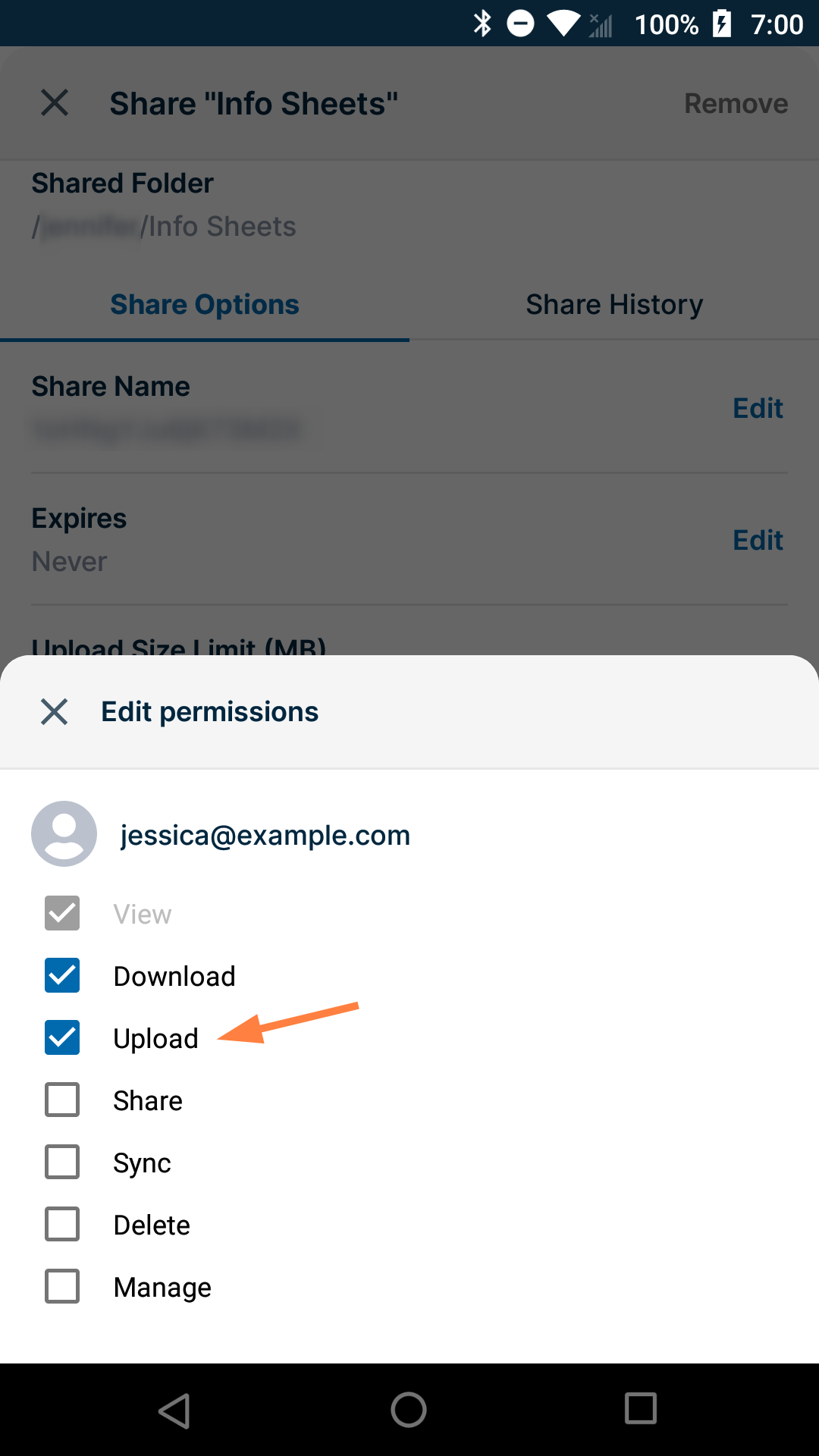
You can also give the user upload and share permissions, and if it is allowed in your system, sync permission.
To change the user's permissions for the folder:
-
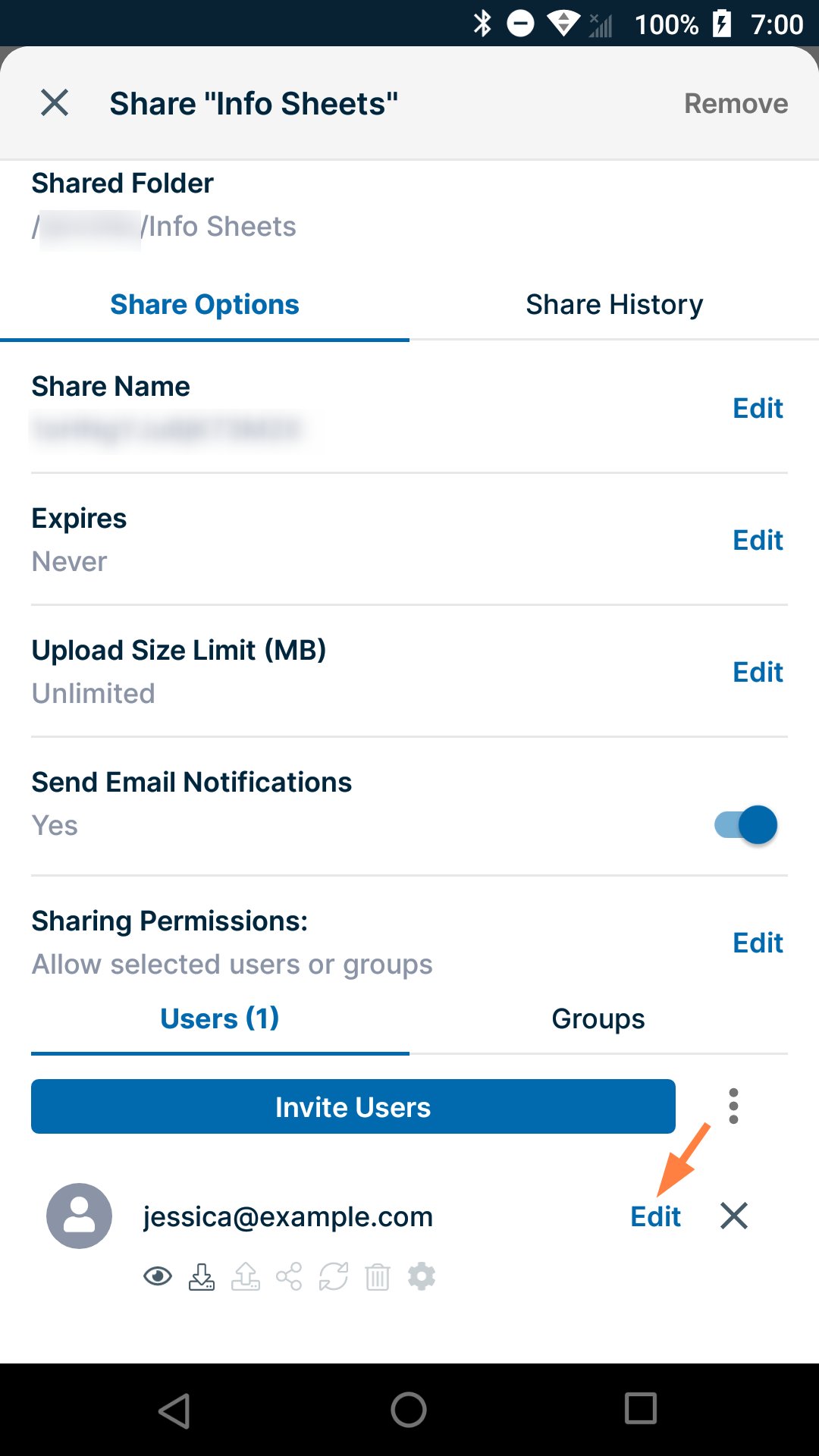
Tap Edit across from the user's name or email:
A popup shows the available permissions.
-
Check or uncheck permissions:
-
Close the Edit permissions box.
The changes appear in the permissions icons: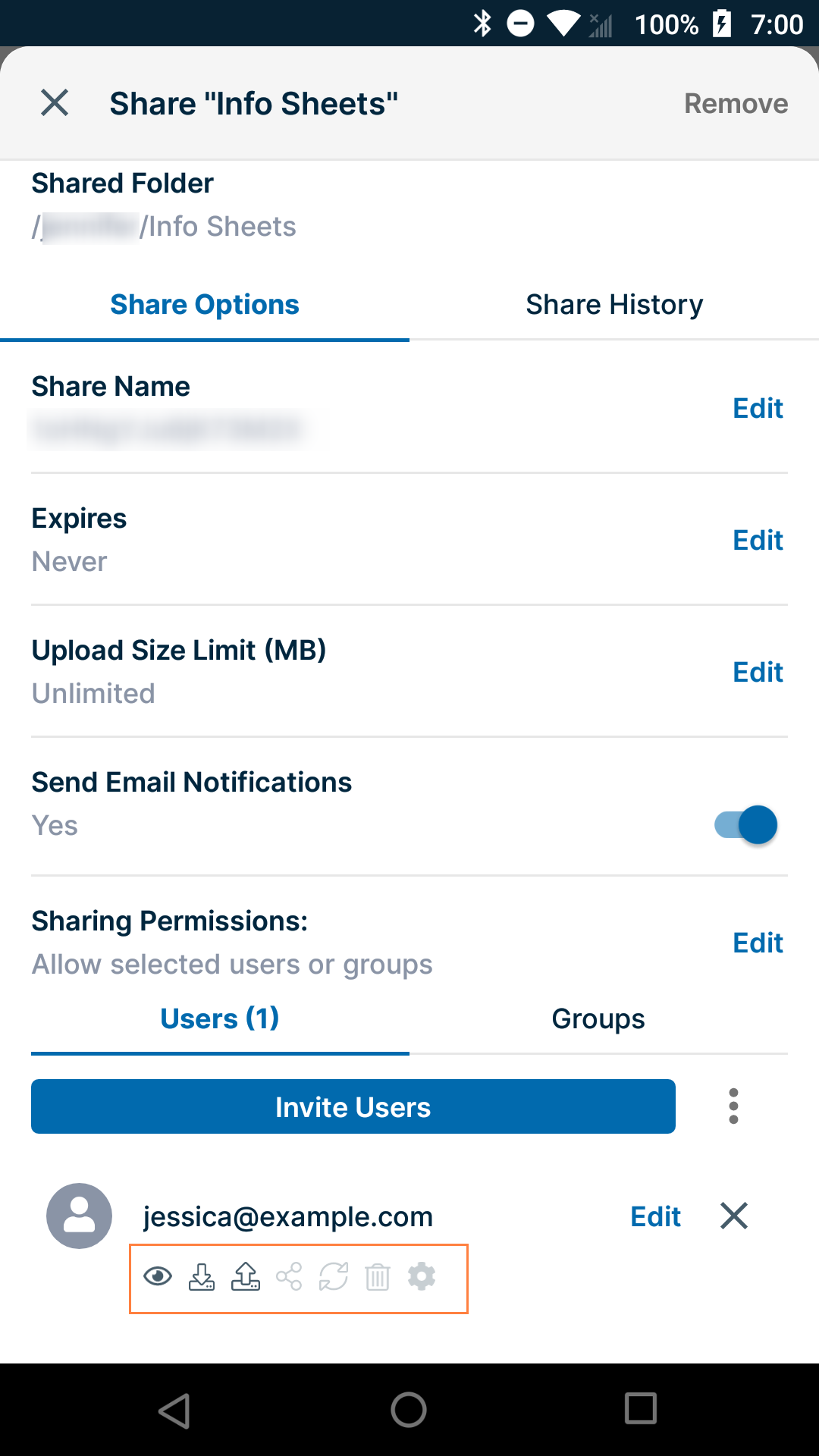
Note: Checking Share permission gives the user both upload and share permissions for the folder.
To add groups to a private share:
Click to expand...
To add a group to a private share:
-
Tap the Groups tab.
-
Tap Add Groups.
.png?cb=102bba69df6aa4e2949d654a250bbd74)
The groups that are available for you to add to the share appear. -
Tap a group to add it to the share.
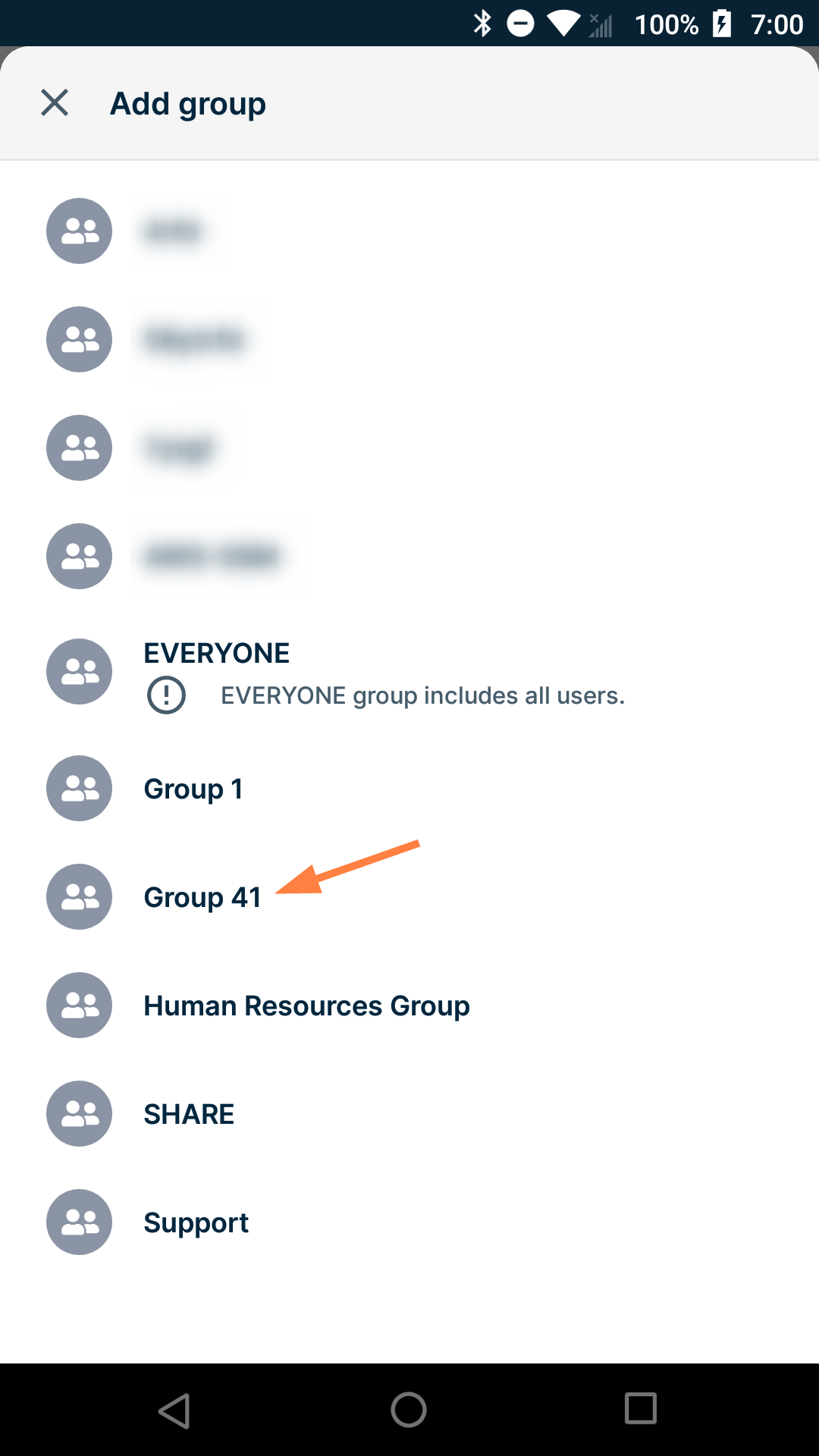
The group is added to the share:
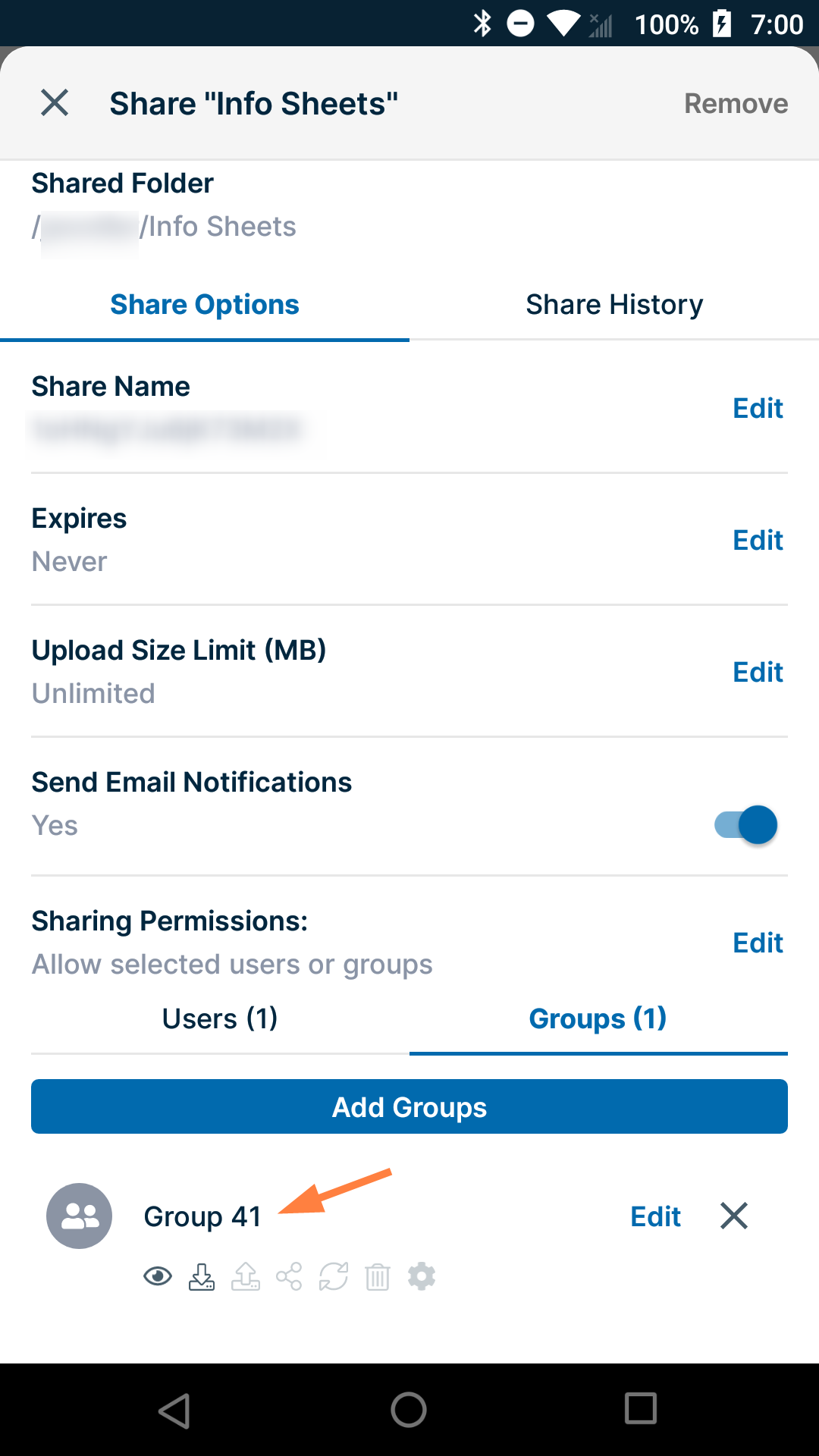
-
Add any number of the groups to the share.
To change a group's private share permissions.
Click to expand...
When you privately share a folder with a group, the group's permissions for the folder are shown in icons below the group name. By default, the members of the group have view and download permissions for the folder.
You can also give the group upload and share permissions, and if it is allowed in your system, sync and delete permissions.
To change the group's permissions for the folder:
-
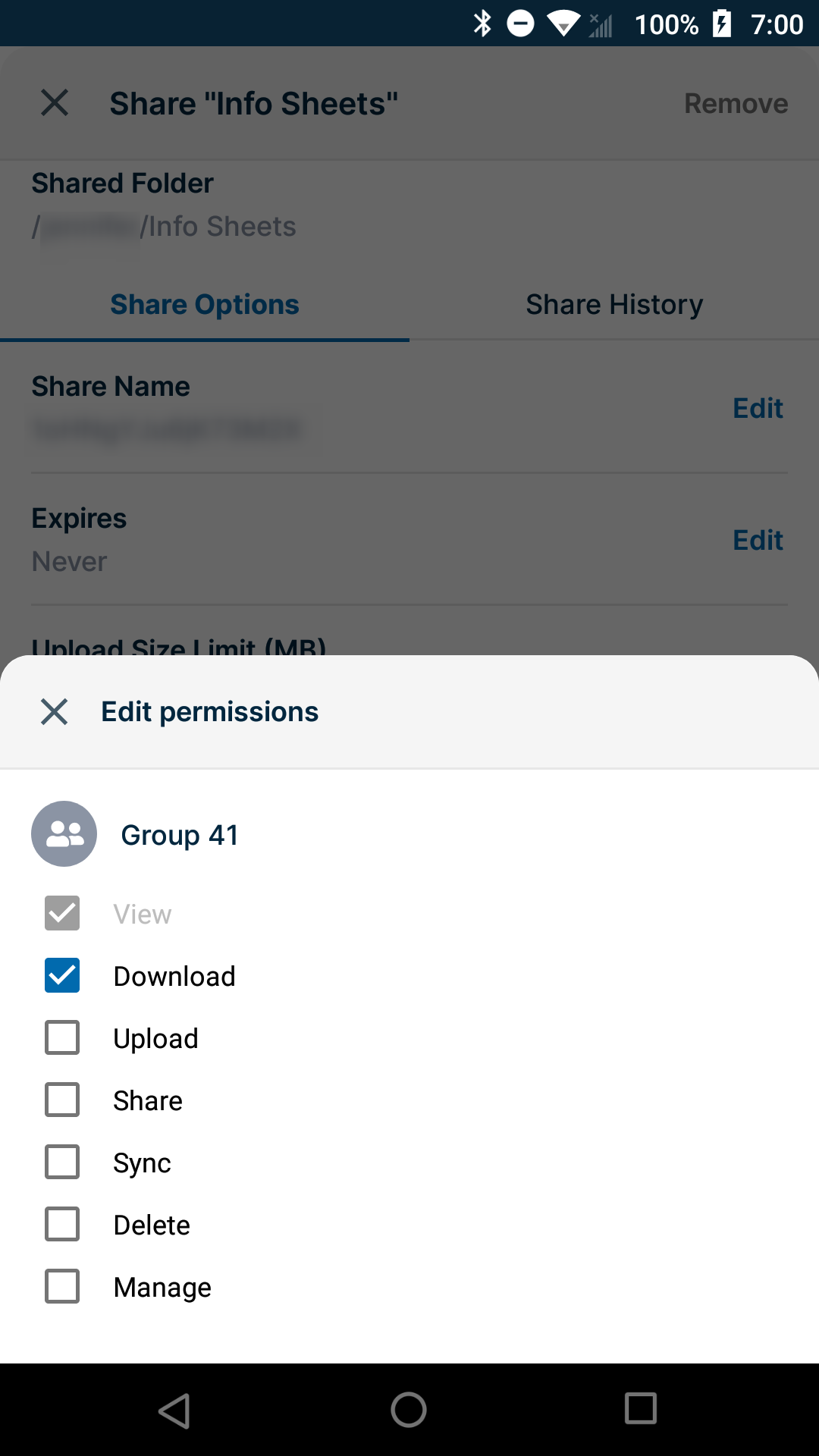
Across from the group, tap Edit.
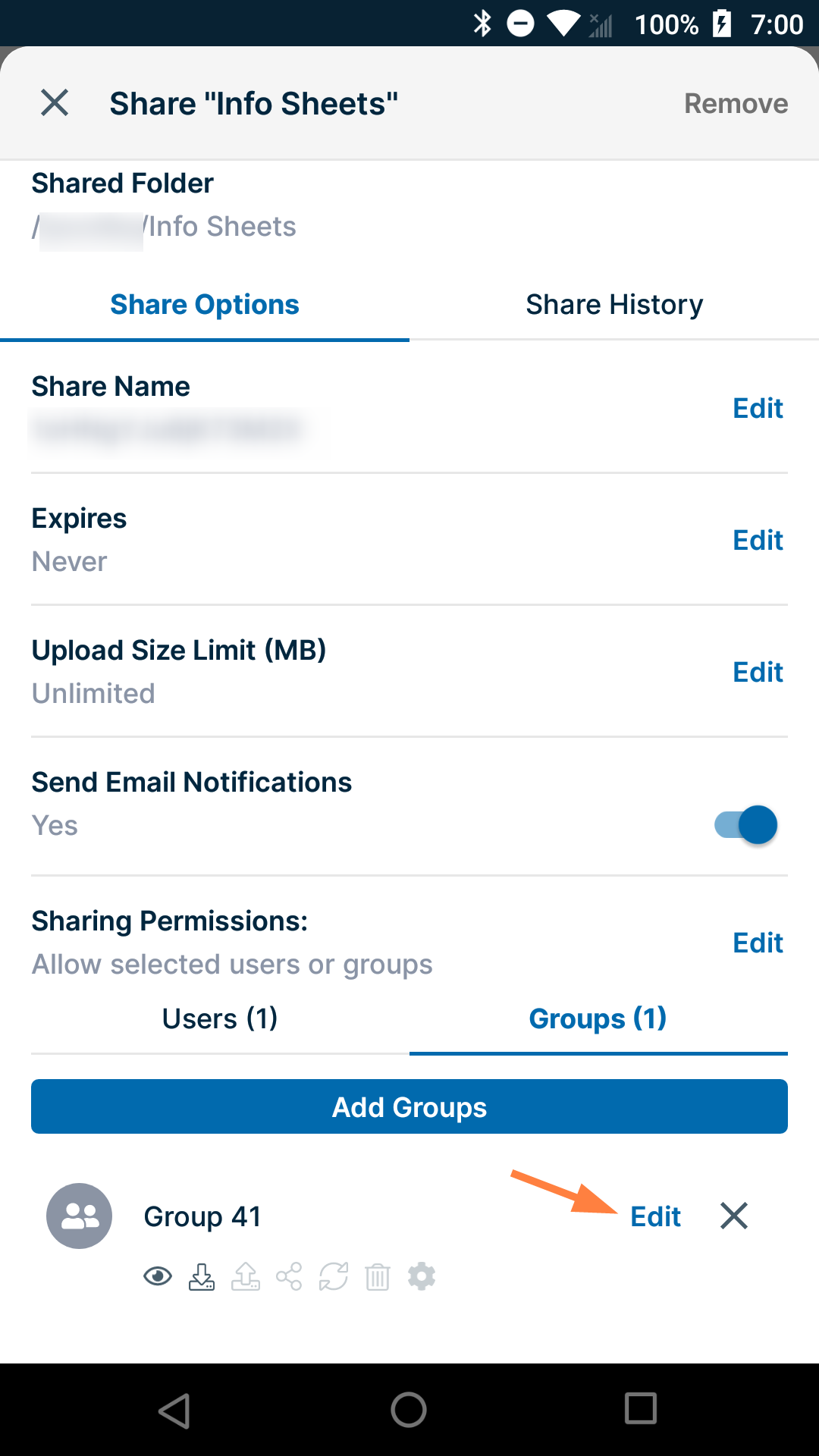
A popup shows the available permissions:
-
Check or uncheck permissions:
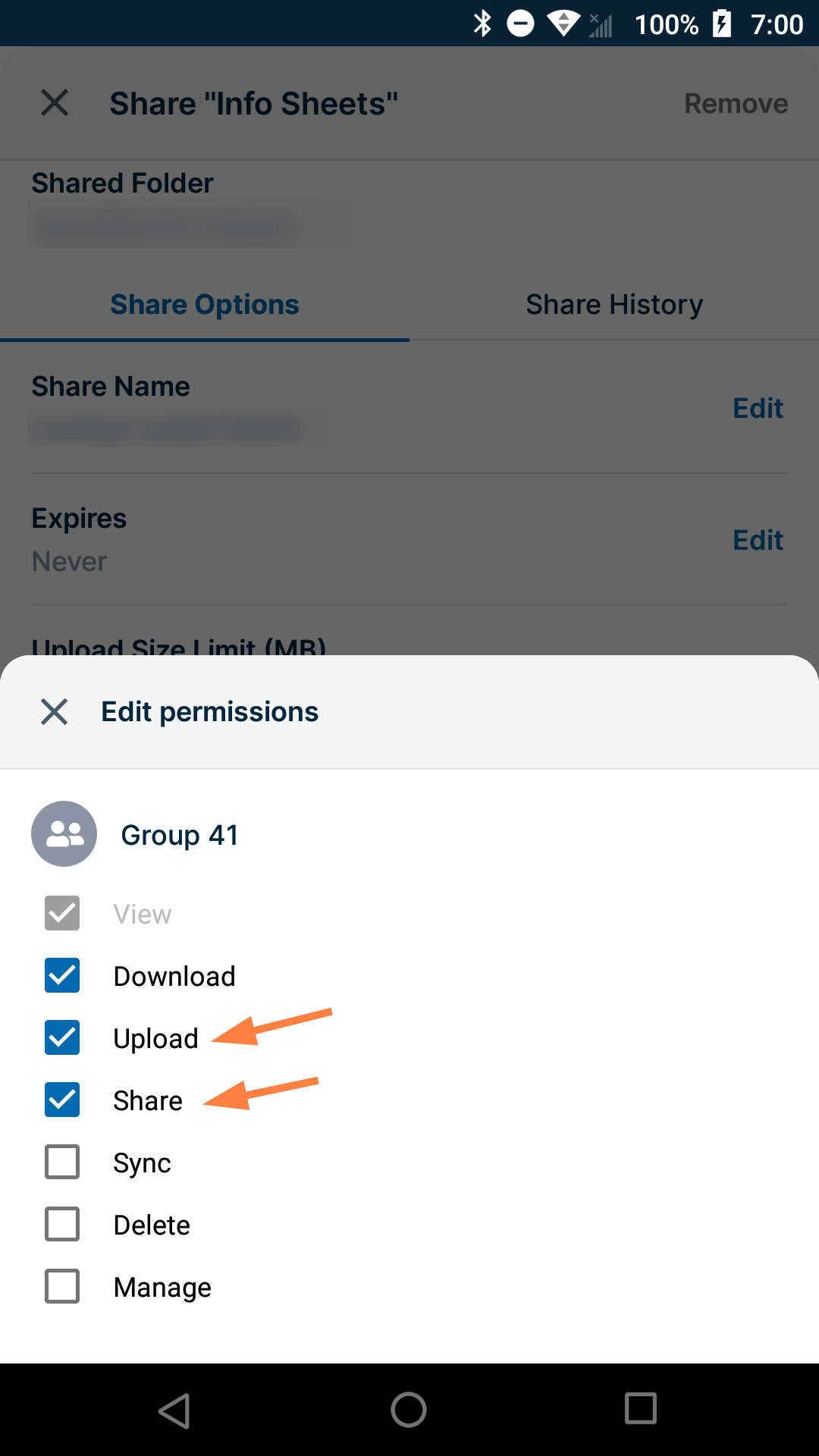
Note that if you check Share or Sync, Upload is automatically also checked. -
Close the Edit permissions box.
The changes to the permissions are saved.
To remove a user or group from a folder share:
Click to expand...
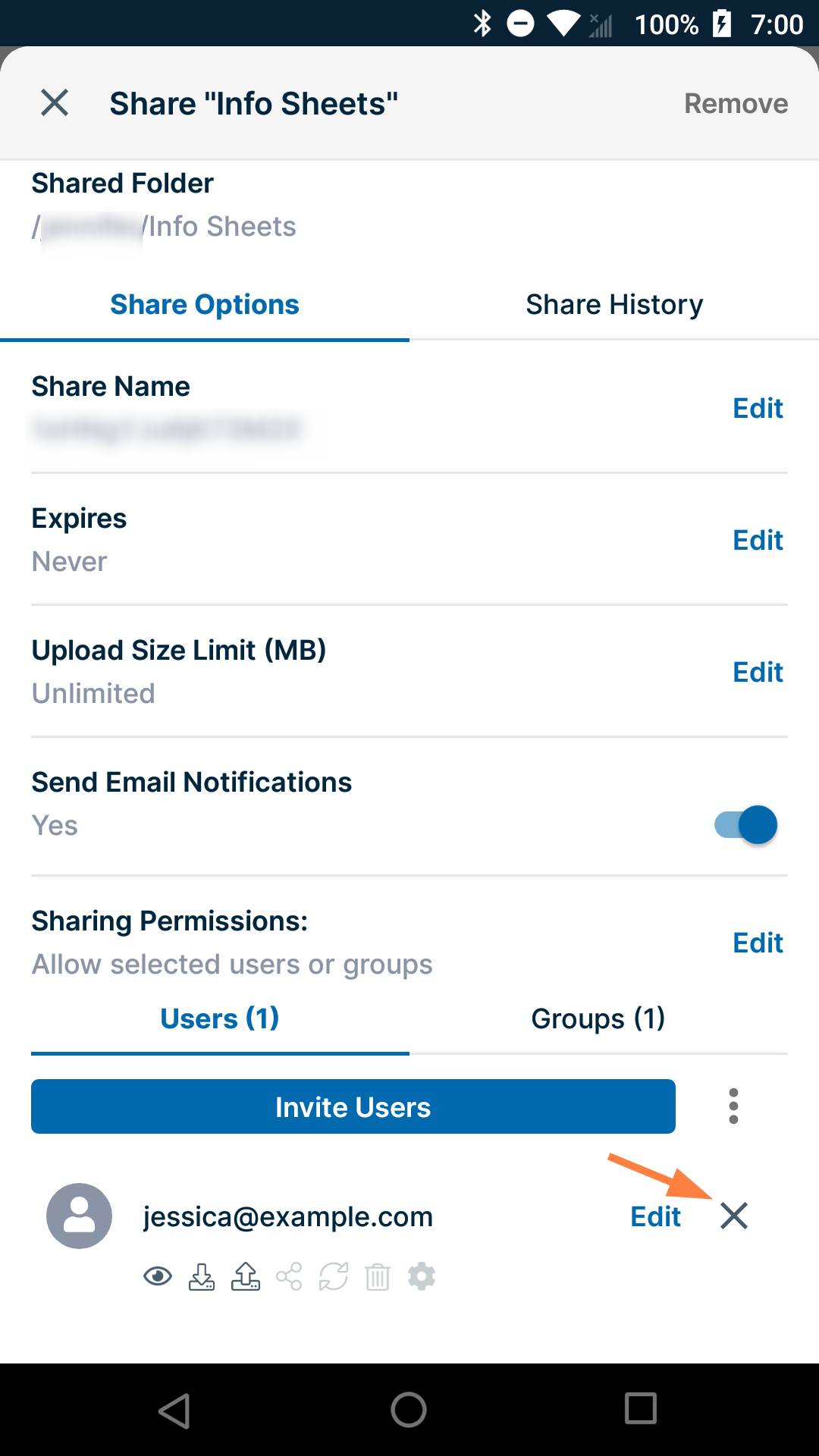
To remove a group or user from a folder share, tap the x next to it:
To change a folder share from private to public:
Click to expand...
-
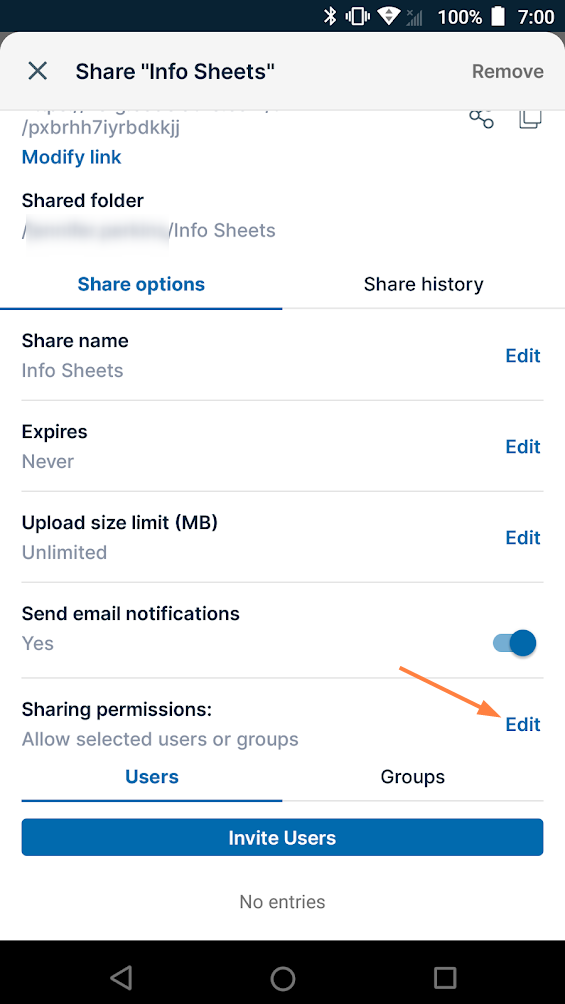
In Sharing Permissions, tap Edit.
-
If you don't want to require users to enter a password to access the share, choose Allow anyone with link.
If you want to require users to enter a password to access the share, choose Allow anyone with link and a password.
Here, we'll choose Allow anyone with link and a password, and tap Save.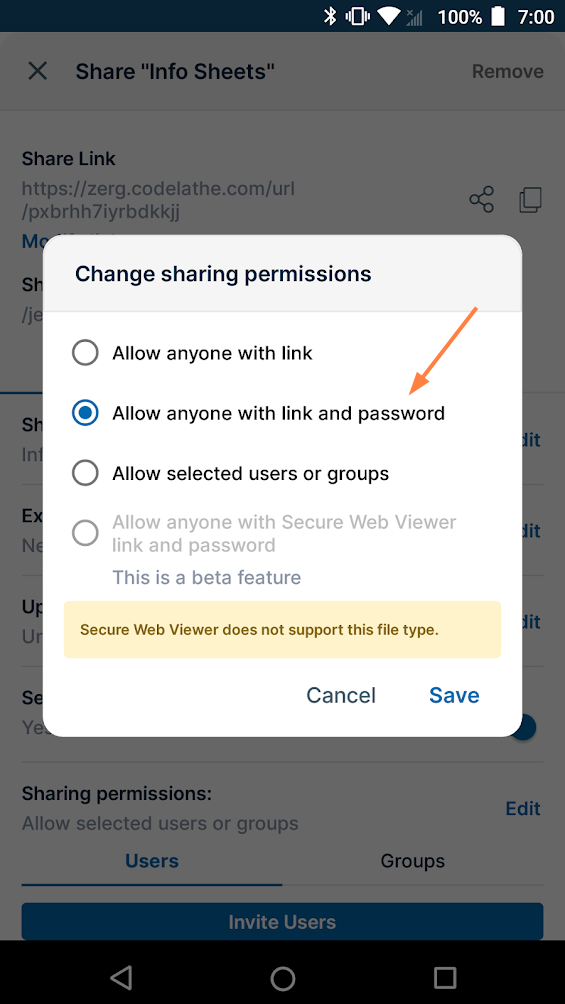
A confirmation dialog asks you to confirm that you want to remove share permissions for specific users and groups and allow share access to everyone. -
Tap OK.
Allow anyone with link and password replaces Allow selected users or groups. -
In the Password field, leave the existing password, or enter another one, and then click Save.
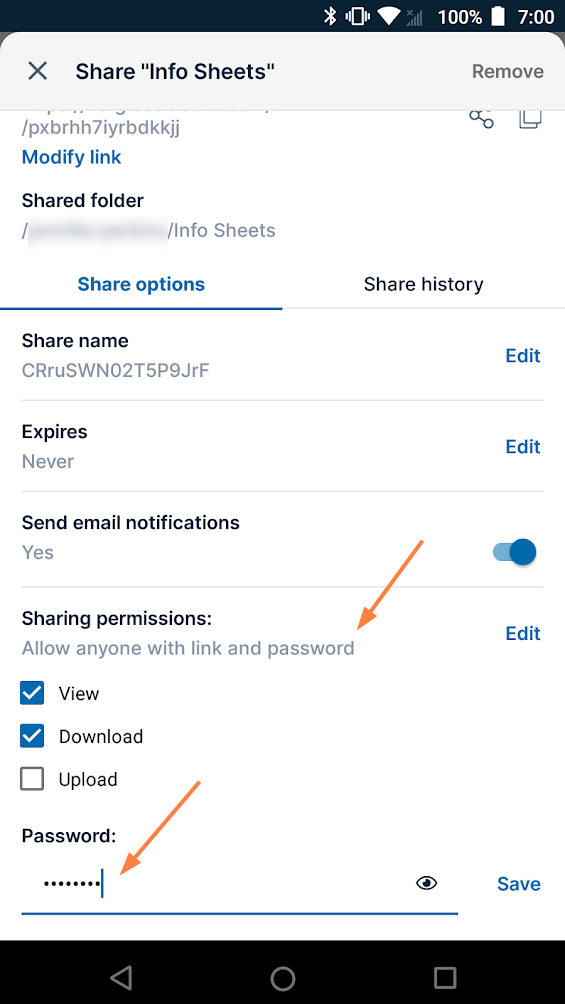
Users must now enter the password to access the share from the link.
To change the permissions on a public share
Click to expand...
For public folder sharing, the following combinations of options are available.
|
Permission |
Effect |
|---|---|
|
View + Download (default) |
Users can browse existing files and download files. |
|
View + Download + Upload |
Users can browse existing files, download files and upload files to the folder. |
|
View + Upload |
Users can browse existing files, preview files (not download) and upload files to the folder. |
|
View Only |
Users can only browse existing files, and preview files (not download). |
|
Upload Only |
Users cannot browse existing files, but only upload files. It is like an upload only FTP folder.
|
To change the permissions on a public share for a folder:
-
Tap Share Options.
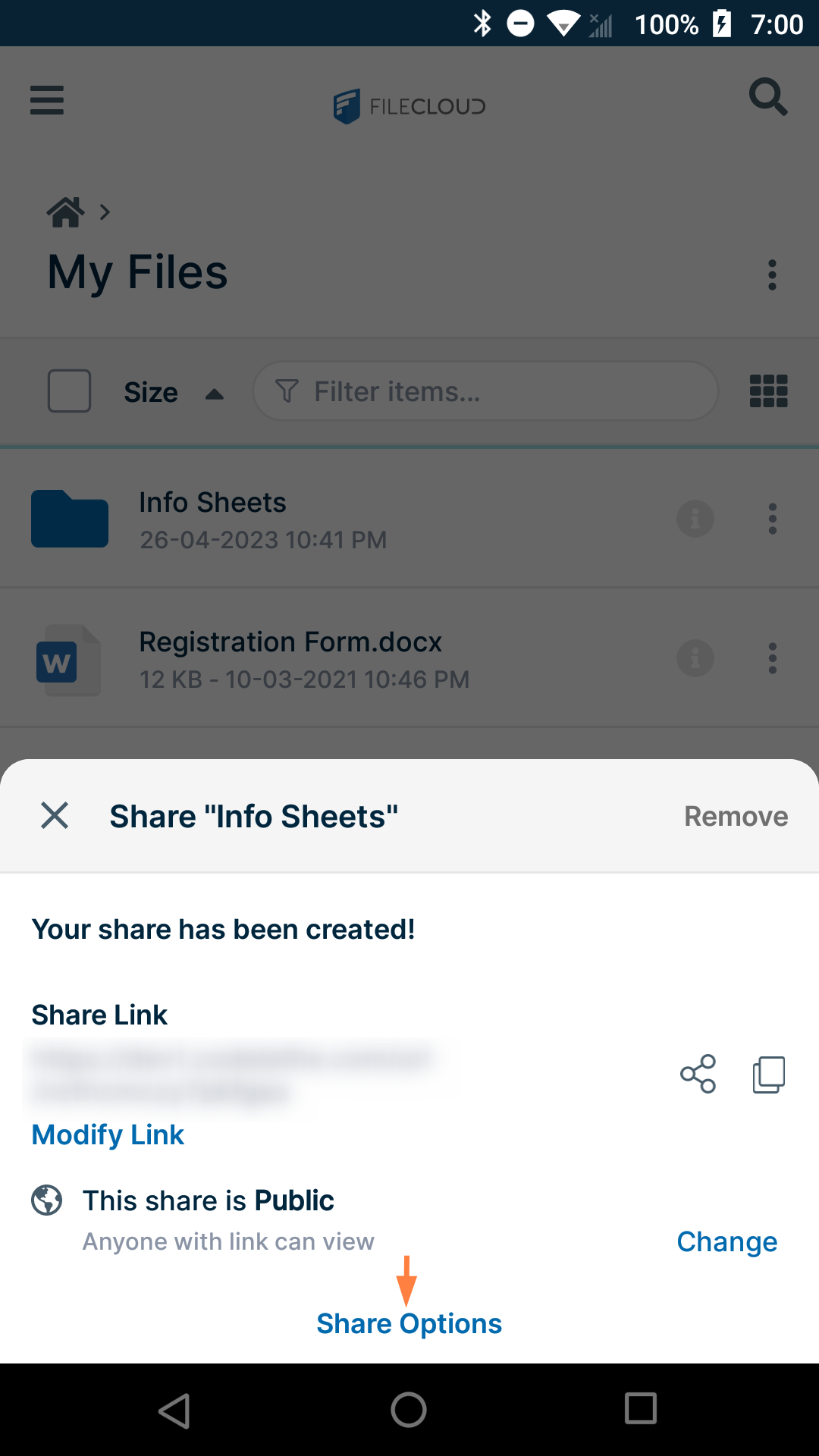
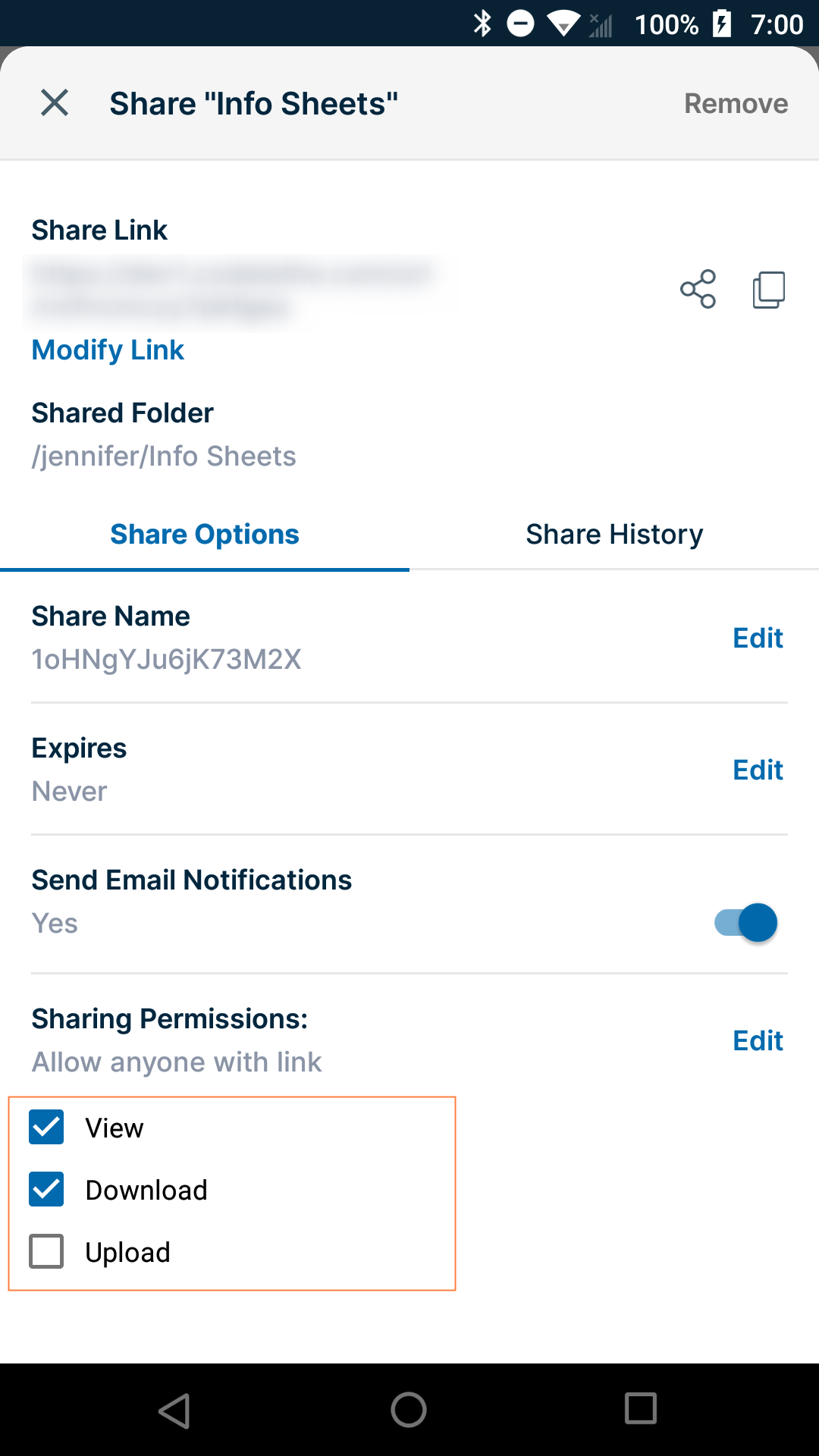
The share screen expands, and Sharing Permissions appears at the bottom. By default, the share has View and Download permissions.
-
Check or uncheck permissions.
Your changes are saved.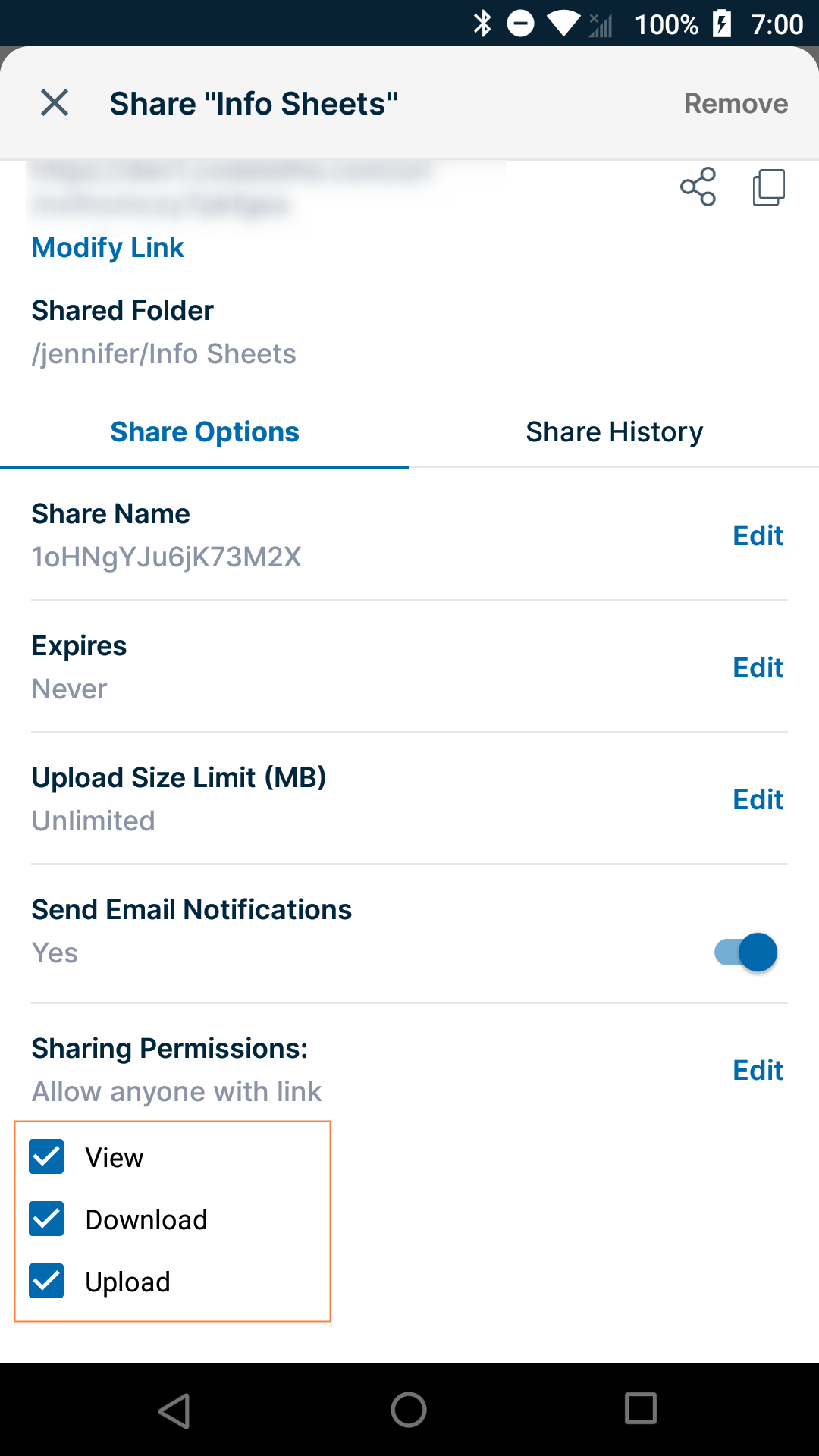
To change folder share options:
Click to expand...
The options (optional settings) for a share are listed under Share Options:
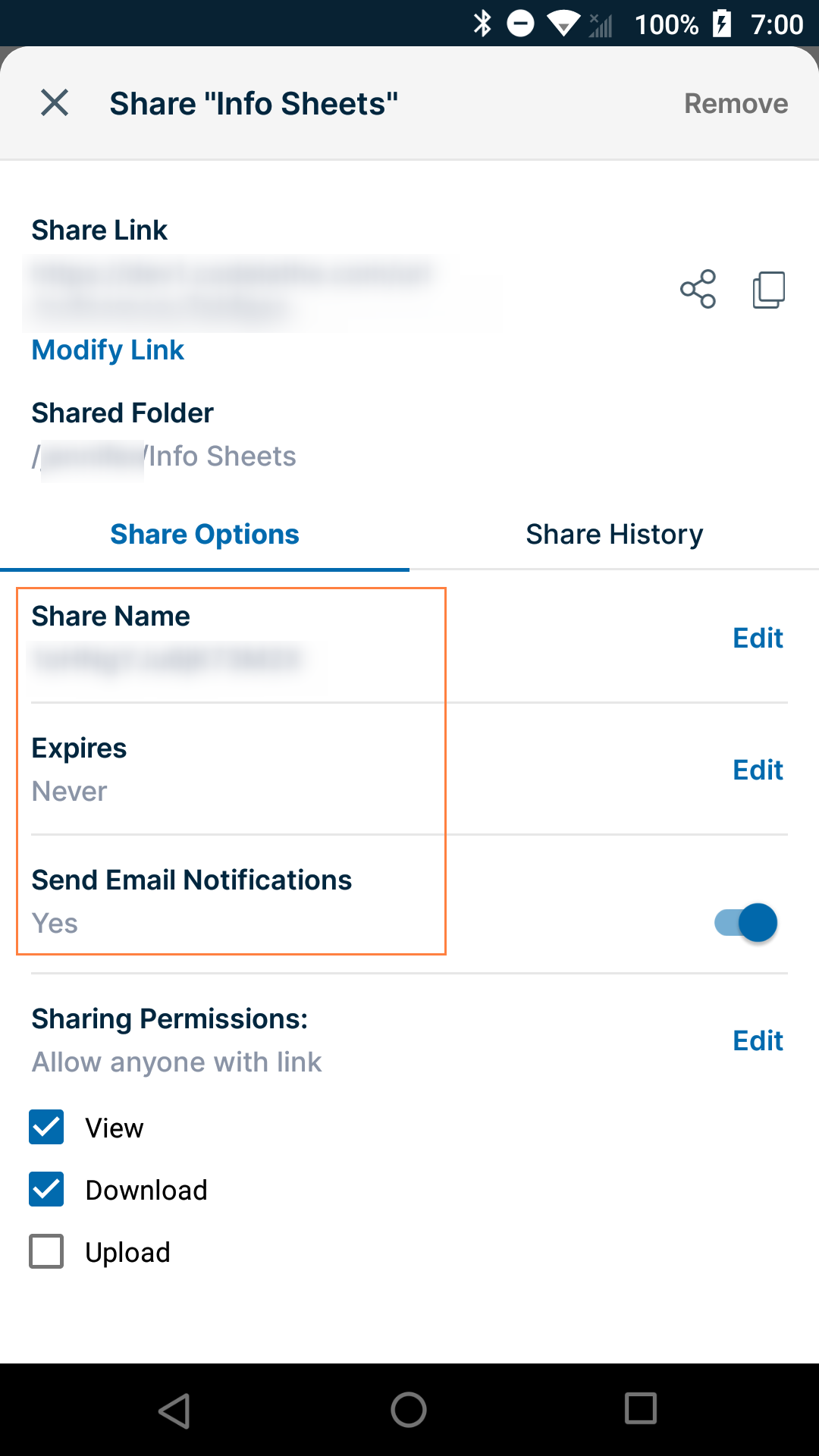
For information on setting share options, see:
Share Options for Public and Private Folders
To remove a folder share:
Click to expand...
To remove a folder share:
-
Open the FileCloud app.
-
Navigate to the folder whose share you want to remove.
-
Tap the more (three dot) icon next to the folder.
-
Tap Share.
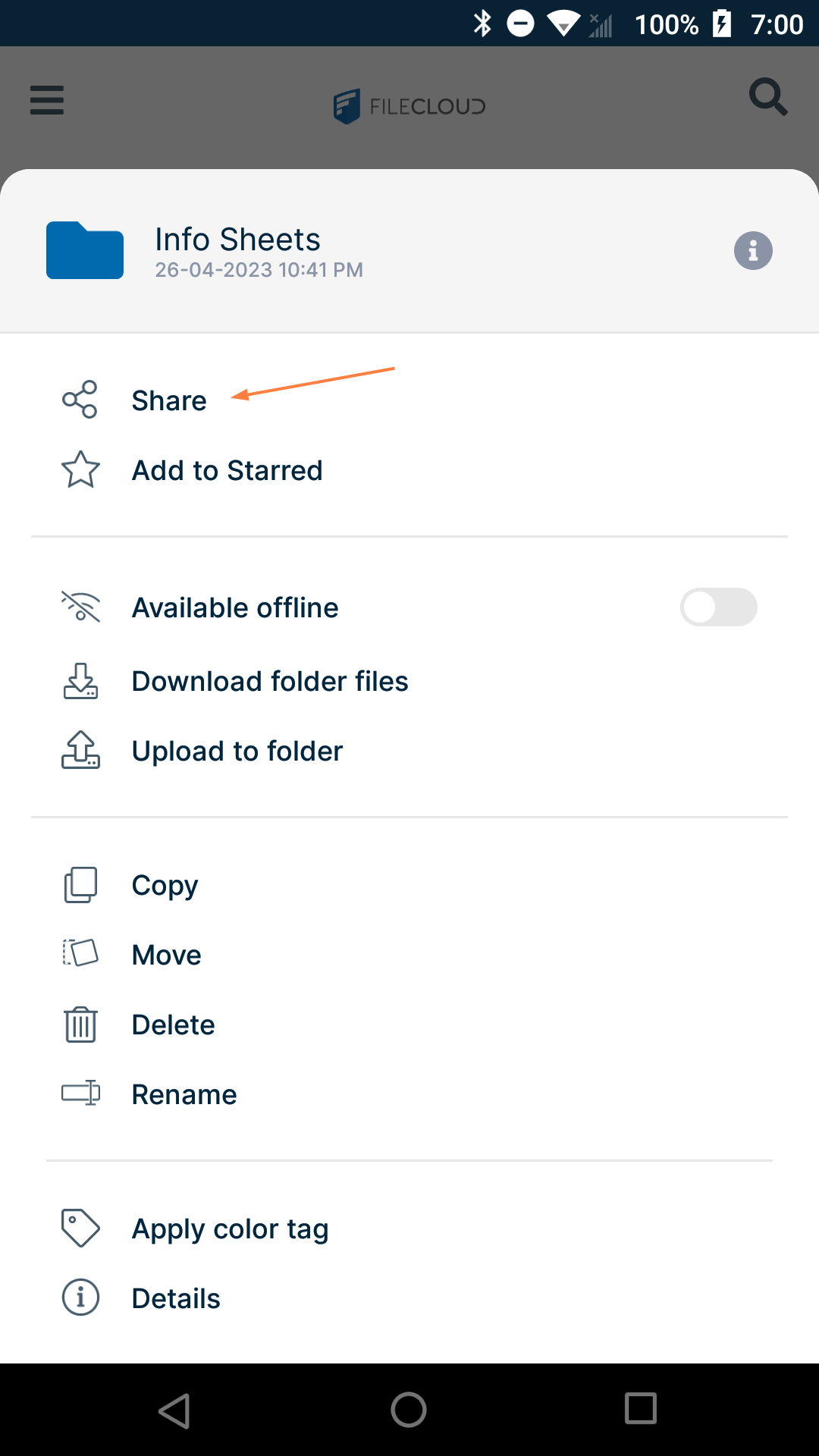
The share details open. -
Tap Remove.
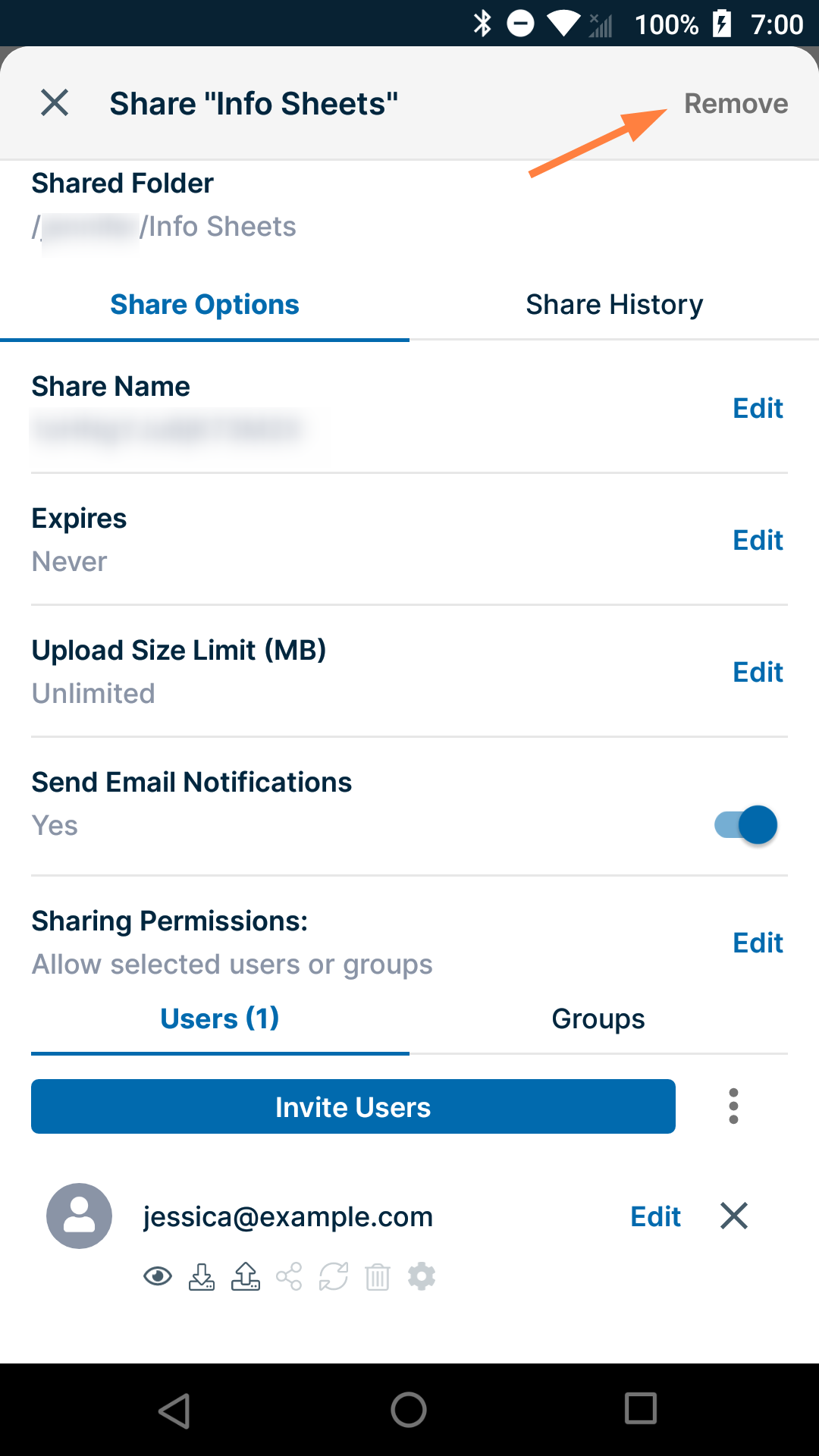
The share is removed. Users who were given access to the share can no longer view it in their Shared with me folder or access it through the share link.
To share files on Android, see Share a File on Android.
For more detailed information about file and folder shares, see Sharing Files and Folders.