.svg)
FileCloud Server is thoroughly tested during development and before every release.
-
However, it is impossible to reproduce every kind of IT environment created by our customers.
-
In your unique environment, you may see FileCloud perform unexpectedly.
-
FileCloud provides you with the ability to record extra information in logs.
-
Your log information can also help us fix any issues you see in a later release.
FileCloud log files in the scratch folder are automatically compressed into a zip folder.
-
This auto-archive process is completed by Cron
-
As soon as a log file is 30 days old, it is compressed and added to the archive.
-
This archival process happens automatically and does not require you to configure any special settings.
Which Log File Do You Want to Review?
FileCloud Server logs
FileCloud Client logs
FileCloud Desktop for Windows Client Logs
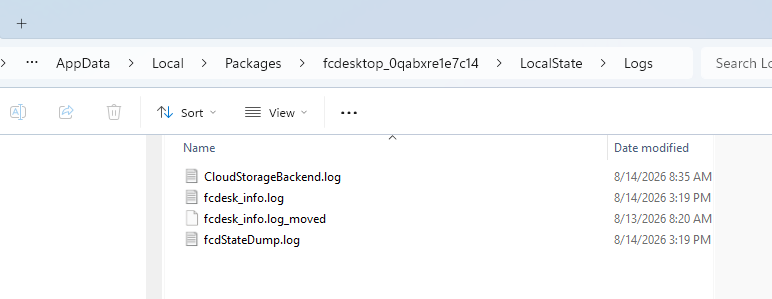
%APPDATA%\Local\Packages\fcdesktop_0qabxre1e7c14\LocalState\Logs
To access the logs through the FileCloud Desktop for Windows client:
-
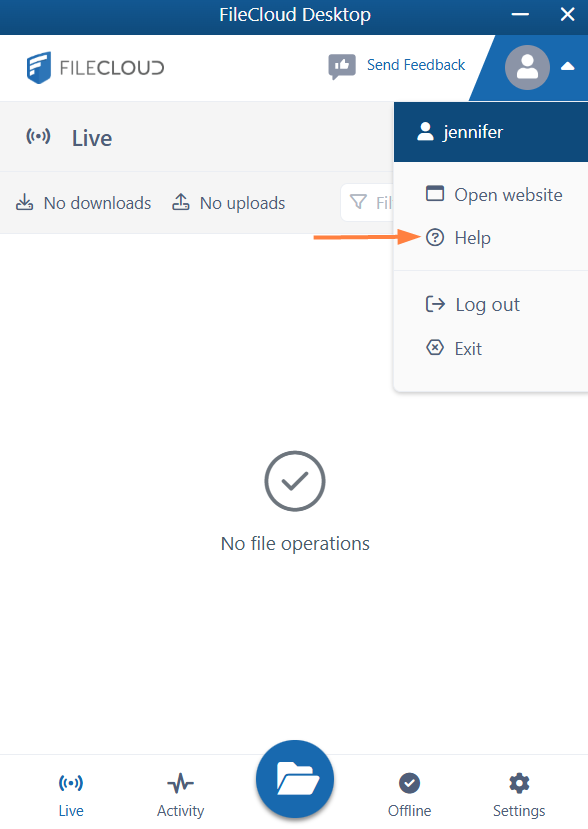
Click the user drop-down list, and click Help.
-
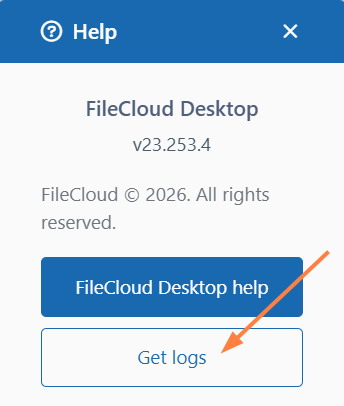
In the Help popup, click Get logs.
You are taken to the Logs folder in Windows explorer:
Drive Client Log (Mac Only)
To automatically generate a log file:
-
From the system tray, right-click the FileCloud icon.
-
Select Advanced, and then Open Log Folder.
To manually collect a log file:
Mac: ~/Library/Application Support/Filecloud/macdrive/data/filecloudmacdrive.log
Mac Drive 2: ~/Library/Application Support/FileCloud MacDrive2/data/filecloudmacdrive.log
For more information, you can also View a Crash Report
ServerLink Log
ServerLink Admin portal activity is logged in the FileCloud Server log.
Synchronization activity is logged separately, in ServerLink folders.
Log locations
The log file paths are:
Windows:
<DriveLetter>\xampp\htdocs\scratch\logs\serverlink\log_YYYY-MM-DD.txt
For example: c:\xampp\htdocs\scratch\logs\serverlink\log_2020-08-27.txt
Linux:
/var/www/html/scratch/logs/serverlink/log_YYYY-MM-DD.txt
For example: /var/www/html/scratch/logs/serverlink/log_2020-08-27.txt
When a log file reaches a maximum size of (1024 * 50 KB by default), a new log file is created with part# as a suffix. For example:

Changing Maximum Log size
You may change the default maximum log size with the TONIDOCLOUD_SERVERLINK_LIMIT_LOG_FILE_SIZE_KB setting.
To change the maximum log size:
-
Open cloudconfig.php.
-
Windows Location : C:\xampp\htdocs\config\cloudconfig.php
-
Linux Location : /var/www/html/config/cloudconfig.php
-
-
Add the following.
define("TONIDOCLOUD_SERVERLINK_LIMIT_LOG_FILE_SIZE_KB", 1024 * 50); -
Change the default size of 1024 * 50.
Multitenancy
For multitenancy, each site has a ServerLink folder containing sync logs.
FileCloud Mobile App logs
iOS Log
Location of logs: Offline Files/Logs
To save the latest log files:
-
Log in to the app, and tap the menu icon in the upper left corner, then tap Settings.
-
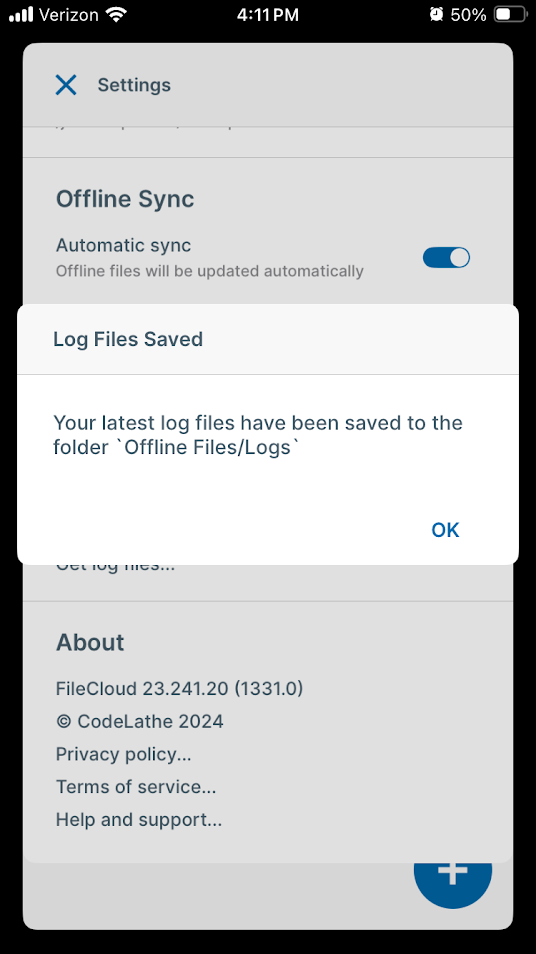
In Settings, scroll down, and tap Get log files.
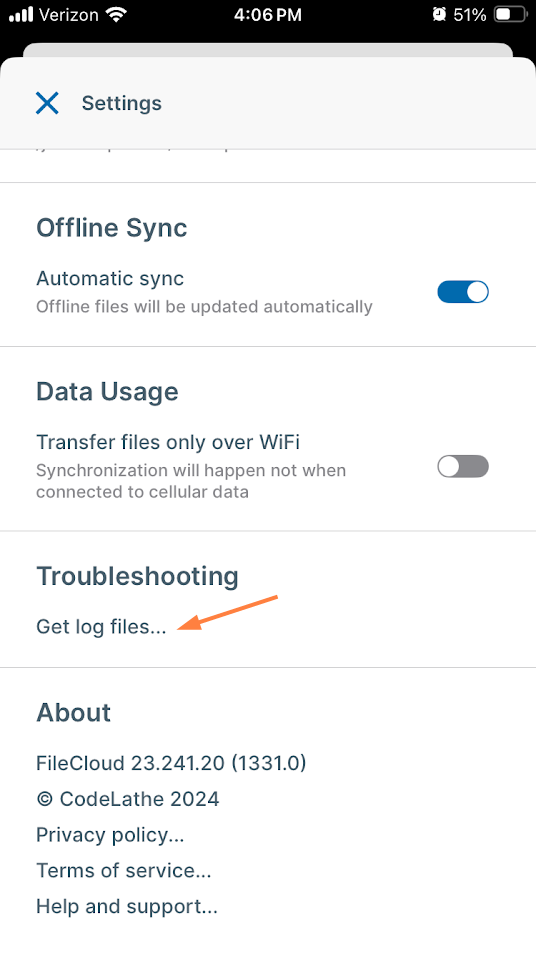
A message confirming that your log files have been saved to Offline Files/Logs appears.
Now, use the following procedure to download the log files.
To go to the log files:
-
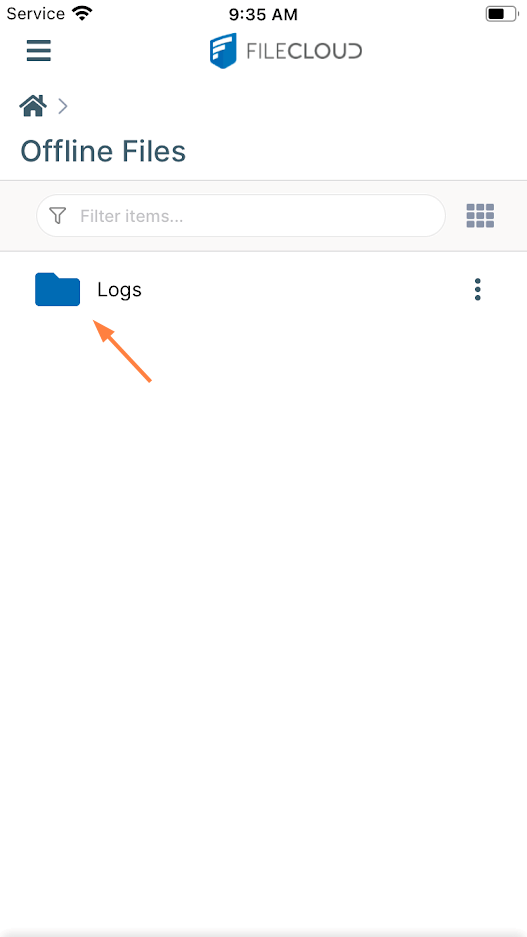
Tap the menu icon in the upper left corner of the app, then tap Offline files.
The Offline Files folder opens. Log files are stored in the Logs folder.
-
Tap the folder to access the log files.
-
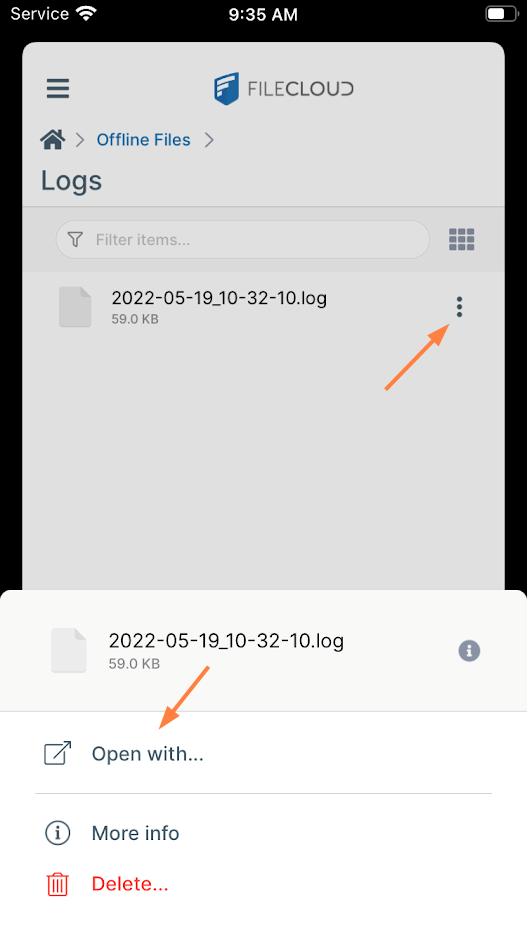
Tap the More (3-dot) icon for the log file that you want to send, and tap Open with to open or save it.
-
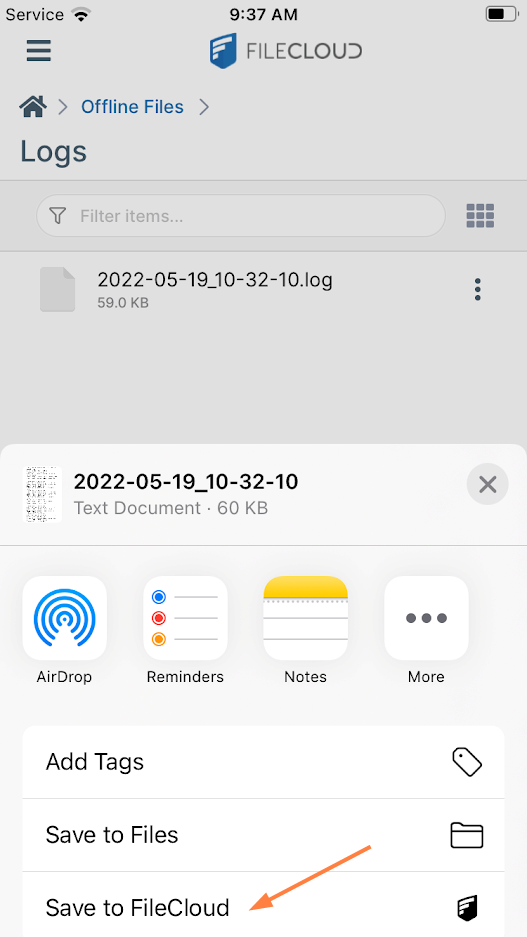
Save it to FileCloud or choose another option that enables you to download the file and send it to FileCloud Support.
 Your administrator can also get the logs from your device remotely.
Android Log
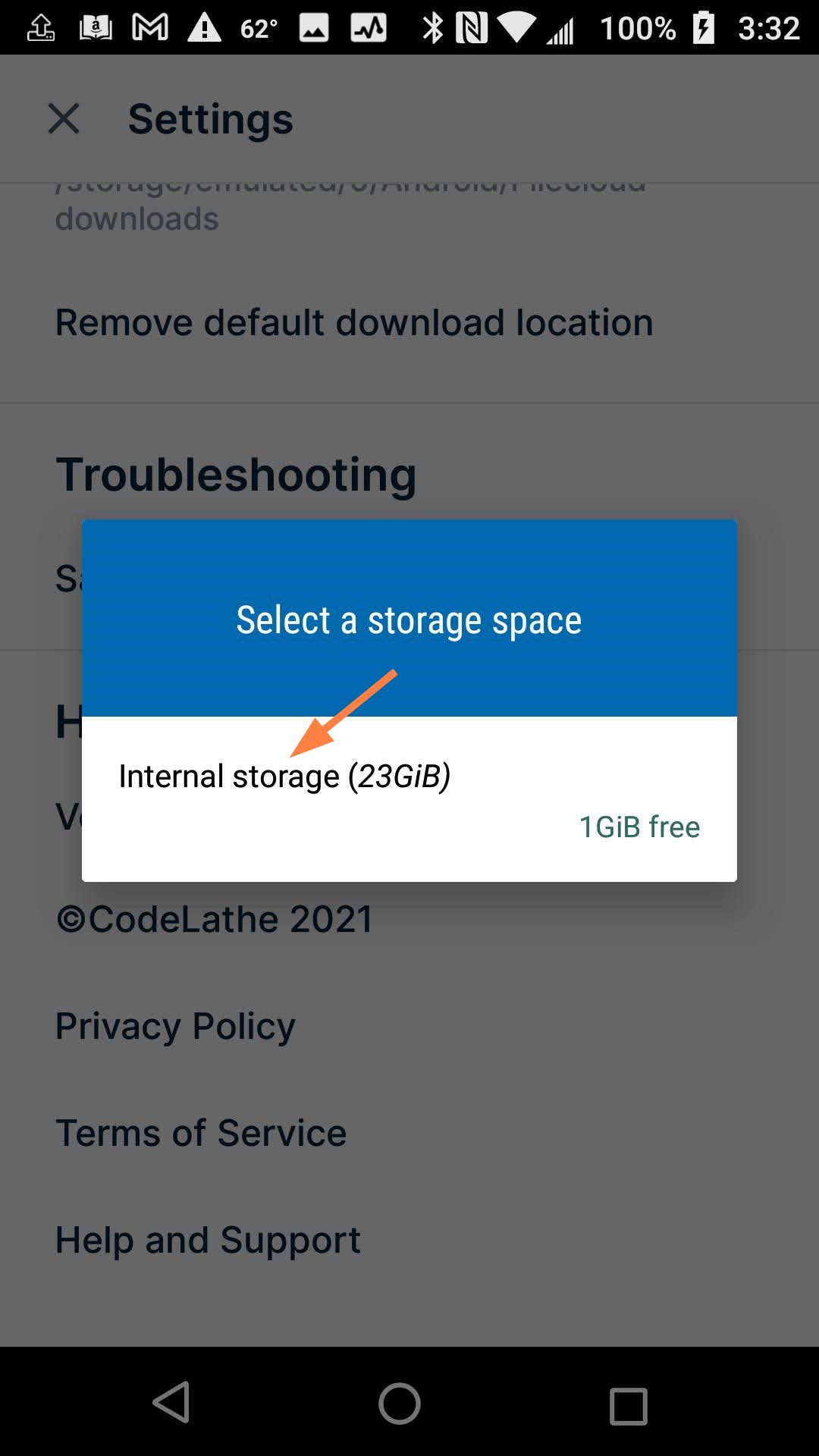
You choose the location where your logs are stored on your device.
To retrieve app logs:
-
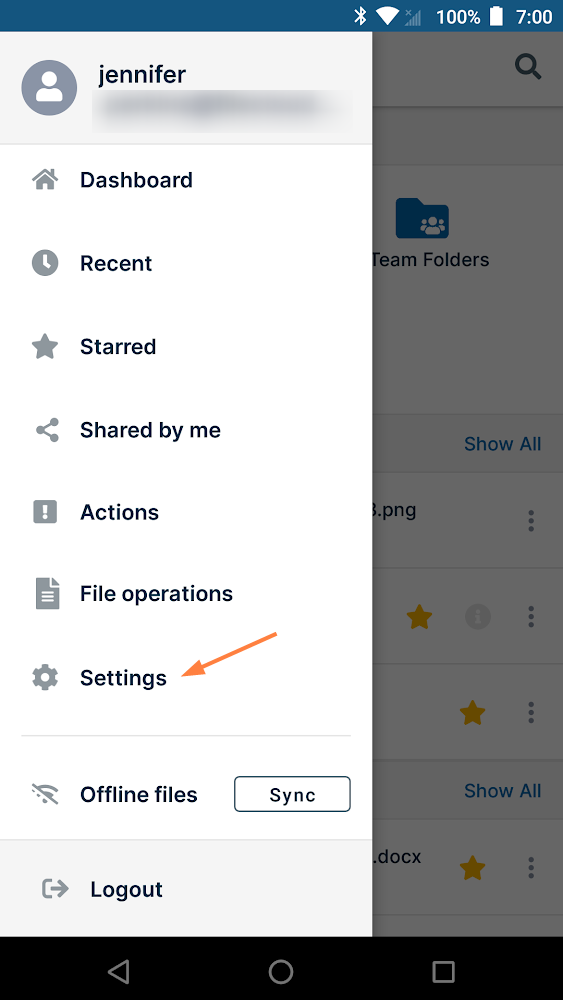
Go to Settings :
-
From the login page, tap the gear icon in the top right corner.
or -
After logging in, tap the triple-bar icon, and then tap Settings.
-
-
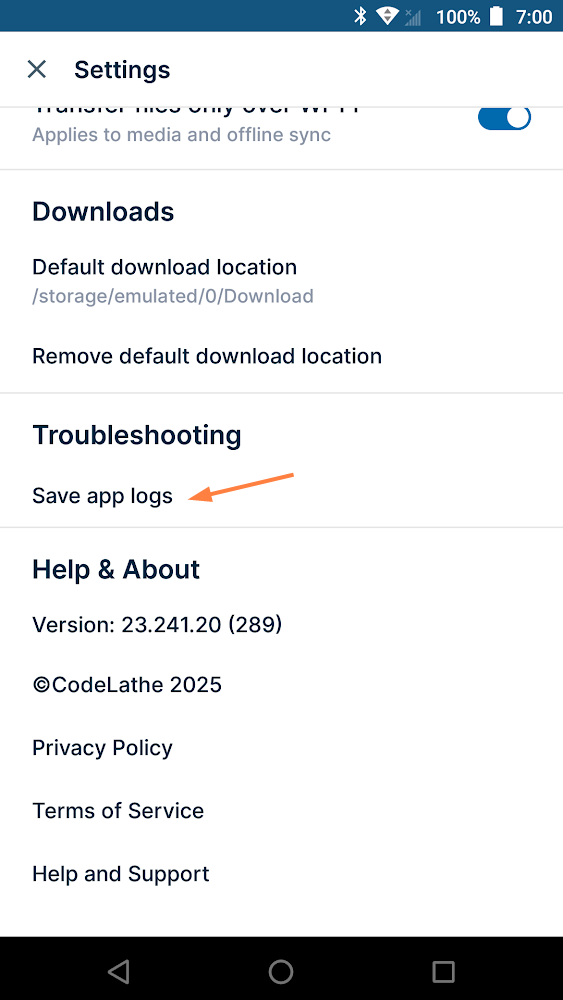
Scroll down and select Save app logs.
-
Select a destination on your device to save the log file
Your administrator can also get the logs from your device remotely.
Just contact your administrator and reproduce the actions that cause the issue you are experiencing.