.svg)
You can set up your FileCloud server to send email through Gmail SMTP server.
Configure your Email settings to use the Gmail SMTP server.
-
In the FileCloud admin portal's left navigation bar, scroll down and click Settings. Then, on the Settings navigation page, click Email

The Email settings page opens. -
In Email type, choose SMTP.
-
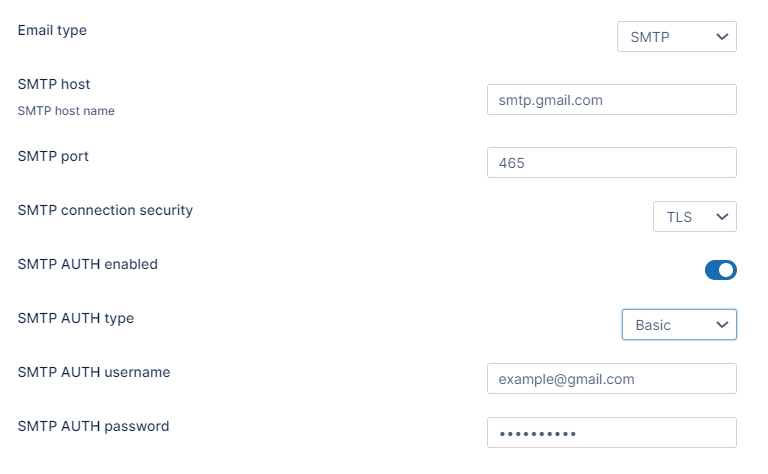
Use the following information to set up Gmail as your SMTP server in the Email tab, as shown in the screenshot.
SMTP host - (i.e., outgoing mail): smtp.gmail.com
SMTP port - 465 or 587. To determine which to use, test both ports and see which one is used by your Google settings.
SMTP connection security - You are required to choose ssl or tls.
SMTP AUTH enabled - enabled
SMTP AUTH type - Basic
SMTP AUTH username - Your full Gmail or Google Apps email address (e.g. example@gmail.com or example@yourdomain.com)
SMTP AUTH password - Your Gmail or Google Apps email password
Set up your Gmail or Google Apps Sent folder to store a copy of your outgoing FileCloud emails
-
Log into your Gmail or Google Apps email settings.
-
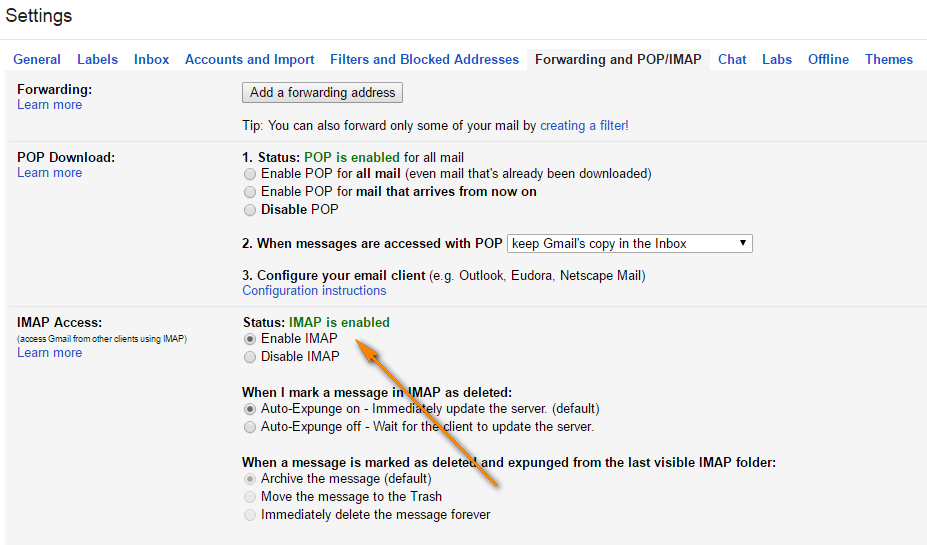
Click on the Forwarding and POP/IMAP tab, and scroll down to the IMAP Access section.
-
Select Enable IMAP.
Set up 2-step verification and an app password for your Google account
-
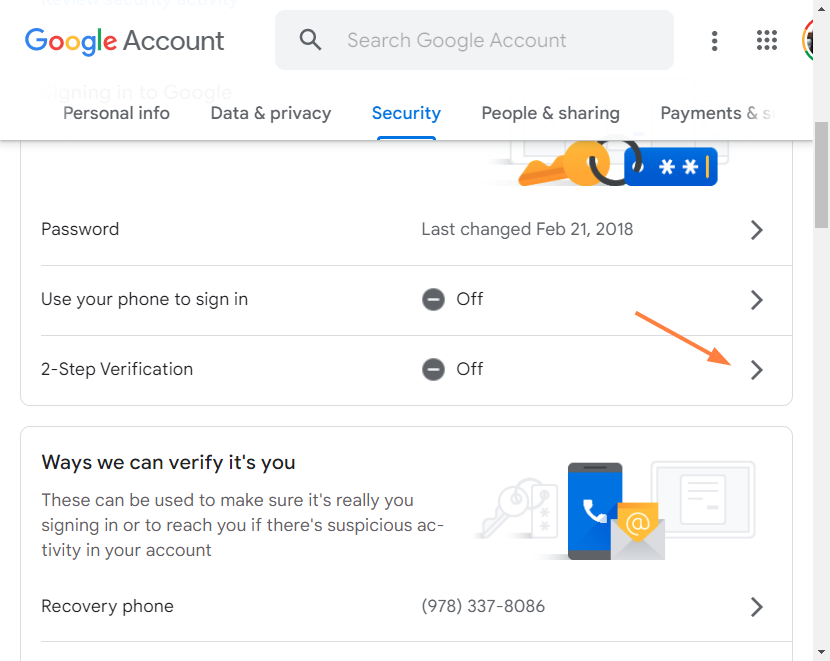
Scroll down to 2-Step Verification and click the arrow to its right to configure it.
-
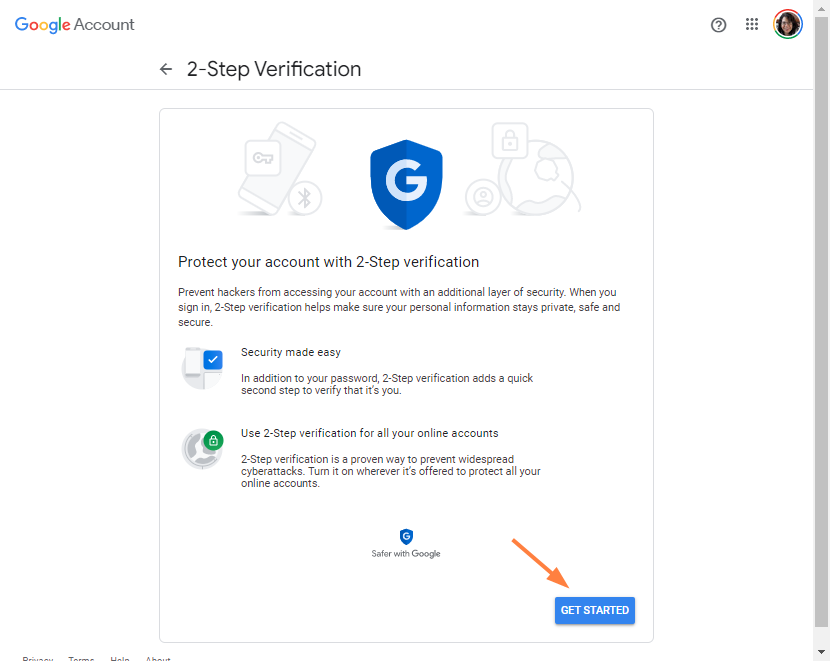
In the next screen click Get Started.
-
Follow the instructions on the screens to set up 2-step verification.
-
Once 2-step verification is set up, return to the Security tab (go to https://myaccount.google.com/security).
2-Step Verification should now appear enabled. -
Click the arrow next to App Passwords.
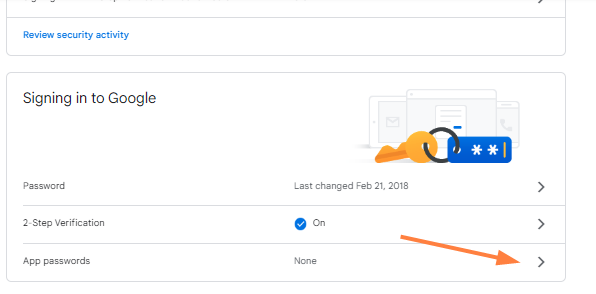
You may be prompted to log in to Google. Then a window for setting up an app password opens.
An app password is automatically used in selected device if 2-Step Verification is not available. -
Select an app and select a device in the drop-down lists.
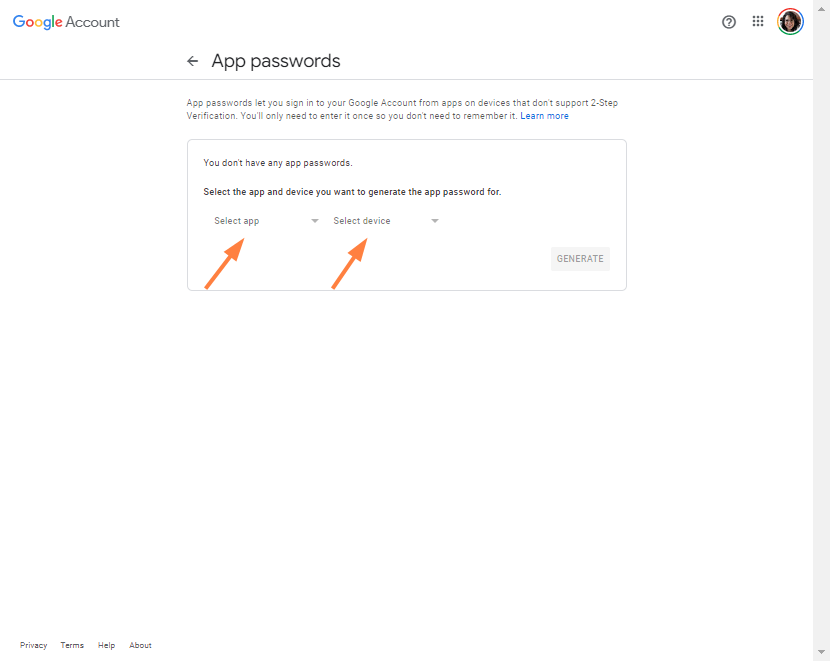
-
Click the Generate button.
The app password is generated, and appears on the next window. -
Follow the instructions under How to use it to enter your password for the app, and click Done.
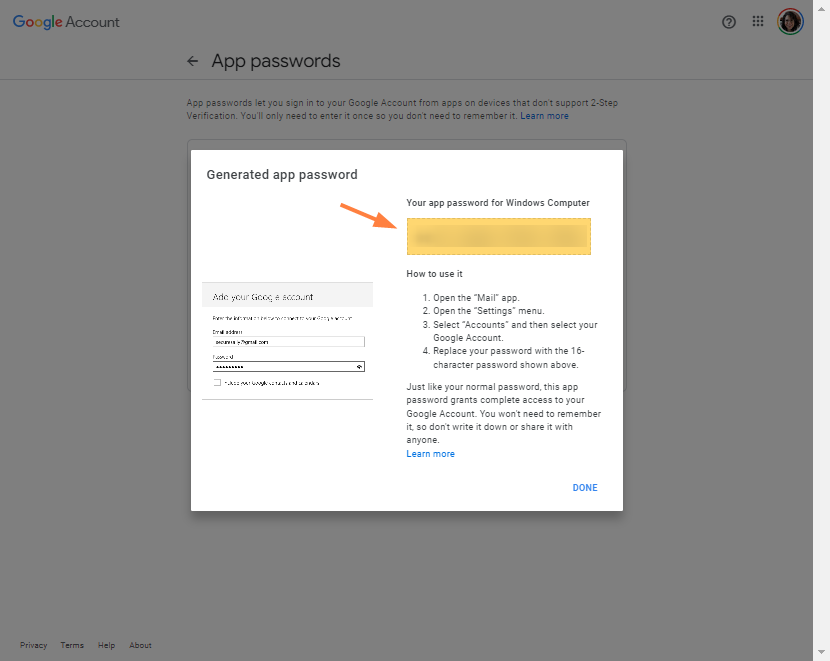
Your configuration is now complete.