-
Download the latest version of ClamAV installer from:
http://www.clamav.net/downloads/production/ClamAV-0.103.1.exe -
Install ClamAV by running the ClamAV-0.103.1.exe installer file.
-
Download the nssm Service Manager from:
https://patch.codelathe.com/tonidocloud/live/3rdparty/nssm/nssm.zip . -
Uzip the nssm folder and move the nssm folder to the C:\ drive or, if you are installing ClamAV in the FileCloud Server, to the C:\xampp folder.
-
Navigate to the nssm folder in command line and run the below command
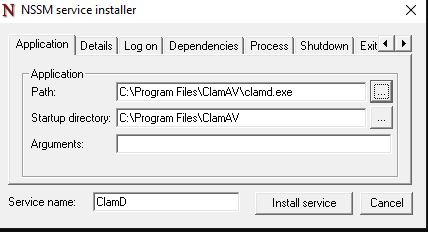
C:\nssm>nssm install ClamDThe nssm service install tool window opens:
-
To install the service, select the clamd.exe file path in Application Path and click Install Service.
-
Copy clamd.conf.sample and freshclam.conf.sample from C:\Program Files\ClamAV\conf_examples to C:\Program Files\ClamAV, and rename them clamd.conf and freshclam.conf
-
In clamd.conf and freshclam.conf, comment out the line beginning with Example.
-
If ClamAV is installed on a server other than FileCloud server, bind the IP address of the server in clamd.conf by changing the IP address for TCPAddr.
-
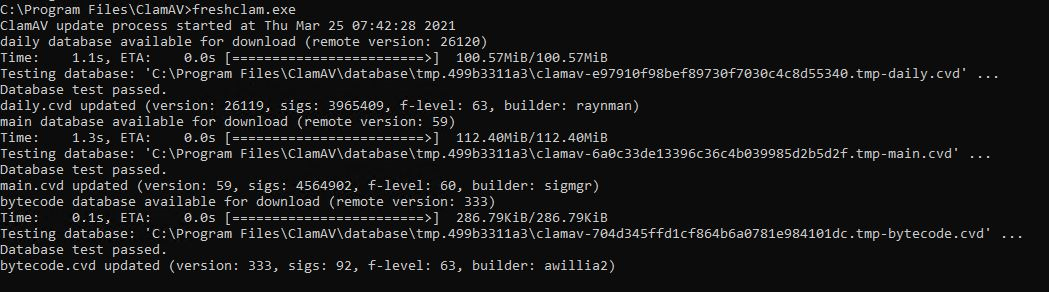
To update the ClamD database, enter:
cd C:\Program Files\ClamAV
freshclam.exeThe console response should appear similar to:
-
Start the service ClamD from Windows Services.
-
Verify the service is running and bind it to the localhost IP address or the IP address of the ClamAV server by running the following command:
netstat -ano |findstr 3310
.svg)