.svg)
By default, file shares are private, and you can make them available to specific people. You can share a file so that anyone can access the file even if they don't have a FileCloud account.
When you share a file:
-
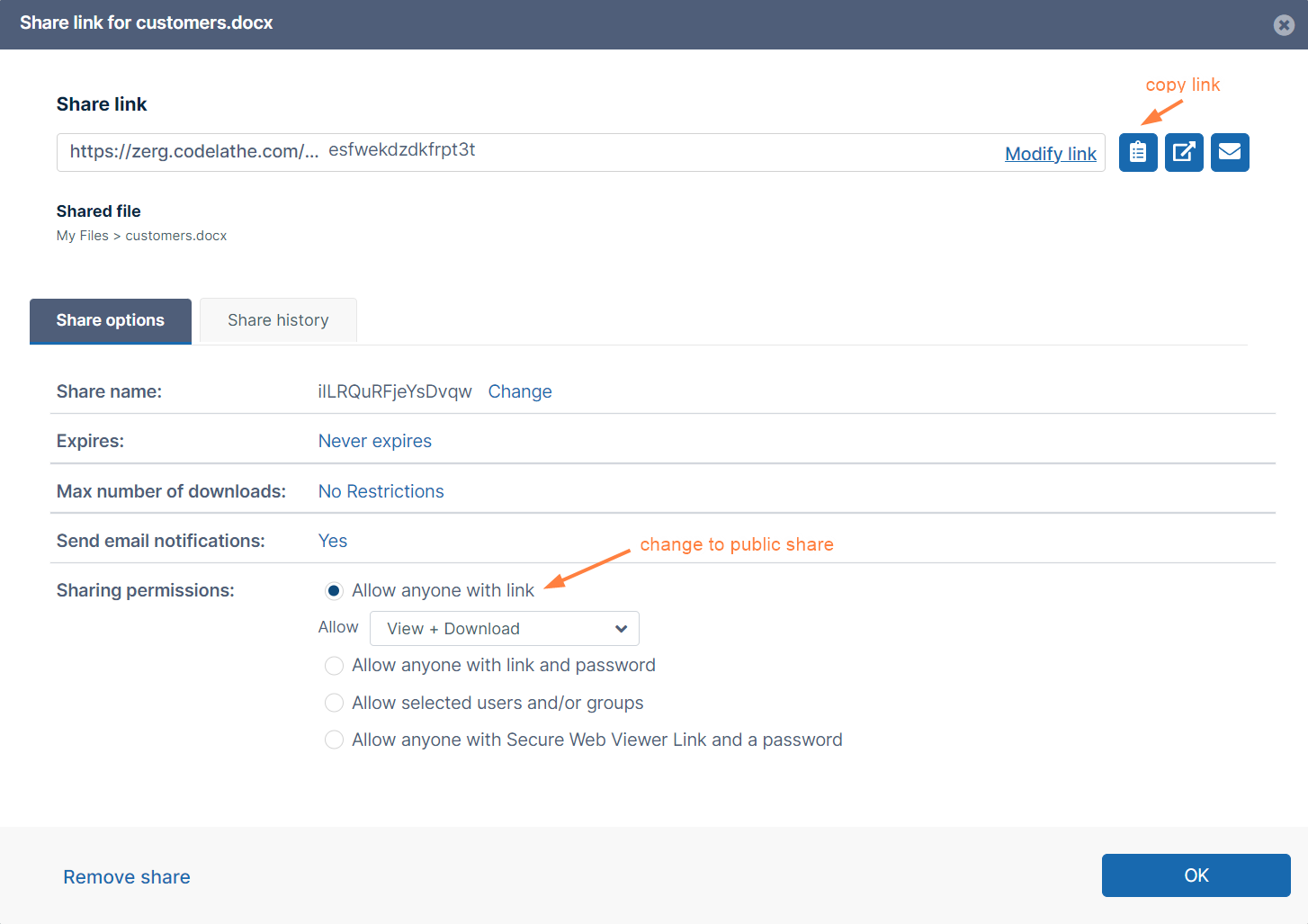
A Share link window opens to provide the link. By default the share is private.
-
Under Share options you can change the share to Allow anyone with link.
-
You can send the link in an email inviting users to access the share.
Create a public share:
In your system tray, right-click the Sync icon and choose Open.
-
At the bottom of the mini-dashboard, click the folder icon.
Your Sync folder in file explorer opens.
-
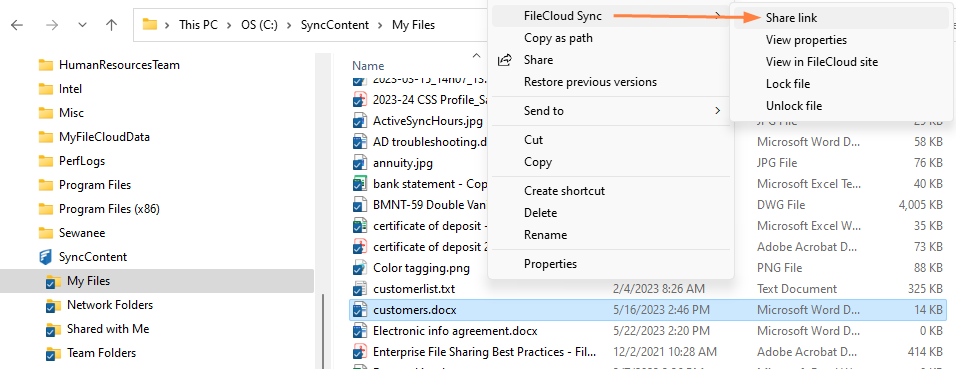
Navigate to the file or folder you want to share, then right-click on it and choose Show More Options. In the next menu choose FileCloud Sync > Share Link.
The Share link dialog box opens. By default the share is private. -
Under Sharing permissions, click Allow anyone with link, Allow anyone with link and password, or, if it's available, Allow anyone with Secure Web Viewer Link and a password.
-
Change any of the other options under Share options. See Sync: Share options for files for information about these settings.
-
To copy the link, click the Copy Link icon at the top of the screen.