.svg)
You can specify an SSL intermediate certificate file to include when you install your SSL certificate file on Windows.
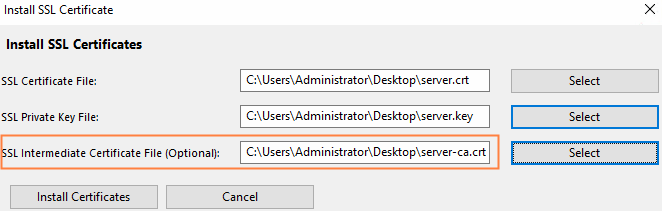
If you don't already have an intermediate certificate file stored locally, you can download one from your browser.
To download an SSL intermediate certificate file:
-
Go to a page on your browser that is using HTTPS, and click F12.
The developer tools open. -
Click the Security tab.
Just under the listing for Certificate is a View certificate button. -
Click the View certificate button.

The certificate window opens.
-
Click the Certification Path tab.
-
Select the third embedded certificate, which is the intermediate certificate.
-
Click View Certificate.
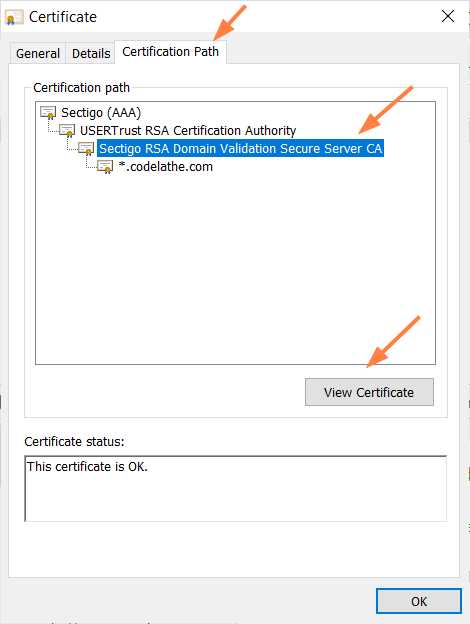
Another certificate window opens. -
Click the Details tab.
-
Click Copy to File.
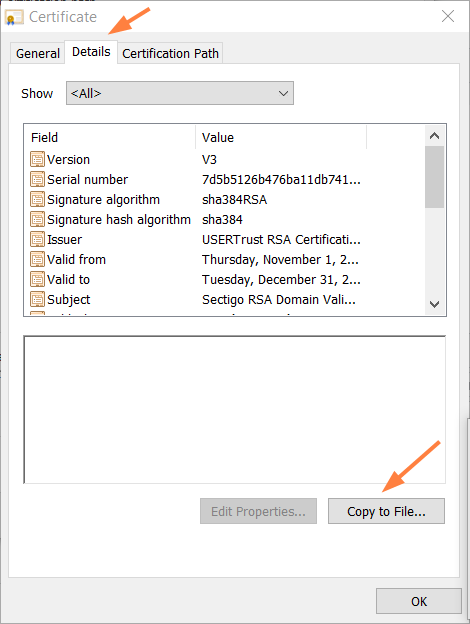
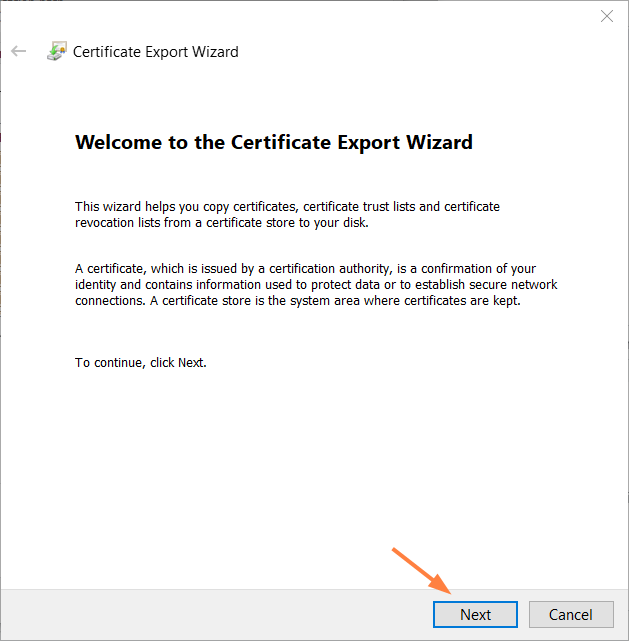
The Certificate Export Wizard opens. -
Click Next.
-
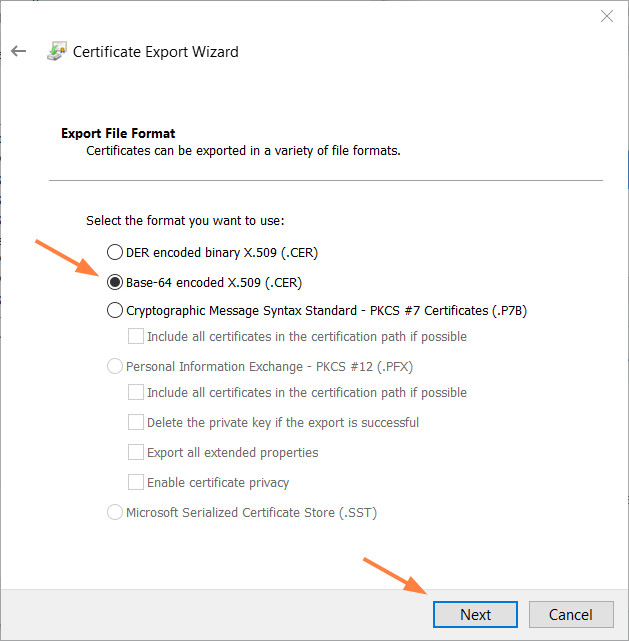
In the next window of the wizard, select Base-64 encoded X.509 (.CER), and click Next.
-
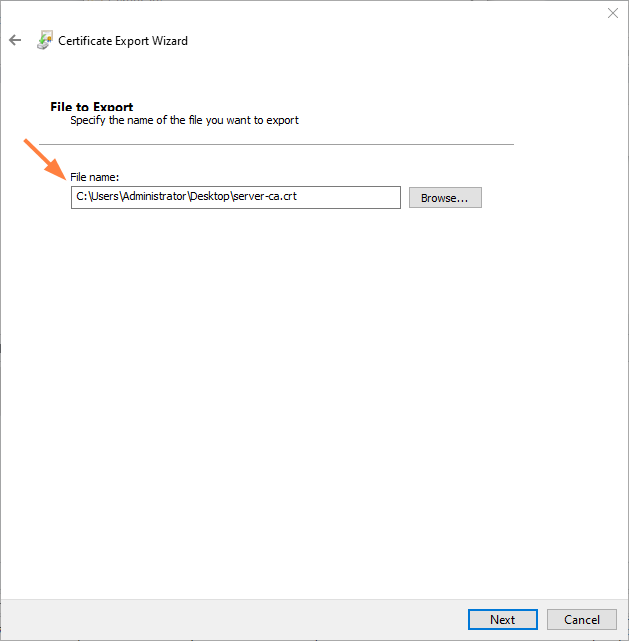
In the next window of the wizard, browse to the folder where you want to save the intermediate certificate, and name it with the extension crt.
-
Click Next.
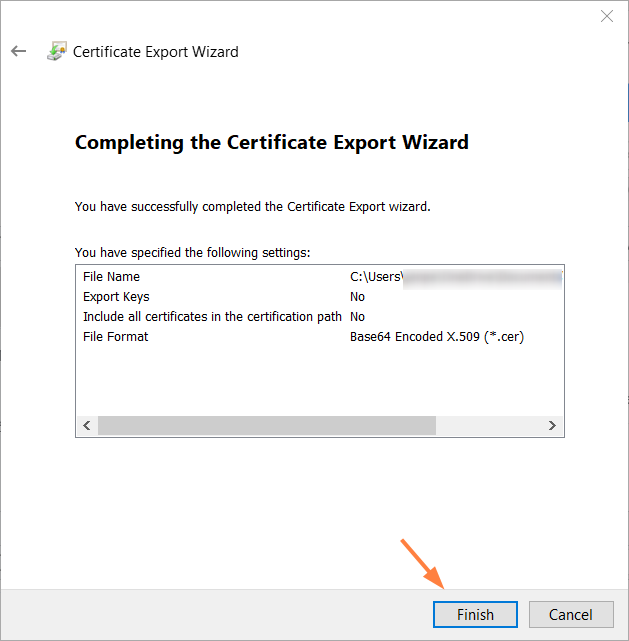
The last window confirms that you have completed the wizard. -
Click Finish.
-
Return to the Install SSL Certificate window and select the intermediate certificate for SSL Intermediate Certificate File.