.svg)
When using SSL on Windows, you must create a Certificate Signing Request (CSR) to receive an SSL certificate.
-
A CSR is a data file that contains a Public Key and your domain details.
-
Submit the CSR to your SSL provider.
-
Your provider verifies the CSR and issues an SSL certificate file.
If you encounter issues using the FileCloud control panel, you can:
Manually create a CSR to receive an SSL certificate
To create a CSR in the FileCloud control panel:
-
Open the FileCloud Control Panel
-
Click Create SSL CSR.
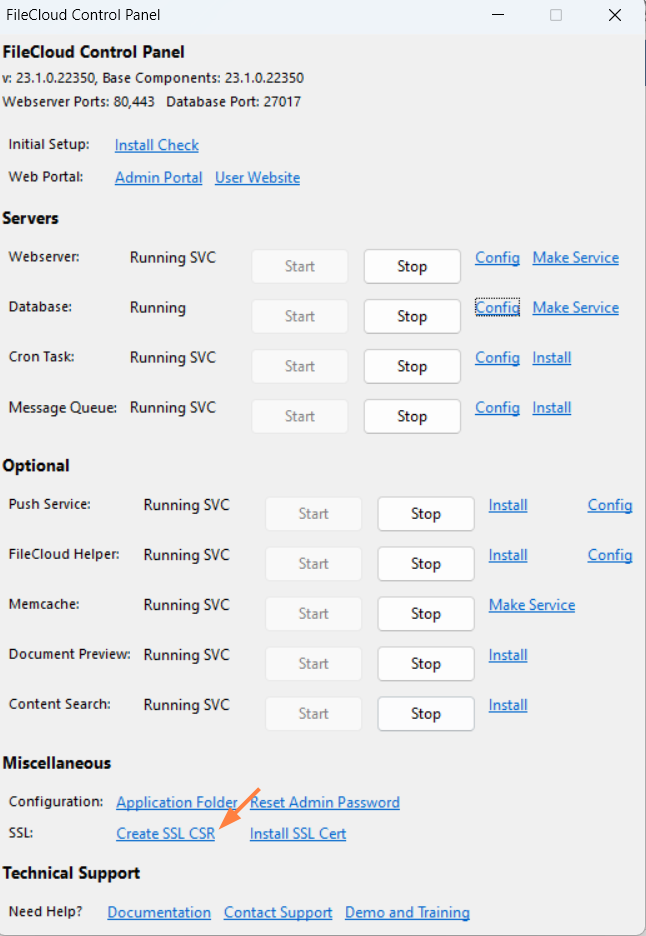
New CSR fields appear. -
Enter your data into the fields.
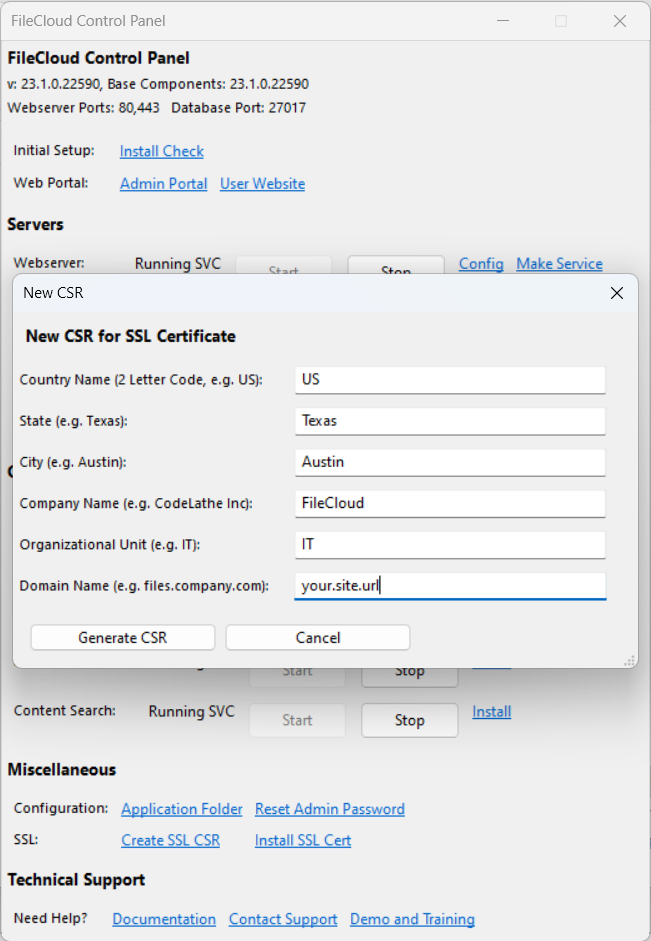
Information
Example
Notes
Country Name
US
2letter codeState
TEXAS
full name - no abbreviations
City
Austin
full city name
Organization Name
MyCompany
company name
Organizational Unit Name
IT
section name
Domain Name
server FQDN or YOUR name
Be sure to enter the actual server's fully qualified name
filecloud.yourdomain.com
If it is a wildcard certificate for all sub domains (for example for using multi tenancy), then be sure to enter *.yourdomain.com
*.yourdomain.com
-
Click Generate CSR.
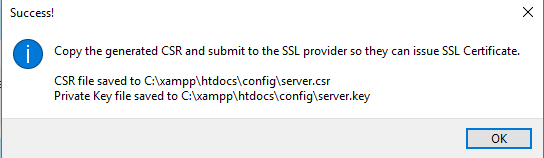
The following popup appears: