.svg)
The main functionality of the backup server is to make backups of FileCloud server. Once the backup server is properly configured, it can perform manual and automatic backups.
Type Of Backups
Backup server supports two types of backup jobs:
-
Full backup
-
Incremental backup
Look below for detailed comparison of these backups.
|
|
Full Backup |
Incremental Backup |
|---|---|---|
|
Description |
Takes a complete backup of the target FileCloud server. |
Backups only changed files, since the previous backup. |
|
Space Usage |
Takes the same size as the backed up FileCloud server.
|
Takes only fractional space compared to full backups, as it captures only the delta changes. |
|
Dependency |
It is standalone and not dependent on any other backups. |
It is not a standalone backup and dependent on the previous complete backup. |
|
Time Taken |
Takes more time, as it copies every single file from the target. |
Takes less time, as it copies only changed files from the target. |
Backup Schedule
Backup server supports scheduling of backup operations. There are two types of schedules:
-
Backup starting now: This schedule lets the backup operation to start immediately.
-
Backup starting later: This schedule lets the backup operation to start at a later time.
Schedule New Backup
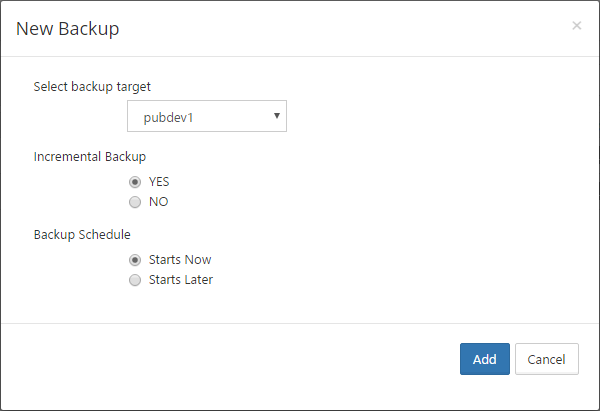
A new backup can be scheduled by going to the "Backups" tab of backup server UI and clicking on the "New Backup" button. This brings up the "New Backup" popup, which requires the following information.
-
Backup Target: The target of this backup. If there were multiple targets configured, select the target that needs to be backed up.
-
Incremental Backup: Select 'Yes', if this backup has to be incremental. Note if the new backup is the first backup for the target, even selecting an incremental backup, will result in a full backup. The reason for this is that there are no existing backups available.
-
Backup Schedule: Select 'Starts Now' or 'Starts Later', depending when the backup job has to be started.
Monitoring Backup Progress
The progress of a backup job that is currently executing can be monitored from the web UI. If progress dialog opens automatically when a backup is scheduled to start immediately.
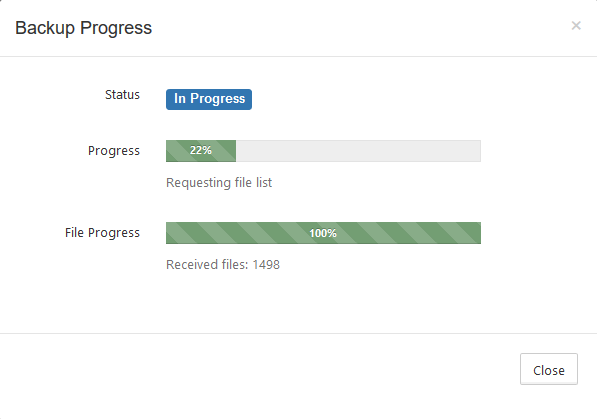
This dialog can also be opened again later by selecting the target from the drop-down and clicking on the 'Status' button of the backup job.

Backup States
While monitoring backup progress, the following states may be encountered. The states of all jobs can be seen on the table under the 'Status' column.
|
State |
Meaning |
|---|---|
|
QUEUED |
The backup job is scheduled to start during a later time. |
|
INPROGRESS |
The backup job is currently in progress. |
|
COMPLETED |
The backup job has completed successfully. |
|
FAILED |
The backup job failed during execution. Check logs and email notifications for details in this case. |
|
CANCELLING |
A cancel request has been received for the job and it is in the process of stopping. |
|
CANCELLED |
The backup job is stopped because a cancel request. |
Backup Actions
Each backup job in the 'Backup' table has a bunch of actions associated with it.
|
Action |
Remarks |
|---|---|
|
Info |
The details of the backup job such as start/end dates, full/incremental backup, target, status. |
|
Start |
Starts the job. This action is available only for the jobs that are not in progress. |
|
Status |
Monitor the progress of the job. This action is available only for 'INPROGRESS' jobs. |
|
Delete |
Delete a backup job. While deleting a job, the files that are associated with this backup can be also be optionally deleted. |
|
Cancel |
Request a job cancel. This action is available only for 'INPROGRESS' jobs. |