.svg)
For many operations and configurations, FileCloud requires that you specify the FileCloud system path name. For example, when you are configuring a report or a workflow, if you want to specify a path, you must use the path's system name.
The following table lists the correct way to specify paths for files and folders in My Files, Team Folders, Network Shares, and Shared with Me.
|
Folder |
How to specify path |
Example |
|
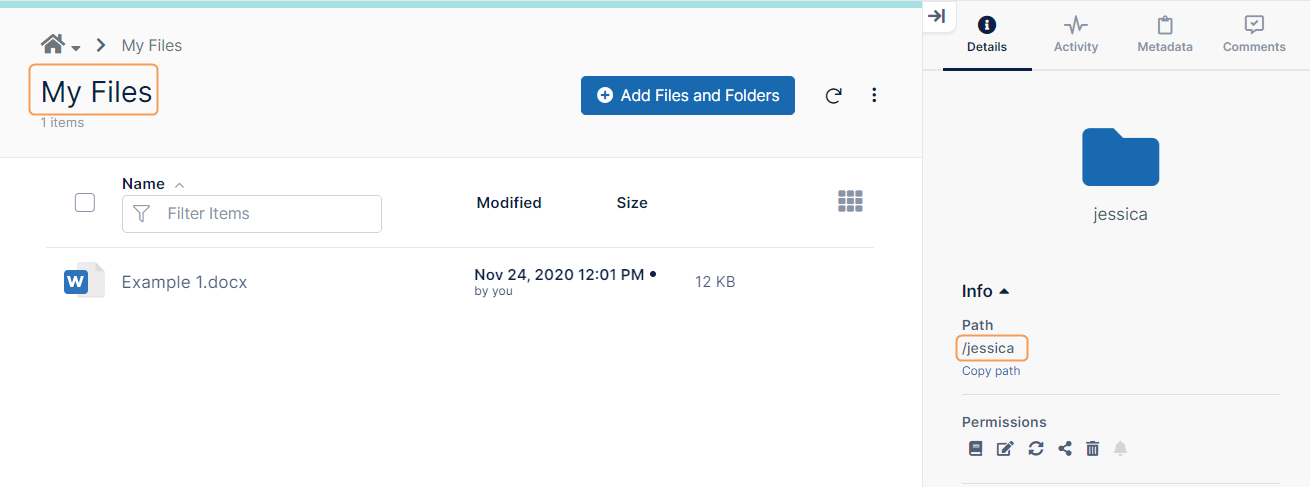
My Files |
/username |
In this example, to specify the My Files folder of the user with username jessica, use:
|
|
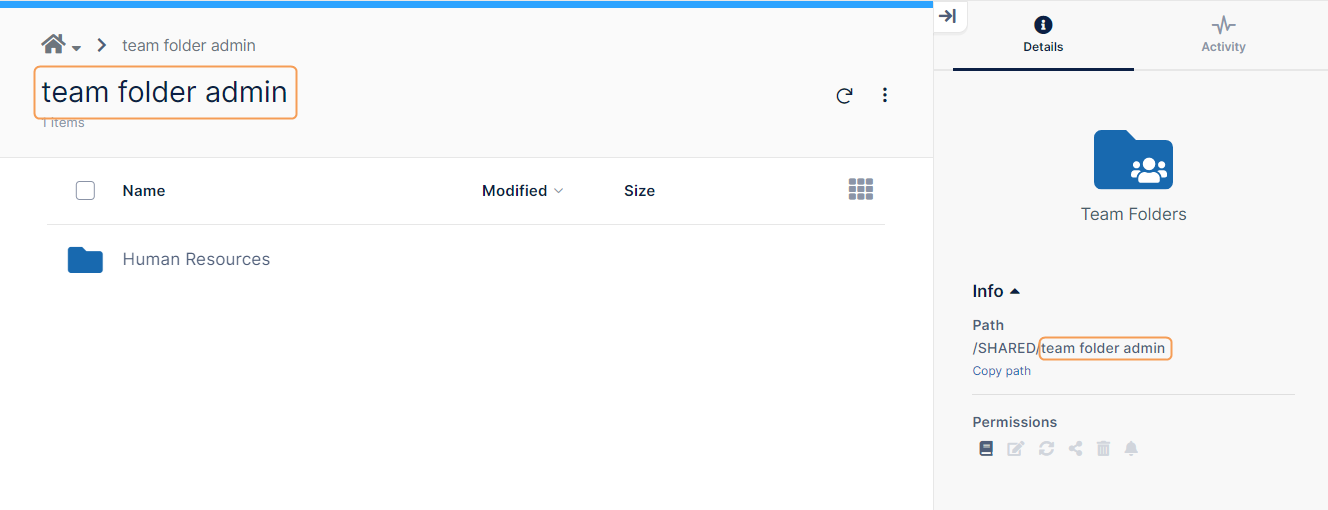
Team Folders |
/teamfolderaccount |
In this example, to specify the Team Folders folder use the name of the account that manages Team Folders: /team folder admin
|
|
Network Shares |
/EXTERNAL/foldername |
In this example, to specify the Network Shares folder Misc, use:
An end user who selected Network Shares/Misc could look in the Details tab in the right panel and copy the exact path. 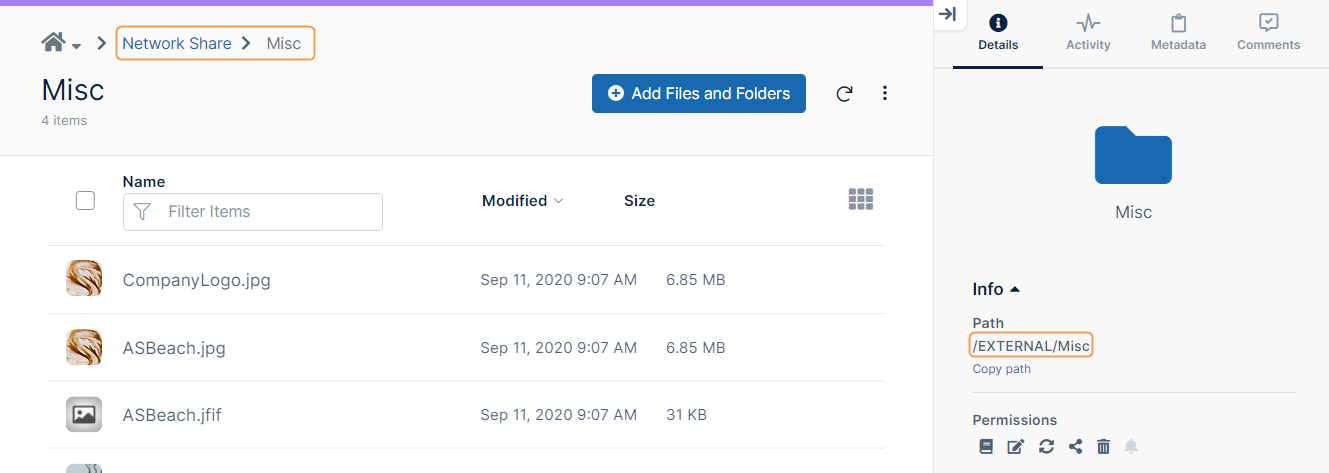
|
|
Shared with Me |
Can't be done. You must specify the path from the owner's My Files (use the owner's username) |
|