.svg)
Beginning in FileCloud 23.242, you can manage and view details of Team Folders through the Team Folder Account Details dialog box.
To access the Team Folder Account Details, you must have already set up your Team Folders account. If you have not set it up yet, see Configure the Team Folders Account.
To manage and view details of Team Folders:
-
In the FileCloud admin portal's left navigation bar, scroll down and click Settings. Then, on the Settings navigation page, click Team Folders

The Team Folders settings page opens.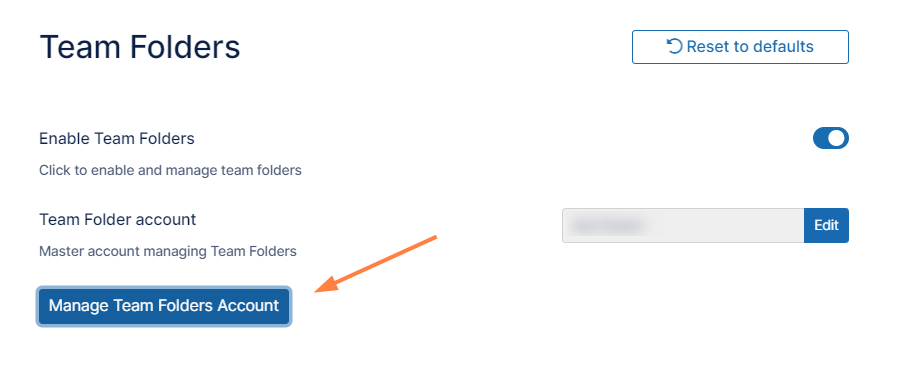
-
To see details of the Team Folders account, click Manage Team Folders Account.
The Team Folder Account Details dialog box opens.
The dialog box gives you account and data information, and enables you to manage Team Folder shares and notifications, reset the Team Folder account password, edit some account fields, and perform other Team Folder actions.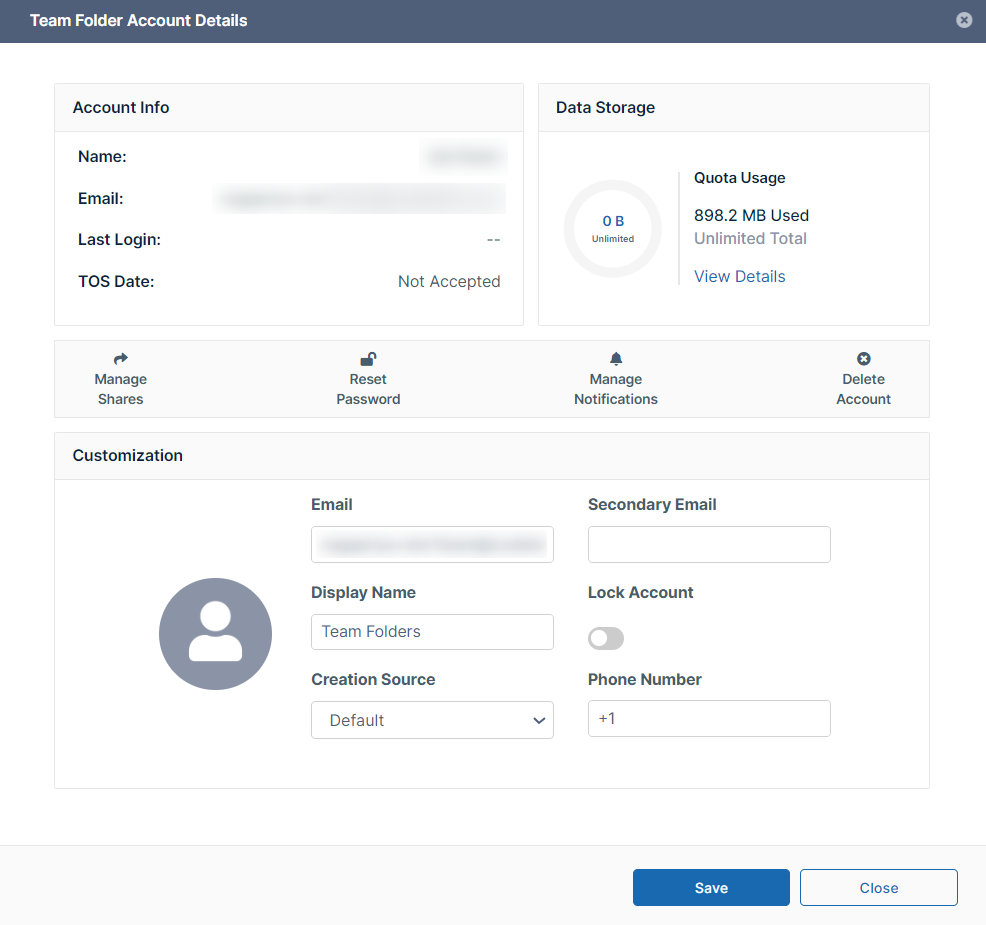
To view the breakdown of data in Team Folders:
Click to expand...
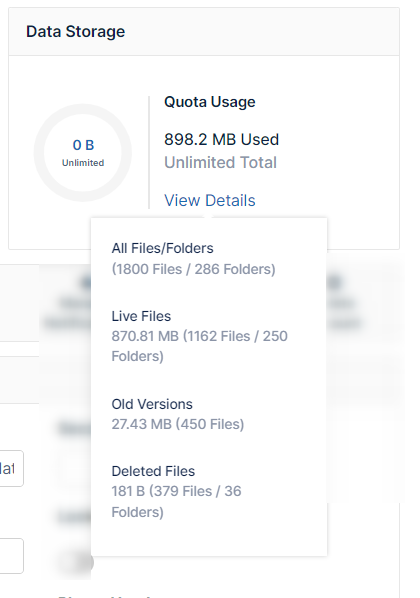
In the Data Storage section, click View Details.
You are shown a breakdown of the files and folders by live versions, old versions, and deleted files.
To edit the Team Folders account fields:
Click to expand...
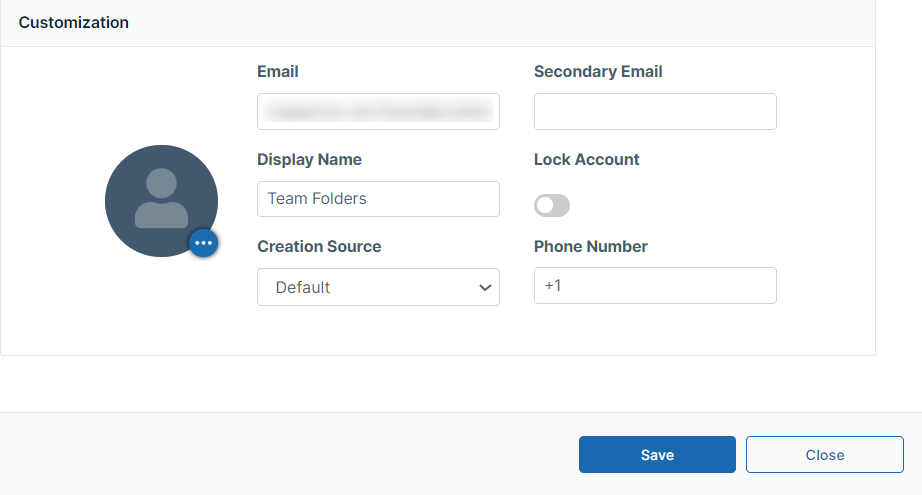
In the customization section, click the image, to upload a photo or graphic, or modify the Email, Secondary Email, Display Name, Creation Source, or Phone Number fields and click Save to save your changes.
Lock Account is automatically checked when too many login errors occur. Click to remove the check and unlock the account.
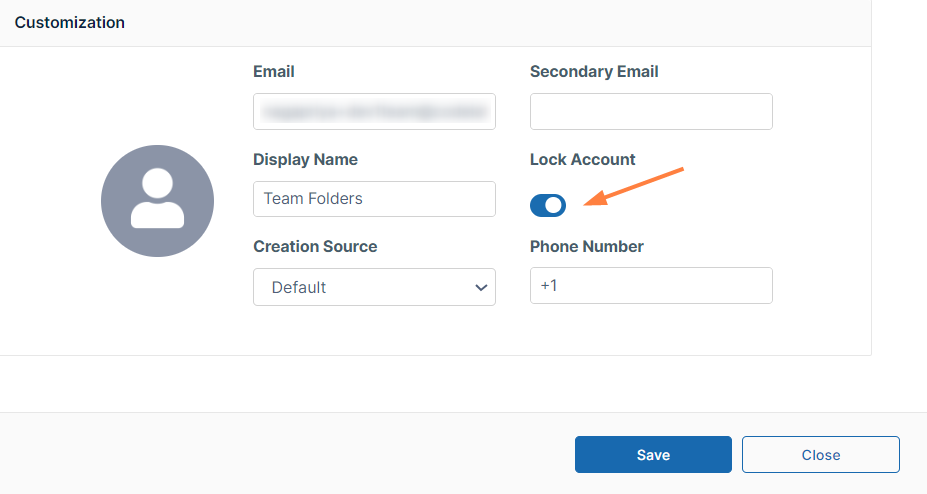
To lock the Team Folder account:
Click to expand...
The Lock Account field is automatically enabled when the account is locked.
Unlock the account by clicking the enabled Lock Account control so that it appears disabled.
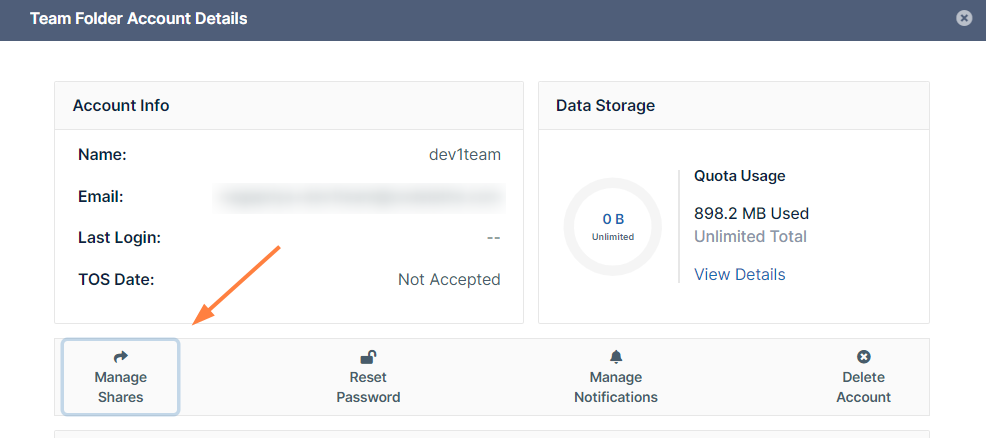
To manage Team Folder shares:
Click to expand...
-
Click Manage Shares.
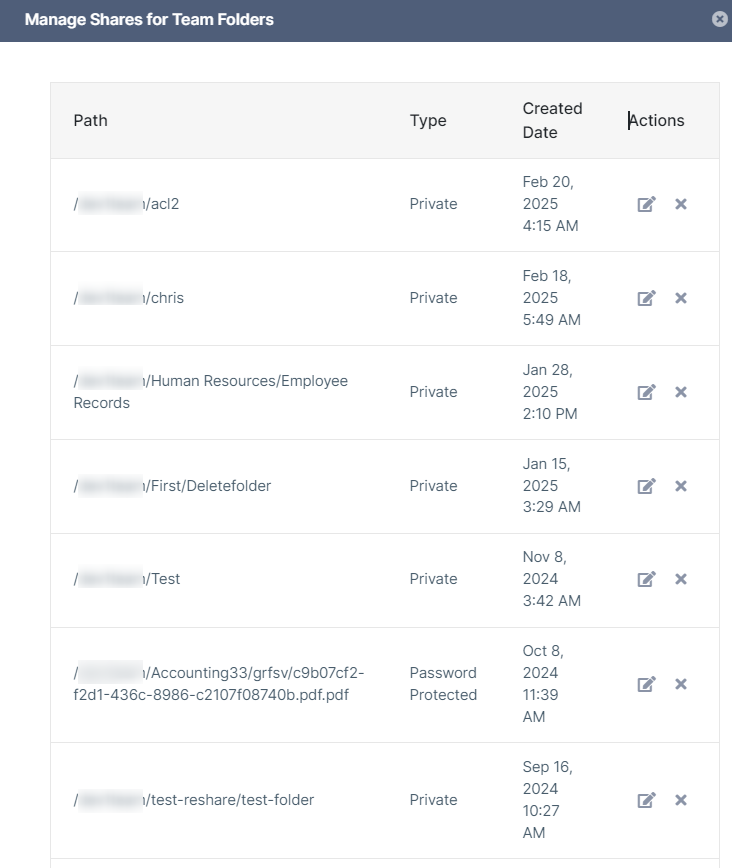
A list of your Team Folder shares opens. -
Click the edit icon to modify the options or permissions of a share.
-
Click the x icon to remove a share.
To reset the Team Folder account password:
Click to expand...
-
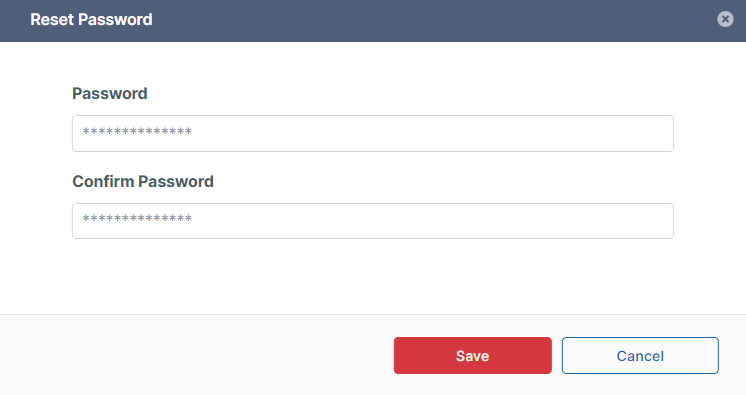
Click Reset Password.
.png?cb=416e25840b89475f3767f2ee049af42e)
-
Enter and re-enter a new password, and click Save.
To manage Team Folder notifications
Click to expand...
-
Click Manage Notifications.
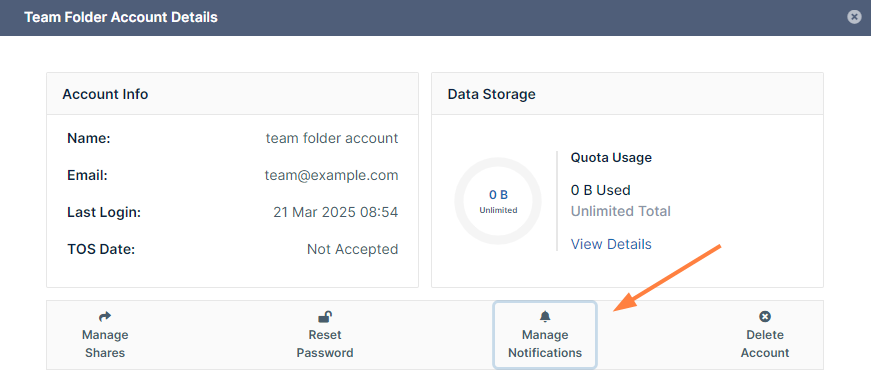
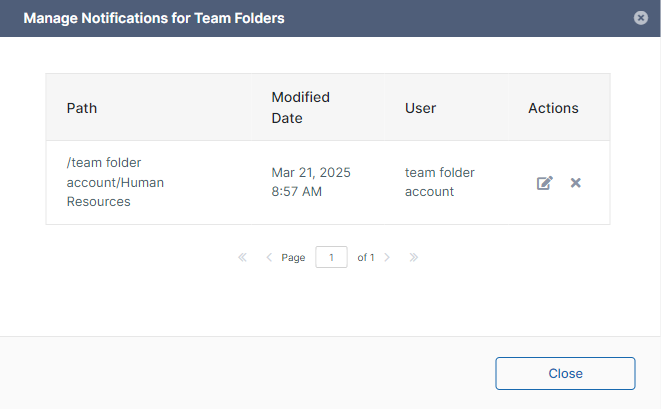
A list of any notifications set up for Team Folder paths appears.
-
Click the Edit icon to change a notification's settings, or click the delete icon to delete the notification.
To delete the Team Folder account:
Click to expand...
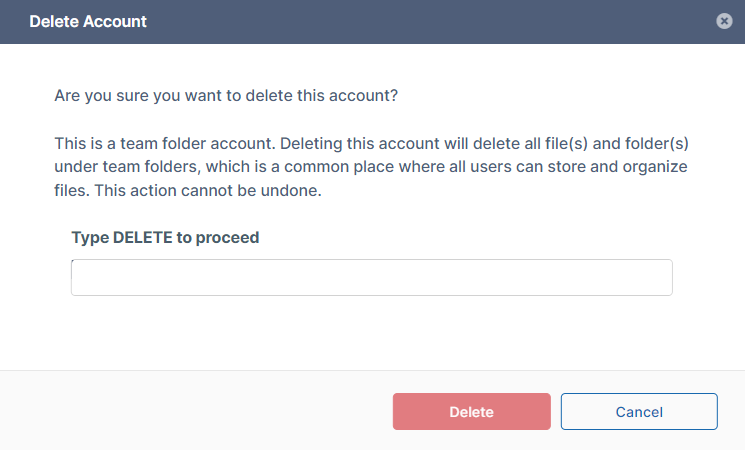
Check which files and folders will be deleted before you delete your Team Folder account. Deleting the account causes the following to be permanently deleted:
-
All files and folders you have stored and shared with users in Team Folders
-
Any files or folders users have stored in Team Folders
-
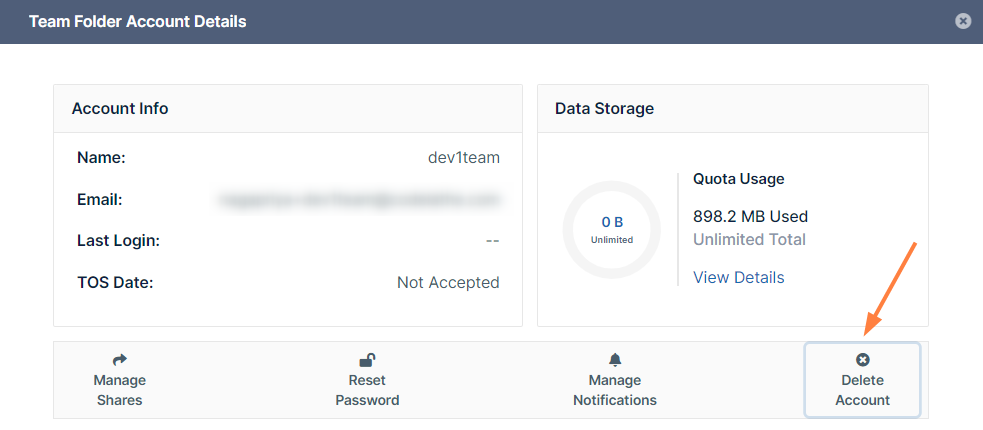
Click Delete Account.
-
To confirm that you want to delete the Team Folder account, enter DELETE (or the word you are instructed to type). Then click Delete.