.svg)
FileCloud backup server supports restoring of files/folders from the backups.
When a file/folder is selected for restore, it will be uploaded directly to its original location as found in the backup.
Note
-
You can restore user files and folders using Backup Server.
-
You can restore databases and the entire cloud storage path manually, using the back ups you have created.
Figure 1. Restoring a user's files.

To restore a User's files and folders:
-
Log in to the FileCloud Admin portal.
-
On the left Home panel, select Backups.
-
Select the backup you want to restore, and then click the Files button.
-
On the Files screen, select the path containing the files or folder to be restored, and then click the Restore button.
-
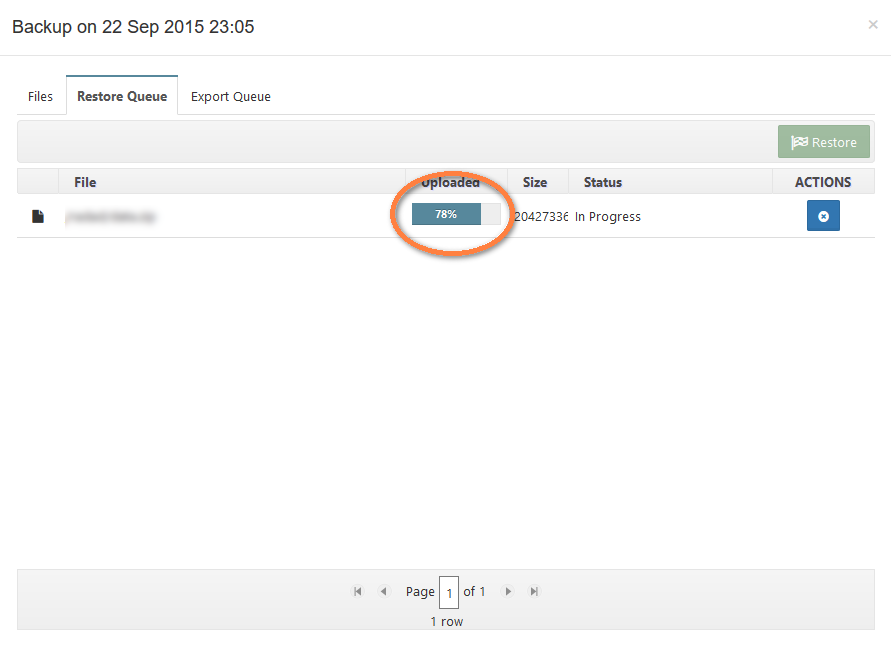
The selected files or folders will be sent to the restore queue. To see the queue, click the Restore Queue tab.
-
Continue adding more files or folders as necessary.
-
When all the files and folders you need to restore are added to the restore queue, click the Restore Queue tab.
-
To restore everything listed, click the Restore button.
-
You will see the progress of files and folders being restored to the FileCloud target server.