.svg)
Disabled User Account Status
Any user account can be disabled by the Administrator.
If a user account is disabled, then the following rules apply
|
|
Description |
|---|---|
|
Log in using user id from browser or other clients |
Disallowed. User will see explicit message when attempting to log in |
|
User files |
Not deleted. |
|
License count |
Disabled users do not count towards consumed license count |
Disabling a User Account
Disable a user account by following the steps listed below
-
Log on to Administration Portal.
-
Click Users in the left navigation panel.
-
Click Edit in the user row.
-
Using the Status drop-down list, change the status to Disabled.
Unknown Attachment
-
Click Save.
Import Disabled Users from Active Directory as Disabled
When a user account is disabled in AD, it may be imported as a disabled account into FileCloud.
To use this option:
-
Open a browser and log on to the admin portal.
-
In then navigation panel, click Groups.
-
Select the group that you want to add users to, and then click the Edit icon.
-
On the Members tab, click Import Users from AD Group.
-
In AD Group Name, enter the AD group to import.
-
Enable the Disable Members option.
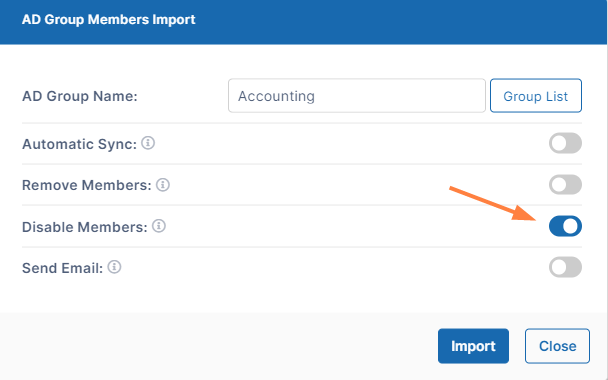
If there are users with disabled accounts in the AD group, they are listed in the admin portal's Manage Users screen with Disabled Access.