.svg)
DocIQ is very straightforward to install, configure, and use.
If you encounter issues, try using these troubleshooting tips.
DocIQ is not diplayed in your Office app
Check if DocIQ office integration is enabled in Sync/Drive Path:
-
Check if the file you opened is in a Sync or Drive folder
-
Reconnect to Drive or Sync.
-
From the System Tray, right-click the FileCloud icon, and select Exit; then start Sync again.
-
-
In an Office application, such as Word, open File Options
-
From the menu, select File, then Options.
-
In Add-ins, under Active Application Add-ins verify that FileCloud DocIQ is listed.
-
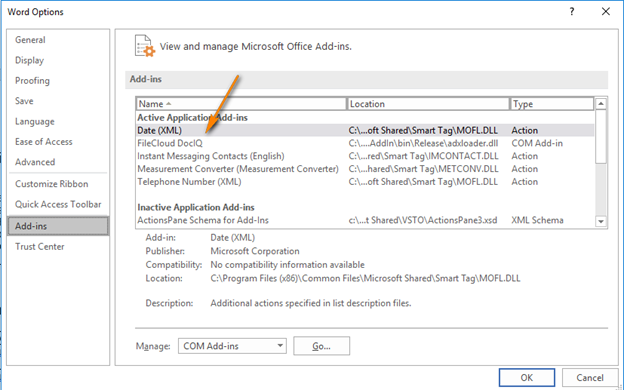
To temporarily disable DocIQ to troubleshoot other computer issues, you can
If you need to, you can uninstall DocIQ in the following ways:
From the Windows Control Panel
-
Next to the Start button (

), in the search box, type Control Panel.
-
From the results, select Control Panel.
-
Select Programs and Features, and then select DocIQ.
-
At the top of the list, next to Organize, click Uninstall.
Uninstall the Sync application
DocIQ will be uninstalled when Sync application is uninstalled.
-
Next to the Start button (
), in the search box, type Control Panel.
-
From the results, select Control Panel.
-
Select Programs and Features, and then select FileCloudSync.
-
At the top of the list, next to Organize, click Uninstall.
Uninstall the Drive application
DocIQ will be uninstalled when Drive application is uninstalled.
-
Next to the Start button (
), in the search box, type Control Panel.
-
From the results, select Control Panel.
-
Select Programs and Features, and then select FileCloudDrive.
-
At the top of the list, next to Organize, click Uninstall.