.svg)
After you install Sync and restart your computer if necessary, you must provide your FileCloud account information to Sync.
To start and log in to Sync:
-
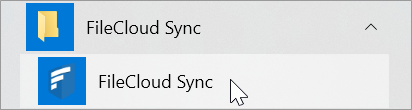
In your Start menu, expand the FileCloud Sync folder and click the FileCloud Sync icon.
-
The Get Started wizard opens to its welcome page:
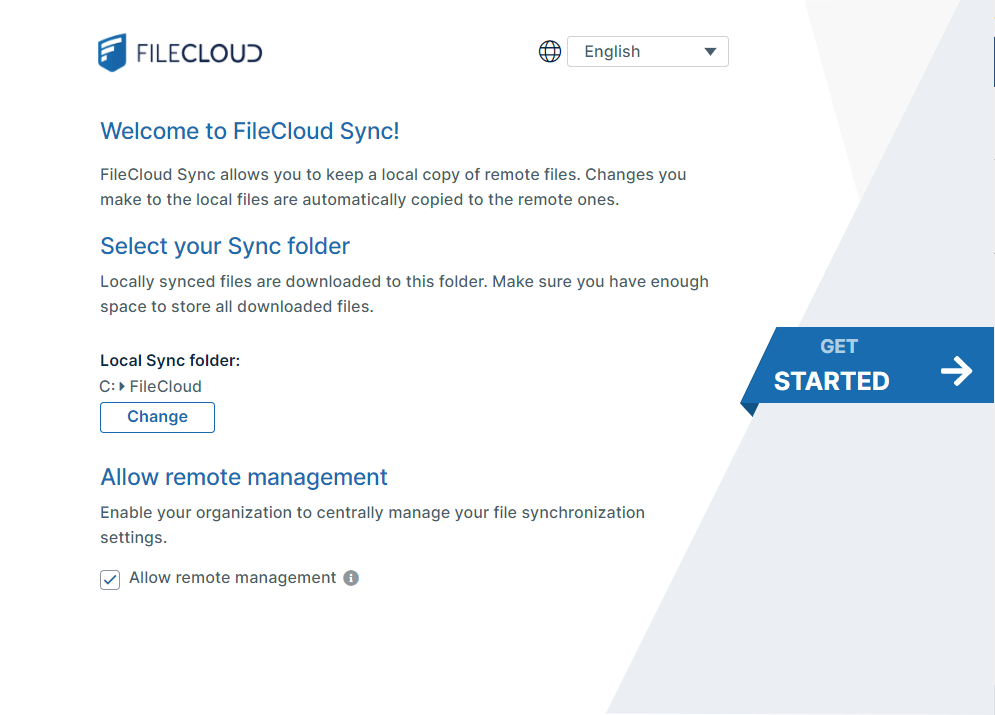
By default, the user interface language is English, the sync folder is your local FileCloud folder, and remote management is enabled. -
Change the user interface language to the language you prefer; do not change the other settings unless instructed to by your administrator.
-
Click Get Started.
The window for Step 1 Log In, opens.