.svg)
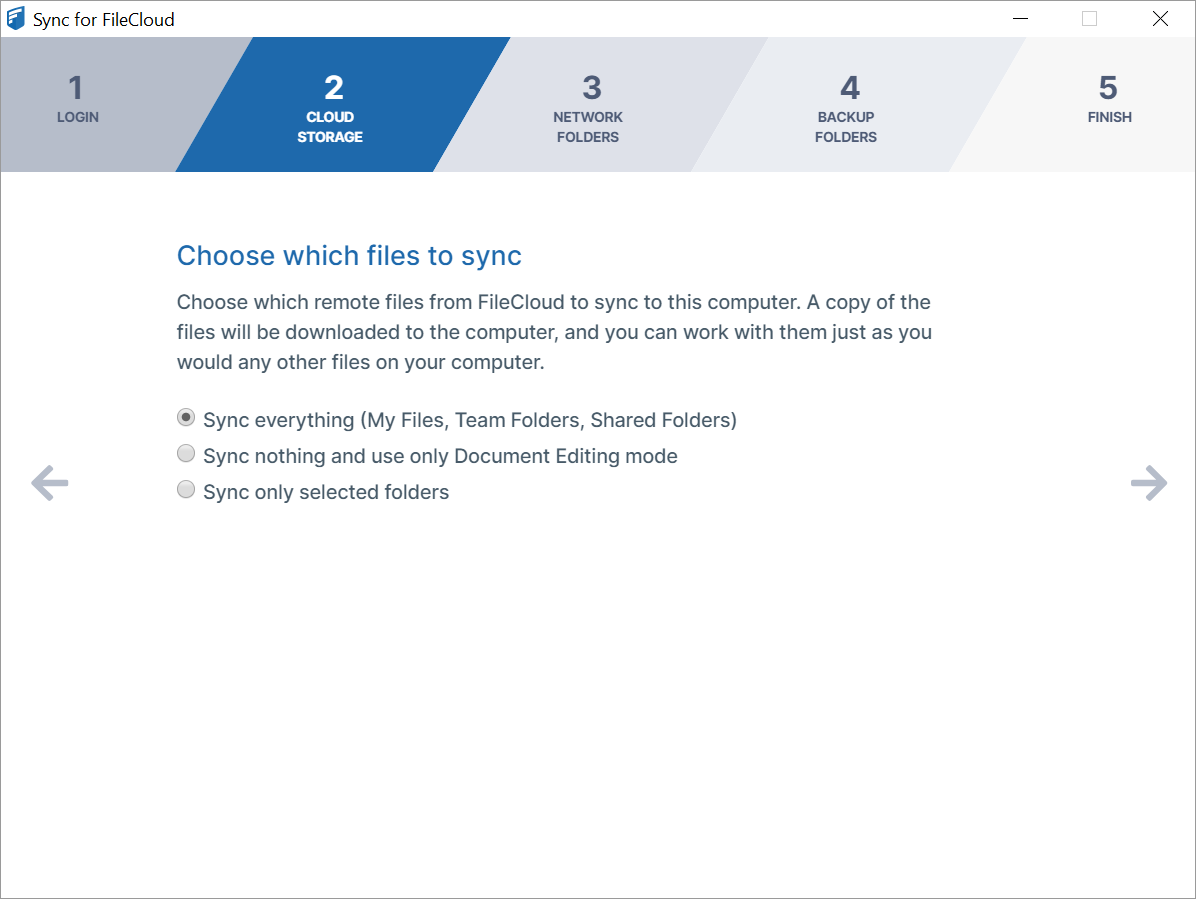
In the window for step 2, Cloud Storage, you choose which files to sync.
-
Choose:
-
Sync Everything to sync all of your FileCloud files and folders.
-
Sync nothing and use only Document Editing mode to use Sync to edit your FileCloud files from your desktop without syncing changes with FileCloud.
-
Sync only selected folders to choose which folders' content to sync. If you choose this option, you are prompted to choose the folders to sync.
-
Click Add Folders.
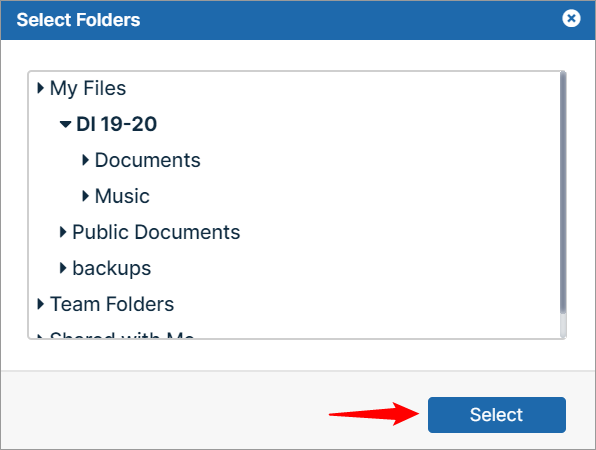
The Select Folders dialog box opens. -
For each folder that you want to sync, in My Files, Team Folders, or Shared with Me, navigate down to the folder, and choose Select.
-
-
-
Click the right arrow to go to the window for Step 3, Network Folders.
After installation, you can change your sync options.