.svg)
FileCloud supports offline sync.
With this feature you are able to :
-
Download files to access them while offline
-
Update your local version of a file when the remote version has changed
-
Add new local files that will be uploaded when connectivity is available
Note: Only folders can be synchronized.
To configure your device's settings:
-
Open the FileCloud app.
-
In the upper-left corner, tap the menu icon.
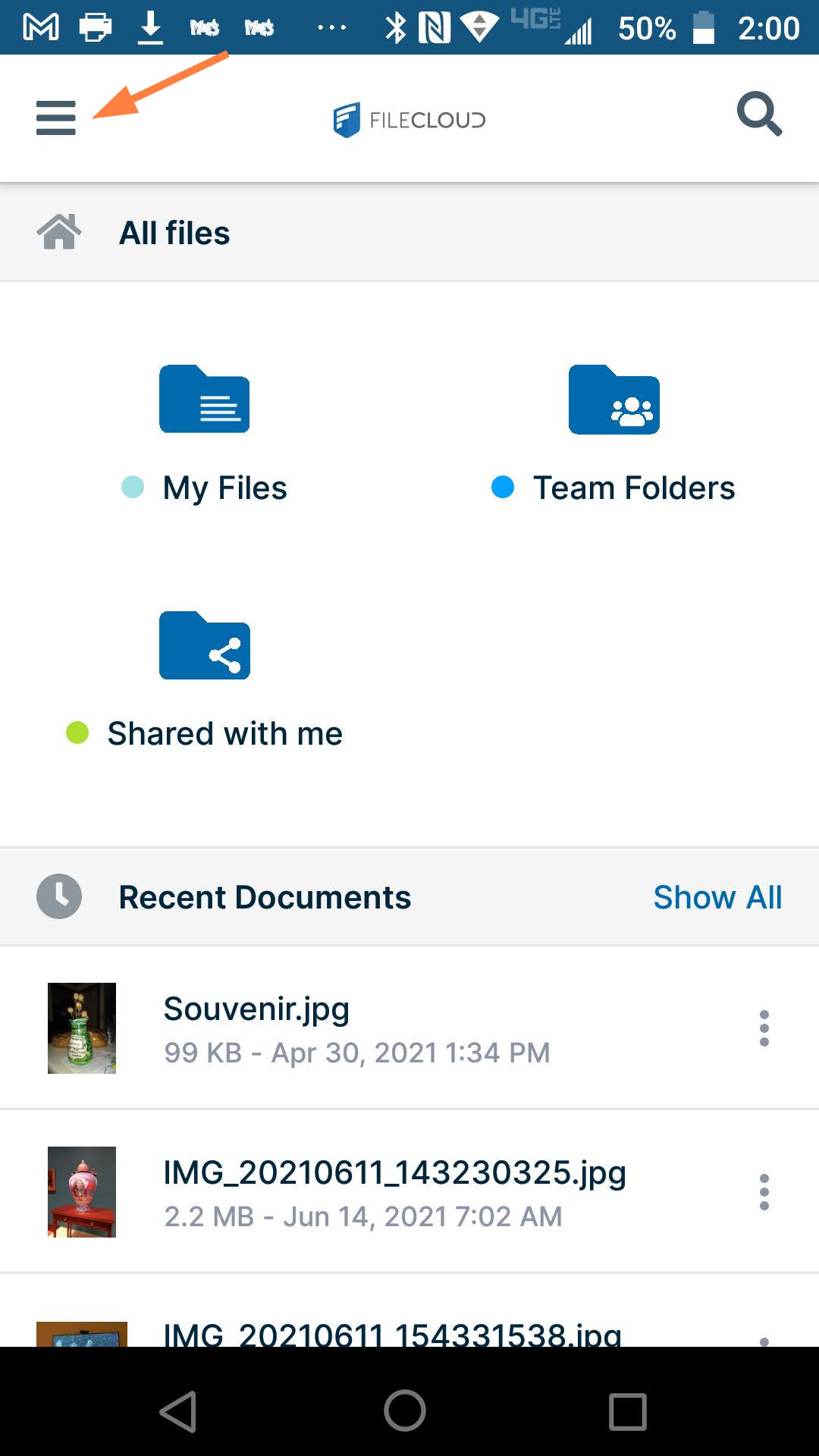
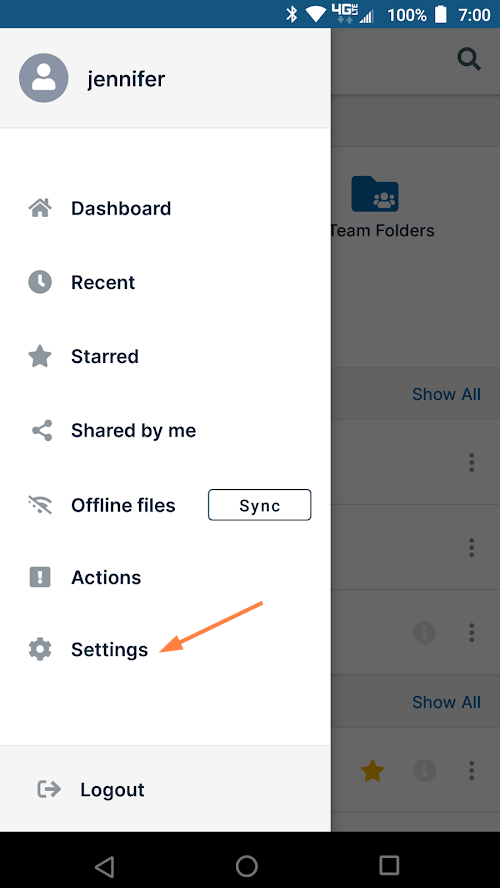
A list of options opens.
-
Click Settings.
-
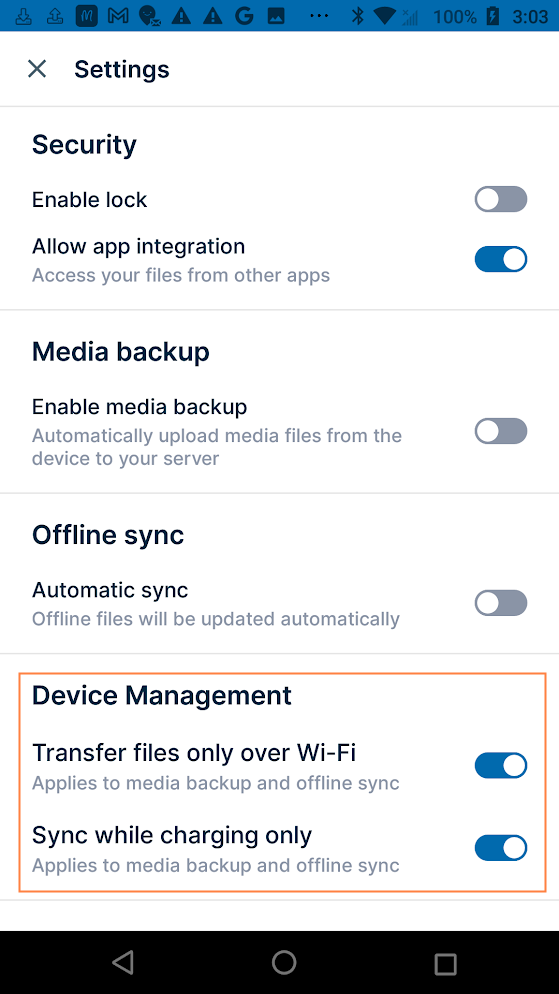
There are two settings under Device Management that are enabled by default:
Transfer files only over Wi-Fi - To transfer files to your app by another method, disable the setting.Sync while charging only - Prevents your battery from draining when a large number of files are being uploaded in the background. If you prefer not to defer syncing, disable the setting.
.
When these settings are enabled, if you are not connected to wifi or if you are not charging your device, FileCloud cannot perform a sync from your device, even if you tap the manual Sync button.
To enable offline sync for a folder:
-
Navigate to the folder you want available when you are offline.
-
Open the folder options from the folder listing or from inside the folder:
|
From the folder listing menu 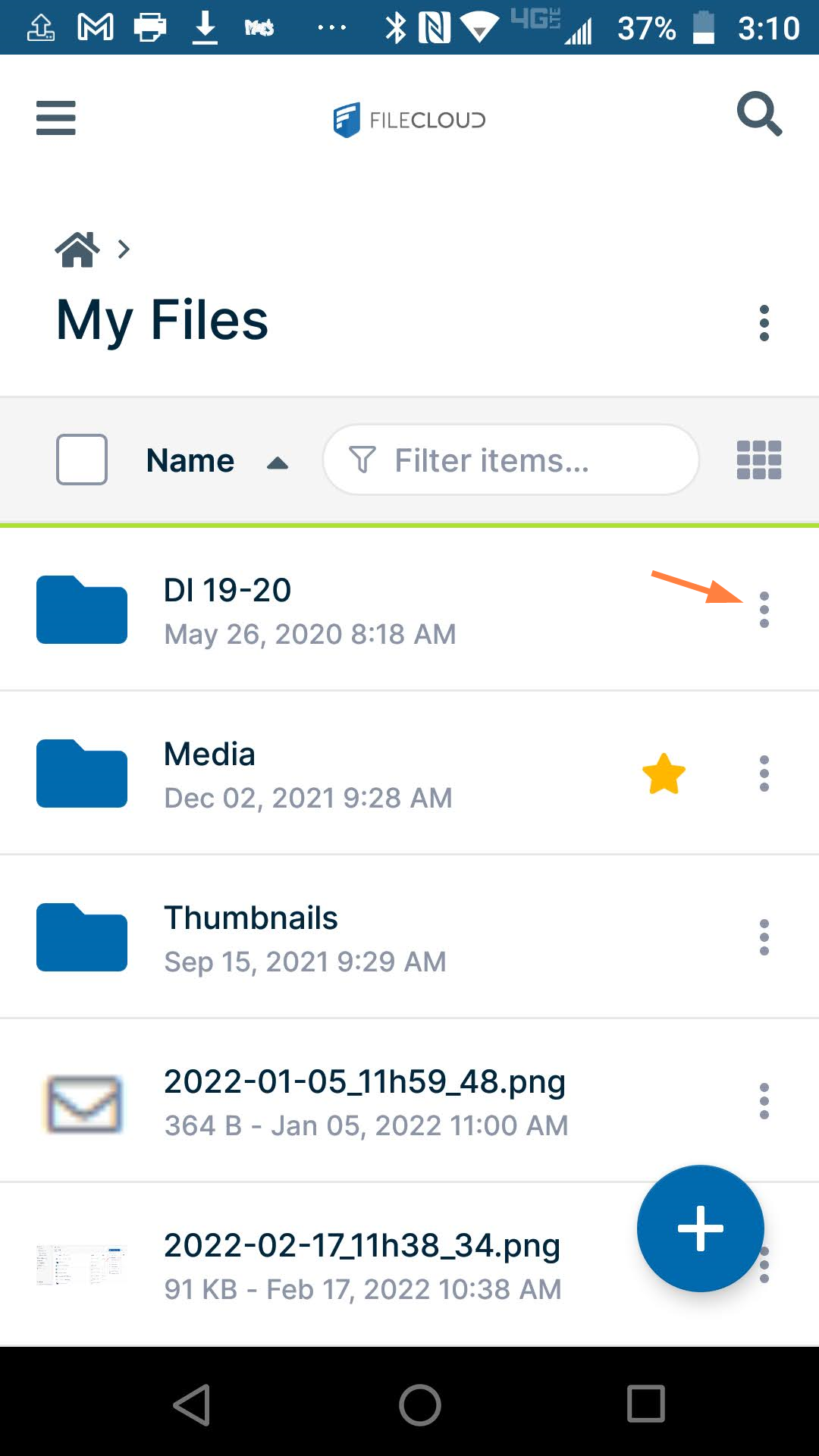
|
From the menu inside the folder 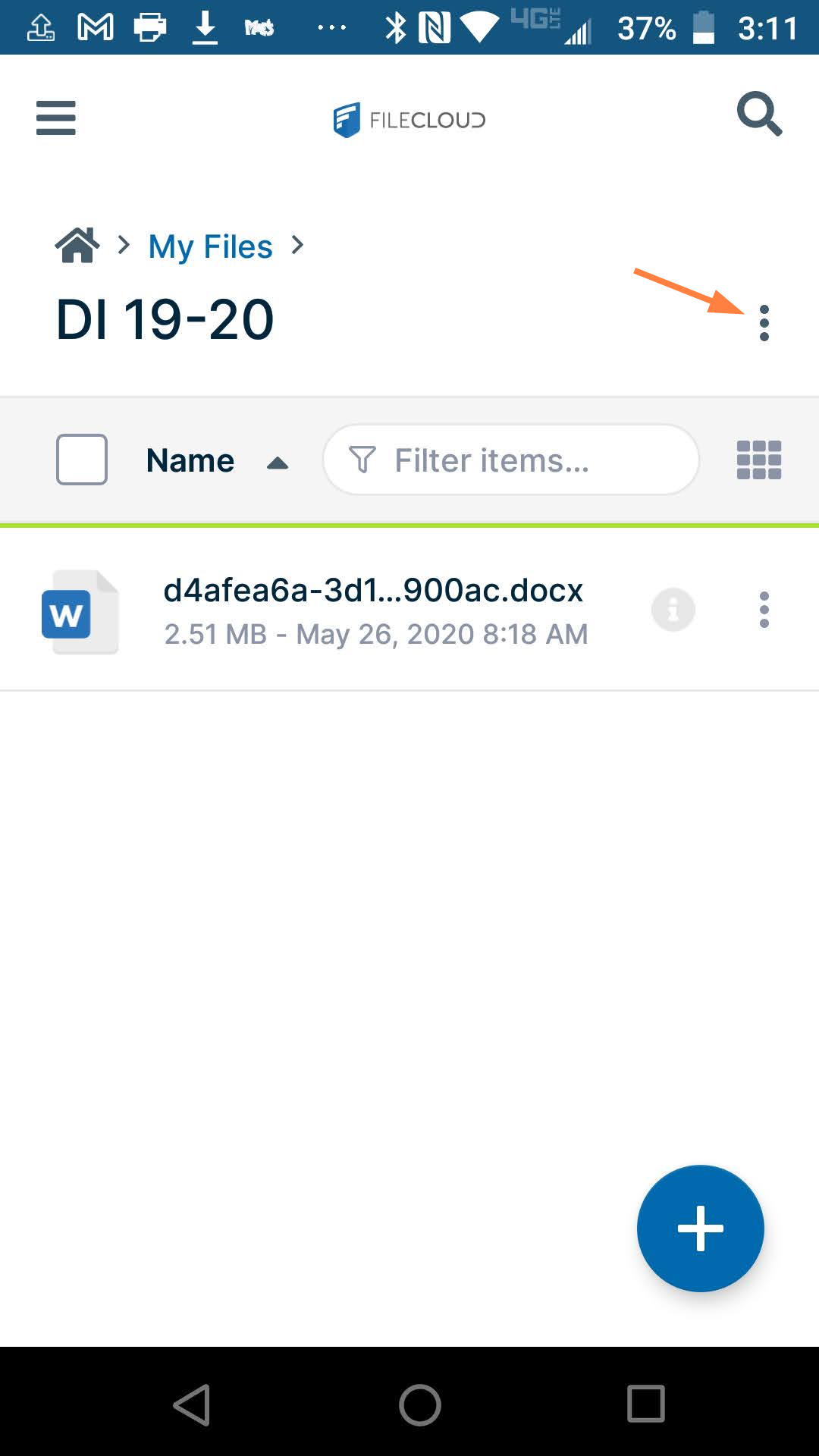
|
-
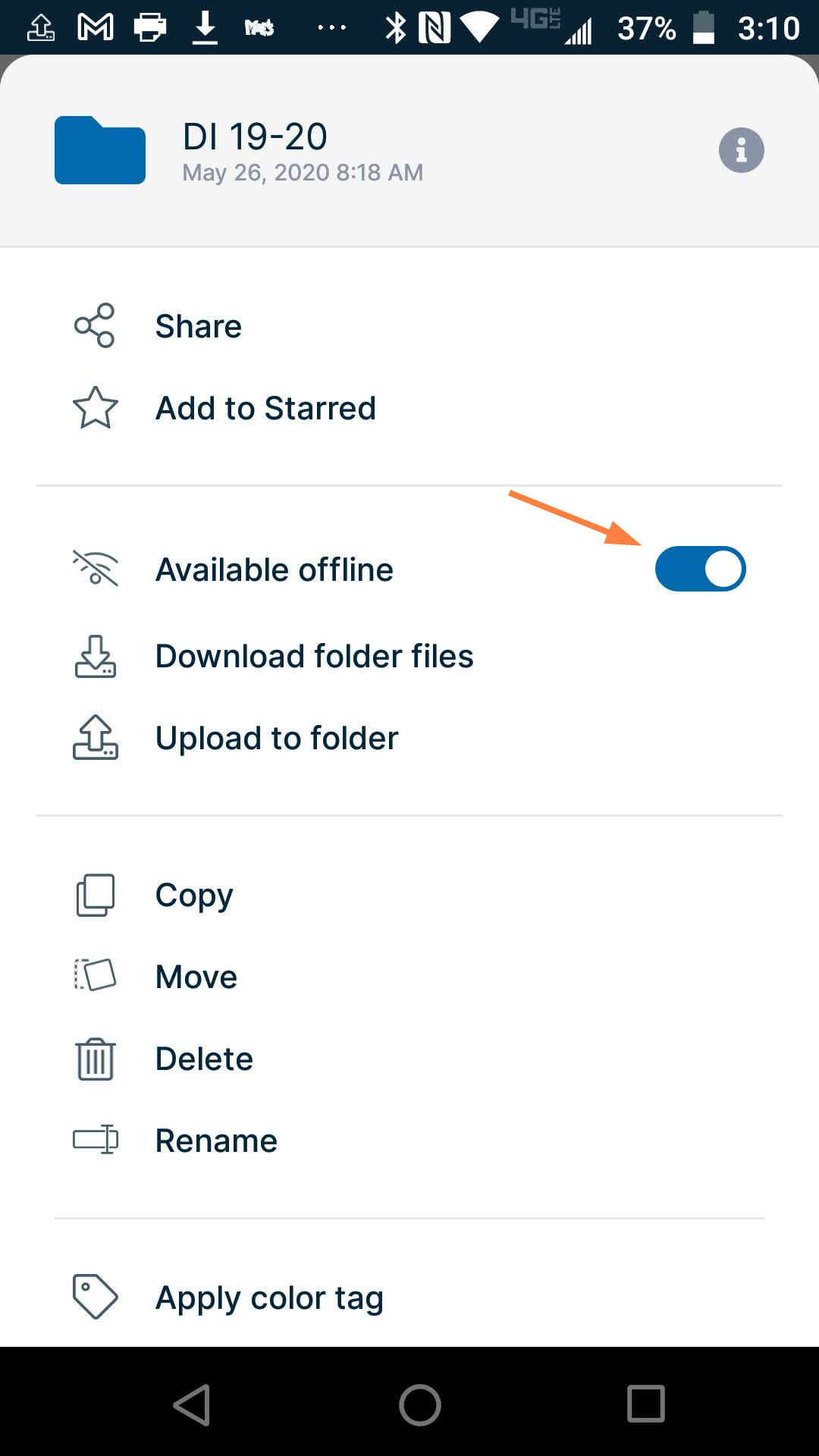
For Available offline, slide the switch to the right so that it is on.
-
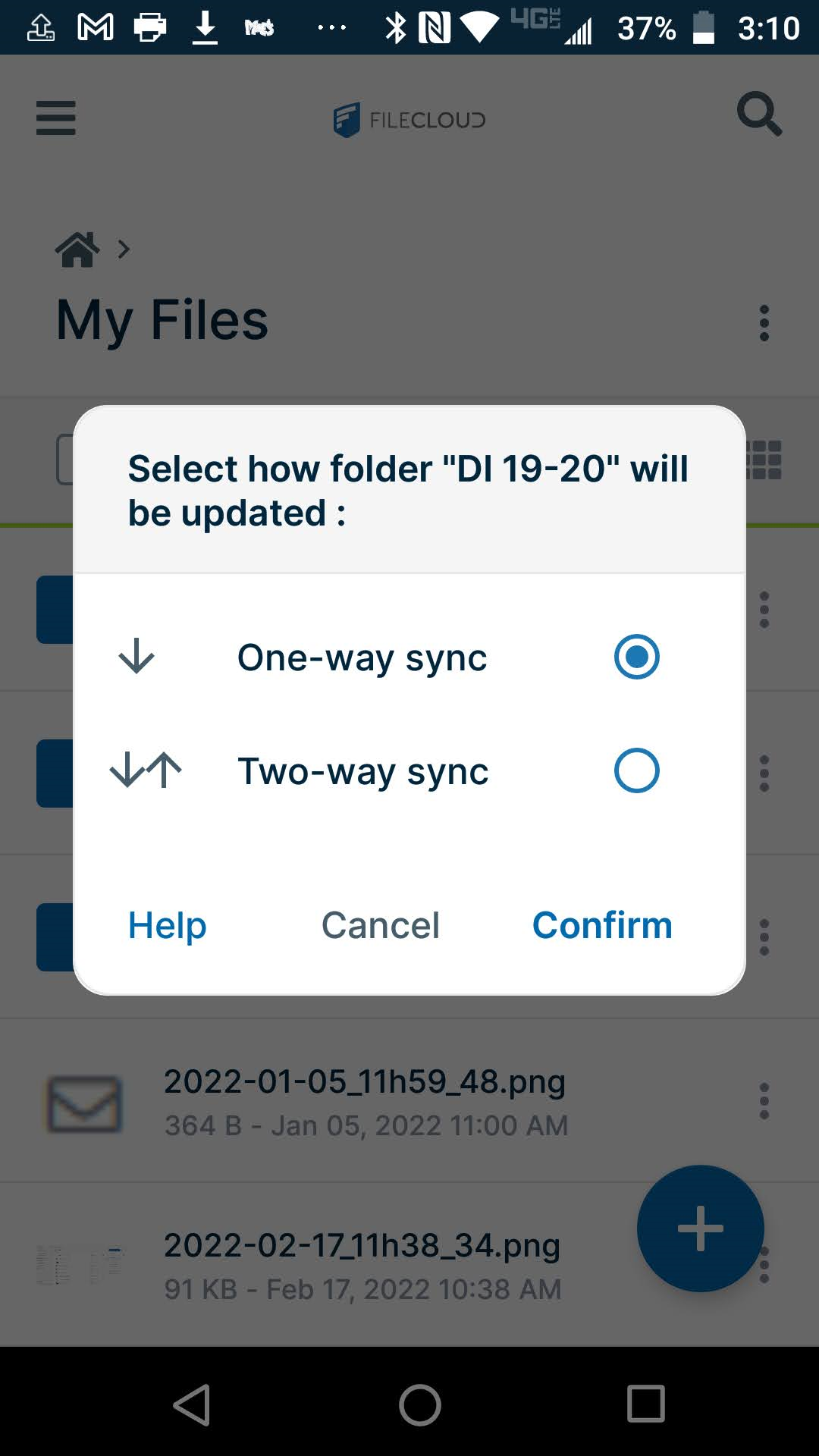
Choose a Sync direction.
One-way sync: Any changes made to your local files will be ignored. When syncing, your local files will be overwritten with updated files from the server.
Two-way sync: Changes made to your local files will be uploaded to the server when syncing. Any files on the server that have updated since the last sync will replace your local files.
When you click Confirm, the folder is synced.
To have a folder's most recent content available, sync before you go offline.