.svg)
After you attach a Wasabi S3 bucket to a FileCloud Server Network Folder, you can update any of the original settings.
.png?cb=d925a0b5279875647fa1e98bda7fff0d)
To edit a Wasabi S3 bucket-based Network Folder:
-
Open a browser and log in to the admin portal.
-
In the left navigation panel, select Network Folders.
-
On the Manage Network Folders window, click the Wasabi S3 bucket-based network folder, and then click the edit icon.
-
On the S3 Network Folder Details window, set any of the following options:
|
Option |
Description |
|---|---|
|
S3 Key |
The key that identifies the bucket. |
|
S3 Secret |
Secret access key used with S3 key to gain access. |
|
Use IAM role |
When checked, the S3 Key and S3 Secret fields disappear and the IAM role is used to connect to the S3 bucket. |
|
Network Folder Name |
Name of the network folder that will contain the bucket. |
|
Bucket Name |
Name identifying the bucket. |
|
S3 Region |
Physical region where buckets are created. |
|
End Point |
URL where API requests are sent. |
|
S3 Encryption Setting |
On the Attach S3 bucket window, select the type as No encryption because Wasabi does not support managed key encryption.
|
|
Disable Offline Sync |
Enabling this option will prevent this network share from being available for sync via FileCloud Sync client |
|
Disable Notifications |
Disable some or all S3 Network Folder notifications for users with access to the folders. See Disable notifications for Amazon S3 bucket-based Network Folders, below. |
|
Sharing |
Sharing the content of the network share can be disabled or enabled using this option .png?cb=9515537e19c87b4540ed02e3c09ca08e)
|
|
Allow Remote Deletion of Files via Offline Sync |
Enabling this function will allow deleting files in the S3 Bucket if the files are deleted in the synced client. By default deletes are not propagated to S3 bucket when deleted via Sync client. |
Disable notifications for Amazon S3 Network Folders
By default, notifications are enabled for network folders. This means that all users who have access to a network folder and have notifications enabled receive notifications about all actions on the folder.
However, since multiple users may have access to the same network folder, users may receive notifications about actions that don't interest or don't apply to them.
There are various ways you can limit their access to these notifications. First disable notifications for the folder, and then override the setting only for notifications that you want to permit.
-
Disable notifications for the folder:
-
Click Network Folders in the left navigation menu to display the list of network folders
-
Click the Edit button for the network folder.
The Network Folder Details dialog box opens. -
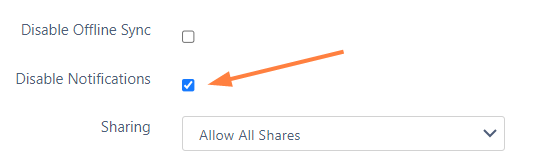
Check the Disable Notifications box.
-
-
Click Update.
-
Do one of the following:
-
Leave all notifications about actions in the folder disabled.
By default, admins and users can override this setting. An admin can enable notifications about the folder for specific users, or users can enable their own notifications for the folder.
If you do not want users to be able to override this setting, you must disable file change notifications in Settings > Misc > Notifications. See Notifications for File Changes for help.
-
Enable notifications about the folder for specific users.
This is useful if you want to limit the users who receive notifications about a network folder to those you have shared it with.
See the various options for setting users' notifications in the section Managing User-Defined Notifications.
-
Allow users to enable their own notifications about the folder.
See the options users have for setting their own notifications in the section Notifications.
-