.svg)
Administrators can integrate Wasabi S3 buckets with FileCloud Server to allow users access to this data inside FileCloud Server portals and clients.
There are few limitations you should know about using Wasabi S3 bucket network folders
-
No versioning support (Version key will be ignored and the file will be overwritten)
-
No real-time network sync or indexed search is allowed (Regular file search will work)
To create a Network Folder from an S3 bucket:
-
Open a browser and log in to the Admin Portal.
-
In the left navigation panel, select Network Folders.
-
On the Manage Network Folders window, click Add.
-
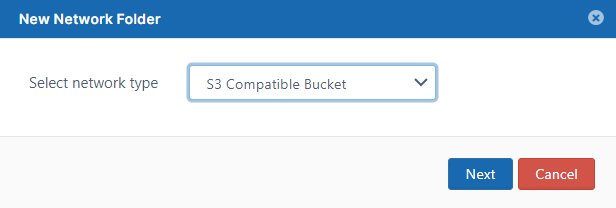
On the New Network Folder dialog box, in Select network type, select S3 Compatible Bucket, and then click Next.
-
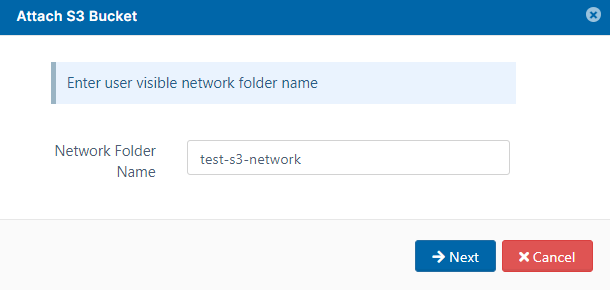
On the Attach S3 bucket window, type in a unique Network Folder Name and then click Next.
-
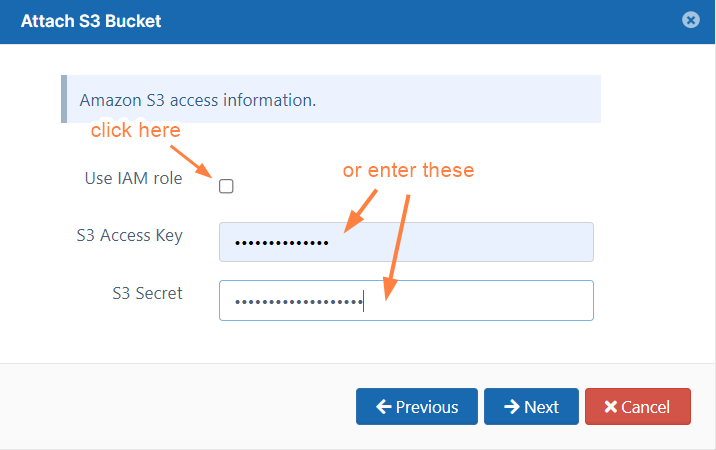
On the Attach S3 Bucket window, either check Use IAM role or type in authentication credentials in S3 Access Key and S3 Secret, and then click Next.
-
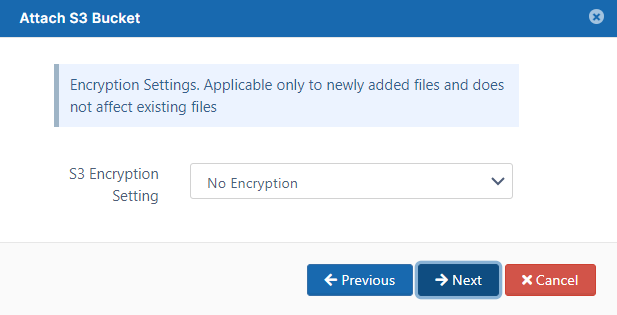
On the Attach S3 bucket window, select No Encryption because Wasabi does not provide managed key encryption as AWS does.
-
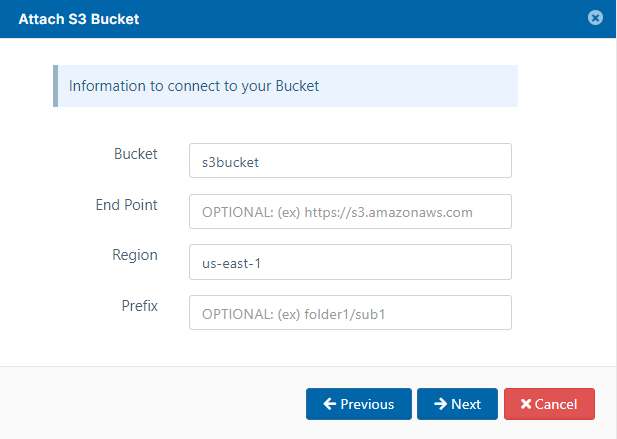
On the Attach S3 bucket window, type in the bucket name and Region, and optionally the End Point and Prefix..
-
Click Next.
-
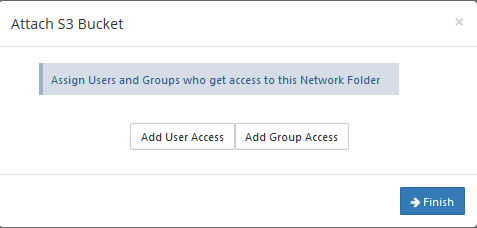
When the S3 bucket is mounted as a network share, permissions need to be assigned to users or group to allow access.
The network share access can be granted to