.svg)
The Settings landing page, which includes a setting search, is available in FileCloud 23.242 and later.
Going to the Settings landing page
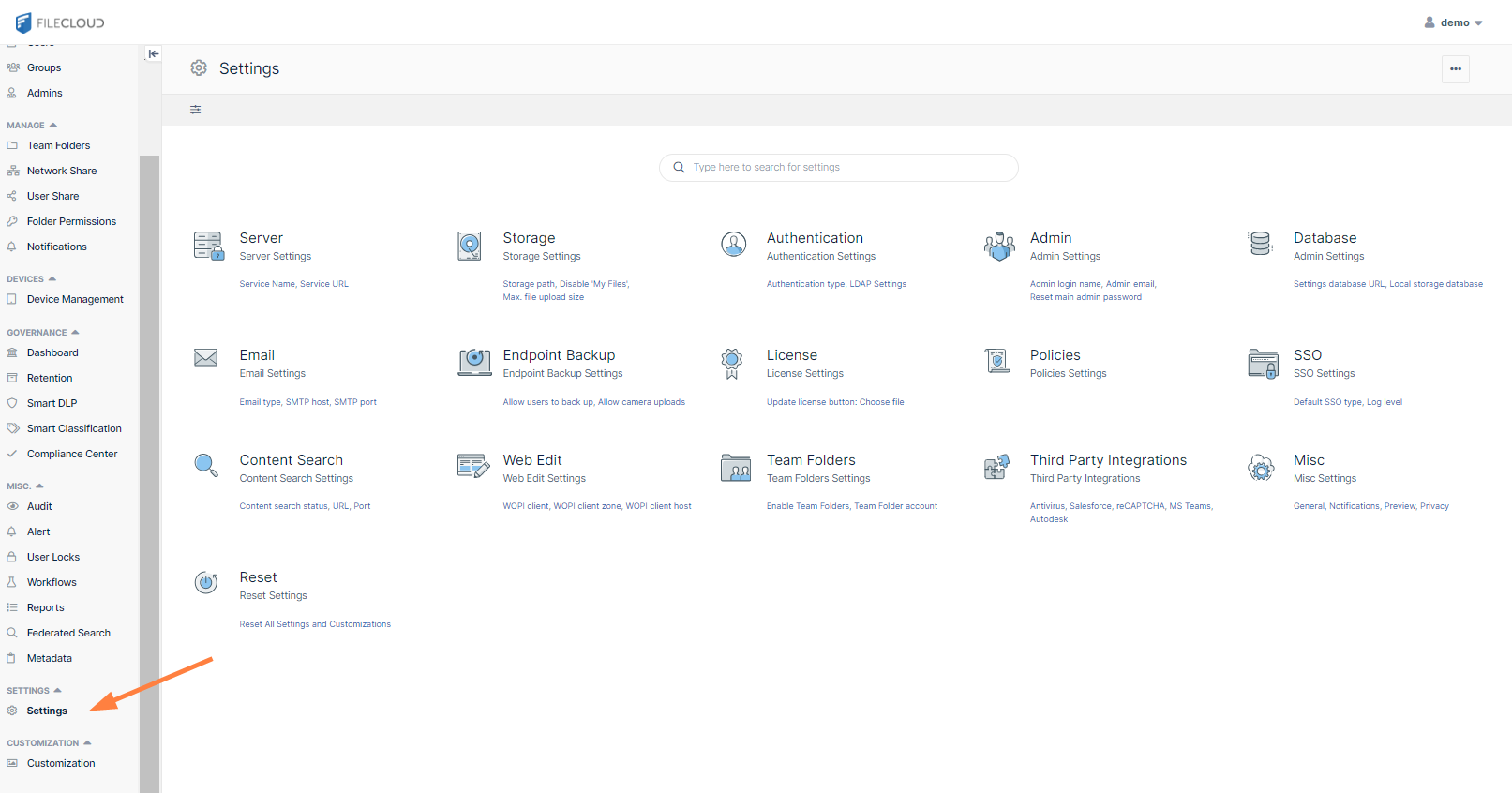
To go to the Settings landing page in the admin portal, in the navigation panel, click Settings.
The Settings page opens as a grid of clickable icons that link to their respective settings screens.
Go to a settings page
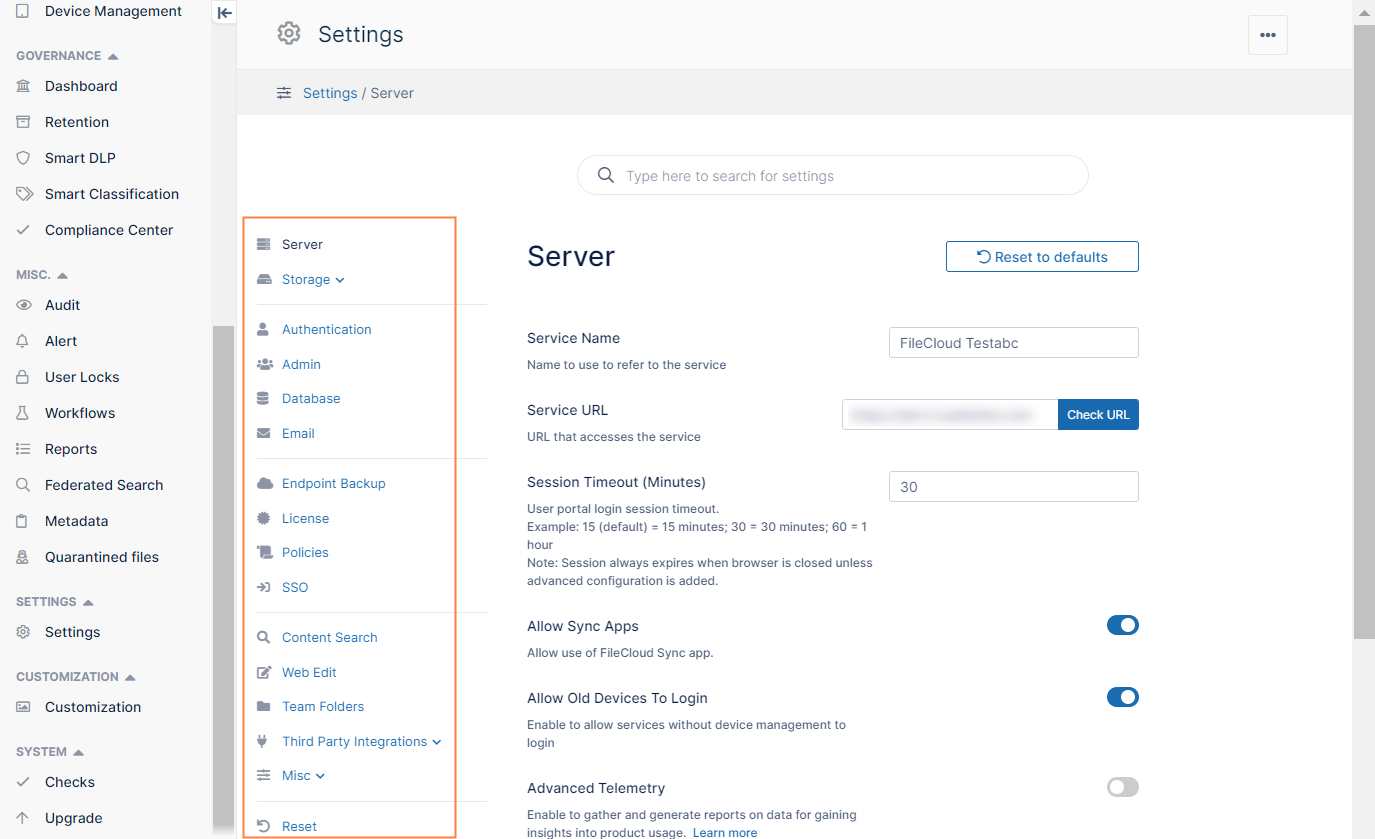
When you click a settings icon, its settings page opens. In the following image, the Server icon has been clicked and the Server settings appear. The navigation panel on the left appears on every settings page and lets you navigate to other settings pages.
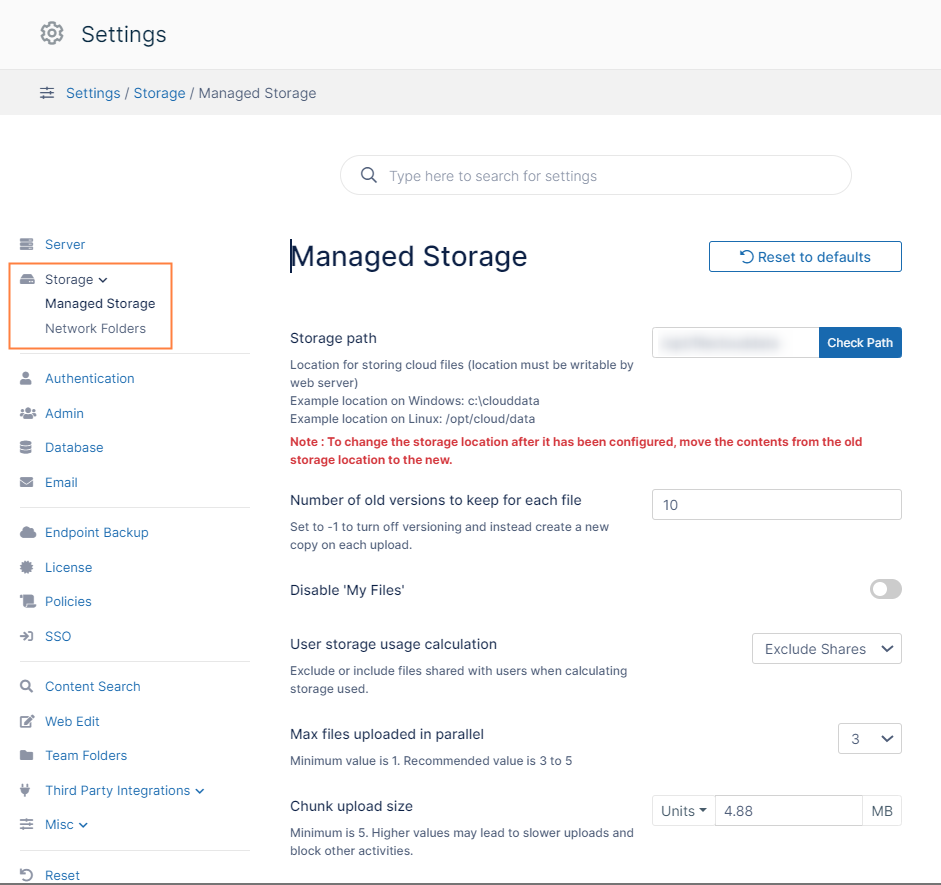
If a setting has multiple pages, they appear in the navigation panel under the main setting name. When you click on the setting icon, the first setting page opens, but you can click the other sub-links to go to the setting's other pages.
For example, in the following image, the admin clicked the Storage setting icon and the first storage setting page, Managed Storage, opened. To go to the Network Folders page, the admin would click it in the left panel.
Above the settings icons, a search bar and a link to the classic settings interface appear.
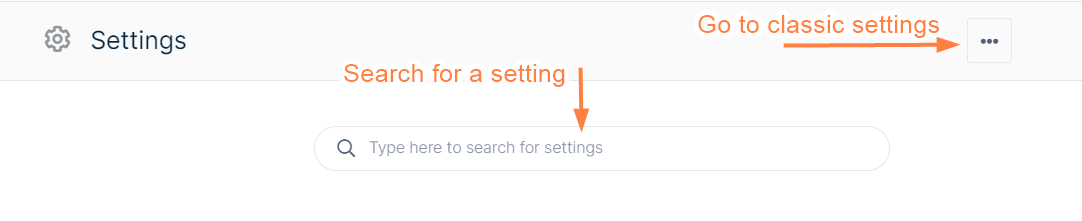
Searching for settings
To search for a setting:
-
Enter a search term in the search bar.
Settings with a matching name or description are returned.
You can set the value of the setting directly from the search listing.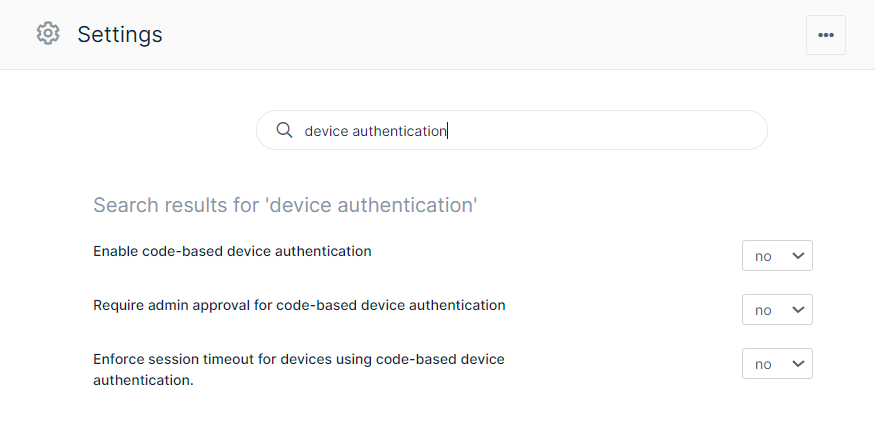
-
To return to the Settings landing page, clear the search box.
Going to classic settings
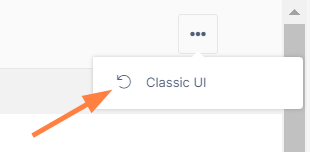
To return to the settings user interface used in versions prior to FileCloud 23.242, click the more icon in the upper-right corner of the screen and choose Classic UI.
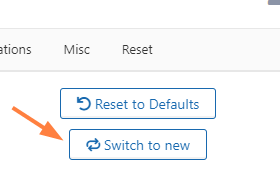
Once you are in the classic settings interface, return to the current UI by clicking Switch to new.
Reset settings
Some settings pages have a Reset to defaults button. Click Reset to defaults to reset the settings on that page only.
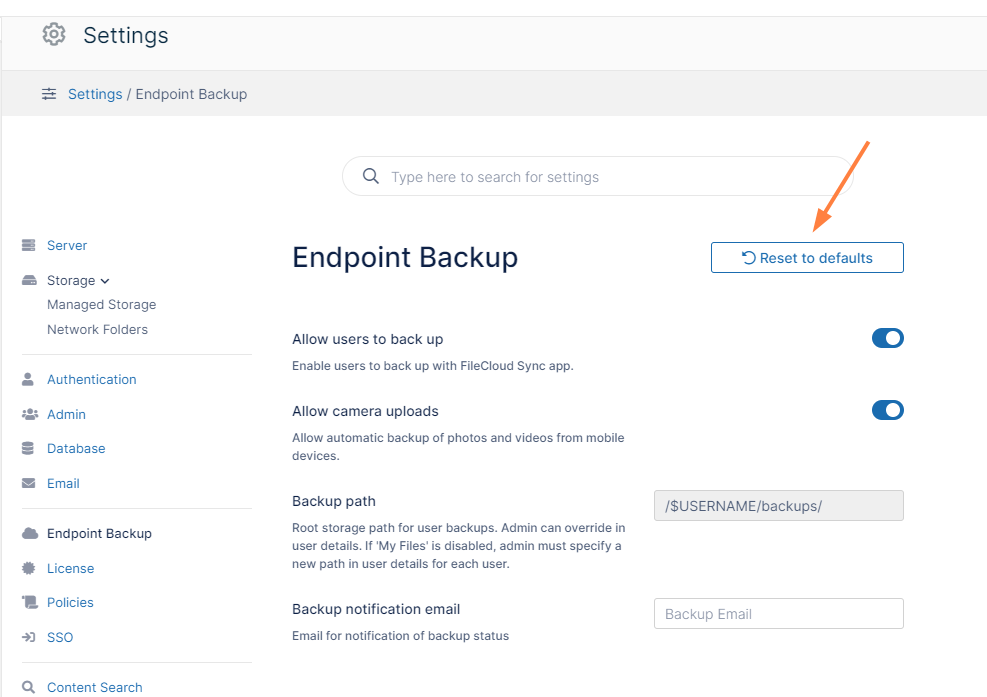
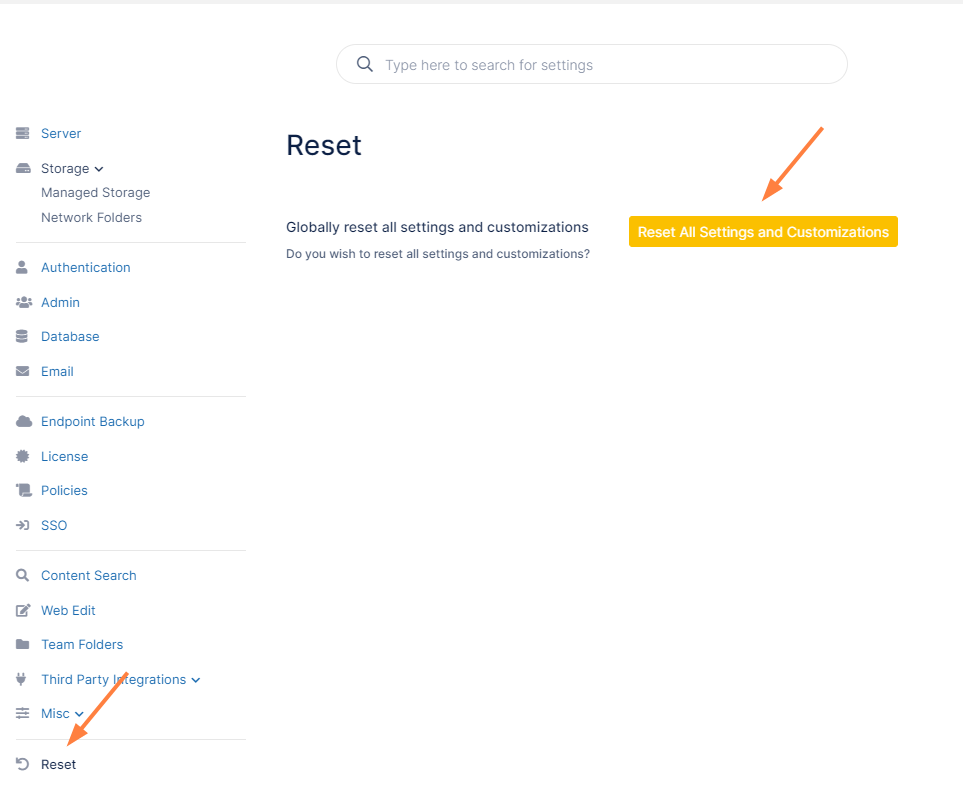
To reset all settings and customizations, click Reset at the bottom of the navigation panel. Then, in the Reset page, click Reset All Settings and Customizations.