.svg)
FileCloud lets you configure automatic backup settings for users' files and folders to ensure their data is secure.
Note: FileCloud supports backing up files and photos from different devices.
What Do You Want To Do?
Configure backup settings for all users
To configure the backed up settings for all users:
-
In the FileCloud admin portal's left navigation bar, scroll down and click Settings. Then, on the Settings navigation page, click Endpoint Backup
The Endpoint Backup settings page opens. -
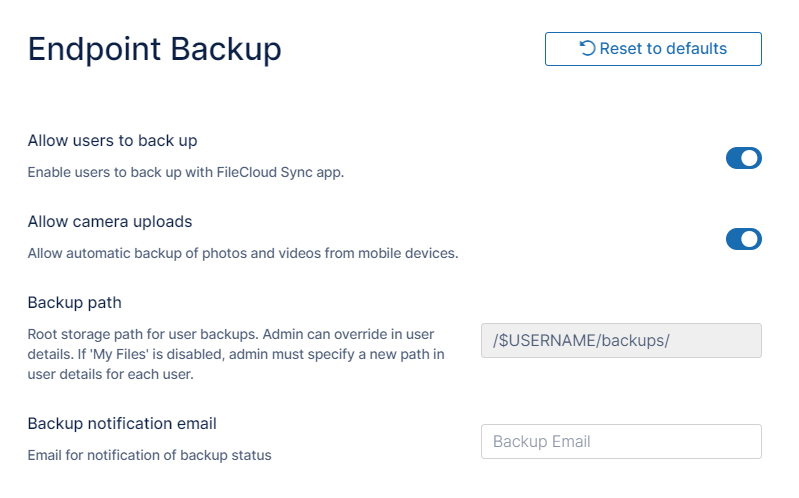
Fill in the settings as shown in the following screenshot using the table below as a guide.
|
Settings Name |
Description |
|---|---|
|
Allow users to back up |
Allow users to back up files and folders using the FileCloud Sync app. See Backing Up Files.
|
|
Allow camera uploads |
Allow mobile clients to automatically back up photos and videos to their FileCloud accounts.
All camera uploads are stored in the user's backup folder. This location cannot be changed.
|
|
Backup path |
The location where automatically updated media and backup files are stored. This is a read-only field meant for display only. You can override this path for specific users to have them back up to a different location in the User Details screen (see below). |
|
Backup notification email |
An additional email ID to which Backup Complete notifications are sent. |
Configure a specific user's backup folder
It is possible to set a different backup folder path for each user, overriding the default global path specified.
You must know the exact folder path you want to use.
For more information, see Identifying a FileCloud Specific Path.
To set the Backup Path for a user:
-
Log in to the FileCloud admin portal.
-
In the navigation panel, click Users.
-
Click the Edit icon for the user whose path you want to change.
-
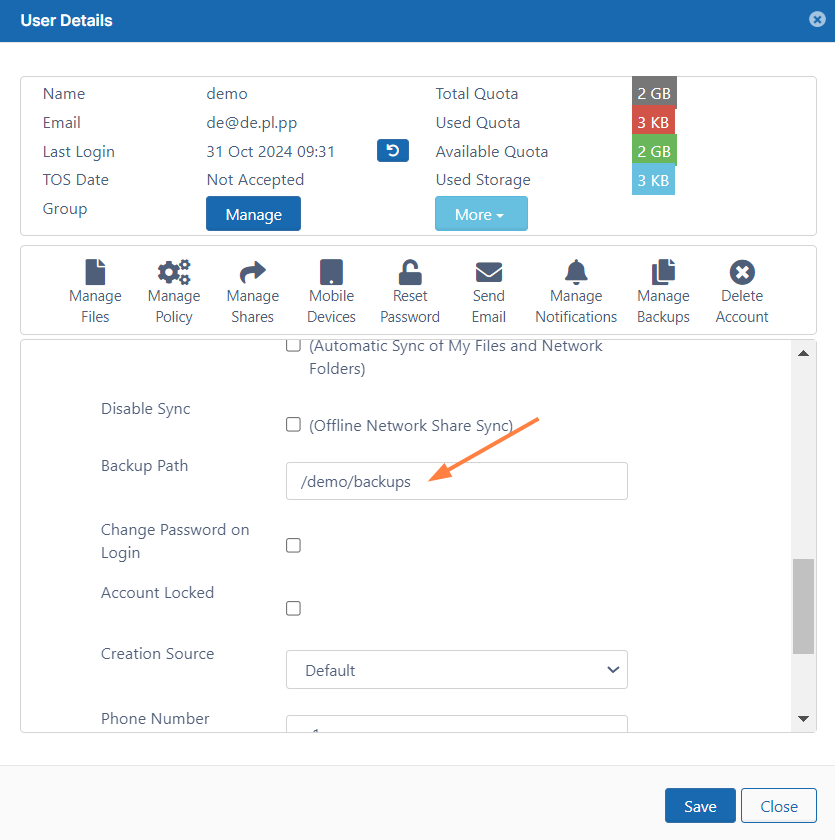
On the User Details screen, scroll down to the Backup Path field.
-
In Backup Path, type in the folder path you want to use.
-
To save your changes, click Save.
View a user's backed-up files
To view details of the backed up files for a specific user:
-
Log in to the FileCloud admin portal.
-
In the navigation panel, click Users.
-
Click the Edit icon for the user whose path you want to change.
-
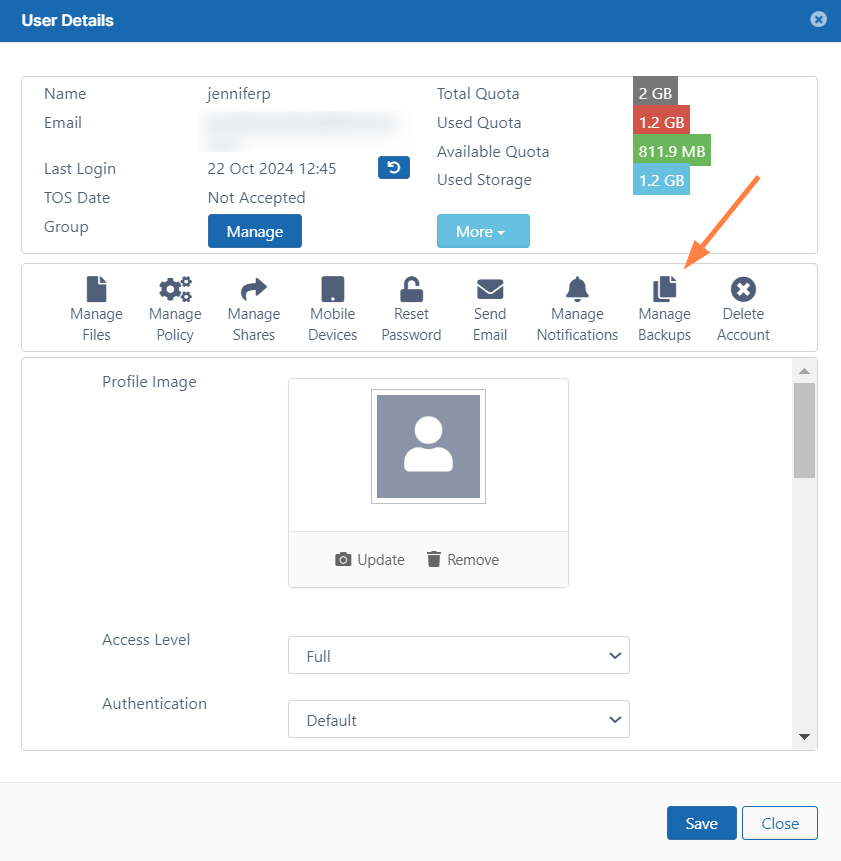
On the User Details screen, click Manage Backups.
-
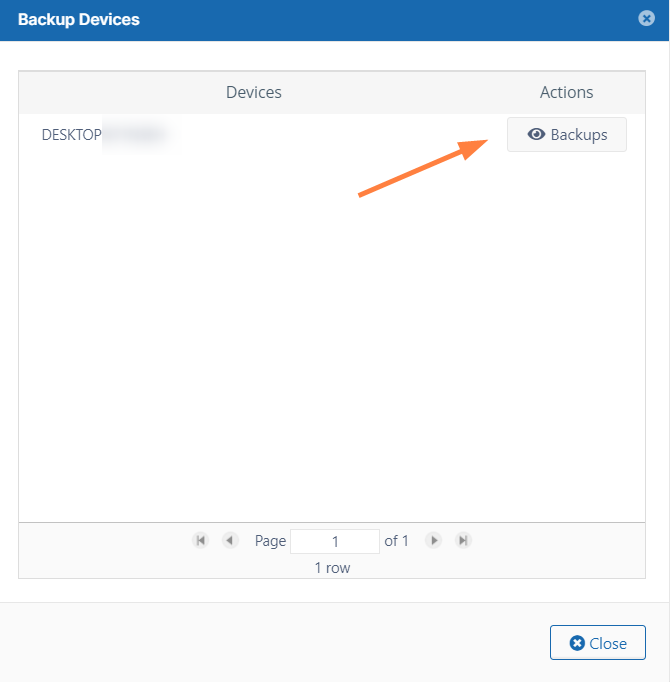
On the Backup Devices screen, to view the paths backed up from a device, click Backups.
. -
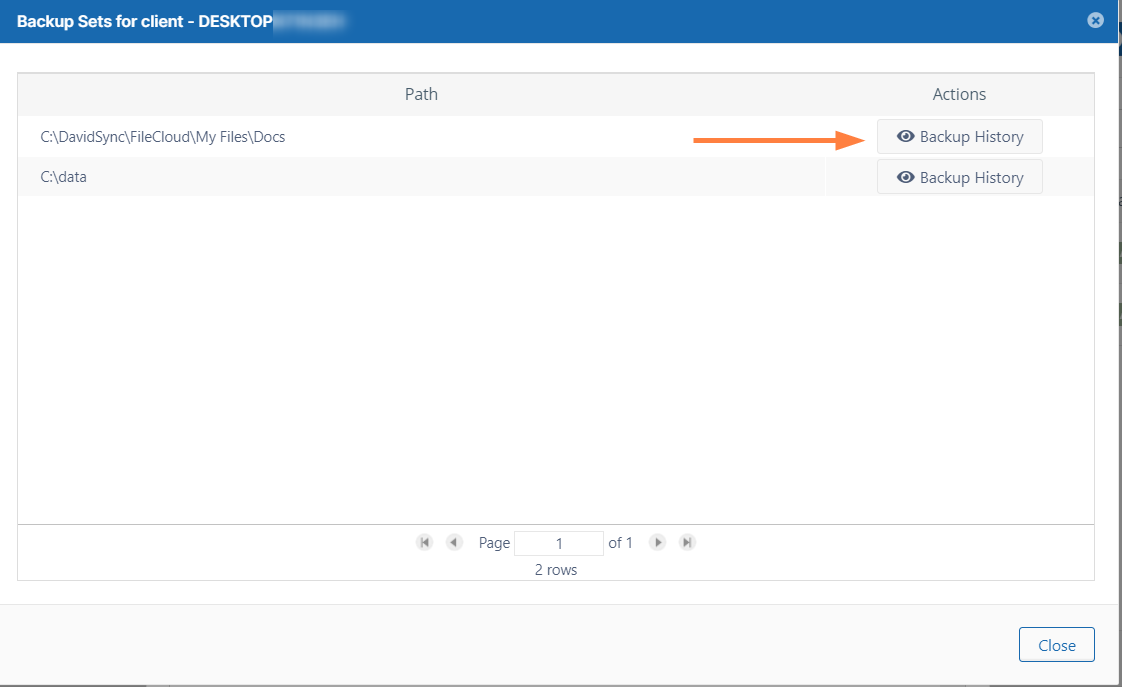
On the Backup Sets for client screen, click Backup History for a client.
-
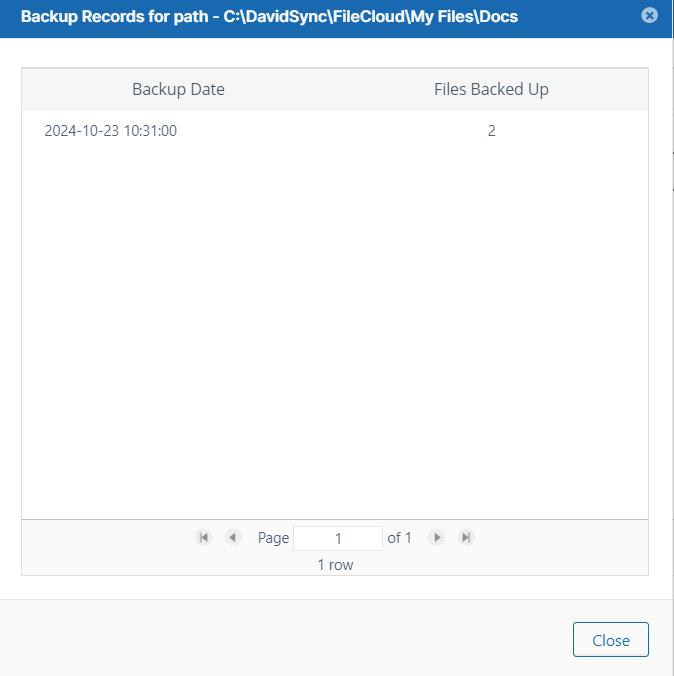
On the Backup Records for path screen, view the backup dates and number of files backed up.
Also see: