.svg)
You can preview a file in the user portal without opening it for editing.
If you do not see the Preview button when you hover over a file, contact your administrator.
If you are an administrator, enable Document Preview.
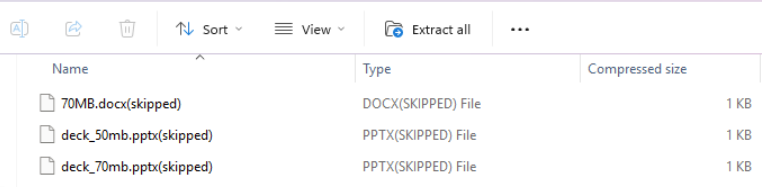
If watermarks are included on previewed files, large Office files are listed but not downloaded in the Zip file containing the download and skipped appears beside them:
To preview a file:
-
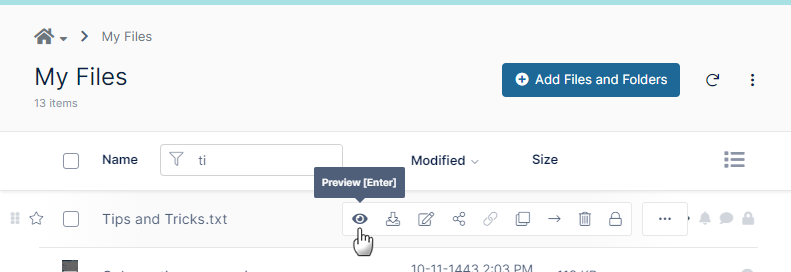
Hover over a file in the User Portal.
A row of icons appears.
The Preview icon is the first icon, which looks like an eye.
-
Click the Preview icon.
(You can also click the name of the file to open it for preview).
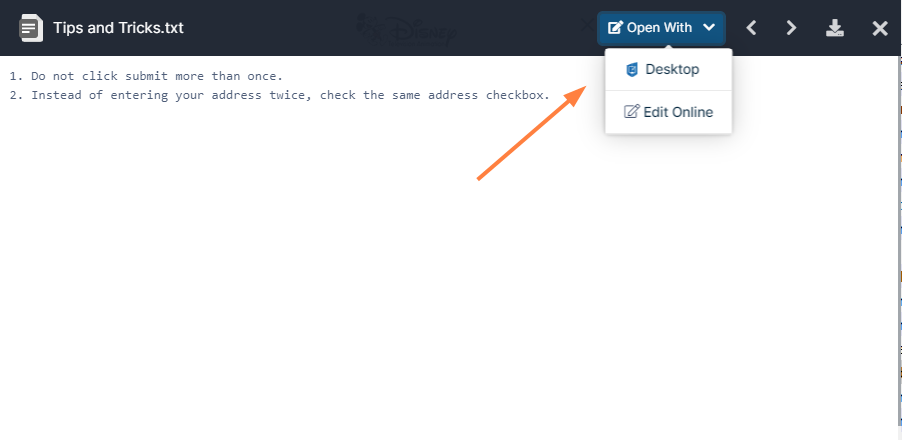
A window that shows the content of the file opens.
The preview can be edited with the same Web edit/Office Online and Edit in Desktop applications that are available for editing the file from the file listing.
Which types of files can I preview?
Preview is available for audio, video, image, pdf, txt , md and Office file types, as well as the file types indicated in the table below.
File types that can be previewed
|
|
Extension |
Registered To |
Available in FileCloud Version |
Description |
|---|---|---|---|---|

Illustrator |
.AI |
Adobe |
18.2 |
An Adobe Illustrator format is a proprietary file format developed by Adobe Systems for representing single-page vector-based drawings in either the EPS or PDF formats. |

DICOM |
.DICOM |
DICOM |
18.2 |
Medical files such as X-rays, CT scans, Ultrasounds and MRIs.
|
|
|
.DWF, .DWG, .DXF
|
AutoCAD |
22.1 |
2D and 3D architectural drawings in AutoCAD file formats. |
|
High Efficiency Image Container |
.HEIC |
|
23.251 |
.HEIC files are compressed image files, often used on iOS devices. |
|
Oasis graphic and spreadsheet files |
.ODF
|
|
|
Binary files used to define data structures. |
|
OpenDocument text |
.ODT |
|
|
Documents created by word processors that use OpenDocument Text File format, such as LibreOffice and OpenOffice. |

|
|
Adobe |
4.0 |
Portable Document Format (PDF) is a file format used to present documents in a manner independent of application software, hardware, and operating systems. Each PDF file encapsulates a complete description of a fixed-layout flat document, including the text, fonts, graphics, and other information needed to display it. |

Photoshop |
.PSD |
Adobe |
18.2 |
A .PSD file is a layered image file used in Adobe PhotoShop. PSD, which stands for Photoshop Document, is the default format that Photoshop uses for saving data. PSD is a proprietary file that allows the user to work with the images’ individual layers even after the file has been saved. |
|
Microsoft |
|
|
|
|
|
|
.DOC |
Microsoft |
4.0 |
Microsoft WORD files created in versions 2003 and earlier. |
|
|
.DOCX |
Microsoft |
4.0 |
Microsoft WORD files created in versions 2007 and later. |
|
|
.PPT |
Microsoft |
4.0 |
Microsoft PowerPoint files created in versions 2003 and earlier. |
|
|
.PPTX |
Microsoft |
4.0 |
Microsoft PowerPoint files created in versions 2007 and later. |
|
|
.XLS |
Microsoft |
4.0 |
Microsoft Excel files created in versions 2003 and earlier. |
|
|
.XLSX |
Microsoft |
4.0 |
Microsoft Excel files created in versions 2007 and later. |
|
Apple iWork Suite |
.pages, .numbers, .key |
Apple |
23.252 |
Apple's app suite for documents, spreadsheets, and presentations Currently, .numbers file previews appear with table gridlines and numbers only. Additional table formatting does not appear in the previews. Preview only. Editing is not available from the previewed files. |
|
Video formats |
.MP4
|
|
|
The video files listed can only be viewed correctly if they have video and audio codecs in the following formats:
.WEBM - VP8 video codec and Vorbis audio codec .OGV - Theora video codec and Vorbis audio codec; .OGV file viewing is not supported in Safari .MOV - H.264 video codec and AAC audio codec |
|
Audio formats |
.MP3
|
|
|
|


For file types that cannot be previewed, such as exe, FileCloud displays a download option in the preview window.
How can I use the DICOM images in preview?
You can store, view and share medical files such as X-rays, CT scans, Ultrasounds and MRIs securely in FileCloud Server.
-
You can upload a medical file with a file extension of .DICOM.
-
In the dashboard, you can select a file with the .DICOM extension, and then click the Preview button.
-
In Preview mode, the medical file is rendered as an image with special viewing options that are exclusive to viewing .DICOM files.
When you open the preview, you have the following cursor options:
|
|
Option |
Keys |
Description |
|---|---|---|---|

|
Drag |

hold down the left mouse button |
moves the image around in the preview window |

|
Zoom In |

scroll the mouse wheel forward |
enlarges the image in the preview window |
|
|
Zoom Out |

scroll the mouse wheel backwards |
reduces the image in the preview window |

|
Lighten the Image |
hold down the mouse wheel and drag forward |
increases the contrast to lighten the image |

|
Darken the Image |
hold down the mouse wheel and drag backwards |
decreases the contrast to darken the image |


In addition, you can click following options at the bottom of each preview window to perform the actions listed below:

Pan/Zoom - Click and drag mouse over image to adjust pan and zoom.
Image - Click and drag mouse over image to adjust brightness and contrast.
Scroll - Use mouse wheel top/bottom to flip through the images. Double-click to animate.
Reset - Reset to initial image.
Tags - Display image metadata information.