.svg)
FileCloud supports LibreOffice for document preview generation. Use the following instructions to enable file preview using LibreOffice.
-
Install FileCloud Document Converter
FileCloud needs document converter to work with LibreOffice. Follow the instructions from this section to install and run FileCloud document converter. -
Enable preview in FileCloud.
If you are running a multi-site configuration, please follow these steps on the root site.
-
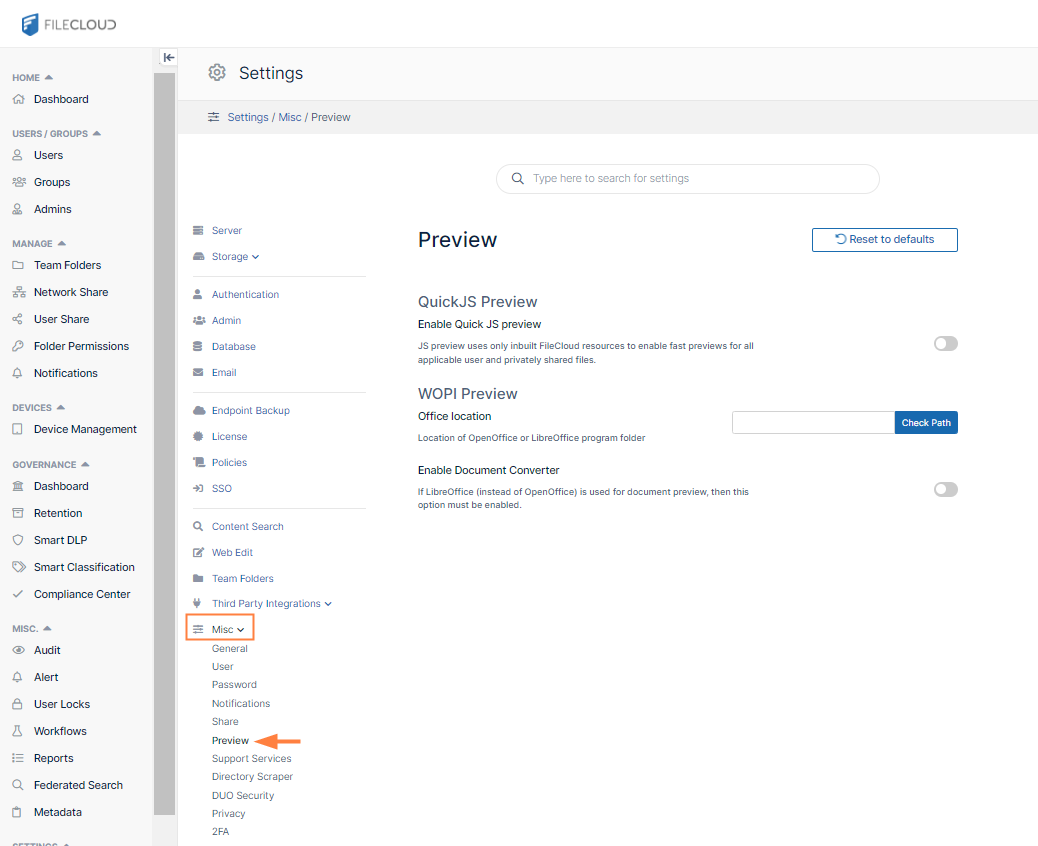
In the FileCloud admin portal's left navigation bar, scroll down and click Settings. Then, on the Settings navigation page, click Misc

-
In the inner navigation bar on the left of the Settings page, expand the Misc menu, and click Preview, as shown below.
-
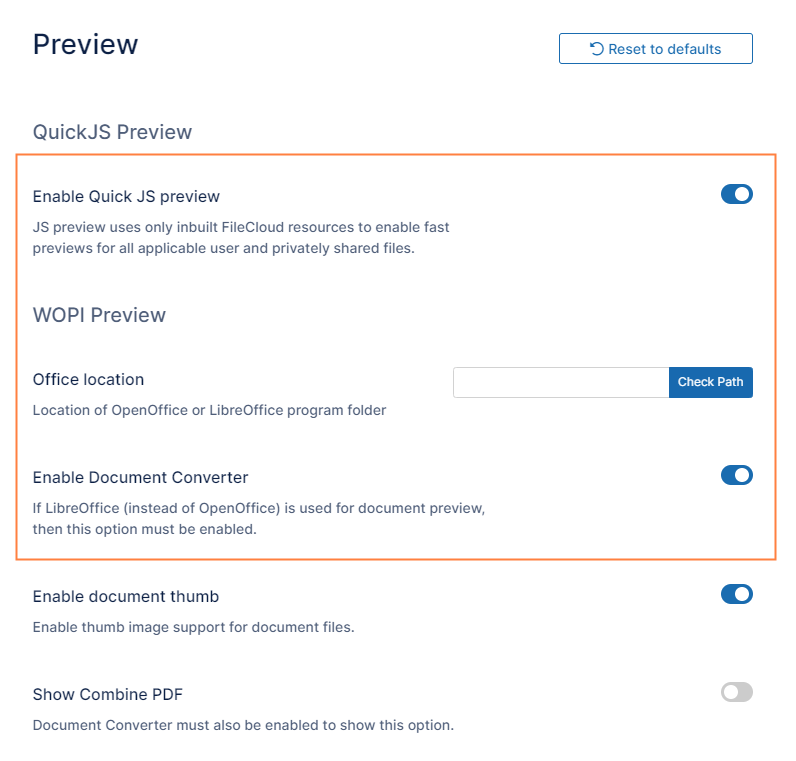
Enable Quick JS Preview if it is not already enabled.
-
In Office location, enter the correct path for LibreOffice (C:\xampp\LibreOfficePortable\App\LibreOffice64\program).
-
Enable the field Enable Document Converter. Note: Enabling this is allowed only when LibreOffice is used for document preview.
-