.svg)
As an administrator, you can provide preview tools to your users so that they can quickly view a portion of a document to determine if it is the one they need to work with.
-
After selecting a file in the user portal, a Preview button is available.
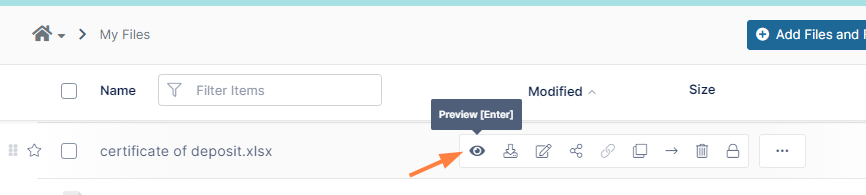
-
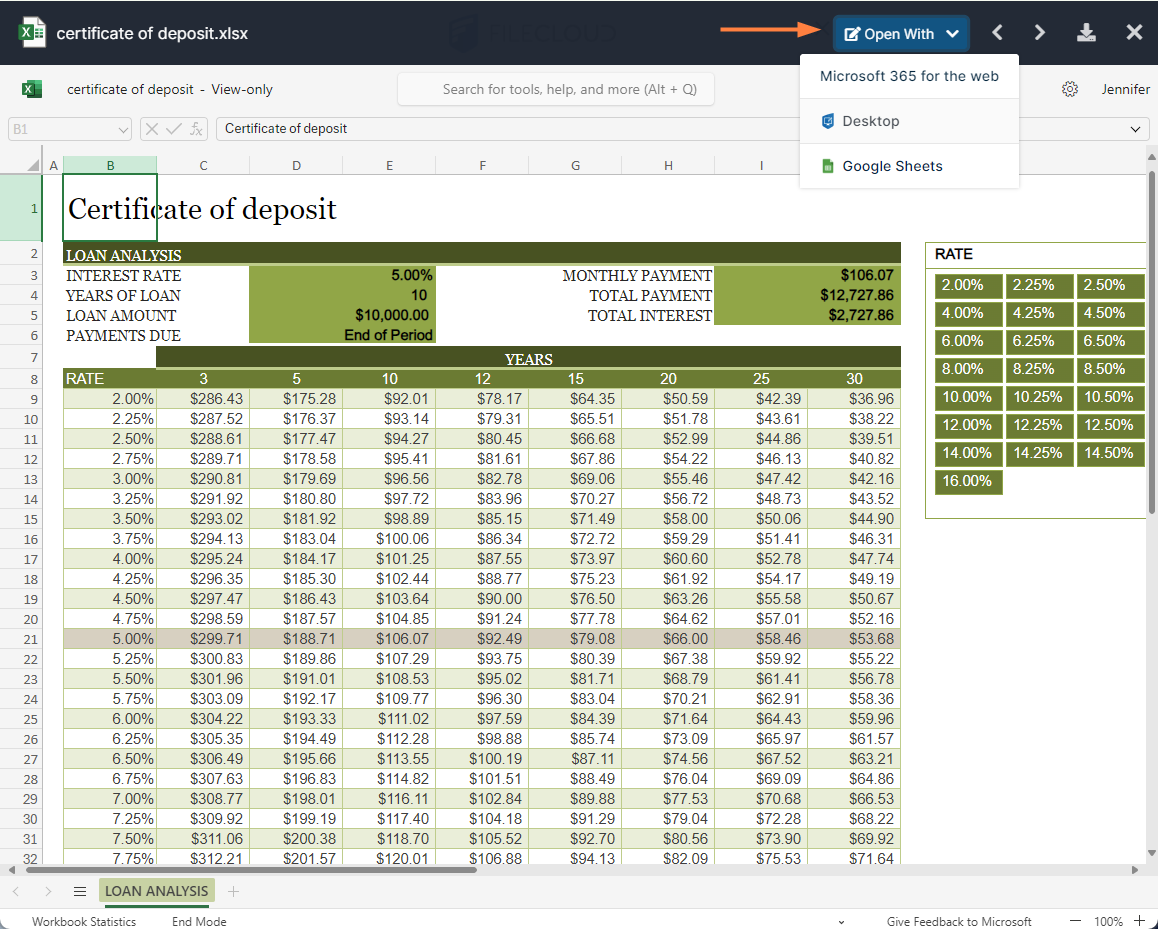
After clicking the Preview button, a separate window opens showing an image of the file.
The preview can be edited with the same Web edit/Office Online and Edit in Desktop applications that are available for editing the file from the file listing.
There are a few different ways an administrator can provide preview tools in FileCloud:
-
Quick JS Preview
-
DocConverter with LibreOffice
-
WOPI - Web Application Open Platform Interface Protocol (supports online web editing features)
-
Integration with AutoDesk Viewer (FileCloud version 22.1 and later) for previewing AutoCAD files only. See Setting Up AutoCAD File Preview with Autodesk Viewer for instructions.
What is DocConverter?
FileCloud uses a Java-based service called FileCloud Document Converter to:
-
Enable thumbs for Microsoft Office files (DOC, DOCX, PPT, PPTX, XSL, XSLX)
-
Enable thumbs for Apple iSuite files (.pages, .numbers, .key)
-
Enable thumbs for Adobe documents (AI, PDF, PSD)
-
Enable thumbs for TIFF images
-
Interface with LibreOffice for document preview generation
For this FileCloud uses a java program based on Apache's PDFBox. Document converter also will use LibreOffice libraries to convert documents to PDF.
1. Start the DocConverter service and configure it with FileCloud.
Linux: LibreOffice Ubuntu/RHEL Instructions
Windows: LibreOffice Windows Instructions
2. Enable thumbnail images on the Admin Portal.

What Other Online Web Editing Features Are Available?
Administrators can configure online editing to allow FileCloud users to select any supported document and edit the document from within the User Portal.
-
FileCloud uses the WOPI (Web Application Open Platform Interface) protocol to support online web editing
To use WOPI, you must install or have already available one of the following to provide the web editing capability:
-
Microsoft Office Online
-
Collabora Code
You can choose which tool to use not only by the version of FileCloud you are using, but also by the functionality.
|
Tool |
File Types Previewed |
Preview Keys |
Interactions with Other Tools/Other Notes |
|---|---|---|---|
|
Quick JS Preview |
|
None |
|
|
DocConverter with LibreOffice |
|
SHIFT + Preview |
|
|
WOPI |
|
None |
|
To configure document preview, click on a method to see the steps:
Configure Quick JS Preview
PREREQUISITES for Quick JS Previews:
-
You must be running FileCloud version 19.1 and later.
-
You must stop the Document Converter service according to the OS you are using.
-
For Windows, open the FileCloud Control Panel and stop the DocConverter Service if it is running.
-
For Linux, run the following command:
# sudo service fcdocconverter stop
-
To enable preview using Quick JS:
-
Open the Preview settings page.
To open the Preview settings page
-
In the FileCloud admin portal's left navigation bar, scroll down and click Settings. Then, on the Settings navigation page, click Misc

-
In the inner navigation bar on the left of the Settings page, expand the Misc menu, and click Preview, as shown below.
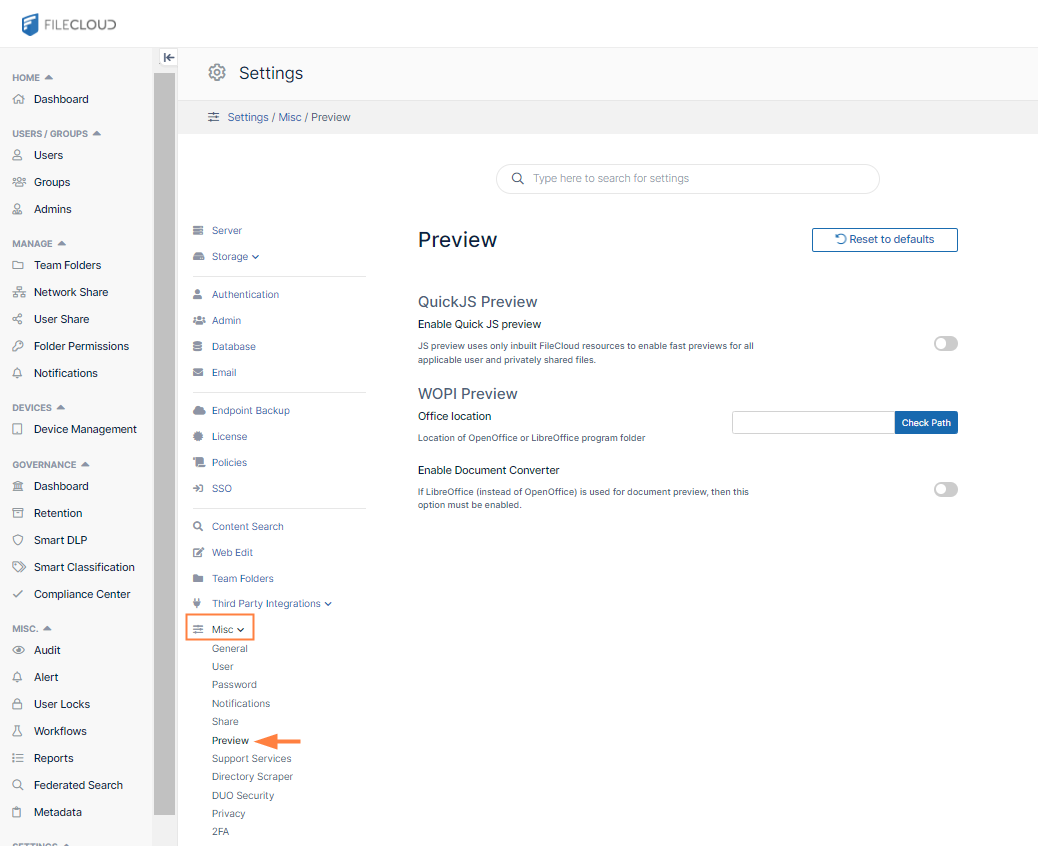
The Preview settings page opens.
-
-
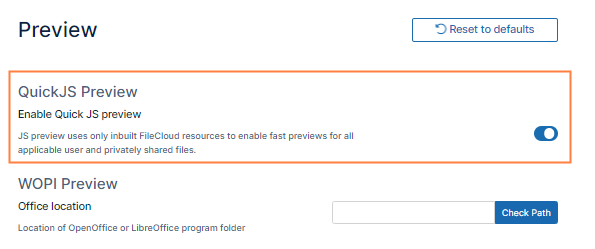
On the Preview screen, enable the field Enable Quick JS preview.
Configure Preview using WOPI
Administrators can configure online previewing using WOPI for any supported document from within the User Portal.
-
In the FileCloud admin portal's left navigation bar, scroll down and click Settings. Then, on the Settings navigation page, click Web Edit

The Web Edit settings page opens. -
Configure online editing using WOPI. See Microsoft Office Online Cloud For Web Edit.
-
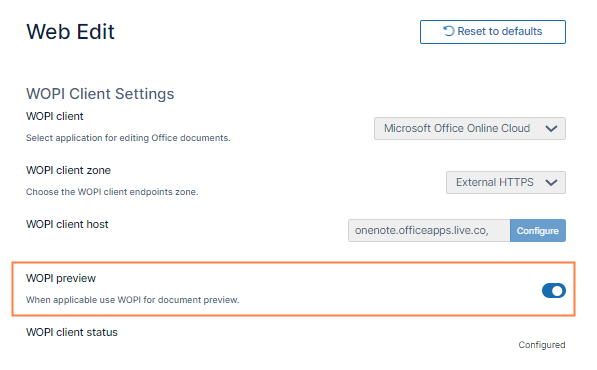
During your configuration, check WOPI Preview.
To include watermarks on previewed documents, see Watermark Settings.