.svg)
The default user storage quota for every new user is set in Managed Storage. See Setting up Managed Disk Storage
An optional sample set of files can be preloaded for every user on creation.
To create a FileCloud user with default authentication:
-
Log on to Admin Portal.
-
In the left navigation panel, click Users.
-
In the top right corner, click the Add User.
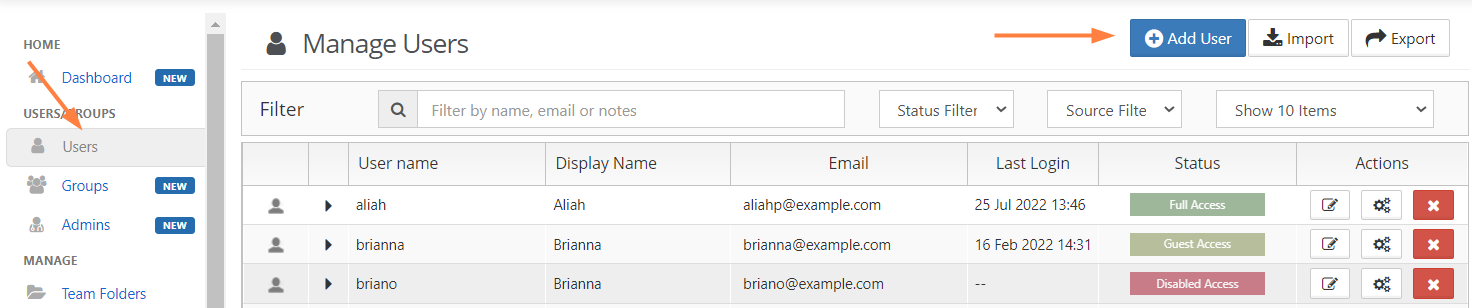
-
Set the required account information.
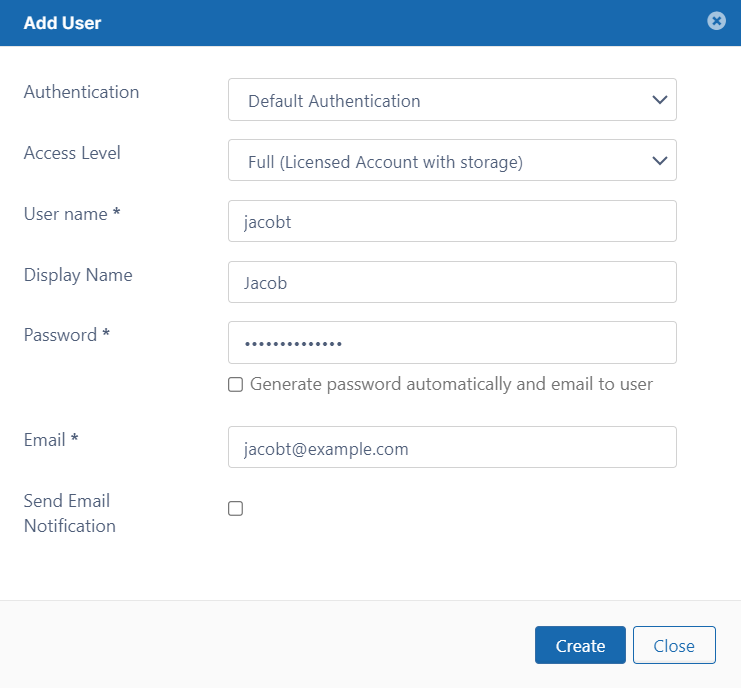
Settings
Description
Authentication
Allows you to select the authentication type for granting access into the system.
-
Default Authentication - creates a local user account. User credentials are stored and authenticated within FileCloud.
-
LDAP or AD Authentication - creates an external user account. User credentials are stored and authenticated from an external LDAP or AD server.
Access Level
Allows you to select the user tu[e. A user account with Full or Guest access counts as a license.
User name
Name to be used to log into the system.
By default, User name can only contain numbers, spaces, hyphens, periods, underscores, and letters from the Latin alphabet (A-Z, uppercase and lowercase), and email addresses may not be used as usernames.
Note: To also enable use of apostrophes in the User name, go to Settings > Admin and check Allow Email as Username.Display name
Name that appears on user interface
Password
Password for the user (Should adhere to password length and strength requirements for your organization). Either enter a password here, or check the following box.
Generate password automatically and email to user
FileCloud generates a password according to your settings for password limitations and emails it to the user. Anything entered into the Password field is ignored.
Email
An email id that is unique in the FileCloud system
Send Email Notification
When checked, a welcome email is sent to the new user. Unchecked by default.
Beginning with FileCloud 20.1, if you uncheck this, you can send a welcome email with a newly generated password later. See Send Email from User Details.Include Password in Email
When checked, the new user's password is included in the welcome email. Checked by default.
Beginning with FileCloud 20.1, if you uncheck this, you can send a welcome email with a newly generated password later. See Send Email from User Details. -
-
Click Create.