.svg)
Administrators can change the FileCloud storage type to Oracle Cloud Infrastructure (OCI) after FileCloud has been installed but before any data has been stored.
-
When changing the storage type from local to OCI, the files and folders that have been already stored in the local storage will not be automatically moved to S3 storage.
-
In this case, the administrator has to manually export files and folders from local storage before changing the storage type, and manually import them after changing the storage type.
WARNINGS:
-
Only change the FileCloud storage type for new installations.
-
Do not change the FileCloud storage type if FileCloud has been in use and data is already stored.
-
Be very careful when changing the storage path, If done improperly it could lead to data loss.
-
The OCI bucket should never be modified outside of FileCloud subsystem.
-
Do not add, edit, or modify files directly using OCI cloud tools. Doing so will destabilize your FileCloud installation.
To create the S3 storage bucket and get your S3 key values in Oracle Cloud Infrastructure
Create the S3 storage bucket and generate your S3 keys. In addition, save the values you will need to enter when you are configuring the OCI/FileCloud integration in the next procedure on this page.
-
Log in to https://cloud.oracle.com.
-
Click the icon that opens the navigation panel:
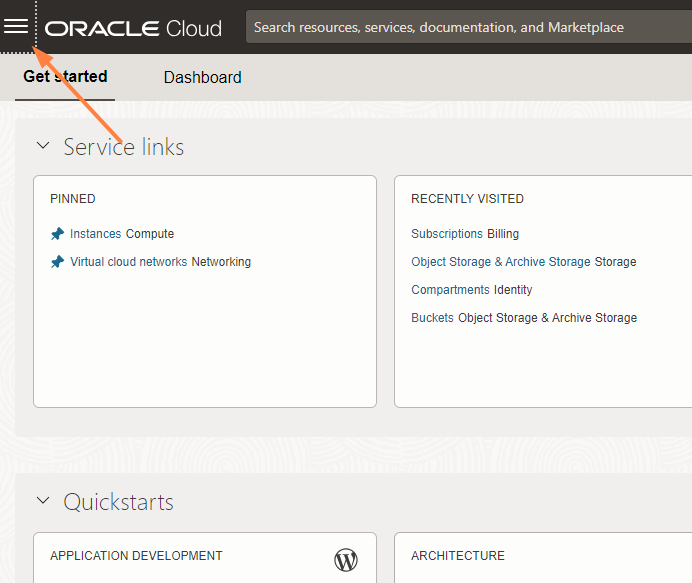
-
In the navigation panel, click Storage.
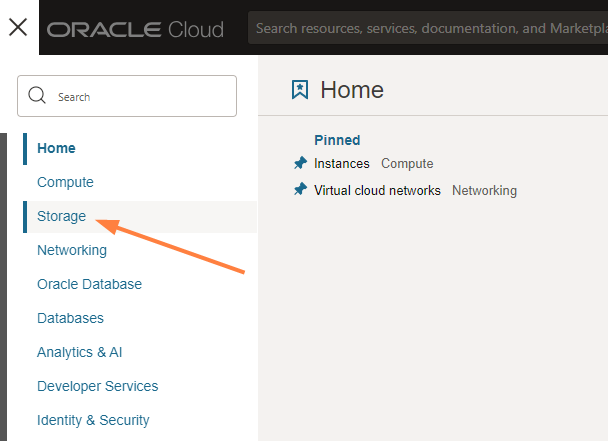
A list of storage-related pages opens. -
Click Object Storage & Archive Storage.
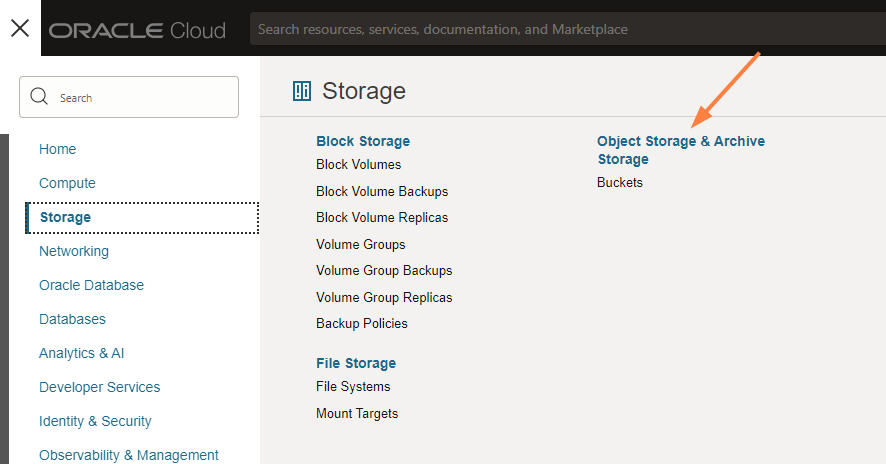
The Object Storage & Archive Storage page opens. -
Click Create Bucket.
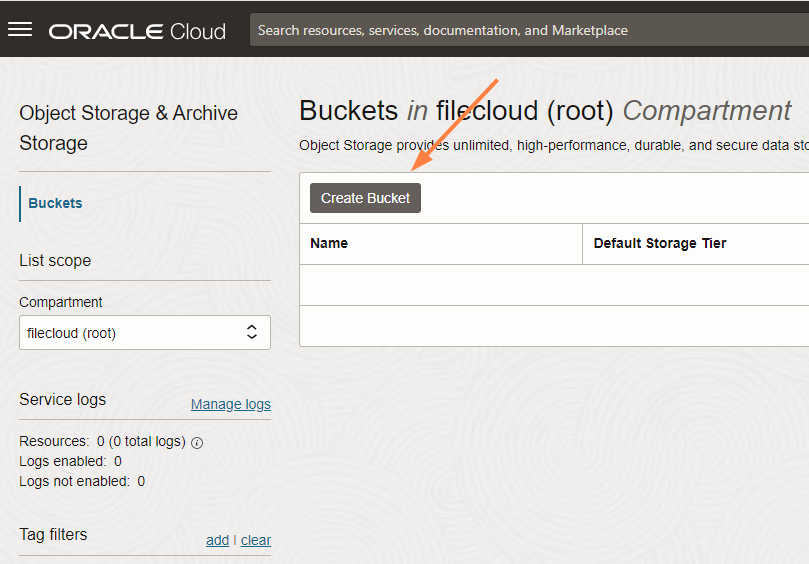
A Create Bucket dialog box opens. -
You may give the bucket a new name and change any of the options. Then click Create.
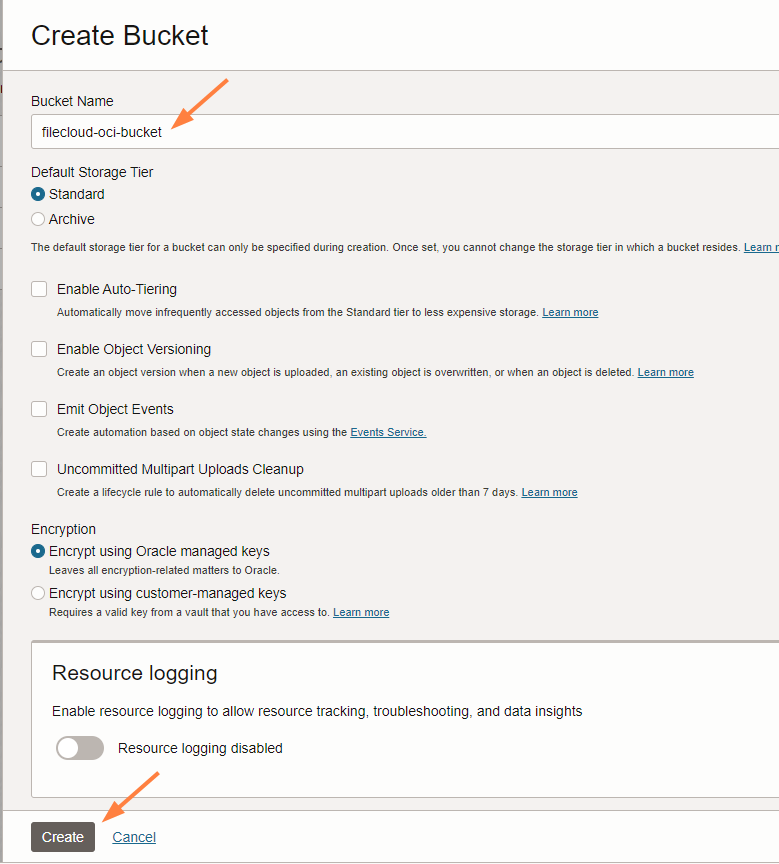
The bucket appears in the list of buckets. -
Click the bucket name.
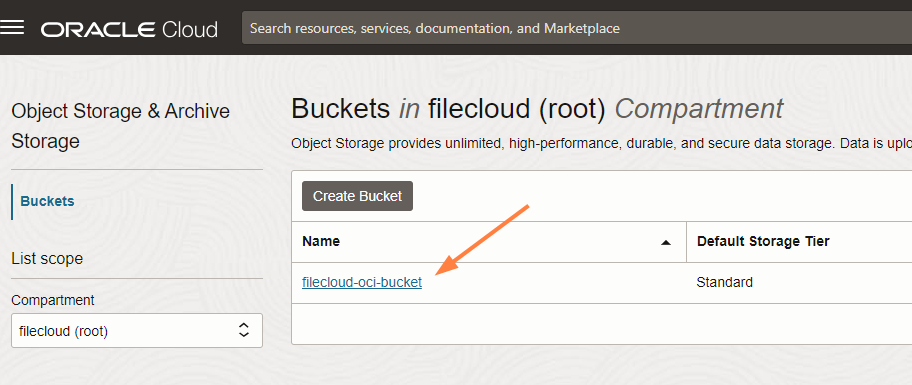
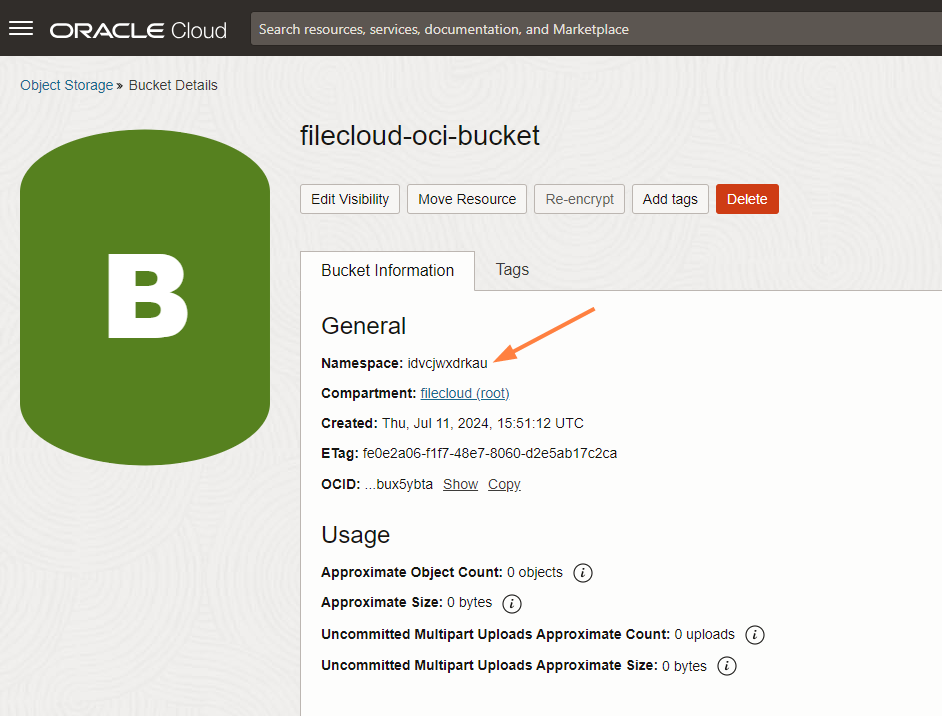
A tab with bucket information opens. -
Copy and save the value of Namespace to use when you enter the S3 end point URL into FileCloud.
-
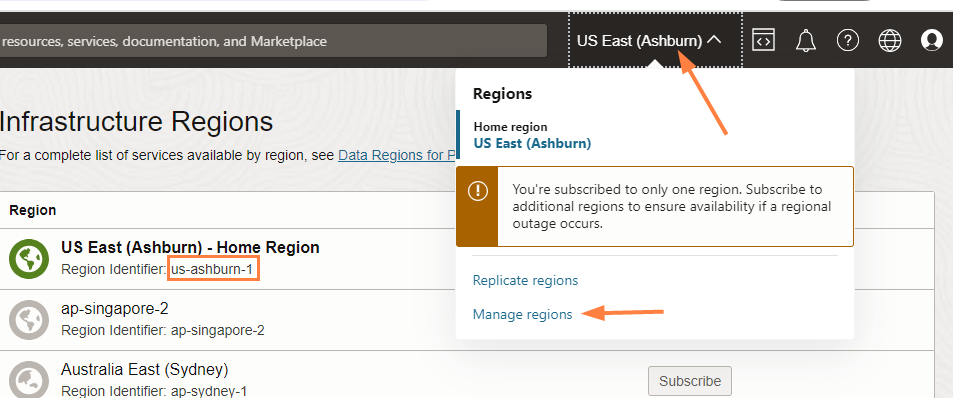
Get your region by clicking the name of your region at the top of the OCI screen, and choosing Manage regions in the drop-down list.
Copy the Region Identifier from the top region shown (the region with the green globe icon) and save it to enter later in S3 end point URL in FileCloud.
-
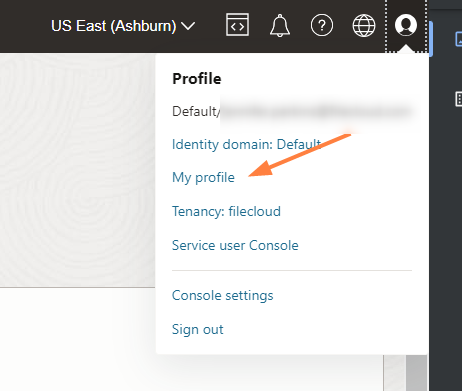
In the upper-right of the OCI screen, click the profile icon and choose My profile.
-
In the My profile screen navigation panel, scroll down to Resources, and click Customer secret keys.
The Customer secret keys section opens. -
Click Generate secret key.
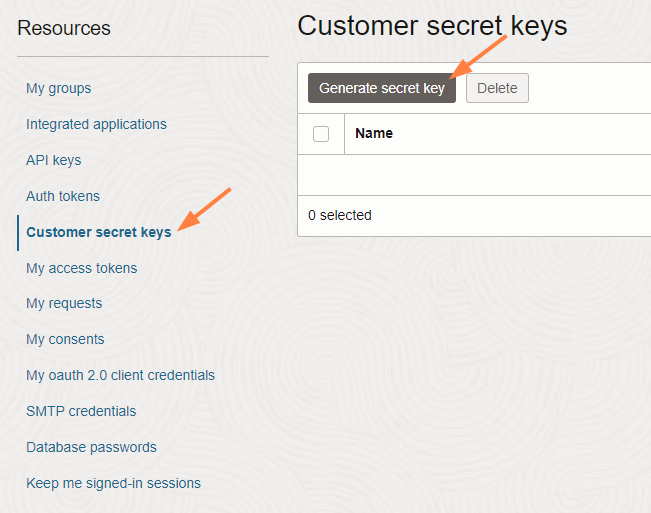
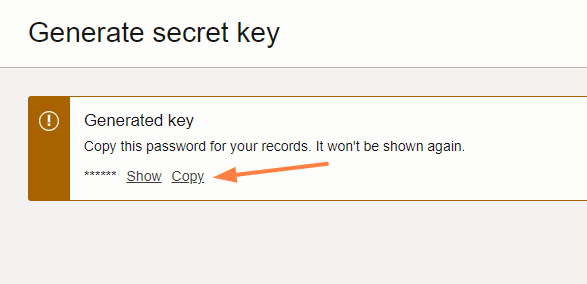
The screen confirms that the secret key was generated and prompts you to copy and save it. -
Copy and save the secret key. You will use it for the value of S3 Secret in the next procedure.
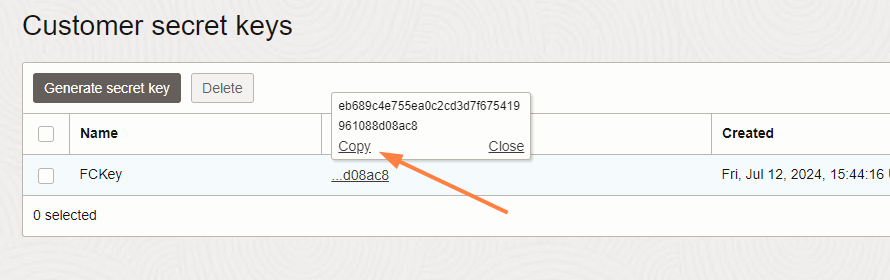
It is now listed in the list of secret keys. -
Hover over the value in the Access key column and copy and save the key. You will use it for the value of S3 Key in the next procedure.
To integrate FileCloud and OCI
2. Configure Credentials in FileCloud for Managed Storage
To configure OCI object storage:
-
Open a browser and log into admin portal.
-
In the left navigation panel, click Settings.
-
On the Manage Settings screen, go to Storage > My Files.
-
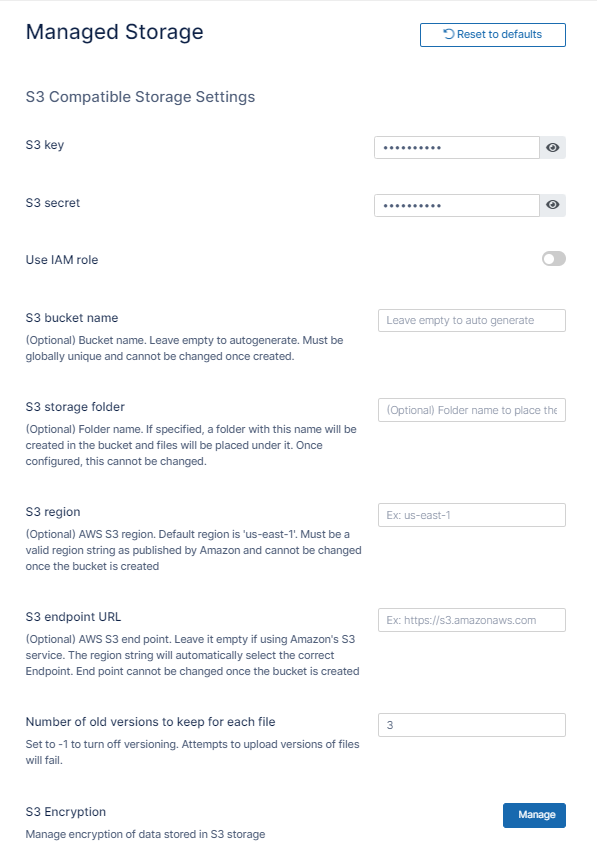
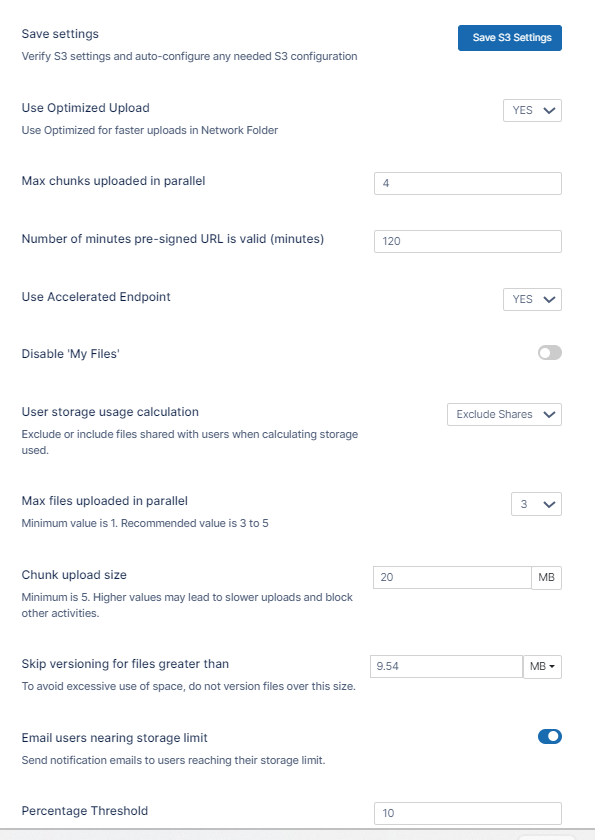
Type in or select the settings for your environment. See the table below for information about each setting.
-
Click Save S3 Settings.
|
Field |
Description |
|---|---|
|
S3 Key |
Your OCI authentication key. Enter the Access key value generated in the OCI user interface. |
|
S3 Secret |
Your OCI cloud authentication secret. Enter the Secret key value generated in the OCI user interface. |
|
Use IAM role |
Leave unchecked. |
|
S3 Bucket Name |
Leave empty to autogenerate. |
|
S3 Storage Folder |
Leave empty. |
|
S3 Region |
Leave empty. |
|
S3 End Point URL |
Enter https://[namespace].compat.objectstorage.[region].oraclecloud.com For [namespace], use the Namespace value from the Bucket tab the in the OCI user interface. For [region], use the Region Identifier you located in the OCI user interface. |
To fill in the other settings, see Setting up FileCloud Managed S3 Storage.