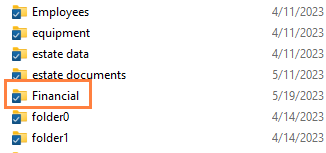
.svg)
You can set a lock to prevent other users from opening a folder.
Locking tells other users that you are actively using that folder.
When a folder is locked, the following conditions apply:
-
The owner of the lock has full access to that folder and can modify it
-
An Admin can always override a lock
-
Users can download and view the locked folder
-
Users cannot modify the locked folder
When you lock a folder, all of the following clients will be subject to the lock restrictions:
-
User Portal accessed from a web browser
-
FileCloud Drive
-
FileCloud Sync
-
Mobile clients
-
WebDAV
To lock a folder:
-
In your system tray, right-click the Sync icon and choose Open.
-
In the mini-dashboard, click Open.
Your Sync folders in file explorer open. -
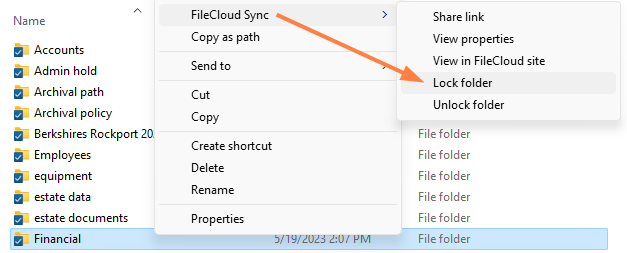
Right-click the folder you want to lock, and choose Show more options. Then choose FileCloud Sync > Lock folder.
If you have checked Show Lock Status in Icon Overlay in Sync Settings, the red overlay icon appears on the folder.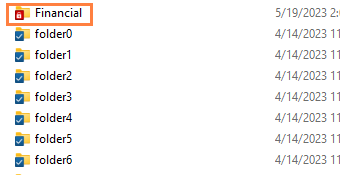
To unlock a folder:
-
Right-click the folder you want to unlock, and choose Show more options. Then choose FileCloud Sync > Unlock folder.
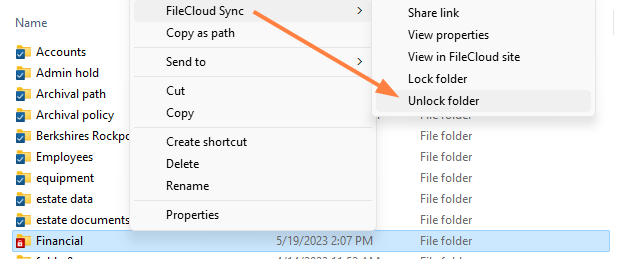
The folder is unlocked: