.svg)
You can view log messages to troubleshoot Sync issues, or clear the log if the file is getting too large.
To view log messages:
-
In your system tray, right-click the Sync icon and choose Open.
-
In the mini-dashboard, click Dashboard.
-
In the navigation pane of the dashboard, click Activity.
The Sync Activity page opens. By default, View is set to All, and all Sync activities are listed.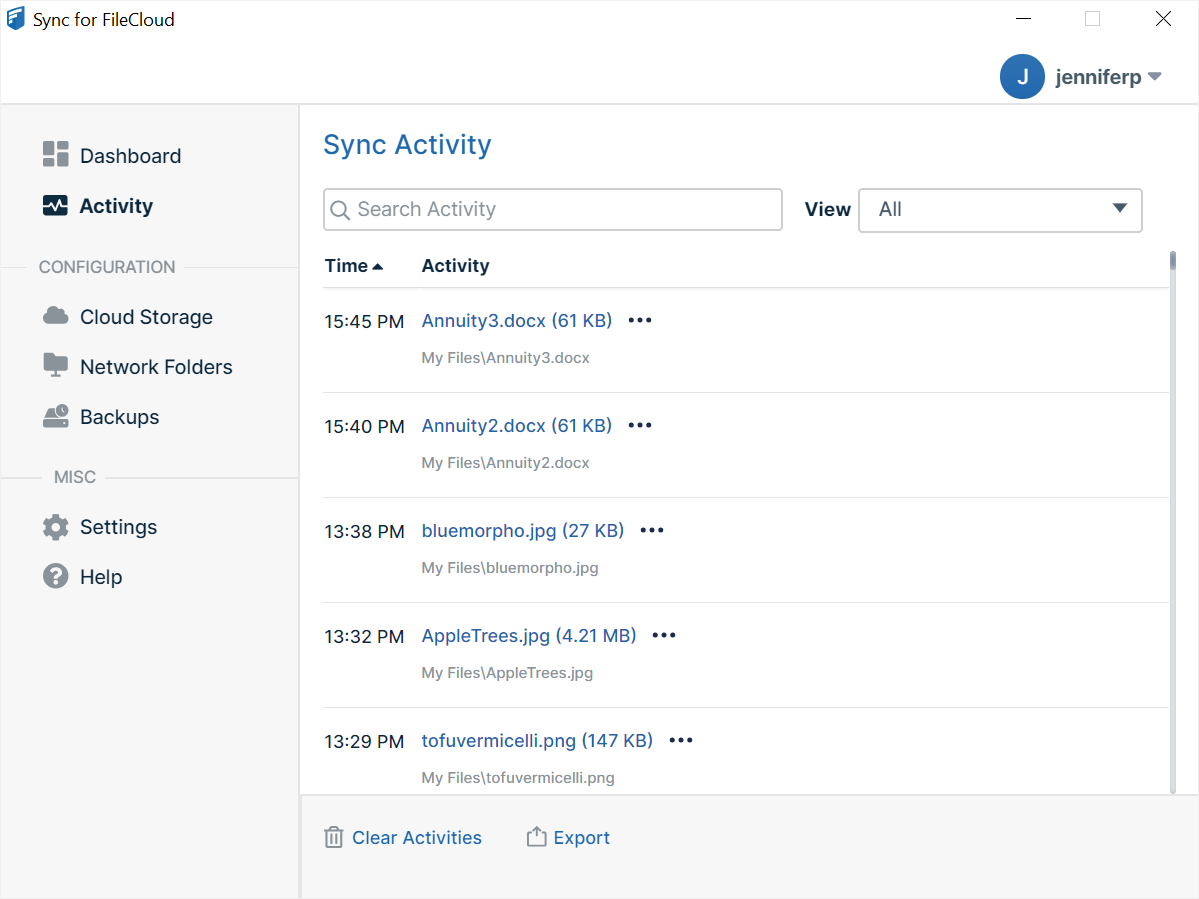
-
To view only certain types of log files, choose from the options in the View drop-down list.
The full list of options in the View drop-down list is:-
All
-
Uploaded
-
Downloaded
-
Errors - You can resolve errors in this view. See Resolve conflicts in Sync.
-
Skipped (All)
-
Skipped (My Files)
-
Skipped (Network Folders)
-
Skipped (Backup Folders)
-
Skipped (Root Folder)
Note: For more information about skipped files, see Reviewing Skipped Files.
-
-
To search for a file in your current view, enter a string into the search bar.
To export activities:
-
To export a spreadsheet file of the list of files in your current view, click Export.
To clear the log file:
-
On the Activity screen, click Clear Activities.
This clears all entries from the log, not just the entries for the current view.