.svg)
When synchronization occurs, some file types in the local Sync folder are not processed by the Sync client application because they are on the list of ignored files.
-
Files of this type are not uploaded from your local computer to the server.
The following types of files are currently ignored by the Sync client application:
|
Description |
Notes |
|---|---|
|
Files in use |
These are files that have an exclusive write lock or are read-only |
|
File names matching the skip regex string |
This is configured in a file, usually by your administrator |
|
File names with special characters |
~, <, >, :, \, /, *, ?, \r, \n And also .cache and .tmp.part files |
|
File name extensions which are restricted by the server |
This is configured by your administrator |
To view a list of skipped files:
-
In your system tray, right-click on the Sync icon and choose Open.
-
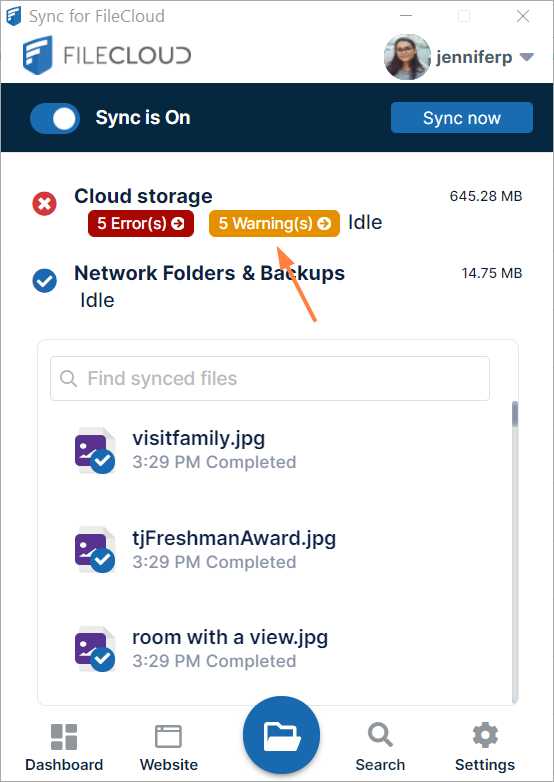
If there is a Warnings tag in the mini-dashboard, click the tag.
The Activity screen opens with Skipped (All) appearing in the View drop-down list.
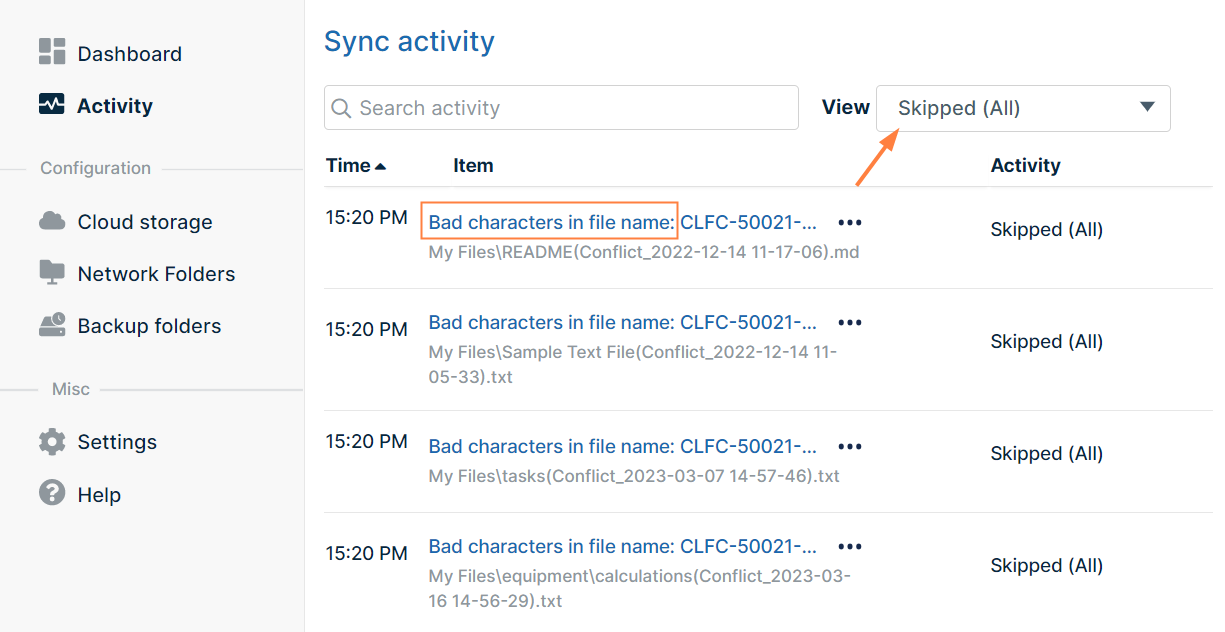
The description for each file indicates why it was skipped. -
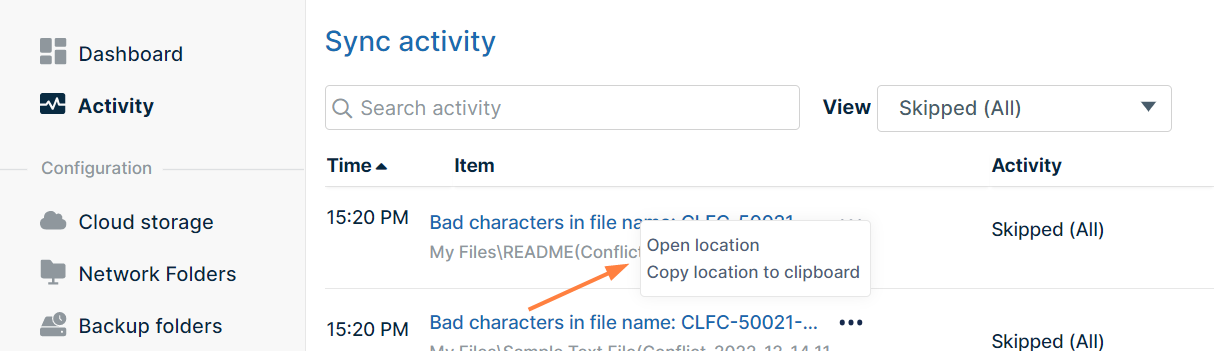
Click the three dots next to the description for options.
-
Click Open Location to open the folder in file explorer where the file is stored, or click Copy Location to Clipboard to copy the storage path so you can paste it into a message or a file.
-
You may go through the files and correct the problems causing them to be skipped and Sync again.
To export or clear the skipped files:
-
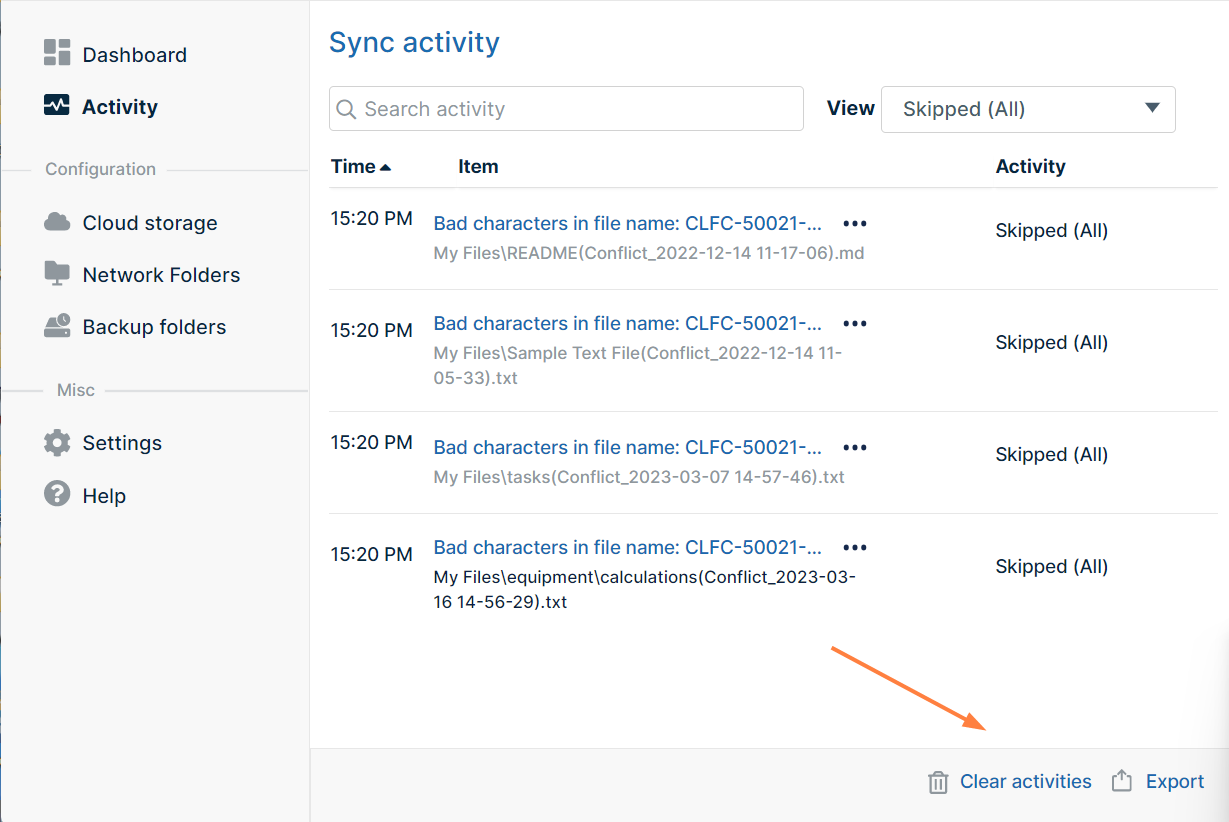
At the bottom of the screen, click Export or Clear.
Clicking Clear does not only clear records in Skipped (All) view, it clears all Sync Activity records.