.svg)
Docker images are mainly created for trialing/testing the product and are not optimized for production servers.
Running FileCloud on Docker
-
In your Docker server, pull the Docker image:
docker pull filecloud/fileclouddocker -
Start the container:
sudo docker run --privileged -d -p 443:443 -p 80:80 -v fcdata:/opt/fileclouddata -v dbdata:/var/lib/mongodb -v solrdata:/opt/solrfcdata/var/solr -v htmldata:/var/www/html --name <yourcontainername> <current_image_name:tag> /lib/systemd/systemdNow you can access the FileCloud admin portal at http://<hostip>/ui/admin/index.html. The user name is admin and the password is password. You can access the FileCloud user portal at http://<hostip>/ui/core/index.html.
-
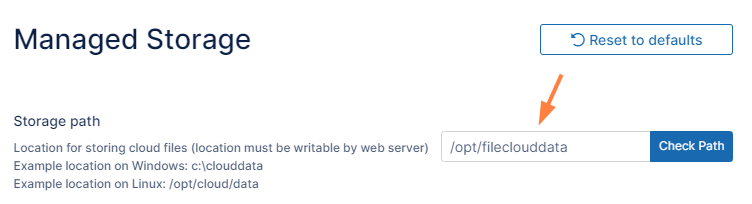
In the FileCloud admin portal's left navigation bar, scroll down and click Settings. Then, on the Settings navigation page, click Storage

The Managed Storage settings page opens by default.
-
Set Storage Path to /opt/fileclouddata.
Setting up LibreOffice preview
Filecloud has two preview methods:
-
Built-in web preview
-
LibreOffice preview
To use LibreOffice
-
Enable preview by entering:
docker exec -it <container_id> filecloudcp -p docker exec -i <container_id> chown www-data /usr/lib/libreoffice/program -
Open the Preview settings page.
To open the Preview settings page
-
In the FileCloud admin portal's left navigation bar, scroll down and click Settings. Then, on the Settings navigation page, click Misc

-
In the inner navigation bar on the left of the Settings page, expand the Misc menu, and click Preview, as shown below.
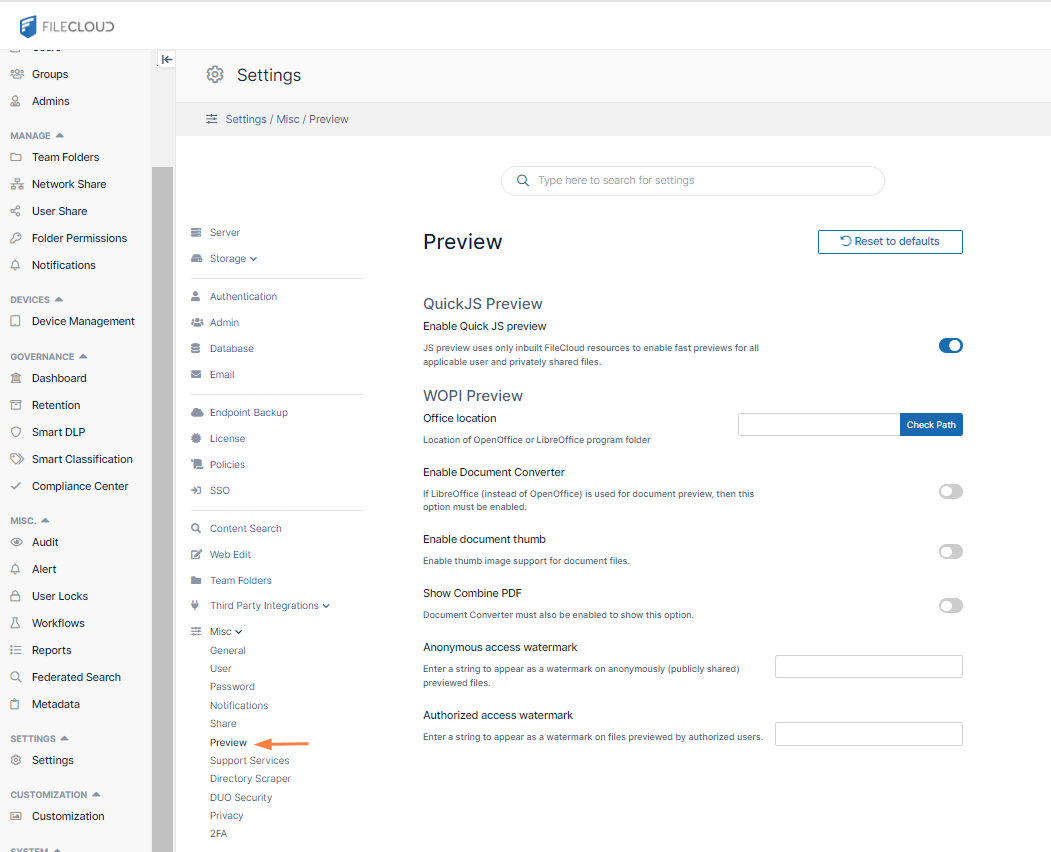
The Preview settings page opens.
-
-
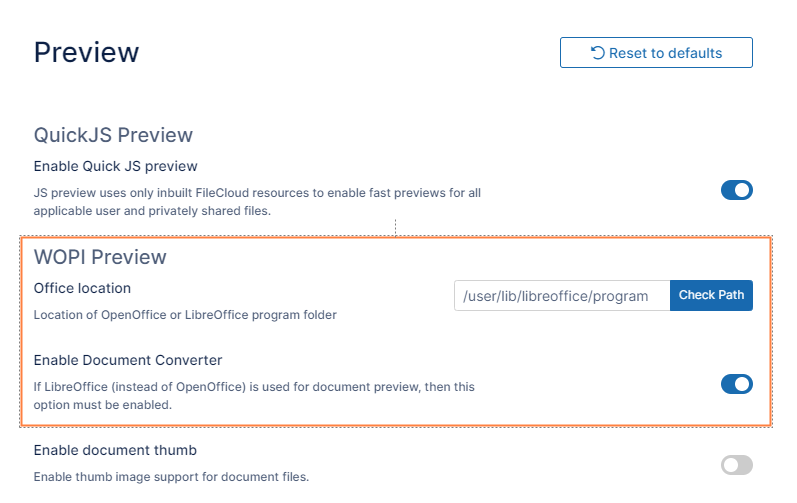
In Office Location, enter /usr/lib/libreoffice/program
-
Enable the field Enable Document Converter.
-
Click Save.
Configuring Solr
Note: Solr is enabled by
-
To configure Solr, start the filecloud.solr container.
-
Enter the Solr container shell:
docker exec -it filecloud.solr bash -
Copy the skeleton:
cp -R /var/www/html/thirdparty/overrides/solarium/Solarium/fcskel/* /var/solr/data/fccore/ -
Go to Admin portal > Settings > Content search.
-
Click Configure.
-
To start indexing, click the green Index button.
-
By default, FileCloud uses host mount volumes for the Database and Filecloud storage folder.