.svg)
From the FileCloud Android app, you can use the Send action to send a FileCloud file using another Android app. For example, you can send the file through an email or messaging app to deliver it to another user, or you can send it to a PDF to store it in PDF format.
To send a file using another Android app:
-
Open the FileCloud App.
-
Navigate to the file you want to send.
-
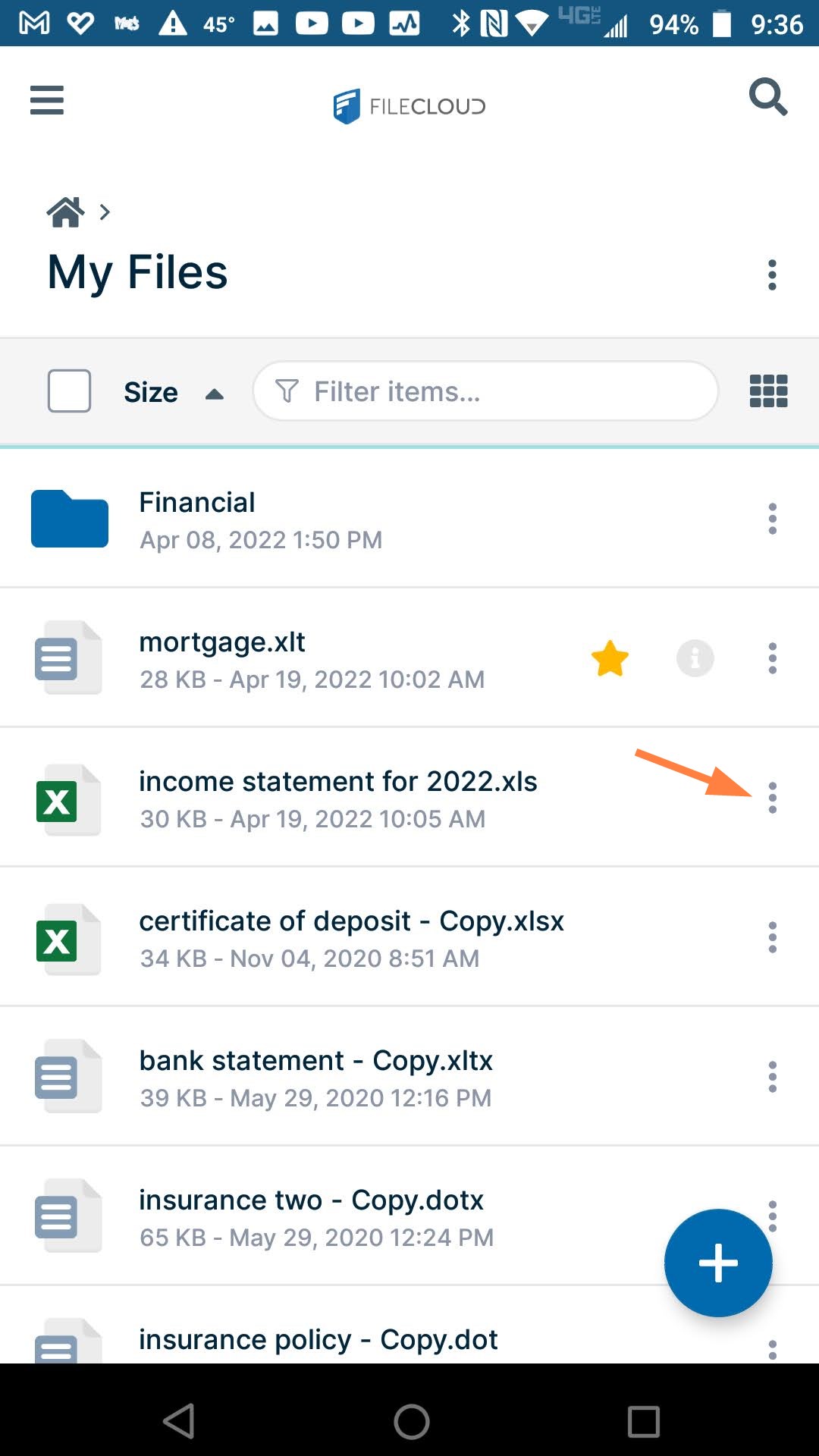
Tap the more (three dot) icon next to the file.
-
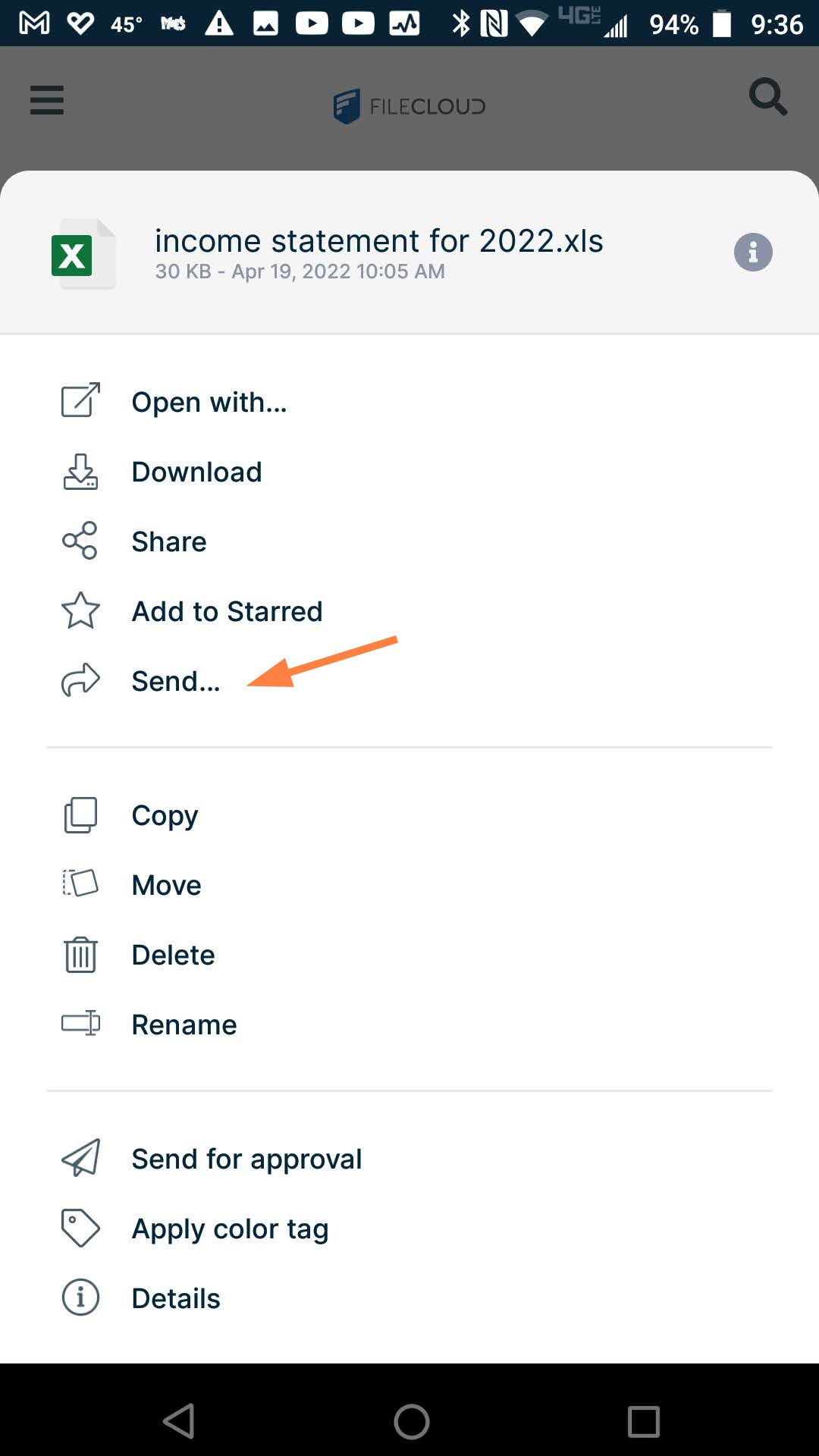
Tap Send.
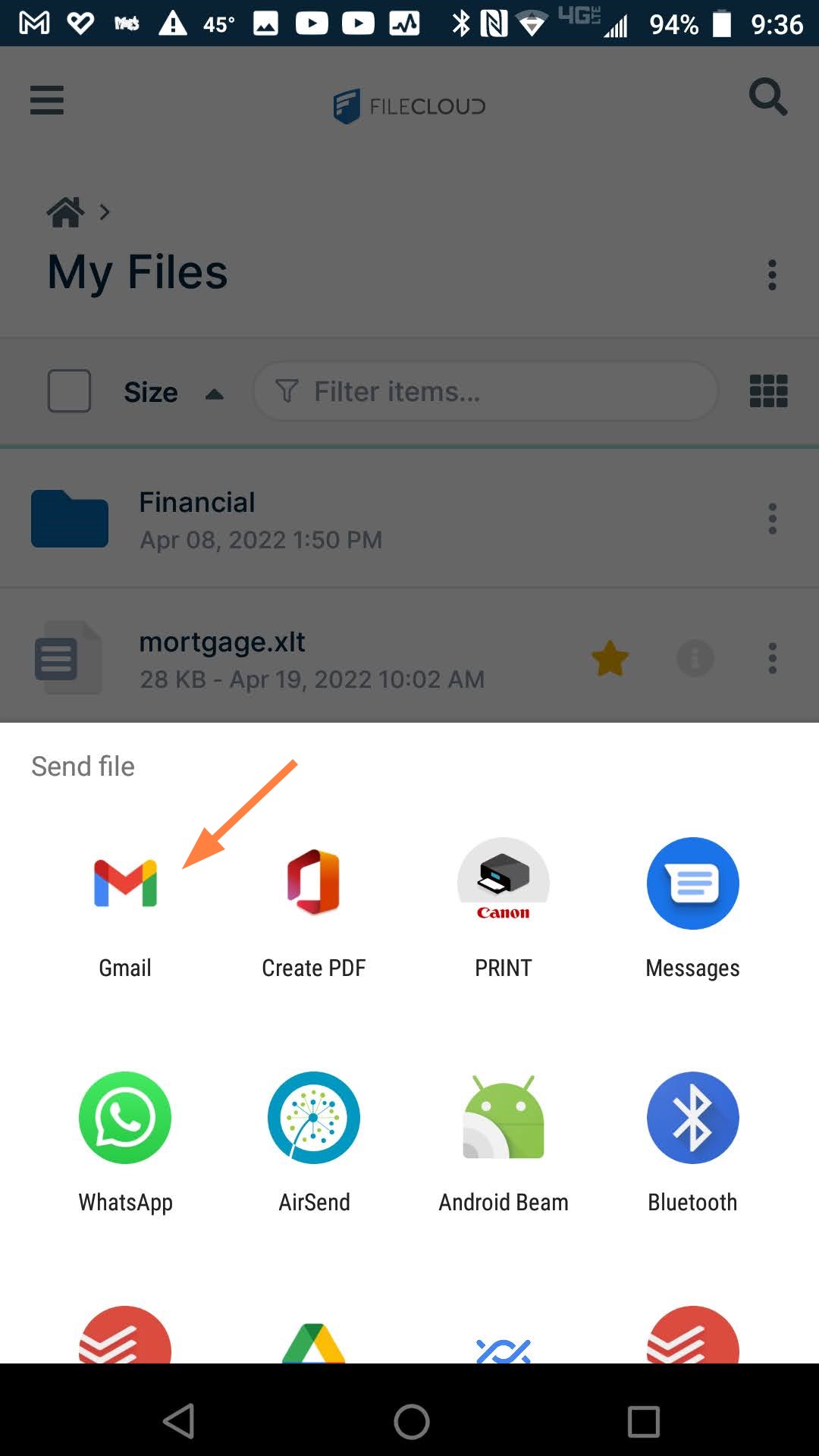
A window displaying various app icons opens. -
Tap the icon of the app you want to use.
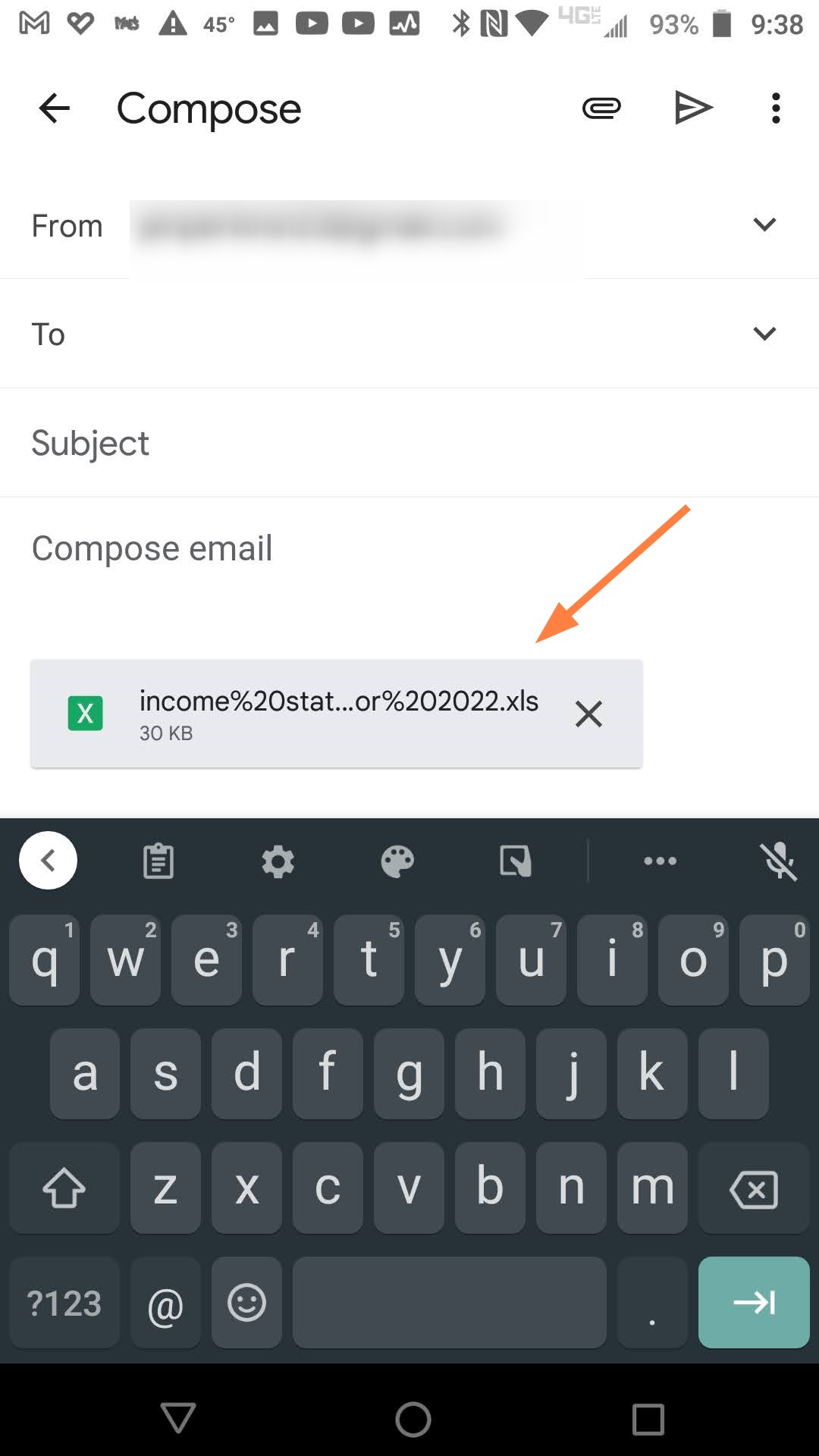
The app opens with the file attached.
-
Use the app as you normally would to deliver the file.