.svg)
On Android, when you are working in another app, you can remain in that app to upload or attach a file stored in FileCloud.
The following example uses Gmail to demonstrate how to access FileCloud files from another app, however, you could use the same process in any app that allows you to upload or browse files external to it.
|
Attach a file to an email using Android's Gmail app |
|
|---|---|
|
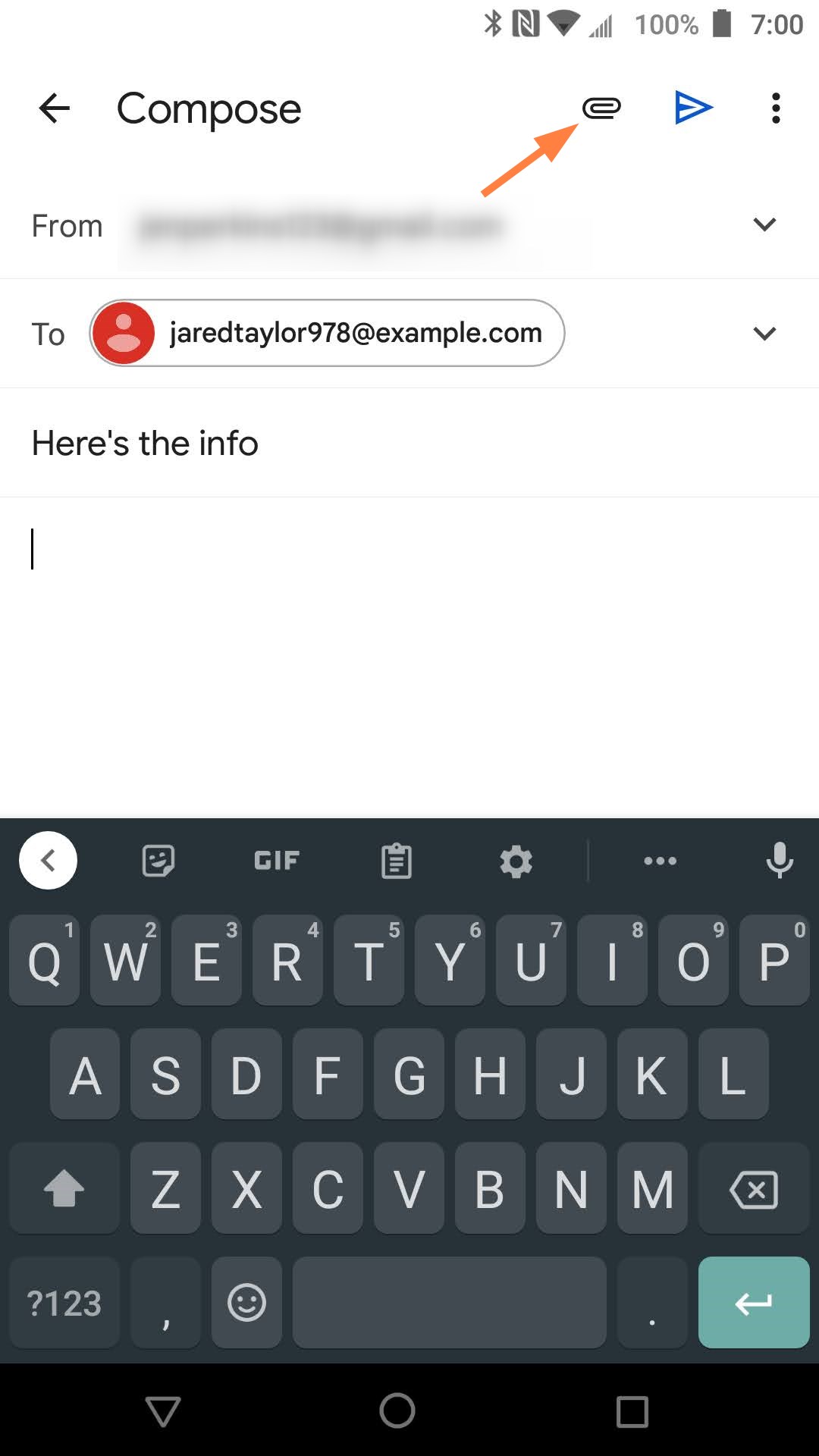
|
|
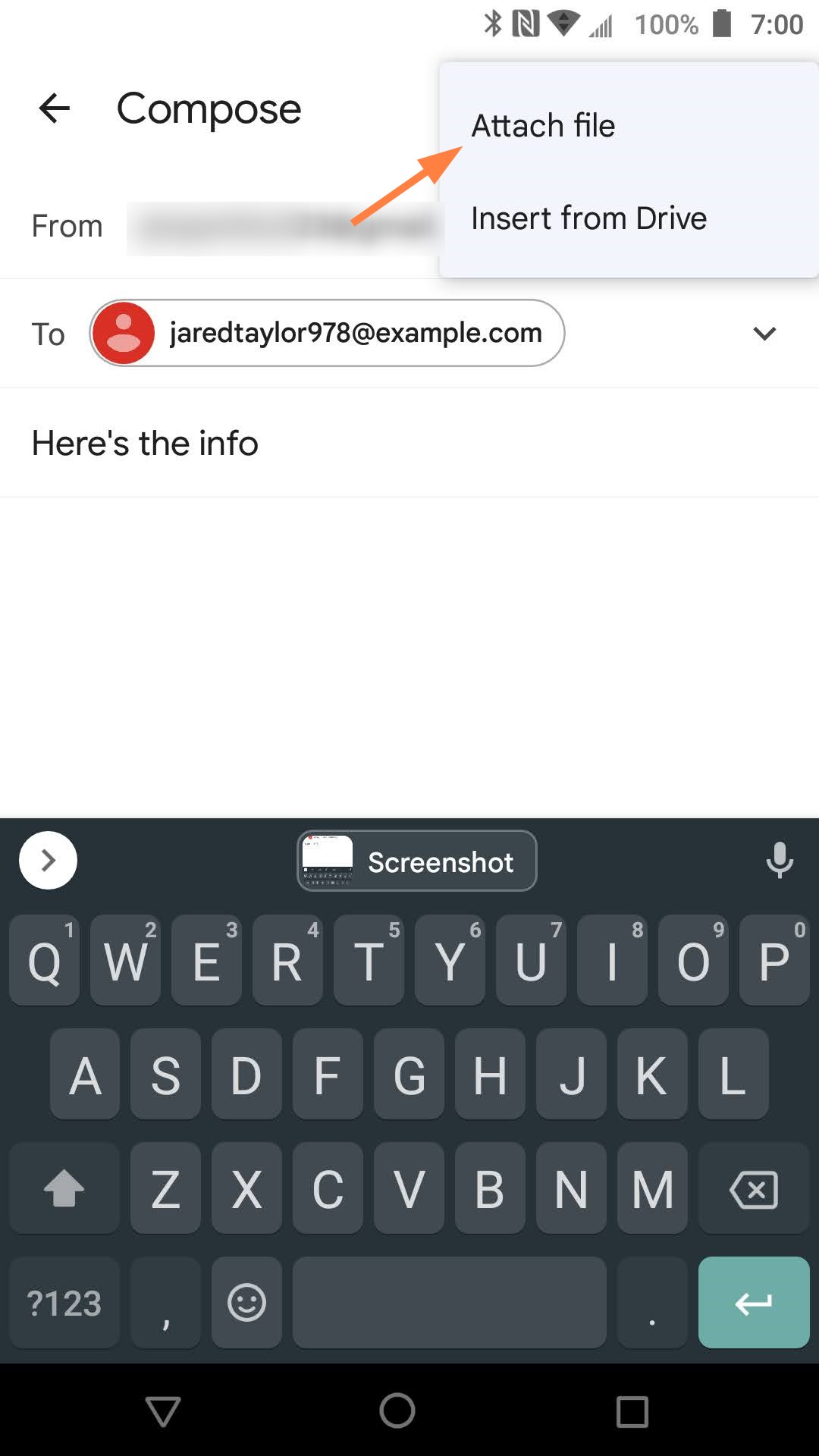
4. Tap Attach file. |
|
|
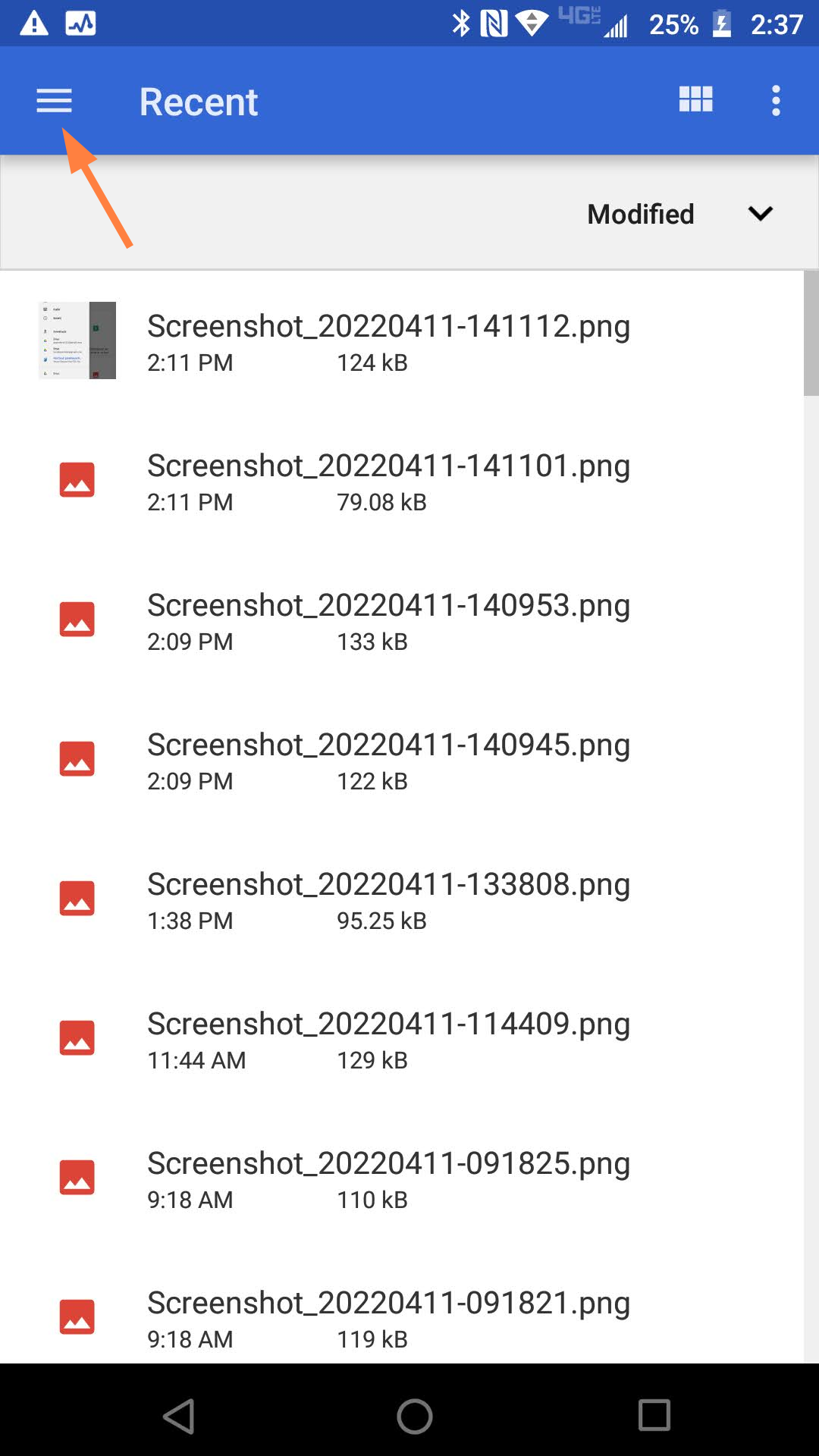
Initially, Android may open the last location accessed.
|
|
|
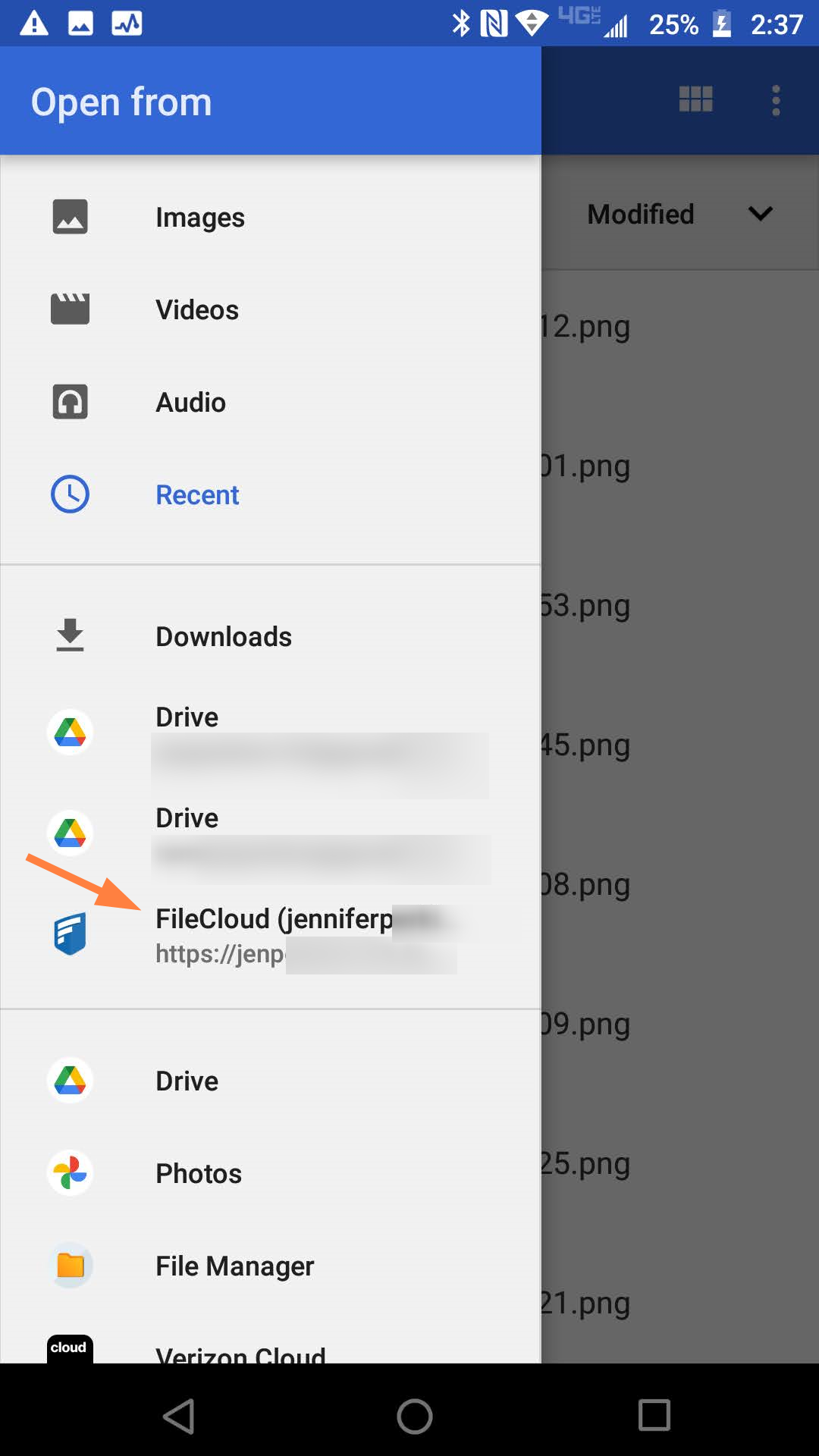
5.Tap FileCloud.
|
|
|
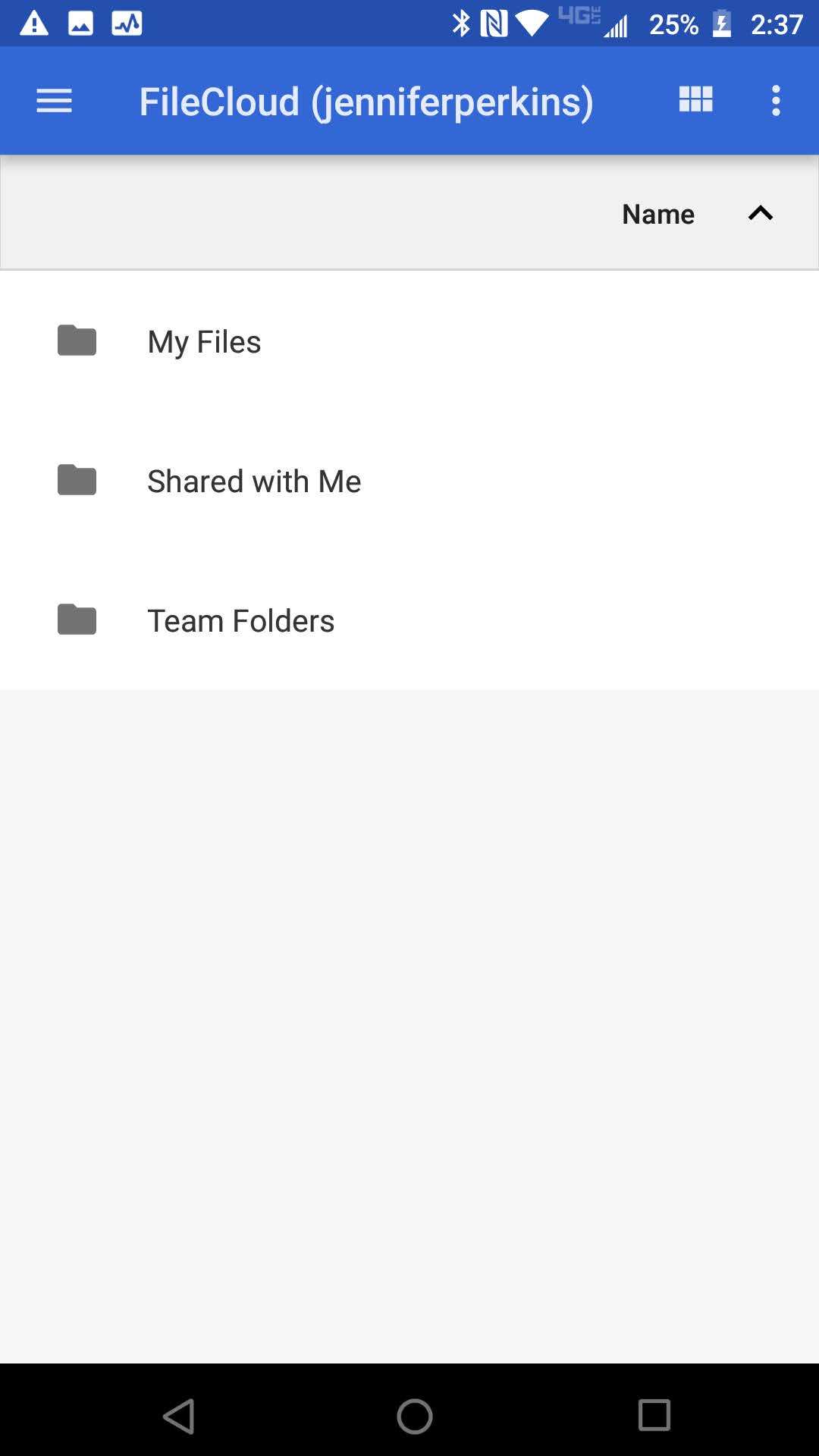
Your FileCloud folders appear. 6. Navigate to the folder containing the file, and select the file to attach to the email.
|
|
|
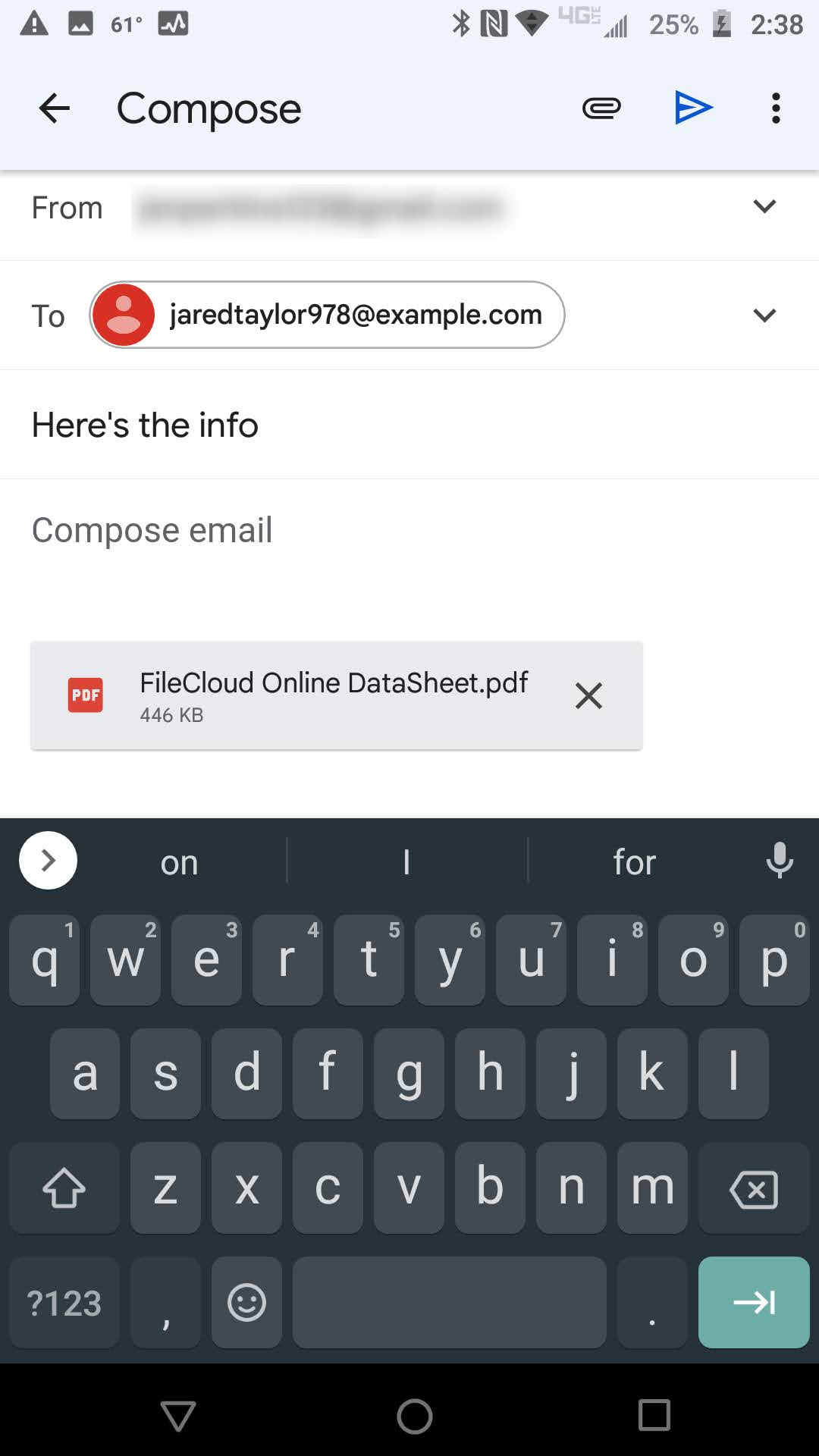
Now the FileCloud file is attached to the email. |
|