.svg)
Overview:
The purpose of this example is to:
-
Create a classification rule that detects confidential documents using a group of personally identifiable information (PII) patterns.
-
Tag the documents with attributes that specify if they are marked confidential.
-
Create a DLP rule that allows only internal sharing of documents tagged as confidential, but allows external sharing of documents not tagged as confidential.
Configuration Steps:
1. Create Metadata Set
-
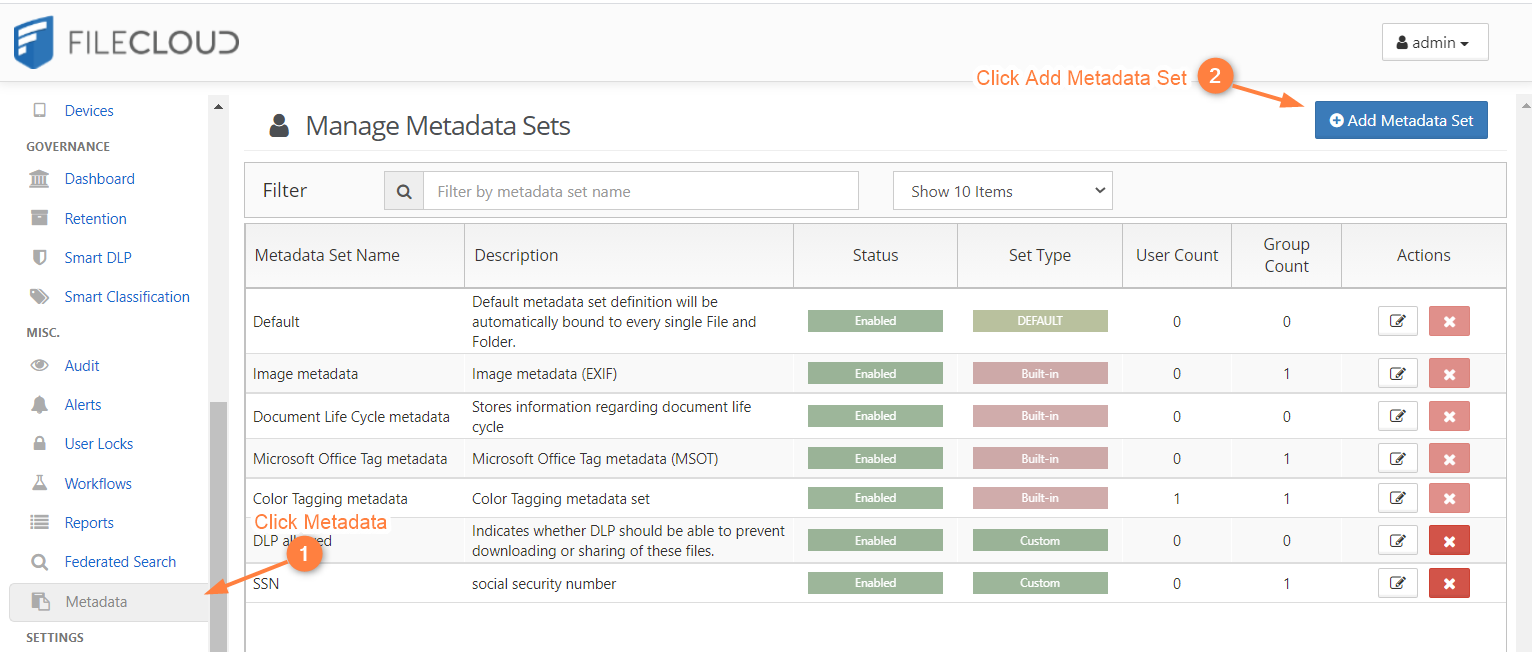
Log in to the FileCloud Admin portal, and in the navigation panel, click Metadata, then click Add Metadata Set.
-
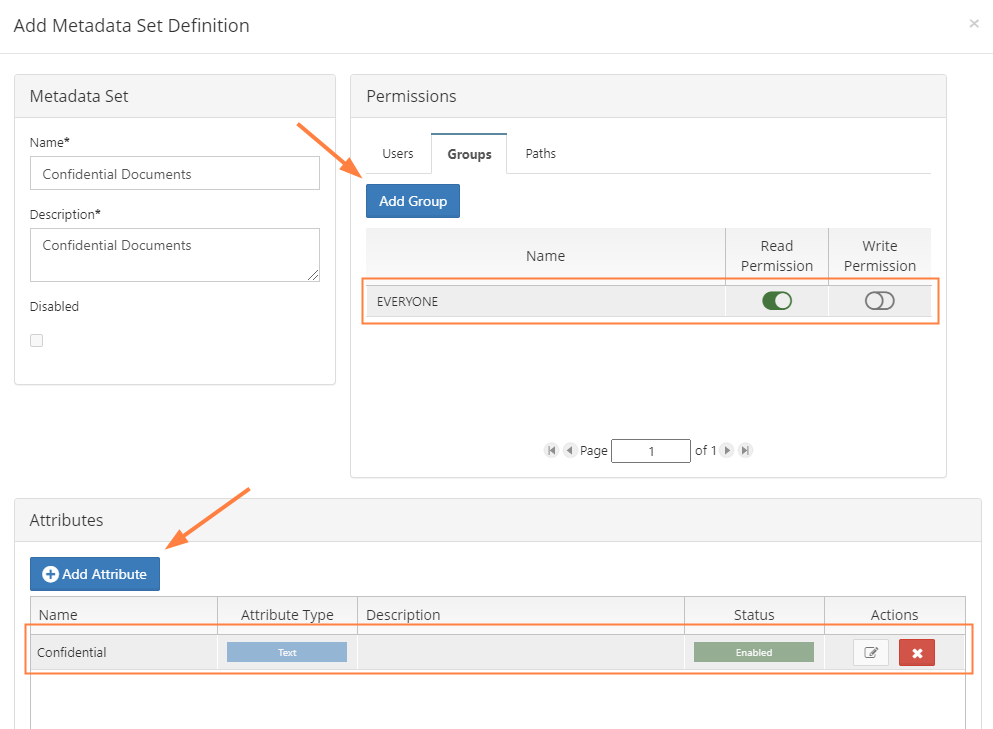
Create a metadata set named Confidential Documents with the attribute Confidential of type text.
-
Choose the Users/Groups that can see this metadata and provide them with read permission.
2. Create the PII Regex Patterns Group
-
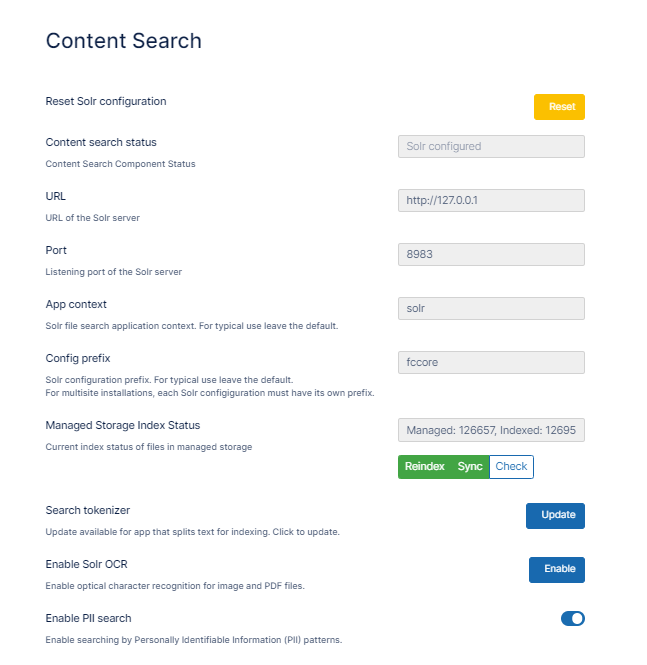
In the FileCloud admin portal's left navigation bar, scroll down and click Settings. Then, on the Settings navigation page, click Content Search

The Content Search page opens. -
Check Enable PII Search.
-
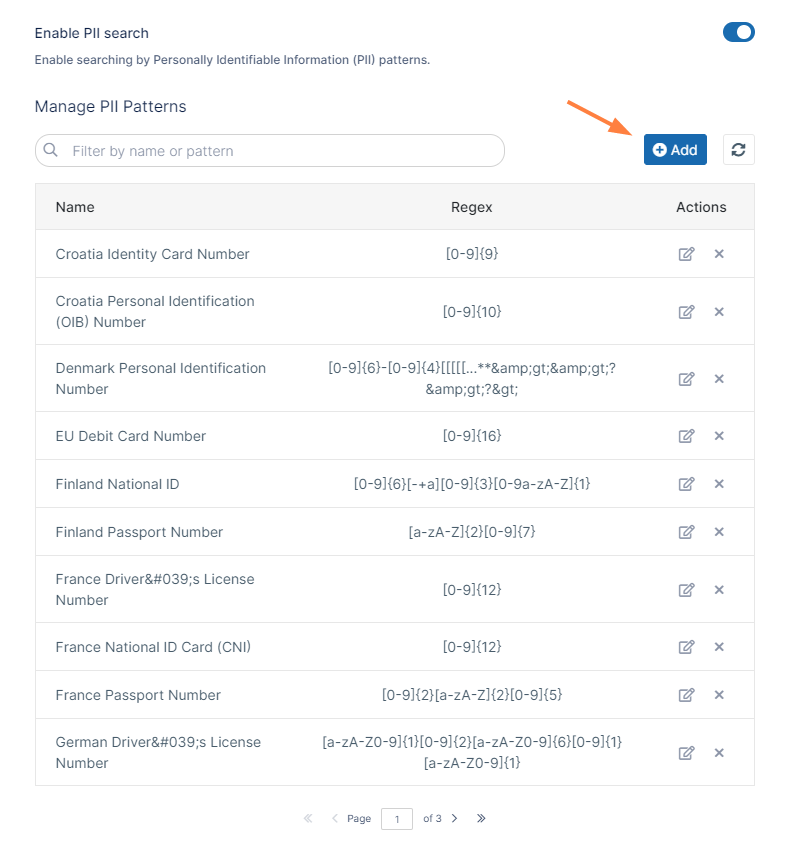
Click Add to add a PII patten for your confidential Information.
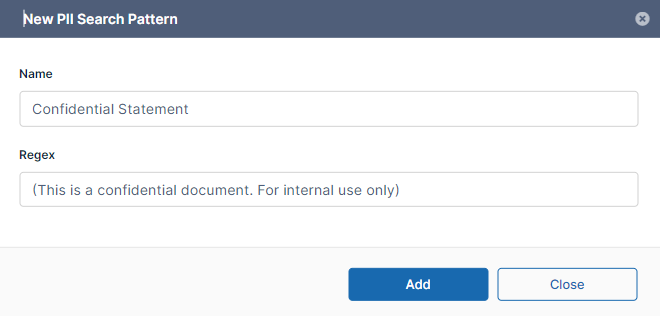
Enter the new PII search pattern, and set Regex to the confidential statement to detect inside your documents, for example, "(This is a confidential document, For internal use only)". Note that statement should be inside ().
If you have multiple statements to detect in your document you can use (statement1) | (statement2 ) | (statement3) . In this example, you are also adding the pre-defined patterns with personally identifiable information listed below. -
Confidential Statement Pattern:
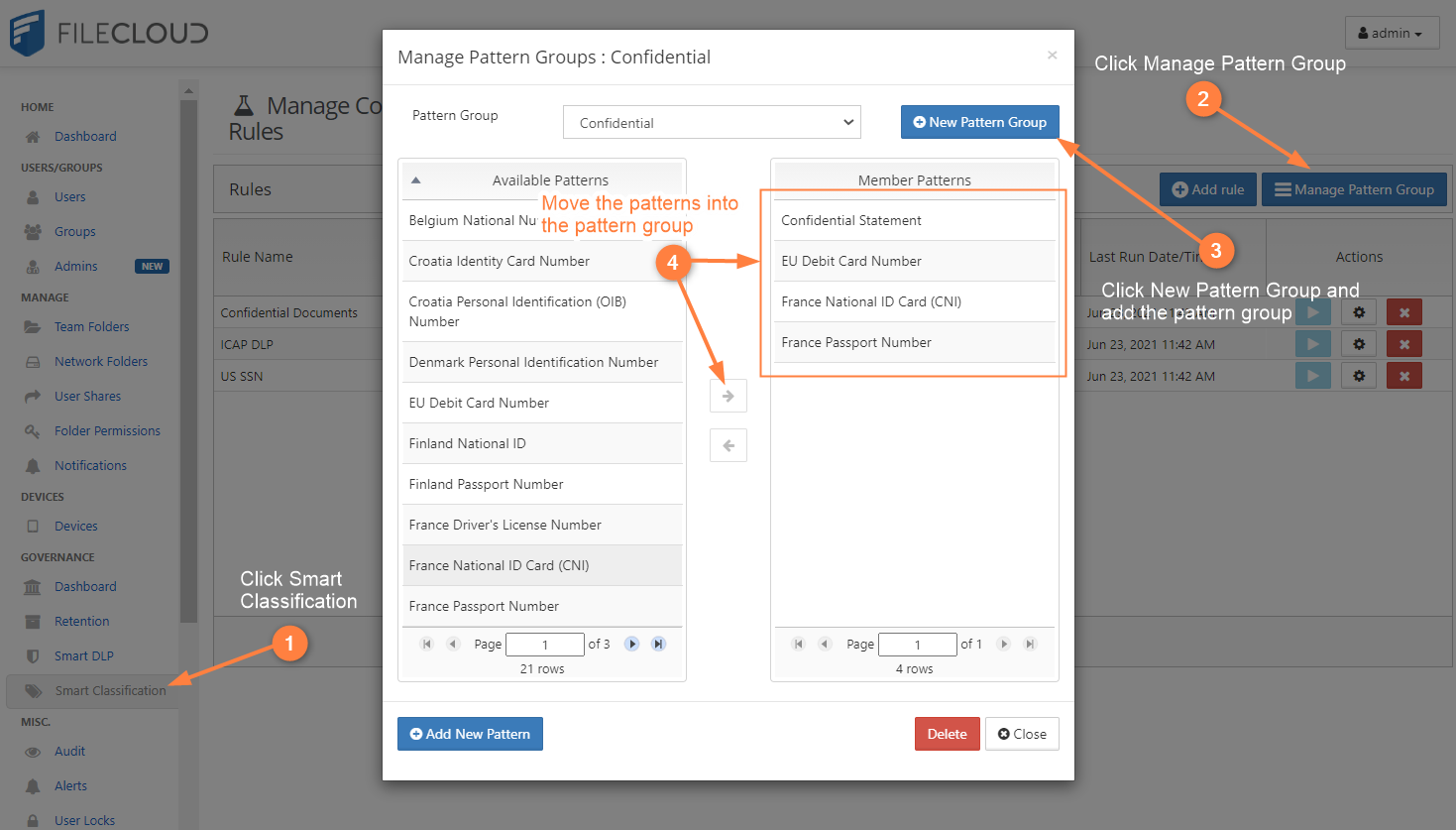
Also select:
European Debit Card number Pattern
France National ID Card (CNI)
France Passport Number -
Add the different patterns into a pattern group:
3. Create the Smart Classification Rule
-
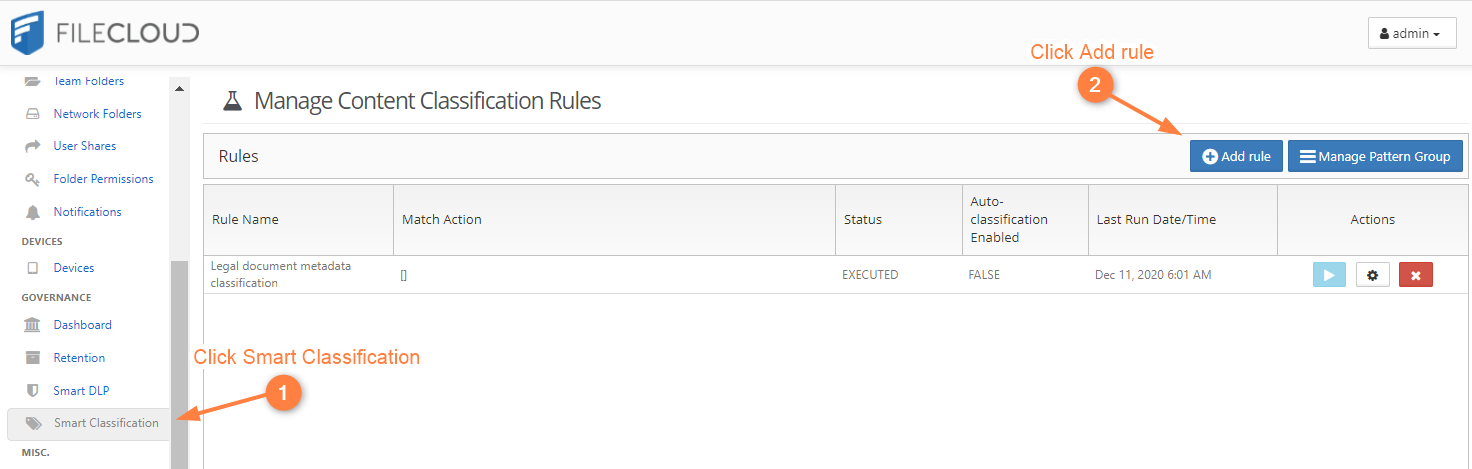
Log in to the FileCloud Admin portal, and in the navigation panel, click Smart Classification.
-
Add a new classification rule
-
Make sure to specify the exact name of the metadata along with attribute name and PII Regex pattern. In the Add Rule dialog box, enter the following into Definition:
{
"classifier": "Default",
"precondition": "true",
"condition": "count(_classifications) > 0",
"matchaction": {
  "Confidential Documents": {
    "Confidential": "Yes"
}
},
"defaultaction": {
  "Confidential Documents": {
    "Confidential": "No"
}
},
"parameters": {
  "SEARCH_PATTERN_GROUPS": [
    "Confidential Info"
]
}
}
.png?cb=184123b87e73632dd27642d3309cace4)
4. Create the Smart DLP Rule
-
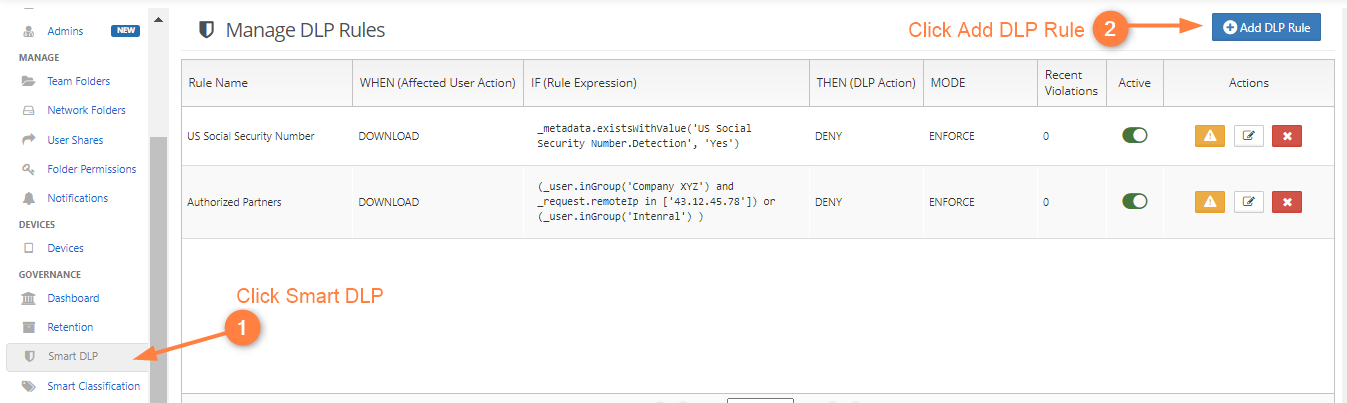
Log in to the FileCloud Admin portal. In the navigation panel, click Smart DLP.
-
Add a new DLP rule
-
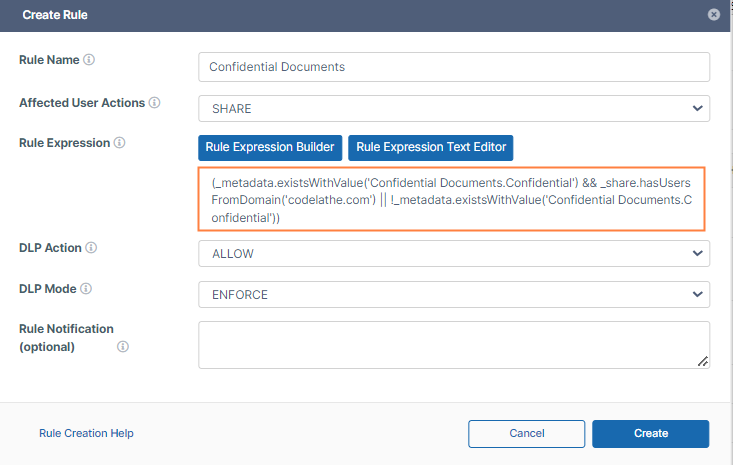
For documents that are confidential, the rule checks for metadata attribute "Confidential" = "Yes" and allows sharing with only domain "codelathe.com".
-
For documents that are non-confidential, the rule checks for metadata attribute "Confidential" = "No" and allows sharing with all domains.
5. Upload documents to Filecloud's user portal
-
Log in to the FileCloud user portal.
-
Upload multiple documents to My Files or to a Team Folder. Some of the files should contain confidential information.
-
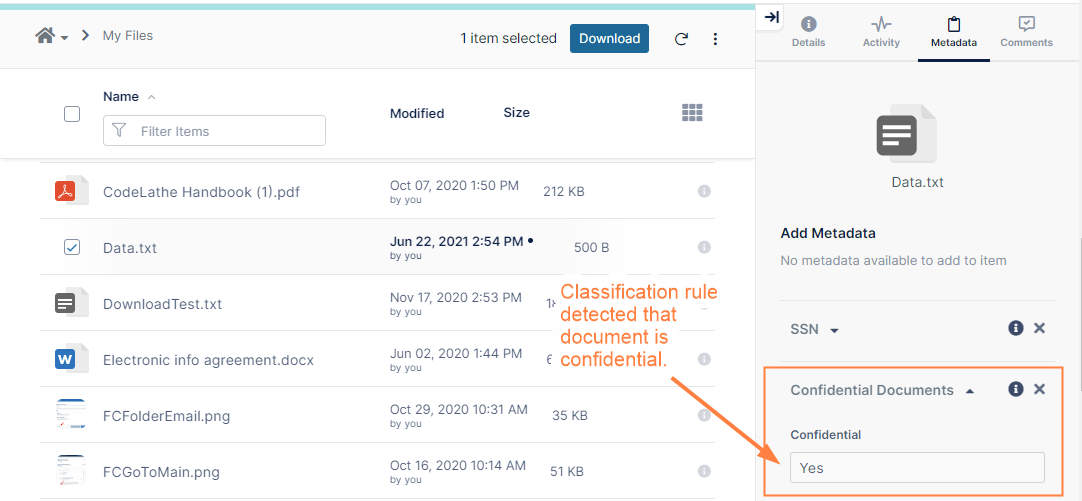
The classification rule will detect documents that contain confidential information and set the attribute "Confidential" to "Yes".
-
The classification rule will detect documents that do not contain confidential information and set the attribute "Confidential" to "No".
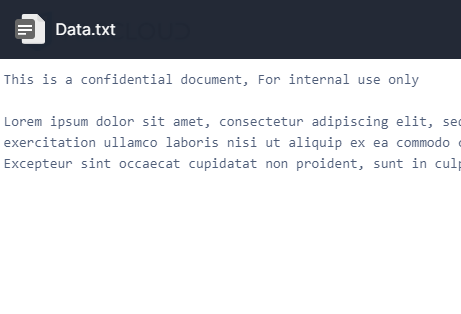
Content of uploaded document with confidential statement in it:
6. Test the Smart DLP rule
-
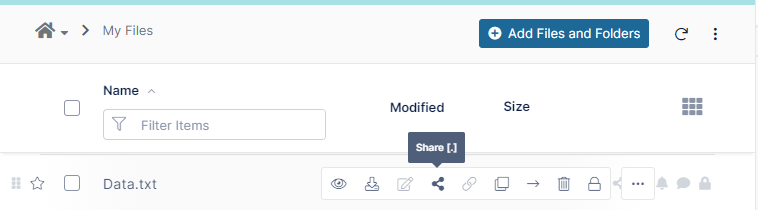
Log in to the FileCloud user portal and share a file that contains confidential information.
-
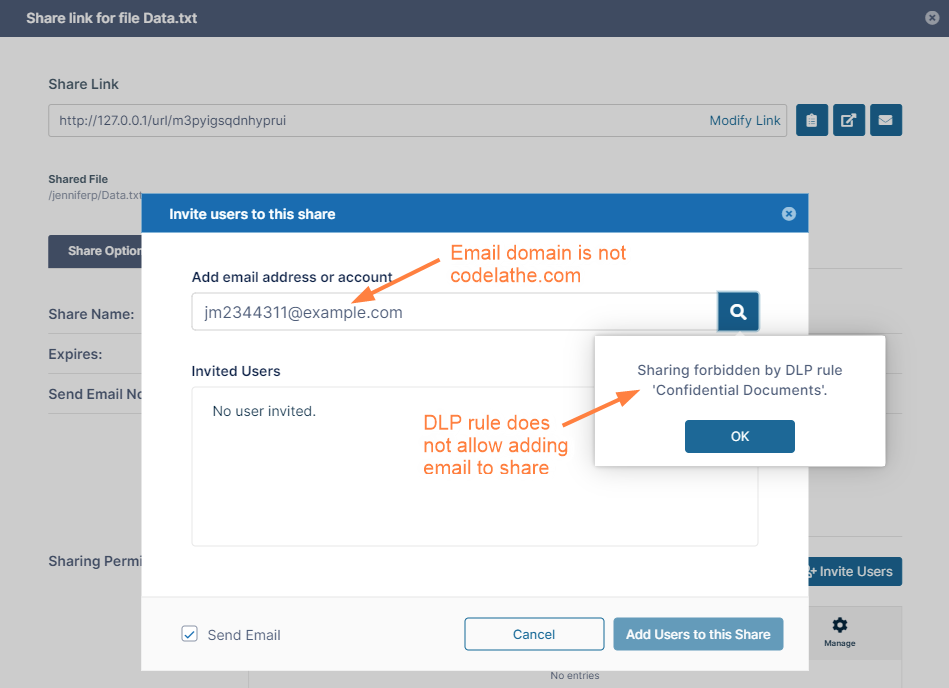
Confirm that sharing is only allowed with users from the domain "codelathe.com".